How to Compress a PDF for Email, Forms, and Upload Limits
Why PDF files become too large
PDFs usually become oversized because they contain high-resolution scans, full-page photos, embedded fonts, or images saved at print quality. A one-page form can be tiny when it contains selectable text, but the same page can become many megabytes when it is scanned as a photo. That is why two PDFs with the same number of pages can have completely different file sizes.
Before compressing, look at what the document contains. A resume exported from Word normally needs light compression, because most of the file is text. A scanned ID, bank statement, invoice bundle, or application form usually needs stronger image compression. Choosing the right level protects readability while still getting under the limit.
Pick the right compression level
Use light or medium compression when the PDF already looks clean and you only need a smaller attachment. This keeps text sharp and preserves the document's professional appearance. Use high compression when the file must fit a strict portal limit, such as 500 KB, 300 KB, or 200 KB. For scanned PDFs, a stronger level often makes the biggest difference because the tool can reduce image data on every page.
If a portal requires an extremely small file, use the strongest mode and check the result before uploading. Very tight limits always involve a trade-off: the smaller the file, the more image detail may be reduced. The goal is not to make the file as tiny as possible; the goal is to make it small enough while still readable.
Keep a clean original copy
Always keep your original PDF before compressing. A compressed copy is perfect for email or upload, but the original may be useful later if you need print quality. Name the output clearly, for example resume-compressed.pdf or invoice-upload-copy.pdf, so you know which file was optimized.
Privacy matters with document tools
Documents often contain personal information, signatures, financial data, or official IDs. When you use an online PDF compressor, check whether files are uploaded and how long they are retained. DocsSeva is designed around short-lived processing and clear privacy pages, so users know what happens to their documents.
A simple workflow
- Open the PDF compressor.
- Add the PDF you want to reduce.
- Start with medium compression.
- Download the result and check the file size.
- If it is still too large, run a stronger mode.
- Preview the final PDF before submitting it.
This approach avoids unnecessary quality loss and helps you meet upload rules without guesswork.
DocsSeva
Published on July 19, 2026
Browse all tools
29+ free document tools, no account required.
Browse all toolsRelated articles
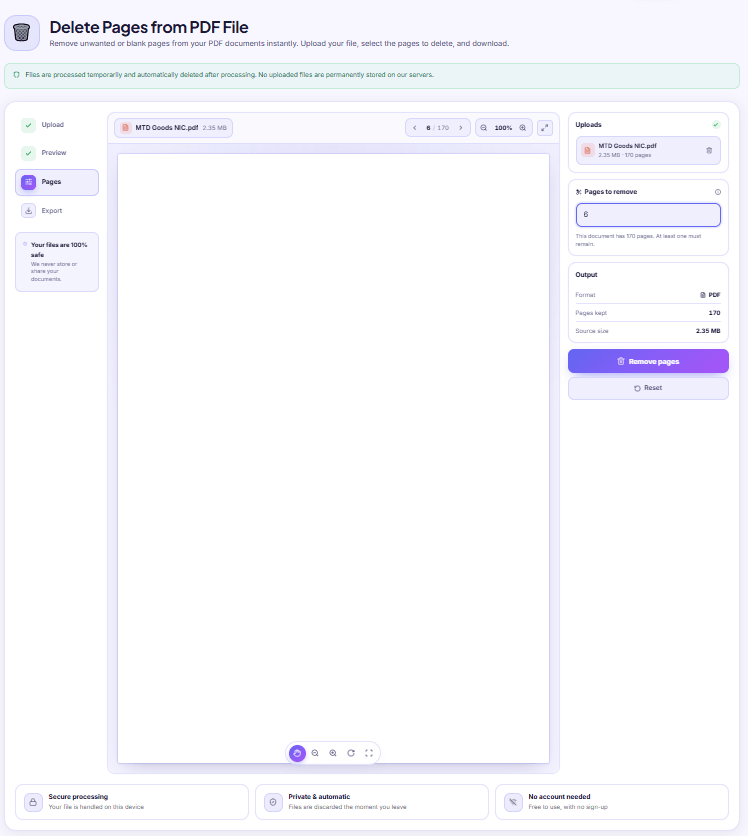
Duplex Scan Left Blank Pages in Your PDF? Delete Them
A two-sided scan of single-sided paper doubles your page count with near-blank backs. How to remove them safely, and when to rotate them instead.
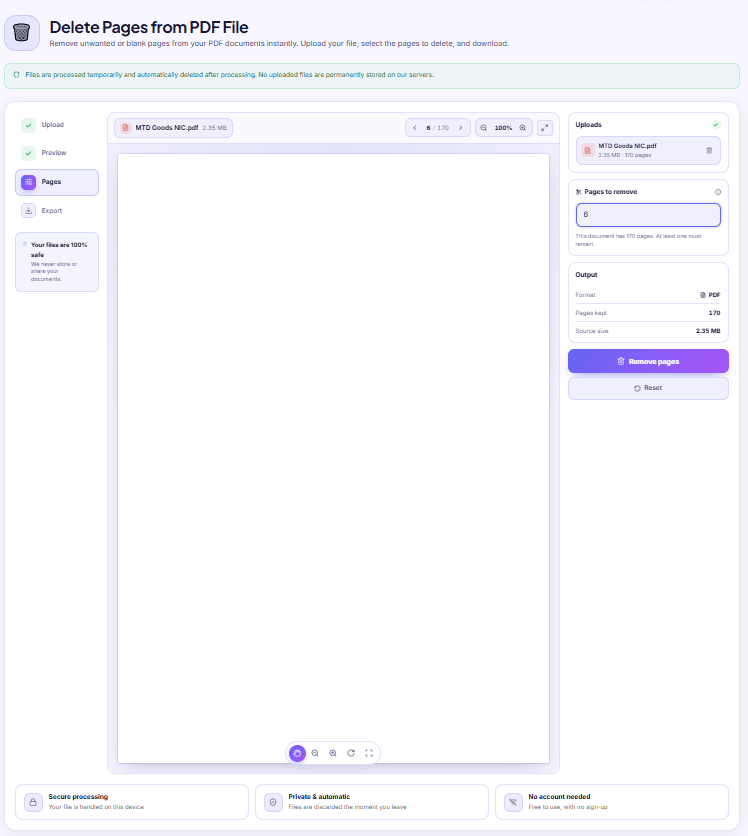
Deleted the Wrong Page? PDF Numbering Is the Reason
Page tools count physical position from the first sheet, not the number printed at the bottom. How the two drift apart, and how to get the right number every time.
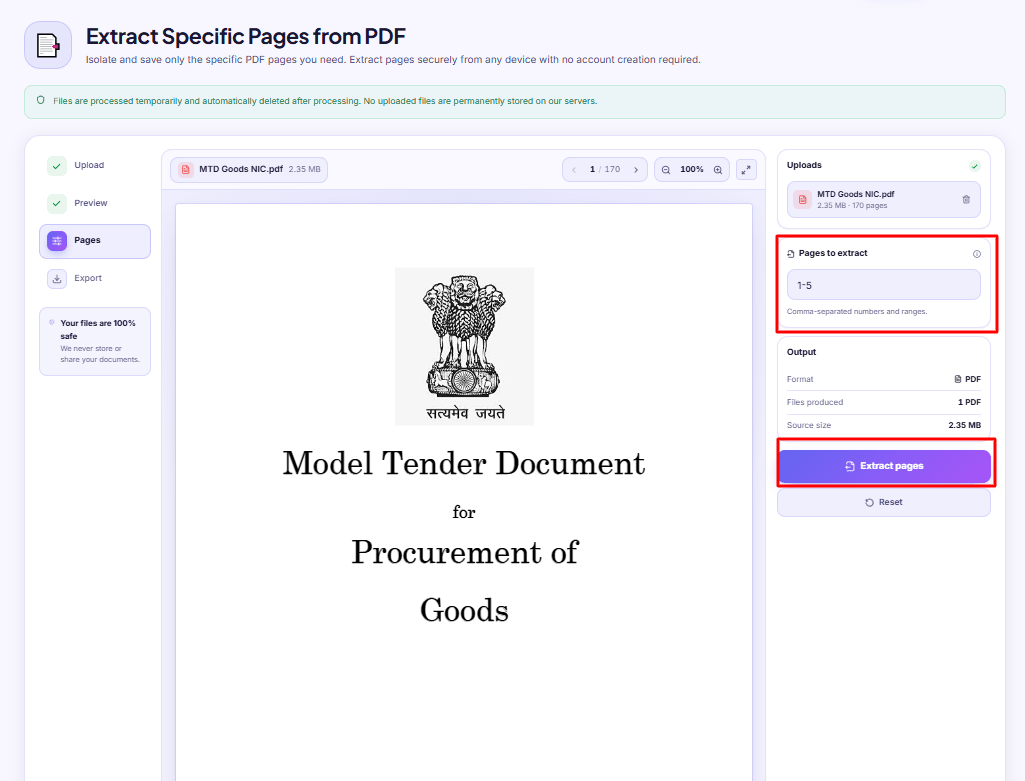
Send One Page of a 90-Page PDF, Not the Whole File
How to pull a single signature or statement page out of a long PDF so it stays searchable and small, and the one thing extraction will not do for you.