Compress PDF for Outlook Email Without Losing Quality
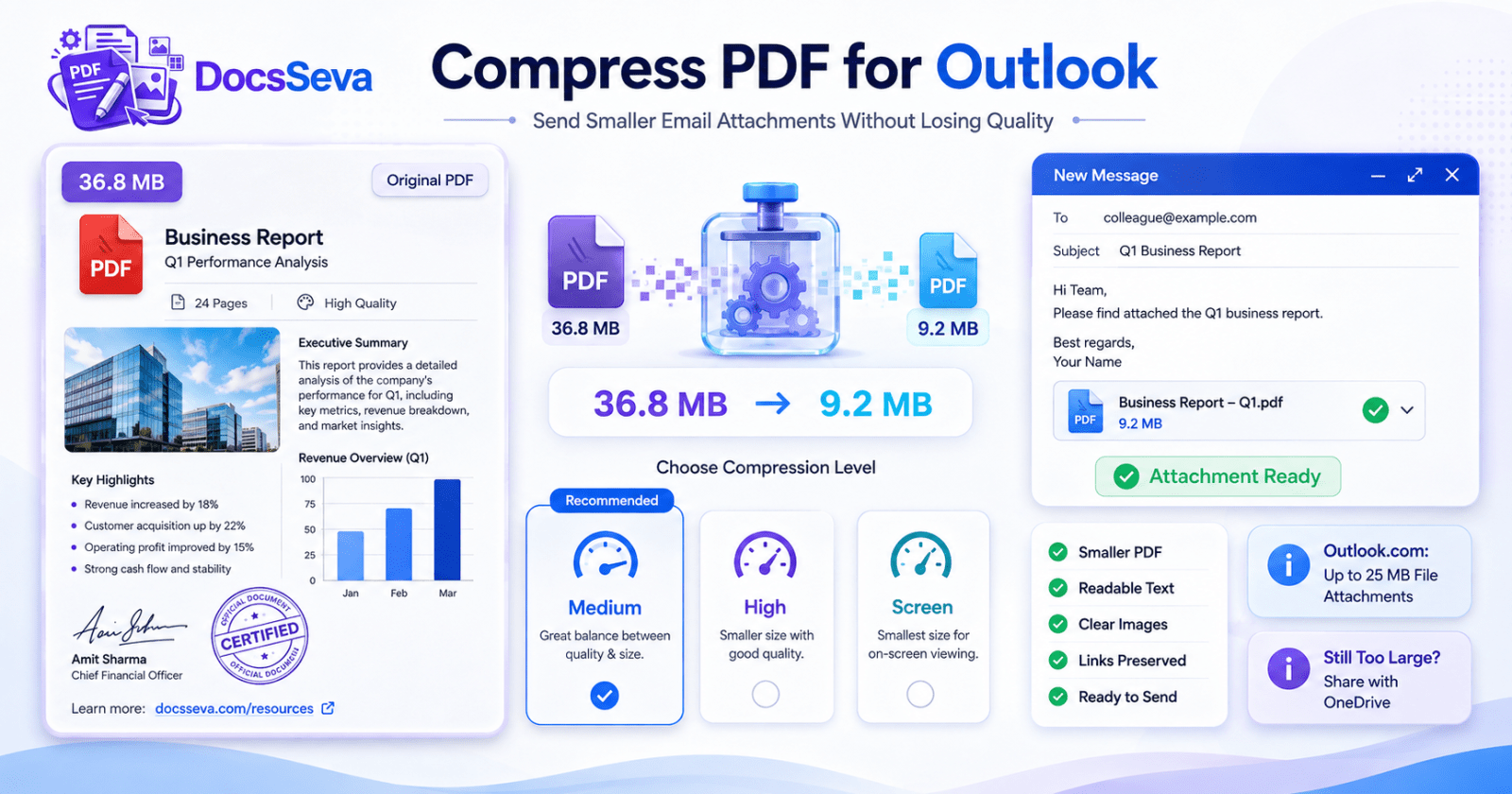
Steps
Check the PDF size
Check the PDF’s current size and compare it with the attachment requirement for the Outlook account and recipient you are using.
Keep the original
Save an unchanged copy before compression. Use the original for every new compression attempt rather than repeatedly compressing a previous result.
Remove unnecessary pages
Delete blank pages, duplicated pages, outdated versions and any sections that the email recipient does not need.
Extract or split required content
When only selected pages are required, extract those pages or divide unrelated document sections into separate PDFs.
Open DocsSeva PDF Compressor
Open the DocsSeva PDF Compressor and select the original PDF that you want to send through Outlook.
Start with Medium compression
Choose Medium compression first to balance file-size reduction, readable text, image quality and searchable document content.
Try High compression if required
If the Medium result is still too large, return to the unchanged original and create another result using High compression.
Inspect the final PDF
Review every page, fine text, images, signatures, stamps, QR codes, searchable text, hyperlinks, forms and final file size.
Attach the file in Outlook
Create a new Outlook email, choose the attachment option and select the reviewed compressed PDF from your device.
Share through OneDrive when appropriate
If the PDF remains too large for a traditional attachment, upload or select it from OneDrive and share a link with appropriate recipient permissions.
Key takeaways
- Outlook.com currently supports file attachments up to 25 MB, although work and school environments may use different administrator-defined limits.
- Start with Medium compression and use High only when additional file-size reduction is necessary.
- Remove, extract or split unnecessary pages before sacrificing text and image quality.
- When a high-quality PDF remains too large, sharing it through OneDrive can be better than applying destructive compression.
When you need to compress PDF for Outlook, the goal is not simply to create the smallest possible file.
A useful email-ready PDF should remain:
- Easy to attach
- Fast to upload
- Easy for the recipient to download
- Readable on phones and computers
- Searchable when required
- Clear enough for printing when necessary
- Complete and correctly ordered
- Professional in appearance
Large PDFs can create problems when you are sending:
- Resumes
- Job applications
- Business reports
- Contracts
- Invoices
- Bank statements
- Scanned certificates
- University documents
- Project reports
- Product catalogues
- Portfolios
- Government documents
The correct approach is to reduce unnecessary document data while protecting the information the recipient actually needs.
Start with the DocsSeva PDF Compressor and use the lightest compression level that produces a practical email attachment.
How to Compress PDF for Outlook Email
A reliable workflow is straightforward.
First, keep an unchanged copy of the original PDF.
Next, remove pages or content the recipient does not need.
Then process the original using Medium compression.
If the result remains too large, return to the original and create a second result using High compression.
Afterward, inspect the complete document before attaching it.
When additional compression would damage the document, share the high-quality version through cloud storage rather than forcing the PDF to an unnecessarily small size.
Why Compress a PDF Before Sending It Through Outlook?
Large attachments can create several practical problems.
They take longer to upload, especially on slower internet connections.
They also take longer for recipients to download.
Large messages consume more mailbox storage and can fail when either the sender or recipient uses a mail system with a stricter message limit.
Smaller attachments are particularly useful when:
- Sending from mobile data
- Emailing several documents together
- Sharing files with external organisations
- Working with slow connections
- Sending scanned documents
- Forwarding files between teams
- Sending documents to clients
- Sharing application paperwork
However, size reduction should not come at the cost of important information.
Understand Outlook Attachment Limits Before Compressing
Outlook does not behave identically in every environment.
An Outlook.com personal account, a Microsoft 365 business account and an organisation using Microsoft Exchange can have different settings.
Therefore, always check the limit that applies to the account you are actually using.
Microsoft currently publishes a file-attachment limit for Outlook.com, while organisation-managed systems may use administrator-defined limits.
This means a PDF that sends successfully from one Outlook account may still be rejected from another.
It may also be accepted by your account but rejected by the recipient's email system.
For important messages, leave a reasonable margin below the maximum rather than creating an attachment exactly at the limit.
Check the Complete Message, Not Just the PDF
Your PDF may not be the only attachment.
Imagine an email containing:
| File | Size |
|---|---|
| Project report PDF | 18 MB |
| Contract PDF | 4 MB |
| Product images | 6 MB |
| Spreadsheet | 3 MB |
The total file payload is much larger than the report alone.
Possible solutions include:
- Compressing the report
- Compressing the images
- Removing unnecessary files
- Sending separate messages
- Sharing large documents through cloud storage
- Sending only the documents requested by the recipient
Do not reduce one PDF aggressively if another unnecessary attachment is responsible for the problem.
Keep the Original PDF Before Compression
Always preserve the source document.
Use clear filenames such as:
financial-report-original.pdf
financial-report-email-copy.pdf
Frequently asked questions
What is the Outlook.com attachment size limit?
Microsoft currently lists a 25 MB file-attachment limit for Outlook.com. Work, school and Exchange environments can have different limits depending on their administrator and mail-server configuration.
How can I compress PDF for Outlook without making text blurry?
Start with Medium compression and review the output. Move to High only when more reduction is needed. Avoid Screen mode when searchable or selectable text is important.
Which compression mode is best for Outlook email?
Medium is the best starting point for most resumes, reports, invoices and digitally generated PDFs. High is more suitable when scanned or image-heavy files remain too large.
What should I do if my PDF is too large for Outlook?
Remove unnecessary pages, extract only required content, split the document, optimise source images or use stronger compression. If quality would suffer, share the file using OneDrive instead.
Can Outlook send a large PDF through OneDrive?
Yes. Outlook supports sharing OneDrive files as links, which can keep the email message smaller and allow you to control recipient permissions.
Should I compress the compressed PDF again?
No. Start each attempt from the original PDF. Repeated lossy compression can progressively reduce image and scanned-text quality.
Can I send several PDFs through Outlook?
Yes, but the total email and attachment limits applicable to the account and receiving mail system still matter. Compress, split or share files through OneDrive when necessary.
Can removing pages reduce PDF attachment size?
Yes. Removing blank, duplicate or unnecessary pages reduces the file size without lowering the visual quality of the pages you retain.
Should I split a large PDF before sending it?
Splitting is useful when the recipient needs only specific sections or accepts several files. It may preserve better quality than applying extreme compression to the complete PDF.
Why is my scanned PDF still large after compression?
Scanned PDFs often store every page as a high-resolution image. Several full-page colour scans may require much more storage than a digitally generated text PDF.
Can PDF compression break Outlook attachment links?
Compression does not affect the Outlook email itself, but aggressive page rasterisation can remove hyperlinks that are embedded inside the PDF. Test important links before sending.
Can compression affect signatures and official stamps?
Strong image compression can soften fine signature strokes, seals and stamp text. Inspect these elements at 100% zoom before emailing the compressed document.
Can I email a password-protected PDF through Outlook?
You may be able to attach a protected PDF, but the recipient must know the password and organisational security rules may apply. Share sensitive passwords through a separate secure channel.
Why does Outlook sometimes reject a large attachment before the published maximum?
Mail-server configuration, message overhead, account type, organisational policies and the recipient’s mail system can all affect practical delivery limits. Leave a reasonable size margin when possible.
Is OneDrive better than extreme PDF compression?
When additional compression would make important text or images unreadable, sharing the higher-quality document through OneDrive is usually a better option than destroying document quality.
Sources
- Sending Limits in Outlook.com — Microsoft Support
- Add Pictures or Attach Files to Emails in Outlook — Microsoft Support
- Blocked Attachments in Outlook — Microsoft Support
- DocsSeva PDF Compressor — DocsSeva
- DocsSeva PDF Page Extractor — DocsSeva
DocsSeva Editorial Team
Document Workflow and PDF Tools Editorial Team
Published on August 7, 2026
The DocsSeva Editorial Team publishes practical guides about PDF compression, document conversion and online file preparation. Its content helps students, professionals, job seekers and everyday users solve document-size, email-sharing and file-upload problems.
“We tested three sample PDFs using Medium and High compression, compared their original and final sizes, reviewed text and image quality at 100% zoom and tested the approved files as attachments in an Outlook draft.”
Human-written with AI assistance.
Open the PDF Tools
Free, no sign-up, and your files are never stored.
Open the PDF ToolsMore on pdf-compression
In-Depth How-to Guide
Compress PDF for Gmail Attachments Without Losing Quality
Learn how to compress PDF for Gmail attachments, stay below email size limits and preserve readable text, clear images, signatures, links and document quality.
In-Depth How-to Guide
PDF Still Too Large After Compression? 12 Fixes That Work
Is your PDF still too large after compression? Learn why some files barely shrink and follow 12 practical fixes for scans, images, pages, fonts and strict upload limits.
How to Compress a PDF to a Chosen File Size Without Losing Quality
Learn how to compress a PDF to a chosen file size such as 100 KB, 200 KB, 500 KB, 1 MB or 2 MB while preserving readable text, clear images and essential document details.