Complete Guide to PDF Compression: Reduce File Size the Right Way

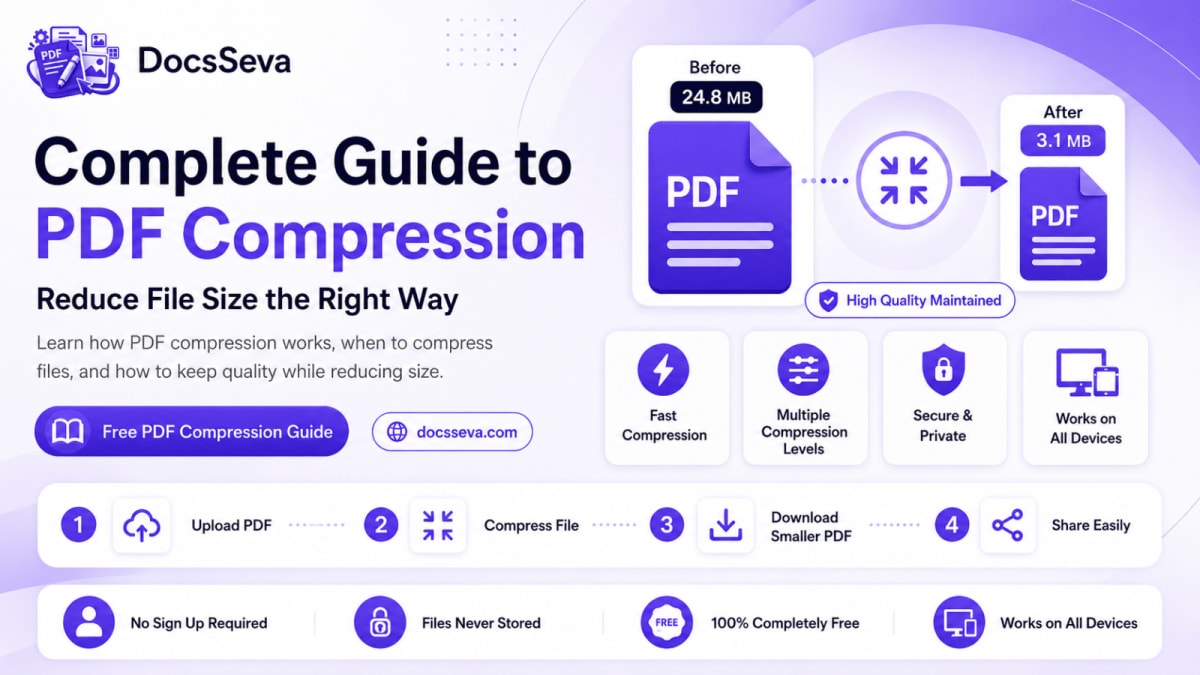
PDF files are convenient because they preserve the appearance of documents across different devices. However, they can also become unnecessarily large when they contain scanned pages, high-resolution photographs, embedded fonts, graphics or duplicated document data.
A large PDF may be difficult to email, upload to an application portal, share with a client or store on a mobile device. PDF compression solves this problem by reducing the amount of data stored inside the document.
This complete guide explains:
- What PDF compression means
- Why some PDF files are larger than others
- How different compression methods work
- How to select the right compression level
- How to preserve document readability
- Why scanned PDFs behave differently
- What to do when a PDF is still too large
- How to compress PDFs using DocsSeva
To reduce a file immediately, open the free DocsSeva PDF Compressor.
What Is PDF Compression?
PDF compression is the process of reducing a PDF document’s file size by optimising the data stored inside it.
A PDF can contain several types of content:
- Text
- Photographs
- Scanned page images
- Vector graphics
- Embedded fonts
- Forms
- Annotations
- Metadata
- Links and bookmarks
- Repeated document objects
These elements do not use the same amount of storage.
Text normally requires relatively little space. High-resolution photographs and scanned pages generally consume much more. This is why two PDF documents with the same number of pages can have very different file sizes.
A compressor examines the document and reduces the size of elements that can be optimised.
Why Do PDF Files Become So Large?
Several factors can increase PDF file size.
1. High-Resolution Images
Images exported for professional printing can contain far more detail than required for email, online forms or screen viewing.
A document containing several full-resolution images can quickly become very large.
2. Scanned Pages
A scanned PDF may store every page as a photograph.
A 50-page text-based PDF can remain relatively small, while a 50-page scanned PDF may contain 50 separate high-resolution page images.
3. Colour Scans
Colour scans normally require more storage than grayscale or black-and-white versions.
Documents such as certificates and identity records may need colour, but ordinary text pages can sometimes be stored efficiently in grayscale.
4. Embedded Fonts
Some PDFs embed entire font files so the document looks consistent on every device.
Embedding fonts helps preserve appearance, but it can also increase the file size.
5. Graphics and Transparency
Brochures, catalogues and presentations may contain:
- Vector illustrations
- Transparent objects
- Background textures
- Charts
- Shadows
- Decorative elements
These elements can make the PDF more complex and difficult to reduce.
6. Unnecessary Pages
A PDF may include blank pages, duplicate pages, outdated versions or attachments that are no longer required.
Removing unnecessary pages before compression can reduce the file without affecting the quality of the pages you keep.
Use the DocsSeva PDF Page Remover when the document contains pages you do not need.
7. Poor Export Settings
A PDF exported using print-production settings may be much larger than a PDF created for digital viewing.
Print settings often preserve high-resolution images, colour profiles and additional document information that may not be necessary for an online upload.
How Does PDF Compression Work?
Different compression systems use different techniques. A compressor may apply one or more of the following methods.
Image Downsampling
Downsampling reduces the number of pixels stored in an image.
For example, an image intended for a large printed poster may contain more detail than necessary for a PDF viewed on a phone or laptop.
Reducing its resolution can significantly decrease the document size.
Image Re-encoding
Images may be re-encoded using more efficient settings.
The compressor may adjust:
- Image quality
- Resolution
- Compression format
- Colour information
- Repeated image data
The goal is to reduce storage while keeping the page visually acceptable.
Font Optimisation
A PDF may contain an entire font even when the document uses only a small number of characters from it.
Font subsetting can store only the characters actually required by the document.
Removal of Unnecessary Data
Some PDF files contain unused metadata, duplicate objects or unnecessary internal information.
Removing this data may produce a smaller document without visibly changing its pages.
Page Rasterisation
Rasterisation converts the complete appearance of each page into an image.
This can create a smaller screen-viewing document in certain situations, but it changes how the PDF behaves.
After rasterisation:
- Text may no longer be selectable
- Text search may stop working
- Accessibility can be affected
- Links and interactive elements may not behave the same way
Rasterisation should therefore be used when achieving the smallest possible viewing copy is more important than preserving the original document structure.
Lossless and Lossy PDF Compression
PDF compression can broadly be understood as lossless or lossy.
Lossless Compression
Lossless compression reduces the file size without intentionally removing visible information.
It may:
- Remove unused data
- Optimise object storage
- Compress document streams
- Eliminate duplication
- Subset fonts
Lossless optimisation is useful when document accuracy and quality are the highest priorities.
However, it may produce only a limited reduction when images are responsible for most of the file size.
Lossy Compression
Lossy compression reduces the document more aggressively by discarding some image information.
It may:
- Lower image quality
- Reduce image resolution
- simplify colour data
- Rasterise pages
- Re-encode photographs
Lossy compression can produce a much smaller file, but excessive settings may make images, signatures and small text appear soft or pixelated.
The best result usually comes from balancing file size with the actual purpose of the document.
Text PDFs vs Scanned PDFs
Understanding the difference between these PDF types is important.
Text-Based PDF
A text-based PDF contains actual digital text.
You can normally:
- Select words
- Copy text
- Search within the document
- Use screen readers
- Keep text sharp at different zoom levels
Text-based documents often compress efficiently because the text itself uses little storage.
Scanned PDF
A scanned PDF stores pages as images.
Even when the page contains only words, the PDF may treat the entire page as a photograph.
Scanned PDFs are often larger because each page contains image data.
Strong compression can make scanned pages smaller, but it may also make:
- Small letters softer
- Stamps less clear
- Signatures less detailed
- Fine lines difficult to read
For scanned documents, always compare the compressed output with the original.
Understanding DocsSeva Compression Modes
The DocsSeva PDF Compressor provides four compression options.
Low Compression
Low compression prioritises visual quality.
Use it for:
- Professional portfolios
- Reports containing detailed graphics
- Documents prepared for printing
- Certificates
- Legal documents
- Files needing only a small reduction
Low compression is appropriate when preserving fine details matters more than achieving the smallest output.
Medium Compression
Medium compression provides a balance between quality and file size.
Use it for:
- Email attachments
- Resumes
- Assignments
- Business reports
- Online sharing
- General document storage
For most users, Medium should be the first mode tested.
High Compression
High compression is designed for stronger file-size reduction.
Use it for:
- Government upload portals
- Job application websites
- University forms
- Large scanned documents
- Strict attachment limits
- Files that remain too large after Medium compression
After using High mode, inspect small text, signatures, diagrams and photographs carefully.
Screen Mode
Screen mode offers the strongest reduction by rasterising pages.
Use it when:
- The document will mainly be viewed on a screen
- The smallest possible file is required
- Standard compression does not meet the required limit
- Selectable text is not essential
- The PDF is a final viewing copy
Avoid Screen mode when you need:
- Searchable text
- Copyable text
- Accessibility support
- Editable document elements
- Interactive links or form controls
Compression Mode Comparison
| Mode | Reduction level | Visual quality | Selectable text | Suitable for |
|---|---|---|---|---|
| Low | Light | Highest | Preserved | Detailed and print-focused documents |
| Medium | Balanced | High | Preserved | Email, resumes and general sharing |
| High | Strong | Moderate to high | Preserved | Portals and strict file-size limits |
| Screen | Strongest | Screen-focused | Usually not preserved | Small final viewing copies |
The correct setting depends on the purpose of the document.
Do not automatically choose the strongest mode. Start with Medium and increase compression only when necessary.
How to Compress a PDF with DocsSeva
Step 1: Open the Compressor
Go to:
No desktop installation is required.
Step 2: Select Your PDF
Drag the PDF into the upload area or choose it from your device.
Before processing, make sure:
- The file opens correctly
- Required pages are present
- You have saved the original
- The PDF is not corrupted
- You have permission to process it
- Any required password is available
Step 3: Choose a Compression Mode
Start with Medium for general use.
Select Low when visual detail is critical. Choose High for stricter limits. Use Screen mode only when stronger reduction is required and selectable text is not essential.
Step 4: Process the Document
Start compression and keep the browser page open until processing finishes.
Large files and scanned documents may require more device memory and processing time.
Step 5: Download the Result
Download the compressed PDF and open it immediately.
Check:
- Page count
- Text clarity
- Image quality
- Signatures
- Stamps
- Hyperlinks
- Page orientation
- Searchable text
- Final file size
Do not remove the original file until the output has been checked.
How to Select the Right Compression Level
Ask these questions before choosing a mode.
Where Will the PDF Be Used?
A print-ready brochure requires more quality than a PDF being uploaded as supporting documentation.
Is Text Selection Required?
When users must search, copy or access text, avoid a mode that rasterises pages.
Is There a Strict Upload Limit?
If the document must remain below 200 KB, stronger compression may be necessary.
Does the PDF Contain Small Text?
Marksheets, invoices, certificates and legal documents must remain readable after compression.
Is the PDF Mostly Images?
Image-heavy and scanned PDFs may reduce significantly, but their visual quality requires careful checking.
Is the Original Already Compressed?
A previously optimised PDF may show little or no additional reduction.
Can a PDF Be Compressed to an Exact Size?
Not every PDF can be reduced to an exact size without affecting readability.
The result depends on:
- Original file size
- Number of pages
- Image resolution
- Amount of colour
- Scan quality
- Embedded fonts
- Existing compression
- Required visual quality
A five-page text document may easily fit below a small limit. A 50-page colour scan may not reach the same limit without becoming difficult to read.
When targeting 100 KB, 200 KB or another strict limit:
- Start from the original PDF.
- Remove unnecessary pages.
- Try Medium compression.
- Move to High compression if required.
- Use Screen mode only when appropriate.
- Check the final document carefully.
- Confirm that every important detail remains visible.
Never sacrifice essential readability only to reach an extremely low number.
How to Preserve PDF Quality
Keep the Original Document
Always retain an unchanged copy.
Avoid Repeated Compression
Do not compress the output again and again.
Repeated processing can reduce image quality without producing a meaningful additional saving.
Remove Unnecessary Pages First
Reducing the number of pages can be more effective than applying extreme compression.
Split the Document When Possible
When only a particular section is required, use the DocsSeva PDF Splitter to extract it.
Inspect at Normal and High Zoom
Review the document at 100% zoom, then zoom further to inspect signatures, stamps and small text.
Use the Lightest Effective Mode
Choose the lowest level that satisfies the target upload requirement.
PDF Compression for Common Situations
Email Attachments
Start with Medium compression.
Check the result and use High only if the attachment remains too large.
Job Applications
Make sure that:
- Name and contact details are clear
- Resume text remains selectable
- Portfolio images remain readable
- The file meets the portal limit
Avoid rasterising a resume unless there is no alternative, because selectable text may be useful for recruitment systems.
Government Forms
Check:
- Registration numbers
- Certificate details
- Signatures
- Stamps
- Dates
- Identification numbers
A smaller document is not useful when important information becomes unreadable.
University Submissions
Compress assignments, research papers and application documents using a mode that preserves text.
Scanned Documents
Use Medium first, then High where necessary. Inspect every page because different scans may contain different levels of detail.
Business Reports
Preserve charts, graphs, tables and branding. Low or Medium compression may be more suitable.
What to Do When a PDF Is Still Too Large
Try the following workflow.
Remove Unwanted Pages
Use the PDF Page Remover.
Extract Only the Required Pages
Use the PDF Page Extractor when only part of the file is needed.
Split the Document
Use the PDF Splitter if the platform accepts multiple files.
Use a Stronger Mode
Move from Medium to High.
Try Screen Mode
Use Screen mode when selectable text and interactive features are not needed.
Recreate the PDF From Better Source Files
When possible, reduce oversized source images before generating the PDF again.
Confirm the Actual Limit
Check whether the upload portal measures file size in KB, MB or another unit and whether it permits multiple documents.
Batch PDF Compression
DocsSeva can also process multiple PDF files in a batch.
Batch compression is useful for:
- Invoices
- Receipts
- Student assignments
- Archived records
- Scanned documents
- Business reports
- Application documents
Although one mode can be applied to several files, check each output individually. Different files may respond differently to the same compression setting.
PDF Compression Mistakes to Avoid
Selecting Maximum Compression Immediately
The strongest setting is not always the best setting.
Deleting the Original Too Soon
Keep the original until the compressed version is fully checked.
Ignoring Small Text
Always inspect documents containing identification numbers, signatures and fine print.
Compressing the Same Output Repeatedly
Create every new attempt from the original document.
Assuming Every PDF Will Reach 100 KB
Some documents cannot meet extremely small limits without serious quality loss.
Forgetting to Check Links
Test important links in reports, resumes and digital documents.
Using Rasterisation When Searchability Matters
Use standard modes when text selection and search are required.
Related DocsSeva Guides and Tools
Read the beginner tutorial:
How to Compress a PDF Online for Free
Use these related tools:
- PDF Compressor
- PDF Merger
- PDF Splitter
- PDF Page Remover
- PDF Page Extractor
- PDF OCR
- PDF Password Protection
- Images to PDF
Frequently Asked Questions
1. What is PDF compression?
PDF compression reduces the amount of data stored inside a PDF so that the document occupies less storage and is easier to upload, email or share.
2. Does PDF compression reduce quality?
It can affect image quality when aggressive settings are used. Lighter settings normally preserve more visual detail, while stronger settings prioritise a smaller file.
3. Which compression level should I use?
Medium is the best starting point for most documents. Use Low when quality is the highest priority and High when you need stronger reduction.
4. What is Screen compression?
Screen mode rasterises pages into images to provide stronger reduction. It is suitable for final viewing copies but may remove selectable or searchable text.
5. Will text remain selectable?
Text remains selectable in DocsSeva’s Low, Medium and High modes. Screen mode converts pages into images, so text may no longer be selectable.
6. Why is my PDF barely getting smaller?
The PDF may already be optimised, contain mostly text or use images that are already compressed.
7. Can I compress a scanned PDF?
Yes. Scanned PDFs can be compressed, but aggressive settings may make fine text, stamps and signatures appear softer.
8. Can I compress a PDF below 100 KB?
You can try stronger settings, but reaching an exact size cannot be guaranteed for every document. The result depends on the original content and the quality you need to preserve.
9. Can I compress multiple PDFs at once?
Yes. DocsSeva provides batch processing for multiple PDF files.
10. What is the maximum supported file size?
The DocsSeva PDF Compressor currently accepts files up to 1 GB. Performance for very large documents also depends on the memory and capability of your device.
11. Does compression change the page dimensions?
Compression generally focuses on reducing stored data rather than changing the visible page dimensions. Always inspect the result because PDF structures can vary.
12. Does compression remove hyperlinks?
Standard compression is intended to preserve the document structure, but important links should be tested after downloading the output.
13. Can I compress a password-protected PDF?
The PDF may need to be unlocked using the authorised password before compression.
14. Can I compress the same PDF twice?
You can, but repeated compression may reduce quality without significantly reducing the size. Start each attempt from the original document.
15. Does DocsSeva add a watermark?
No watermark is added to the compressed output.
16. Is an online PDF compressor suitable for confidential files?
Check the tool’s published processing and privacy information, as well as your organisation’s document-handling policy, before processing confidential or regulated documents.
17. Does PDF compression make OCR text disappear?
Standard compression may preserve the text layer. A rasterising mode can affect selectable or searchable text, so inspect the result before using it.
18. Should I compress before or after merging PDFs?
Remove unwanted pages first, merge the required documents and then compress the final PDF. This avoids processing pages that will not be included.
19. What is the difference between PDF compression and ZIP compression?
PDF compression optimises content inside the document. ZIP compression packages the complete PDF as another file and may not significantly reduce PDFs that are already compressed.
20. Is PDF compression permanent?
The compressed output contains the optimised data. You normally cannot restore all discarded image details, which is why the original PDF should always be retained.
Reduce Your PDF File Size
The best PDF compression result is not simply the smallest file.
A good result should:
- Meet the required upload limit
- Keep important text readable
- Preserve sufficient image quality
- Retain required document features
- Open correctly on the recipient’s device
Start with balanced compression, inspect the result and use stronger settings only when necessary.
DocsSeva Editorial Team
Published on July 23, 2026 · Updated on July 28, 2026
Browse all tools
38 free document tools, no account required.
Browse all toolsRelated articles


In-Depth How-to Guide
Compress a 300 MB Scanned PDF Without Freezing the Tab
A 180-page, 312 MB scan crashes the tab and comes back as a ZIP. Why that happens, what each level does to your pages, and the cheaper step to take first.


How to Compress a PDF to a Chosen File Size Without Losing Quality
Learn how to compress a PDF to a chosen file size such as 100 KB, 200 KB, 500 KB, 1 MB or 2 MB while preserving readable text, clear images and essential document details.


How to Reduce PDF Size Below 1 MB Without Losing Readability
Learn how to reduce PDF size below 1 MB for email, government portals, job applications and online forms while keeping text, images and signatures readable.