How to Convert PDF to Images Online Free Without Losing Quality

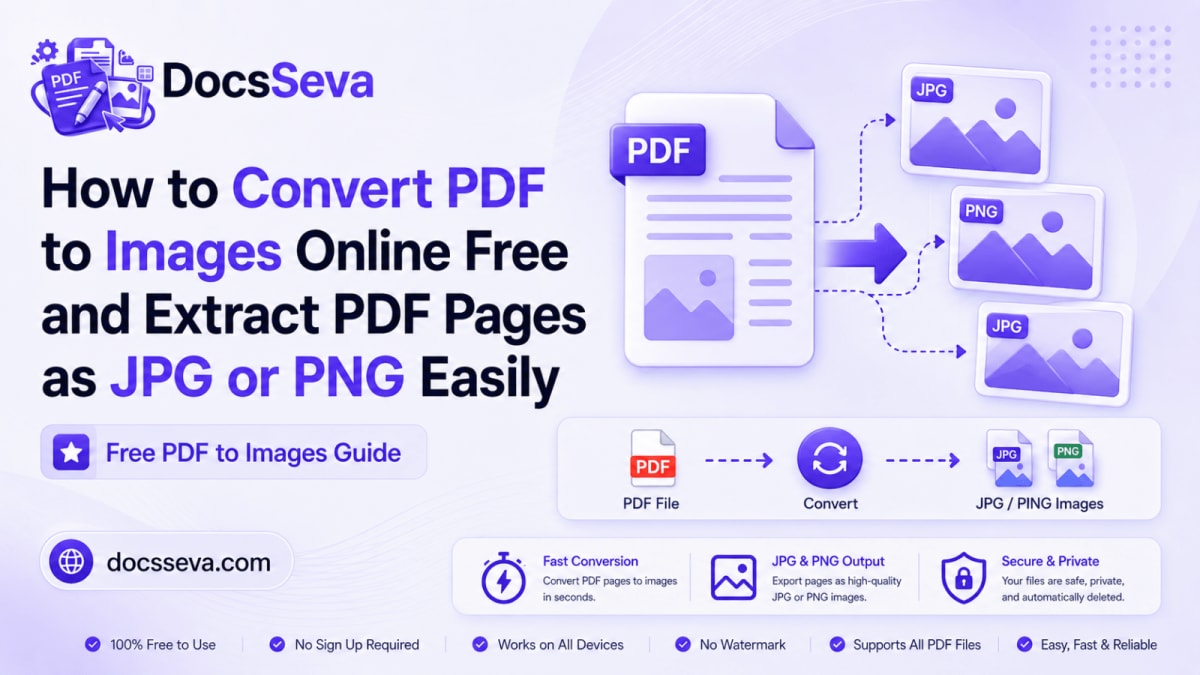
PDF files are designed to preserve a document’s appearance across different devices, browsers, and operating systems. They are ideal for reports, forms, invoices, certificates, presentations, manuals, portfolios, scanned documents, study material, and official records.
However, not every website, messaging application, presentation program, design platform, content-management system, or upload portal accepts PDF files. Sometimes, you need every PDF page as a separate image that can be displayed, shared, resized, compressed, cropped, edited, or uploaded more easily.
Taking screenshots of individual PDF pages is not an ideal solution. Screenshots can include browser controls, incorrect crops, uneven margins, inconsistent dimensions, and reduced clarity. Capturing a long document manually can also take significant time.
With the DocsSeva PDF to Images tool, you can convert PDF pages into clear JPG or PNG images online without installing software, creating an account, or paying for a subscription.
Each PDF page is converted into an individual image. You can review the generated pages and download the images you need. For multi-page documents, use the available all-pages download option shown by the tool to save the complete result together.
DocsSeva does not add its own watermark or branding to the converted images. The website also states that files are not permanently stored after processing.
This complete guide explains how to convert PDF pages to images online, how to choose between JPG and PNG, what “without losing quality” realistically means, how resolution affects clarity, how to convert scanned and multi-page documents, and what to check before sharing or publishing the resulting images.
Quality note: Converting a PDF page into JPG or PNG changes it from a document page into a raster image made from a fixed number of pixels. A high-quality conversion can preserve the visible clarity of the page, but it cannot retain unlimited vector scaling, searchable text, clickable links, interactive fields, bookmarks, or other PDF-specific features.
Quick Answer: How Do You Convert a PDF to Images Online?
To convert PDF pages into JPG or PNG images:
- Open the DocsSeva PDF to Images tool.
- Drag and drop your PDF or select it from your device.
- Wait for the document to load.
- Choose JPG or PNG as the output image format.
- Start the conversion.
- Wait while every PDF page is rendered as a separate image.
- Review the generated page previews.
- Download individual images when you need only specific pages.
- Use the available all-pages download option for a multi-page PDF.
- Open several downloaded images and check their clarity.
- Verify page order, orientation, text readability, and image quality.
- Resize, crop, compress, rotate, or convert the images when required.
Your original PDF remains separate unless you manually replace or delete it.
What Is a PDF-to-Images Converter?
A PDF-to-images converter renders every page of a PDF document as an independent image file.
For example, a five-page PDF can produce:
page-1.jpgpage-2.jpgpage-3.jpgpage-4.jpgpage-5.jpg
When PNG is selected, the same document may produce:
page-1.pngpage-2.pngpage-3.pngpage-4.pngpage-5.png
The visible content of each page is combined into a single image.
This visible content can include:
- Text
- Headings
- Paragraphs
- Tables
- Charts
- Photographs
- Illustrations
- Logos
- Backgrounds
- Page numbers
- Headers
- Footers
- Signatures
- Stamps
- Watermarks
- Visible annotations
The result looks like the PDF page, but it is no longer a normal interactive PDF document.
How Does PDF-to-Image Conversion Work?
A PDF page can contain several types of content.
These may include:
- Selectable digital text
- Embedded fonts
- Vector graphics
- Photographs
- Scanned page images
- Lines and shapes
- Tables
- Charts
- Transparent objects
- Form fields
- Links
- Annotations
- Digital signatures
- Watermarks
- Page backgrounds
During conversion, the tool renders the visible page at a specific pixel size.
The general process is:
- The PDF file is opened by the converter.
- The dimensions of each page are read.
- Text, graphics, images, and other visible elements are rendered.
- The complete rendered page becomes a grid of pixels.
- The pixel data is encoded as JPG or PNG.
- A separate image is created for each PDF page.
- The resulting images are made available for download.
The conversion creates new image files. It does not need to change the source PDF itself.
What Does “Without Losing Quality” Really Mean?
The phrase “without losing quality” should be understood realistically.
PDF pages can contain vector text and graphics. Vector content can remain sharp when enlarged because it is based on shapes and coordinates rather than a fixed number of pixels.
JPG and PNG are raster formats. Raster images have fixed dimensions.
After converting a PDF page into an image:
- Text becomes pixels
- Vector graphics become pixels
- The image has fixed width and height
- Extreme enlargement can reveal pixelation
- Text is no longer selectable
- Text search no longer works
- Hyperlinks are no longer clickable
- Form fields are no longer interactive
- Bookmarks are not preserved
- Digital-signature verification is not preserved in the image
A high-quality conversion means avoiding unnecessary visible degradation.
A good result should have:
- Clear text at normal viewing size
- Sharp page edges
- Readable tables
- Clear charts and diagrams
- Correct page dimensions
- No accidental cropping
- Correct orientation
- Consistent output across pages
- Suitable resolution for the intended use
- Appropriate image format
PNG preserves the generated pixels without lossy compression.
JPG generally creates smaller files by discarding some visual information. At a suitable quality level, the loss may be difficult to notice, especially on photographs and scans.
What Is Preserved Visually?
A PDF-to-image converter should generally preserve the visible appearance of:
- Paragraph text
- Headings
- Images
- Tables
- Charts
- Diagrams
- Page backgrounds
- Logos
- Signatures
- Stamps
- Watermarks
- Page numbers
- Headers and footers
- Lines and shapes
- Visible annotations
- Page margins
- Page orientation
- Portrait and landscape layout
Always review the output because PDFs with unusual fonts, transparency, layers, or complex graphics may render differently.
What Is Not Preserved?
Image files do not retain PDF functionality such as:
- Searchable text
- Selectable text
- Copyable text
- Clickable hyperlinks
- Internal page links
- Bookmarks
- Interactive forms
- Form calculations
- Buttons
- JavaScript actions
- Embedded attachments
- Audio or video
- Document layers
- Accessibility tags
- Semantic heading structure
- Editable vector objects
- Font information
- Certificate data
- Digital-signature validation
- Unlimited vector scaling
Keep the original PDF whenever these features are important.
Why Convert PDF Pages to Images?
PDF-to-image conversion is useful when a destination supports image files more easily than PDF documents.
Share Individual PDF Pages
A recipient may require only one page from a larger document.
For example:
- One invoice
- One certificate
- One chart
- One application page
- One signature page
- One report summary
- One presentation slide
- One instruction page
Converting the document allows you to send the required page as an image.
When the recipient accepts PDF and searchable text should remain, use the PDF Page Extractor instead.
Upload Document Pages to Websites
Websites can display JPG and PNG images directly inside webpages.
Converted PDF pages can be useful for:
- Blog posts
- Tutorials
- Document previews
- Help-centre guides
- Product instructions
- Portfolio samples
- Report previews
- Download cards
- Knowledge-base articles
Before publishing a PDF page as an image, check that it does not expose:
- Private information
- Financial information
- Personal addresses
- Signatures
- Account numbers
- Copyrighted content
- Confidential business information
Add PDF Pages to Presentations
Presentation applications can insert JPG and PNG files easily.
Converted PDF pages can be added to:
- Microsoft PowerPoint
- Google Slides
- Apple Keynote
- Training presentations
- Meeting decks
- Product demonstrations
- Educational slides
- Client presentations
The converted page becomes a normal visual element that can be resized and positioned.
Share Pages Through Messaging Applications
Many messaging platforms preview images more clearly than PDF attachments.
You may convert pages such as:
- Event invitations
- Schedules
- Announcements
- Instructions
- Notices
- Charts
- Certificates
- Results
- Forms for reference
Do not send confidential documents through an insecure messaging service.
Upload Pages to Online Forms
Some forms accept only image formats such as JPG or PNG.
Examples may include:
- Certificate uploads
- Identity-document uploads
- Supporting-document uploads
- Application attachments
- Marketplace documentation
- Property records
- Profile-verification forms
Before uploading, check the form’s requirements for:
- Accepted format
- Maximum file size
- Minimum pixel size
- Maximum pixel size
- Image orientation
- Number of allowed files
- Filename format
- Colour requirements
Create Document Thumbnails
A thumbnail is a smaller preview image.
You can convert the first page of a PDF and use it as a thumbnail for:
- Document libraries
- Blog cards
- Search results
- Download listings
- Portfolio pages
- Report archives
- Dashboard items
- Ebook covers
After conversion, use the Image Resizer to create the required thumbnail dimensions.
Use PDF Pages in Design Projects
Converted pages can be inserted into:
- Posters
- Social-media posts
- Marketing materials
- Website banners
- Presentation mockups
- Training documents
- Visual guides
Make sure you are authorized to reuse the document content.
Edit a PDF Page as an Image
After conversion, you can process the page with image tools.
You may:
- Crop the page
- Remove empty margins
- Resize it
- Rotate it
- Compress it
- Change the image format
- Add authorized branding
- Create a thumbnail
- Prepare it for social media
Editing the image does not update the original PDF.
Archive a Visual Copy of a Page
An image can provide a simple visual reference copy.
However, it should not replace the original PDF when you need:
- Searchable text
- Forms
- Digital signatures
- Legal authenticity
- Accessibility
- Links
- Attachments
- Original metadata
- Exact document structure
Publish Charts and Diagrams
You may want to reuse one chart or diagram from a PDF page.
A useful workflow is:
- Convert the relevant PDF page to PNG.
- Open the page image.
- Use the Image Crop tool.
- Select the chart or diagram.
- Download the cropped image.
- Confirm that it remains readable.
- Cite the original source where required.
The cropped result may not have the same quality as the original embedded chart.
Common Documents Converted to Images
You can convert many types of PDFs, including:
- Certificates
- Invoices
- Receipts
- Presentations
- Brochures
- Posters
- Menus
- Manuals
- Study notes
- Worksheets
- Portfolios
- Application documents
- Research charts
- Product sheets
- Scanned records
- Identity-document copies
- Invitations
- Notices
- Infographics
- Technical diagrams
- Report covers
- Property records
- Form pages
What to Check Before Converting a PDF
Preparing the source file can improve the output and prevent unnecessary work.
1. Confirm That You Selected the Correct PDF
Open the source document and verify:
- It is the correct file
- It is the latest version
- It opens without errors
- Every required page is present
- Page order is correct
- Text is readable
- Images are clear
- Page orientation is correct
- No unintended pages are included
- The document has finished downloading
- You are authorized to convert it
Do not rely only on the filename when several versions look similar.
2. Keep the Original PDF
The resulting JPG or PNG images do not preserve the complete functionality of the PDF.
Keep an untouched original.
Use filenames such as:
Annual-Report-Original.pdfAnnual-Report-Page-Images.zip
The original may be needed for:
- Text search
- Printing
- Signature verification
- Accessibility
- Re-conversion
- Editing
- Page references
- Legal review
- Higher-quality future output
3. Decide Which Pages You Need
The converter creates an image for every page in the selected PDF.
When you need only specific pages:
- Open the PDF Page Extractor.
- Select the required pages.
- Download the smaller PDF.
- Open the extracted PDF in PDF to Images.
- Convert it to JPG or PNG.
- Download only the relevant page images.
This avoids processing and downloading unnecessary pages.
4. Remove Unwanted Pages
Use the PDF Page Remover when the source contains:
- Blank pages
- Duplicate pages
- Outdated pages
- Accidental scans
- Separator pages
- Unrelated appendices
- Confidential pages that should not be converted
5. Correct Page Orientation
A sideways PDF page creates a sideways image.
Use the PDF Rotator before conversion when pages are:
- Sideways
- Upside down
- Rotated inconsistently
Correcting the PDF first keeps all output images consistent.
6. Check Password Protection
A password-protected PDF may not be readable by the converter.
When you know the password and are authorized to modify the document:
- Open the PDF Unlock tool.
- Enter the existing password.
- Download the authorized unlocked copy.
- Convert the unlocked document to images.
- Store the resulting images securely.
- Delete unnecessary unprotected copies.
Do not remove protection from documents you do not own or have permission to modify.
7. Review Confidential Information
The generated images may contain:
- Full names
- Home addresses
- Signatures
- Identification numbers
- Account information
- Financial records
- Medical information
- Employee details
- Customer information
- Confidential pricing
- Private correspondence
- Legal information
Images may be previewed automatically by devices, cloud services, gallery applications, and messaging platforms.
Review every output before sharing it.
8. Check Available Device Storage
A multi-page PDF can create many image files.
High-quality PNG output may require more storage than the original PDF.
Before conversion:
- Check free storage
- Close unnecessary applications
- Use a desktop for very large documents
- Convert only required pages
- Prepare a dedicated output folder
- Make sure there is enough space to extract an all-pages download
9. Choose the Correct Output Format
Choose JPG when:
- The document is photo-heavy
- The pages are scanned
- Smaller files are important
- The images will be shared by email
- The destination has a strict size limit
- Minor compression is acceptable
Choose PNG when:
- The page contains small text
- Diagrams need sharp edges
- Tables must remain clear
- The page resembles a screenshot
- Line art is important
- You plan to crop or edit the image
- File size is less important
How to Convert PDF to Images Online Free With DocsSeva
Follow these steps to convert every page into JPG or PNG.
Step 1: Open the PDF to Images Tool
Open the DocsSeva PDF to Images tool in a modern browser.
You do not need to:
- Install desktop software
- Create an account
- Sign in
- Enter an email address
- Purchase a subscription
- Install a browser extension
Step 2: Select Your PDF
Drag and drop the PDF into the upload area or browse for it on your device.
Confirm that:
- The document is a valid PDF
- It is the correct version
- It is not corrupted
- The download completed
- It is not locked with an unknown password
- All required pages are present
Step 3: Wait for the Document to Load
Allow the tool to read and prepare the PDF.
Loading time can depend on:
- File size
- Page count
- Page dimensions
- Embedded fonts
- Number of images
- Scan resolution
- Vector complexity
- Available memory
- Browser performance
- Device performance
Avoid refreshing or closing the page while the PDF is loading.
Step 4: Choose JPG or PNG
Select the format that matches your intended use.
Choose JPG for:
- Scans
- Photographs
- Smaller downloads
- Email sharing
- Messaging applications
- Temporary previews
- Social-media preparation
Choose PNG for:
- Text-heavy pages
- Tables
- Forms
- Certificates
- Charts
- Technical diagrams
- Screenshots
- Line art
Step 5: Start the Conversion
Begin processing after choosing the format.
The tool will render the PDF pages and create separate images.
While processing:
- Keep the browser tab open
- Do not repeatedly select the conversion button
- Do not refresh the page
- Avoid putting the device to sleep
- Close unnecessary memory-intensive applications
- Wait until all generated pages appear
Step 6: Review the Generated Page Images
Check the previews before downloading.
Confirm that:
- Every required page was converted
- Page order is correct
- Orientation is correct
- No page is unexpectedly blank
- Text is readable
- Images are clear
- Margins are complete
- No edge is cropped
- Page proportions look correct
- Landscape pages remain landscape
Step 7: Download Individual Images
Download individual images when you need only specific pages.
Examples include:
- One certificate
- One invoice
- One chart
- One report cover
- One presentation slide
- One application page
- One diagram
Rename downloaded files according to their content.
Good filenames include:
Annual-Report-Cover.pngExperience-Certificate.jpgInvoice-2026-1045.pngProject-Timeline-Chart.pngApplication-Page-02.jpg
Avoid unclear names such as:
image1.jpgfinal.pngnew-copy.jpglatest-image-final.png
Step 8: Download All Converted Pages
For a multi-page PDF, use the available option to download all generated pages together.
The result may be provided as a compressed folder such as a ZIP.
After downloading:
- Locate the downloaded archive.
- Extract or unzip it.
- Open the extracted folder.
- Confirm that every page image is present.
- Check that the filenames follow the correct page sequence.
- Open the first, middle, and last images.
- Rename or organize the files where necessary.
Step 9: Verify the Downloaded Images
Open the downloaded images outside the conversion page.
Check:
- First page
- Middle pages
- Final page
- Small text
- Tables
- Charts
- Signatures
- Stamps
- Page borders
- Orientation
- Pixel dimensions
- File format
- Image clarity
Do not rely only on a small browser preview.
Step 10: Prepare the Images for Their Final Use
Depending on the destination, you may need to:
- Resize the images
- Compress the files
- Crop empty margins
- Rotate specific pages
- Convert PNG to JPG
- Convert JPG to PNG
- Add authorized branding
- Rename files
- Create thumbnails
Useful tools include:
Keep the original converted images until the final optimized copies have been verified.
JPG vs PNG: Which Format Should You Choose?
JPG and PNG both store raster images, but they use different compression methods.
| Feature | JPG | PNG |
|---|---|---|
| Compression | Usually lossy | Lossless |
| Typical size | Smaller | Larger |
| Best for | Photographs and scans | Text, diagrams, forms and screenshots |
| Small text | May show compression artifacts | Usually remains cleaner |
| Sharp lines | Can become less clear | Usually preserved better |
| Repeated editing | Can accumulate quality loss | Better for lossless repeated saves |
| Transparency | Not normally supported | Supported by the format |
| Photo-heavy pages | Efficient | Can create very large files |
Choose JPG When:
- The PDF page mainly contains photographs
- The source is a scanned document
- Smaller file size is important
- Images will be shared through email
- Images will be sent through messaging applications
- The upload portal has a strict size limit
- Minor compression is acceptable
- The image is a temporary preview
Choose PNG When:
- The page contains small text
- The PDF contains tables
- The document includes forms
- Charts and diagrams need clean edges
- The page resembles a screenshot
- The content contains line art
- You plan to crop or edit the output
- You want to avoid lossy compression
- File size is less important than clarity
Can PNG Still Look Blurry?
Yes.
PNG preserves the pixels generated by the converter, but it cannot create information that was missing from the source.
A PNG can still appear blurry when:
- The PDF contains a low-resolution scan
- The original images are blurred
- The page was captured from a low-quality screenshot
- The converted image is enlarged too much
- The source contains pixelated content
- The rendering resolution is lower than the intended display size
Lossless compression preserves available detail. It does not create missing detail.
Why Can JPG Show Artifacts?
JPG reduces file size by simplifying visual information.
Compression artifacts may become visible around:
- Small text
- Thin lines
- Sharp edges
- Diagrams
- Logos
- Table borders
- High-contrast graphics
- Repeated patterns
PNG is generally more suitable when these elements must remain crisp.
JPG is generally more efficient for photographs and scanned pages.
Understanding Image Resolution
Image resolution refers to the number of pixels used to represent the page.
A higher-resolution image normally has:
- More pixels
- Greater detail
- Better zoom clarity
- Larger pixel dimensions
- Larger file size
- Higher memory use
A lower-resolution image normally has:
- Fewer pixels
- Smaller dimensions
- Smaller file size
- Less detail
- Greater risk of blurred text
Visible quality also depends on:
- Source PDF quality
- Page dimensions
- Rendering scale
- Image format
- Display size
- Additional compression
- Device screen
- Printing requirements
PDF Page Size vs Image Dimensions
A PDF page is defined using document measurements.
An image is defined using pixels.
For example, an A4 page may be rendered as an image with dimensions such as:
- 1240 × 1754 pixels
- 1654 × 2339 pixels
- 2480 × 3508 pixels
The exact dimensions depend on the converter’s rendering process.
More pixels can improve clarity when zooming or printing, but they also increase file size.
What Is DPI?
DPI means dots per inch and is commonly used when discussing print resolution.
For digital images, the actual pixel dimensions are often more important.
A higher effective rendering resolution produces more pixels per page.
General use cases include:
- Low resolution for small thumbnails
- Moderate resolution for websites and presentations
- Higher resolution for detailed printing
Do not enlarge a small converted image and expect it to gain real detail.
How to Avoid Blurry Output
Start With a Clear Source PDF
The converter cannot restore detail that is missing from the source.
Before conversion, zoom into the original and check:
- Text edges
- Scan clarity
- Small labels
- Signatures
- Stamps
- Diagrams
- Page borders
- Photographs
Choose PNG for Text-Heavy Documents
PNG is generally more appropriate for:
- Forms
- Tables
- Charts
- Certificates
- Screenshots
- Technical diagrams
- Small text
- Sharp line art
Use JPG for Photographs and Scans
JPG can produce smaller files for:
- Photo-heavy brochures
- Scanned pages
- Image-based documents
- Informal previews
- Messaging attachments
Avoid Repeated JPG Saving
Every time a JPG is decoded, edited, and saved again, additional compression may be applied.
To reduce quality loss:
- Keep the first converted image.
- Perform all required edits.
- Export the completed result once.
- Avoid repeatedly overwriting the same file.
Do Not Upscale Excessively
Increasing image dimensions does not restore real detail.
Excessive enlargement can make:
- Text look soft
- Lines look jagged
- Photos look pixelated
- Signatures become unclear
When a larger output is required, return to the original PDF and reconvert rather than enlarging a compressed image.
Avoid Unnecessary Compression
Keep the original page image as a quality master.
Create a separate compressed copy when required.
Use the Image Compressor for the optimized version.
Review the Image at Its Final Size
An image may look clear at full size but become unreadable when reduced inside:
- A social-media post
- A website card
- A presentation
- A mobile screen
- An upload portal preview
Test the image at the actual destination size.
How to Convert Every PDF Page to JPG
To create JPG page images:
- Open the PDF to Images tool.
- Select your PDF.
- Choose JPG.
- Start conversion.
- Wait for every page to render.
- Review the previews.
- Download individual JPG images or all pages together.
- Check the file order.
- Review small text and graphics.
- Resize or compress copies only when necessary.
JPG is especially useful for photo-heavy or scanned PDFs when smaller file sizes are important.
How to Convert Every PDF Page to PNG
To create PNG page images:
- Open the PDF to Images tool.
- Select the source PDF.
- Choose PNG.
- Start the conversion.
- Wait for every page to render.
- Review the generated PNG files.
- Download individual pages or all pages together.
- Check text, tables, diagrams, and line art.
- Rename the files where required.
- Keep the original PNG output as a quality master.
PNG is generally recommended when page clarity is more important than the smallest possible file size.
How to Convert Only Selected PDF Pages
When you need only specific pages:
- Open the PDF Page Extractor.
- Upload the original PDF.
- Select the required pages.
- Create a smaller PDF.
- Download the extracted PDF.
- Open it in the PDF to Images tool.
- Choose JPG or PNG.
- Convert the selected pages.
- Download the images.
- Verify their order and clarity.
How to Convert One PDF Page to an Image
When you need only one page:
- Extract that page with the PDF Page Extractor.
- Download the one-page PDF.
- Open it in PDF to Images.
- Choose JPG or PNG.
- Convert the page.
- Download the image.
- Rename it according to its purpose.
You can also convert the complete PDF and download only the image for the required page.
How to Convert a Multi-Page PDF
A multi-page PDF creates one image for each page.
For example:
- A 10-page PDF creates 10 images
- A 50-page PDF creates 50 images
- A 200-page PDF creates 200 images
Use the all-pages download option to keep the results together.
After extraction, confirm that page numbering sorts correctly.
Preferred filenames include:
page-001.pngpage-002.pngpage-003.pngpage-010.pngpage-100.png
Zero-padded numbers prevent page-10 from appearing before page-2 in some file managers.
How to Organize Converted Images
Create a dedicated folder for long documents.
Example folder:
Annual-Report-2026-Images
Inside the folder, you may use names such as:
001-Cover.png002-Contents.png003-Executive-Summary.png004-Financial-Overview.png005-Sales-Chart.png
Clear filenames make images easier to:
- Search
- Sort
- Upload
- Share
- Insert into presentations
- Use in galleries
- Recombine into a PDF
How to Convert Scanned PDFs to Images
A scanned PDF normally contains images of paper pages wrapped inside a PDF.
The converter renders each complete scanned page as an individual JPG or PNG.
This can help when:
- A portal accepts image files only
- Scanned pages must be uploaded separately
- Individual pages need cropping
- Pages need rotation
- One certificate must be shared
- The scans require image compression
- Pages must be added to a presentation
Converting a scanned PDF does not automatically:
- Improve scan resolution
- Remove shadows
- Correct blur
- Straighten tilted text
- Restore cropped edges
- Make text searchable
- Recognize handwriting
- Repair faded content
- Remove stains
Use the PDF OCR tool when the scanned document needs searchable text.
Does Converting a Scan Improve Its Quality?
No.
The converted output can preserve the visible quality available in the scan, but it cannot restore detail that is absent.
It cannot recreate:
- Missing letters
- Blurred signatures
- Cut-off borders
- Overexposed text
- Low-resolution photographs
- Severe shadows
- Motion blur
- Missing page areas
Choose PNG when avoiding additional lossy compression is important.
What Happens to Searchable Text?
When a PDF page is converted into JPG or PNG, all visible text becomes part of the image.
The generated image does not retain:
- Text selection
- Text search
- Text copying
- OCR text layers
- Font information
- Screen-reader structure
When text functionality matters:
- Keep the original PDF
- Use PDF Text Extract
- Use PDF OCR for scans
- Use PDF to Word for editable content
Can You Apply OCR to the Converted Images?
Yes, but converting an already searchable PDF into images and then applying OCR can introduce unnecessary recognition errors.
OCR is more useful when:
- The original PDF is image-only
- The page is a photograph
- No selectable text exists
- The image must be processed independently
Keep the original searchable PDF whenever possible.
What Happens to Vector Graphics?
Vector graphics remain sharp at different zoom levels inside a PDF.
During image conversion, vectors become pixels.
The image can remain clear at its intended dimensions but may become pixelated when enlarged significantly.
For charts, diagrams, and line art:
- Choose PNG
- Avoid excessive upscaling
- Keep the original PDF
- Use the original vector source when available
What Happens to Fonts?
The fonts are used to render the page, but the image does not retain editable font information.
After conversion:
- Letters become pixels
- Font names are not editable
- Font size cannot be changed directly
- Text cannot be rewritten normally
- Font embedding no longer applies to the image
What Happens to Hyperlinks?
Visible link text remains part of the image, but the link is no longer clickable.
For example, the page may visually show:
Visit docsseva.com
The words remain visible, but the image does not preserve the original PDF hyperlink.
What Happens to Bookmarks?
PDF bookmarks are navigation features.
They do not become part of JPG or PNG images.
Keep the PDF when bookmark navigation is important.
What Happens to Interactive Forms?
Form fields become static visual content.
A converted image may show:
- Entered text
- Selected checkboxes
- Chosen options
- Signature appearance
- Form labels
However, a user cannot:
- Type into the image
- Change a selection
- Run calculations
- Click a button
- Submit the form
- Validate required fields
Do not convert an interactive form into images when another person must complete it electronically.
What Happens to Digital Signatures?
A converted image can show the visible appearance of a signature.
It does not preserve cryptographic signature validation.
The image cannot prove:
- Who signed the PDF
- Whether the certificate is valid
- Whether the PDF changed after signing
- Whether the document was certified
- Whether the signature was trusted
Keep the original signed PDF whenever authenticity matters.
What Happens to Annotations?
Visible annotations may appear in the rendered image.
These can include:
- Highlights
- Drawings
- Visible notes
- Text boxes
- Stamps
- Markup symbols
Hidden pop-up comment text may not appear.
Open the PDF and make sure every required annotation is visibly displayed before conversion.
What Happens to Attachments?
Embedded attachments are not converted merely because the visible pages are rendered.
A PDF may contain:
- Images
- Spreadsheets
- Other PDFs
- Documents
- Multimedia
- Portfolio files
Save required attachments separately before converting the page views.
What Happens to Metadata?
The resulting JPG or PNG files do not preserve the complete PDF metadata structure.
The PDF may contain:
- Author
- Title
- Subject
- Keywords
- Creation date
- Modification date
- Producer information
- Custom properties
The image files may receive their own metadata.
Do not treat conversion as a guaranteed metadata-removal process.
What Happens to Accessibility?
Converting a PDF page into an image removes important accessibility features.
These can include:
- Searchable text
- Selectable text
- Tagged reading order
- Heading structure
- Table semantics
- Link descriptions
- Form labels
- Alternative text
- Screen-reader navigation
For accessible publishing:
- Keep an accessible PDF version
- Add meaningful alt text to the image
- Provide a text transcript
- Avoid using an image as the only source of essential information
- Use OCR when appropriate
Does Conversion Change the Original PDF?
No.
The tool reads the PDF and creates separate image files.
The original remains on your device unless you manually delete or replace it.
Does Conversion Reduce Quality?
The visible page can remain clear at a suitable image size.
However, conversion removes:
- Unlimited vector scaling
- Searchable text
- Selectable text
- Clickable links
- Interactive controls
- Accessibility structure
- Digital-signature validation
JPG may also introduce compression artifacts.
PNG preserves the generated pixels losslessly, but the page is still rasterized.
For stronger visual preservation:
- Start with a clear source
- Choose PNG for text and diagrams
- Avoid unnecessary resizing
- Avoid repeated JPG saves
- Keep the original PDF
Does Conversion Reduce File Size?
Not necessarily.
The combined size of the images may be:
- Smaller than the PDF
- Similar to the PDF
- Larger than the PDF
The result depends on:
- Page count
- Pixel dimensions
- JPG or PNG
- Source content
- Number of photographs
- Scan resolution
- Colour complexity
- Compression
A text-only PDF may be very small, while PNG images of every page may be significantly larger.
Use JPG or the Image Compressor when smaller files are required.
Why Can PNG Be Larger Than the PDF?
A digital PDF can store text and vector instructions efficiently.
When rendered as PNG, the complete page becomes a large grid of pixels.
A simple text page that used little storage as a PDF may require millions of image pixels.
This can make the PNG much larger than the source PDF.
Why Is JPG Often Smaller?
JPG discards some visual information to reduce file size.
Photo-heavy and scanned pages can compress efficiently as JPG.
Text and sharp lines may show artifacts when compression is strong.
Does Conversion Change Page Order?
The generated images should follow the original PDF page order.
Always check filename sorting after downloading all pages.
Does Conversion Crop Margins?
The converter should render the complete PDF page rather than intentionally crop it.
Check:
- Top edge
- Bottom edge
- Left margin
- Right margin
- Page numbers
- Footer text
- Signatures near page edges
- Bleed areas
Use the Image Crop tool afterward when you intentionally need to remove margins.
PDF to Images vs Screenshots
Use PDF to Images when:
- You need every page
- Consistent dimensions matter
- You want clean page edges
- You need batch conversion
- Browser controls should not appear
- Manual cropping would take too long
- You need all pages together
Use a screenshot when:
- You need one small area
- You want to capture a software interface
- Browser context is required
- Complete-page conversion is unnecessary
For complete document pages, PDF-to-image conversion is normally more consistent.
PDF to Images vs Extracting Embedded Images
These are different operations.
PDF to Images
Renders each complete PDF page as one image.
Embedded Image Extraction
Retrieves individual photographs or graphics stored inside the PDF.
The DocsSeva PDF to Images tool converts complete pages.
It should not be treated as a tool that extracts every embedded photograph at its original native resolution.
PDF to Images vs PDF Page Extractor
The PDF Page Extractor creates a smaller PDF containing selected pages.
Use Page Extractor when:
- The recipient accepts PDF
- Searchable text should remain
- Several pages should stay together
- PDF structure matters
- Links and page information should be preserved
Use PDF to Images when:
- JPG or PNG is required
- Each page should become a separate file
- Pages will be displayed online
- Pages will be inserted into a presentation
- Pages need image editing
PDF to Images vs PDF to Word
Use PDF to Images when:
- Visual appearance matters
- Text editing is unnecessary
- An image format is required
- You need a static visual page
Use PDF to Word when:
- Text must become editable
- Paragraphs need rewriting
- Tables need reconstruction
- A DOCX file is required
- More document structure should be retained
PDF to Images vs PDF Text Extract
Use PDF Text Extract when:
- You need raw words
- A TXT file is acceptable
- Images are unnecessary
- Search or text analysis is the objective
Use PDF to Images when visual page appearance is required.
PDF to Images vs PDF OCR
Use PDF OCR when a scanned PDF needs searchable text.
Use PDF to Images when every page needs to become JPG or PNG.
Converting a PDF into images does not automatically add OCR.
PDF to Images vs Images to PDF
These tools perform opposite operations.
PDF to Images
Turns each PDF page into a separate JPG or PNG.
Images to PDF
Combines image files into one PDF.
Use Images to PDF when image pages need to become one document again.
Repeatedly converting between JPG and PDF can reduce quality, especially when lossy compression is applied.
Keep the original PDF whenever possible.
PDF to Images vs Image Converter
The Image Converter changes one image format into another.
Examples include:
- JPG to PNG
- PNG to JPG
- PNG to WebP
- WebP to JPG
It does not directly render PDF pages.
Use PDF to Images first, then use Image Converter when another image format is required.
How to Convert PDF to Images on Android
You can use the tool through a compatible Android browser.
The general process is:
- Open the PDF to Images tool.
- Select the PDF from your device.
- Choose JPG or PNG.
- Start conversion.
- Wait for every page to render.
- Download individual images or all pages.
- Open the downloaded folder or archive.
- Review the images.
- Move confidential files into secure storage.
For smoother mobile processing:
- Close unused browser tabs
- Use an updated browser
- Keep enough free storage
- Keep the screen active
- Process one PDF at a time
- Avoid switching between heavy applications
- Use a desktop for extremely large documents
How to Convert PDF to Images on iPhone or iPad
Open the tool in a compatible browser and select the PDF through the Files application.
After conversion:
- Download the generated images or archive.
- Open the Files application.
- Extract the downloaded folder where necessary.
- Confirm the page order.
- Review image clarity.
- Move private files into an appropriate folder.
- Delete unnecessary temporary copies.
An iPad can provide a more convenient view for reviewing many pages.
How to Convert PDF to Images on Windows
On Windows:
- Open DocsSeva in a modern browser.
- Select the PDF through File Explorer.
- Choose JPG or PNG.
- Start the conversion.
- Download individual images or all pages.
- Extract the downloaded ZIP where applicable.
- Open the resulting folder.
- Review and rename the images.
- Move them to the correct project location.
How to Convert PDF to Images on macOS
On macOS:
- Open the PDF to Images tool.
- Select the PDF through Finder.
- Choose the output format.
- Start the conversion.
- Download the result.
- Extract the all-pages download where necessary.
- Review the images in Preview or Finder.
- Organize them in the correct folder.
Can You Use the Tool on Linux or Chromebook?
Yes.
The general browser-based workflow is:
- Open the tool.
- Select the PDF.
- Choose JPG or PNG.
- Convert the document.
- Download the images.
- Extract the all-pages archive where necessary.
- Review the output.
Performance depends on browser compatibility, available memory, local storage, and document complexity.
Is It Safe to Convert Confidential PDFs?
DocsSeva states that files are not permanently stored after processing.
You should still follow careful security practices:
- Use your own trusted device
- Avoid public computers
- Keep the browser updated
- Confirm that you are using the official DocsSeva website
- Avoid untrusted browser extensions
- Process only documents you are authorized to use
- Review every generated image
- Store private images securely
- Delete unnecessary copies
- Avoid public cloud folders
- Follow organizational document-handling policies
Remember that image files may be previewed automatically in gallery applications, file explorers, cloud-storage services, and messaging platforms.
Copyright and Reuse Considerations
Converting a PDF page into an image does not remove:
- Copyright
- Licensing terms
- Attribution requirements
- Confidentiality
- Privacy obligations
- Distribution restrictions
- Ownership rights
Before reusing an image:
- Confirm ownership or permission
- Review the licence
- Cite the source where necessary
- Avoid publishing paid material
- Do not remove ownership markings without authorization
- Do not present another person’s work as your own
- Do not share restricted documents publicly
Common PDF-to-Image Problems and Solutions
The PDF Does Not Load
Confirm that:
- It is a valid PDF
- The file downloaded completely
- The document is not corrupted
- It was not simply renamed with a
.pdfextension - The browser is updated
- The device has sufficient memory
- The PDF is not protected by an unknown password
Try opening the source document in another PDF reader.
The PDF Is Password Protected
Use the PDF Unlock tool with the correct password and authorization.
Then convert the unlocked copy.
The Images Look Blurry
Possible causes include:
- A low-resolution source scan
- JPG compression
- Excessive enlargement
- Blurry source images
- Additional compression after conversion
- Displaying the image beyond its natural dimensions
Try:
- Choosing PNG
- Viewing at the intended size
- Returning to a better-quality source PDF
- Avoiding repeated saving
- Avoiding excessive enlargement
- Keeping the original converted file
Text Looks Pixelated
Text becomes pixels during conversion.
Choose PNG and avoid enlarging the image beyond its available dimensions.
Keep the PDF when scalable text is required.
Thin Lines Look Broken
JPG compression can affect thin lines and sharp edges.
Use PNG for:
- Tables
- Forms
- Diagrams
- Technical drawings
- Architectural plans
- Charts
- Line art
Colours Look Different
Colour differences can result from:
- PDF colour profiles
- Browser rendering
- Image colour spaces
- Transparency
- Display calibration
- Printing software
Compare the output in more than one viewer.
For colour-critical professional work, use an approved colour-managed workflow.
Transparent Areas Look Different
A PDF page is normally rendered against a page background.
JPG does not support standard transparency.
PNG supports transparency as a format, but this does not guarantee that transparent PDF page areas will remain transparent.
Review the actual output.
The Images Are Too Large
Try:
- Choosing JPG
- Compressing the output
- Resizing copies
- Converting only selected pages
- Cropping unnecessary margins
- Converting PNG into a more suitable format
Keep a high-quality master before optimization.
JPG Has Artifacts Around Text
Use PNG for text-heavy pages.
JPG is usually better suited to photographs and scans than sharp document text.
PNG Files Are Much Larger Than Expected
PNG preserves the rendered pixels without lossy compression.
A full-page PNG can therefore be large.
Consider:
- JPG for photo-heavy pages
- Image compression
- Smaller dimensions for thumbnails
- Selected-page conversion
- Cropping unnecessary margins
You Received Multiple Images
The tool creates one image per PDF page.
A 20-page PDF creates 20 images.
Use the all-pages download option to keep them together.
You Need Only One Page
Download only the required image or extract the page before conversion.
Page Order Looks Incorrect
Your file manager may sort names alphabetically.
For example:
page-1page-10page-2
may appear in an unexpected order.
Rename them as:
page-001page-002page-010
The Downloaded ZIP Will Not Open
A ZIP is a compressed folder.
On Windows:
- Right-click the ZIP.
- Select Extract All.
- Choose the destination folder.
- Open the extracted files.
On macOS:
- Double-click the ZIP.
- Wait for the folder to be extracted.
- Open the resulting folder.
On Android or iPhone:
- Open the file-management application.
- Select the ZIP.
- Choose the available extract or uncompress option.
- Open the extracted folder.
Some Pages Are Missing
Check:
- The original PDF page count
- Whether processing completed
- Whether all pages were downloaded
- Whether the archive extraction completed
- Whether page files are stored in another folder
- Whether the source PDF is corrupted
- Whether the browser ran out of memory
Return to the original PDF and repeat the conversion when necessary.
Blank Images Are Generated
A blank output can occur when:
- The source page is actually blank
- The PDF uses unsupported content
- The document is corrupted
- Rendering was interrupted
- The page contains unusual layers
- Browser memory was exhausted
Open the source page in another PDF reader and confirm its visible content.
Page Orientation Is Wrong
Correct the source PDF using the PDF Rotator, then convert it again.
You can also rotate the downloaded image with the Image Rotate tool.
The Browser Becomes Slow
Large documents can use substantial browser memory.
Try:
- Closing unused tabs
- Closing heavy applications
- Restarting the browser
- Updating the browser
- Using a desktop device
- Extracting selected pages
- Splitting the PDF
- Processing one section at a time
- Waiting for the current operation to finish
The Conversion Appears Stuck
Avoid repeatedly clicking the conversion button.
Wait for the current operation.
When it remains unresponsive:
- Confirm that the source PDF opens
- Restart the browser
- Use a smaller PDF
- Split the document
- Close other applications
- Try another current browser
- Restart the device
The Download Does Not Start
Check that:
- Conversion completed
- Browser downloads are allowed
- The device has available storage
- A browser extension is not blocking downloads
- You did not refresh the page
- You selected the generated download option
The Downloaded Image Does Not Open
Confirm that:
- The download completed
- The file has a
.jpg,.jpeg, or.pngextension - The file size is greater than zero
- The image is not corrupted
- The operating system supports the format
- You opened an extracted image rather than the ZIP itself
The Output Has a DocsSeva Watermark
DocsSeva is not intended to add its own branding to the converted images.
Confirm that:
- The watermark was not already in the source PDF
- You opened the correct image
- Another editing application did not add the mark
- You did not process the file through another service
Searchable Text Is Gone
This is expected because the page became an image.
Keep the original PDF or use:
Links No Longer Work
This is expected because the image is static.
The visible link text may remain, but the clickable destination is not preserved.
Form Fields Cannot Be Edited
This is expected because the form became a static image.
Keep the original PDF when fields must remain interactive.
A Digital Signature Cannot Be Verified
The image only shows the visible signature appearance.
Use the original signed PDF when cryptographic verification is required.
Recommended PDF-to-Image Workflow
Use this sequence for a reliable result.
Step 1: Keep the Original PDF
Save the untouched source document.
Step 2: Confirm Permission
Make sure you are authorized to convert, publish, share, or edit the document.
Step 3: Unlock It When Authorized
Use the PDF Unlock tool when the document requires a known password.
Step 4: Remove Unwanted Pages
Use the PDF Page Remover for blank, duplicate, outdated, or unrelated pages.
Step 5: Extract Required Pages
Use the PDF Page Extractor when only selected pages are needed.
Step 6: Correct Orientation
Use the PDF Rotator for sideways or upside-down pages.
Step 7: Choose JPG or PNG
Use JPG for photo-heavy pages and smaller files.
Use PNG for text, tables, forms, screenshots, charts, and diagrams.
Step 8: Convert the PDF
Open the prepared document in the PDF to Images tool.
Step 9: Review the Page Previews
Check page count, order, orientation, and clarity.
Step 10: Download the Images
Download individual pages or all converted pages together.
Step 11: Verify the Downloaded Files
Open the images independently and inspect important details.
Step 12: Rename and Organize
Use clear filenames and a dedicated folder.
Step 13: Optimize Copies Where Necessary
Use the Image Resizer, Image Compressor, Image Crop, Image Rotate, or Image Converter.
Step 14: Check the Final Destination
Confirm that the images meet the required format, dimensions, file size, and orientation.
Step 15: Store or Share Securely
Protect confidential images and delete unnecessary temporary copies.
Best Practices for High-Quality PDF-to-Image Conversion
Use the Best Available Source PDF
A clear digital PDF produces better results than a low-resolution scan.
Choose the Right Format
Use JPG for photographs and scans.
Use PNG for text, charts, forms, and line art.
Process Only Required Pages
Do not convert an entire large PDF when only a few pages are needed.
Correct Orientation First
Rotate the PDF before conversion for consistent output.
Keep the Original PDF
Images do not preserve every document feature.
Avoid Excessive Enlargement
Upscaling cannot create missing detail.
Avoid Repeated JPG Saving
Keep the first conversion as your master.
Keep a High-Quality Master Image
Create separate resized or compressed copies for specific platforms.
Use Clear Filenames
Use page numbers and meaningful descriptions.
Check Page Order
Use zero-padded numbers for long documents.
Review Sensitive Content
Images can be easier to preview and forward than PDFs.
Test the Final Display Size
Check readability on mobile, desktop, presentations, and print.
Respect Copyright
Conversion does not grant permission to republish content.
PDF and Image Tool Comparison
| Tool | What it does | Best use |
|---|---|---|
| PDF to Images | Converts every PDF page into JPG or PNG | Create visual page files |
| Page Extractor | Creates a PDF from selected pages | Keep selected pages as PDF |
| Page Remover | Deletes complete unwanted pages | Clean the source before conversion |
| PDF Rotator | Corrects page orientation | Fix sideways or upside-down pages |
| PDF Text Extract | Creates a plain TXT file from selectable text | Retrieve raw document text |
| PDF OCR | Recognizes text from scanned pages | Make scans searchable |
| PDF to Word | Creates an editable DOCX | Edit text and retain more layout |
| Image Resizer | Changes image dimensions | Prepare images for portals or websites |
| Image Compressor | Reduces image file size | Meet upload and email limits |
| Image Crop | Removes unwanted margins or areas | Isolate charts or page sections |
| Image Rotate | Changes image orientation | Correct individual output images |
| Image Converter | Changes JPG, PNG, WebP, and other formats | Prepare another required format |
| Images to PDF | Combines images into one PDF | Rebuild image pages as a document |
Frequently Asked Questions
How can I convert PDF pages to images online for free?
Open the DocsSeva PDF to Images tool, select your PDF, choose JPG or PNG, start conversion, and download the generated page images.
Does every PDF page become a separate image?
Yes. The tool is designed to turn each PDF page into an individual JPG or PNG file.
Can I convert a multi-page PDF?
Yes. Every page is converted separately. Use the available all-pages download option to save the complete result together.
Can I download only one converted page?
Yes. Download the individual page image you need.
Can I convert only selected pages?
Create a smaller PDF with the Page Extractor and convert that document.
Should I choose JPG or PNG?
Choose JPG for smaller files and photo-heavy pages. Choose PNG for small text, tables, diagrams, forms, and sharper edges.
Which format provides better quality?
PNG preserves the generated pixels without lossy compression. JPG creates smaller files but may introduce compression artifacts.
Does PNG guarantee a perfectly sharp image?
No. PNG preserves available pixels but cannot restore missing detail from a low-quality source or prevent pixelation when enlarged excessively.
Will JPG make the text blurry?
It can introduce artifacts around small text and sharp edges. Use PNG when document text clarity is important.
Will the images look exactly like the PDF?
The visible layout should generally remain similar, but interactive PDF features are not preserved.
Does conversion keep searchable text?
No. Text becomes pixels inside the image.
Can I copy text from the image?
Not normally. Use OCR or keep the original searchable PDF.
Are PDF links preserved?
The visible link text may appear, but the image is not clickable.
Are bookmarks preserved?
No. Bookmarks are PDF navigation features and do not exist in ordinary images.
Are form fields preserved?
They appear only as static visual content. They cannot be edited or submitted.
Are digital signatures preserved?
The visible signature may appear, but cryptographic verification is not preserved.
Are comments and highlights included?
Visible annotations may appear. Hidden pop-up comment content may not.
Are attachments converted?
No. Embedded attachments should be saved separately.
Does conversion preserve metadata?
The images do not retain the complete PDF metadata structure. Review image metadata separately when necessary.
Can I convert a scanned PDF?
Yes. Each scanned page becomes a JPG or PNG image.
Does conversion improve a scanned PDF?
No. It cannot restore missing or blurry content.
Does conversion add OCR?
No. Use the PDF OCR tool when searchable scanned text is required.
Can I convert a password-protected PDF?
You may need to unlock it first using the correct password and with authorization.
Does conversion change the original PDF?
No. New image files are created.
Does conversion reduce file size?
Not necessarily. The total size of the generated images can be smaller or larger than the source PDF.
Why are PNG files very large?
PNG stores the complete rendered page as losslessly compressed pixels, which can require more storage than digital PDF text and vectors.
Can I compress the converted images?
Yes. Keep a quality master and compress separate copies with the Image Compressor.
Can I resize the images?
Yes. Use the Image Resizer after verifying the original output.
Can I crop page margins?
Yes. Use the Image Crop tool.
Can I convert PNG output to JPG?
Yes. Use the Image Converter.
Can I turn the images back into a PDF?
Yes. Use Images to PDF. Repeated conversion may increase file size or reduce quality, especially with JPG.
Can I use the tool on Android?
Yes. Use it through a compatible modern browser.
Can I use it on iPhone or iPad?
Yes. Select the PDF through the Files application.
Can I use it on Windows or Mac?
Yes. The browser-based workflow works on current desktop browsers.
Can I use it on Linux or Chromebook?
Yes, through a compatible browser.
Do I need to install software?
No. The conversion works online through a browser.
Do I need to create an account?
No account or email registration is required.
Will DocsSeva add its own watermark?
No DocsSeva branding should be added to the converted page images.
Are files permanently stored?
DocsSeva states that uploaded files are not permanently stored after processing.
Why is the conversion slow?
Processing time depends on file size, page count, image resolution, page complexity, browser memory, and device performance.
Why did the browser freeze?
A very large or image-heavy PDF may use significant memory. Close other tabs, process fewer pages, or use a desktop device.
Why are pages in the wrong order?
The file manager may be sorting filenames alphabetically. Rename files with zero-padded page numbers.
Why does the ZIP contain many files?
One image is produced for each PDF page.
Can I post converted pages on social media?
Yes, when you own the content or have permission. Resize the image for the platform and remove confidential information first.
Can I publish converted book pages?
Only when copyright or licensing rules allow it.
Can I use converted pages as website images?
Yes. Resize and compress copies for web use, add appropriate alt text, and preserve an accessible text version where necessary.
Can images replace the original PDF?
Not when searchable text, accessibility, signatures, forms, links, bookmarks, or document authenticity matter.
Final Checklist Before Sharing Converted Images
Before uploading, emailing, publishing, printing, or archiving the images, confirm that:
- The correct source PDF was used
- You are authorized to convert and share it
- The original PDF has been retained
- Every required page was converted
- No confidential page was included accidentally
- Page order is correct
- Page orientation is correct
- No page is missing
- No unexpected blank image is present
- Text remains readable
- Tables remain clear
- Charts and diagrams remain sharp
- Signatures and stamps remain visible
- No page edge is cropped
- JPG or PNG was selected appropriately
- Pixel dimensions suit the destination
- File sizes meet the upload requirement
- Images were not enlarged excessively
- Repeated JPG saving was avoided
- High-quality master files were retained
- Optimized copies were reviewed
- Filenames clearly identify each page
- Page numbers sort correctly
- The all-pages archive was extracted successfully
- The images open without errors
- No DocsSeva watermark was added
- Links, forms, and searchable text are not required in the image version
- Digital-signature verification is not being expected from the image
- Accessibility requirements were considered
- Meaningful alt text will be added when publishing online
- Copyright and licensing requirements were reviewed
- The recipient is authorized to view the content
- Private images are stored securely
- Unnecessary temporary copies will be deleted
Convert PDF Pages to Clear JPG or PNG Images With DocsSeva
You do not need to take screenshots of every PDF page or install complicated desktop conversion software.
Use the DocsSeva PDF to Images tool to turn each PDF page into a separate JPG or PNG image for websites, presentations, forms, messaging, previews, design work, and other authorized uses.
Choose JPG when smaller files and efficient photo compression are important. Choose PNG when text, tables, forms, diagrams, and sharp page details must remain clearer.
Before conversion, you can also remove unwanted pages, extract only the required pages, split a large document, correct page orientation, or unlock an authorized protected PDF.
After conversion, you can resize the images, compress their file size, crop unnecessary margins, rotate individual pages, convert them into another image format, or combine the images into a new PDF.
Always retain the original PDF, review every converted page, choose the correct format, protect confidential content, and confirm that image files are suitable for the final destination before sharing them.
DocsSeva Team
Published on July 2, 2026 · Updated on July 28, 2026
Browse all tools
38 free document tools, no account required.
Browse all toolsRelated articles


How to Convert PDF to Word Online Free: Complete PDF to DOCX Guide
Learn how to convert PDF files into editable Word DOCX documents online for free using DocsSeva—without registration, software installation, or watermarks.


How to Extract Text From PDF Online Free Without Installing Software
Learn how to extract selectable text from PDF files online free with DocsSeva. Convert complete PDFs into editable TXT files without signup, software installation, or server uploads.


In-Depth Comparison
Fast, Advanced or Compatibility: picking an OCR mode
What the three Advanced OCR recognition modes really change, why the Advanced option is sometimes greyed out, and how your device quietly sets the accuracy ceiling.