How Does PDF Compression Work? Images, Fonts and Data Explained

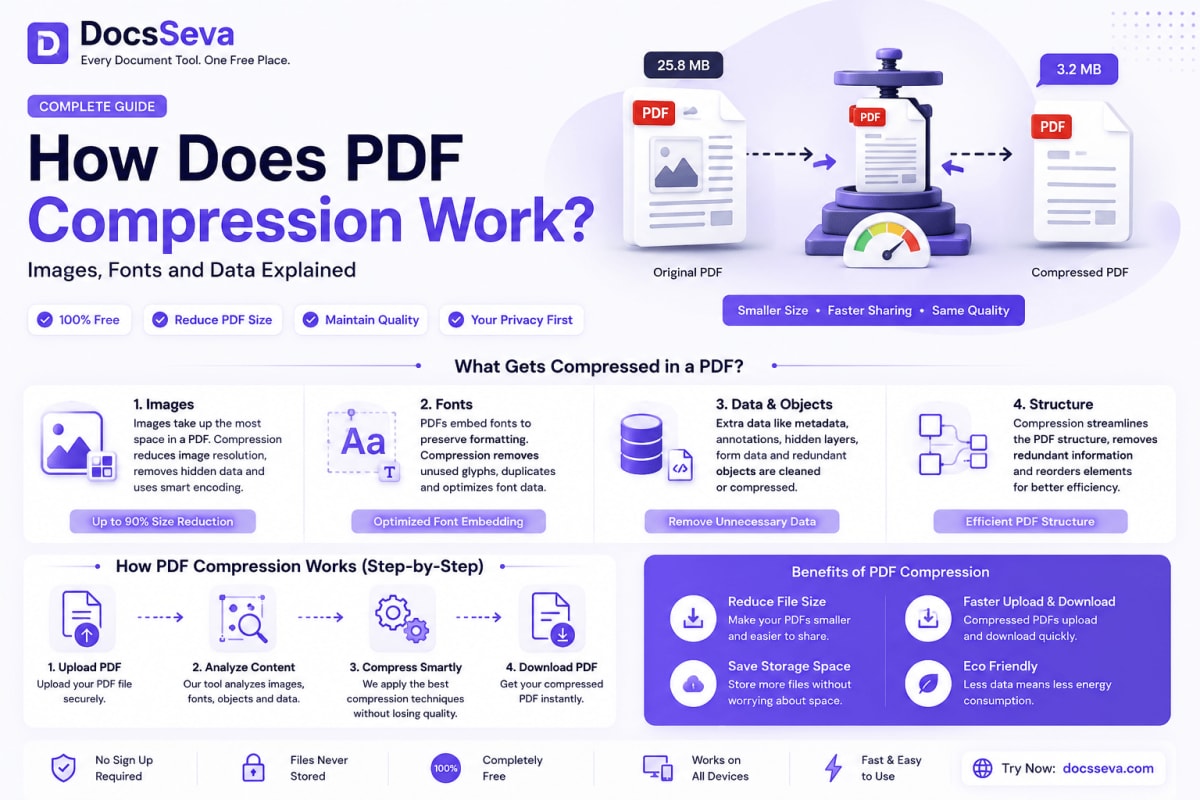
PDF files are widely used because they preserve a document’s layout, fonts, images and formatting across different devices. However, those same elements can also make a PDF unnecessarily large.
A PDF containing only a few pages may sometimes take up several megabytes, especially when it includes high-resolution photographs, scanned pages, embedded fonts, design elements or hidden document data.
PDF compression reduces the size of that file by reorganizing, simplifying or removing data that is not required for displaying the document correctly.
You can use the free DocsSeva PDF Compressor to reduce the size of a PDF directly online.
But what exactly happens when a PDF is compressed? This guide explains how PDF compression works, including the role of images, fonts, metadata, duplicated objects and internal document data.
What Is PDF Compression?
PDF compression is the process of reducing the amount of data stored inside a PDF file.
It does not normally mean placing the PDF inside a ZIP folder. Instead, the content stored inside the PDF is optimized.
A compressor may reduce file size by:
- Lowering the resolution of oversized images
- Re-encoding images more efficiently
- Removing unused fonts and font characters
- Eliminating duplicated document objects
- Deleting unnecessary metadata
- Removing hidden thumbnails and unused resources
- Compressing text and content streams
- Rebuilding the internal structure of the PDF
- Removing data left behind by previous edits
The result is a smaller PDF that is easier to upload, download, share, email and store.
What Is Stored Inside a PDF?
A PDF is more than a collection of visible pages. It is a structured document container that can include many different types of content.
A typical PDF may contain:
- Text
- Raster images
- Vector graphics
- Embedded fonts
- Font subsets
- Page instructions
- Form fields
- Annotations
- Bookmarks
- Links
- Attachments
- Colour profiles
- Document metadata
- Digital signatures
- Thumbnails
- JavaScript
- Previous document revisions
When a PDF compressor processes a file, it examines these components and identifies areas where the amount of stored data can be reduced.
How PDF Image Compression Works
Images are usually the largest part of a PDF, especially in scanned documents, brochures, portfolios, catalogues and image-heavy reports.
A single high-resolution image can contain more data than all the text and fonts in the document combined.
PDF compressors generally optimize images using three main methods.
1. Image Downsampling
Downsampling reduces the number of pixels stored in an image.
For example, a photograph may have been added to a document at a resolution of 300 or 600 DPI even though it is only intended to be viewed on a screen.
A compressor can reduce the image resolution while keeping enough detail for its intended purpose.
Common resolution ranges include:
- 72–96 DPI for basic screen viewing
- 120–150 DPI for general online sharing
- 200–300 DPI for higher-quality printing
- More than 300 DPI for specialised professional printing
Reducing an image from 600 DPI to 150 DPI can significantly decrease the file size. However, excessive downsampling may make small text, diagrams or photographs appear blurry.
2. Image Re-encoding
Images can be stored using different compression formats.
A PDF compressor may convert an inefficiently stored image into a more suitable format. For example, photographic images may be encoded using JPEG compression, while simple graphics may use lossless compression.
The selected method depends on the image content.
Photographs generally compress well with lossy image compression because small changes in colour values are difficult for the human eye to notice.
Logos, screenshots, diagrams and text-based graphics may require lossless compression to keep their edges sharp.
3. Removing Unnecessary Image Data
Some images contain data that does not contribute to their visible appearance.
This may include:
- Unused transparency information
- Oversized colour profiles
- Hidden image layers
- Cropped image areas
- Embedded thumbnails
- Redundant colour information
Removing or simplifying this data can reduce the size of the PDF without visibly changing the page.
If you need to convert PDF pages into individual image files before editing them, use the DocsSeva PDF to Images tool.
You can later combine the optimized images again using the Images to PDF converter.
Lossless and Lossy PDF Compression
PDF compression can be divided into two major categories: lossless compression and lossy compression.
Lossless PDF Compression
Lossless compression reduces file size without intentionally removing visible information.
The original data can be reconstructed after decompression.
Lossless optimization can include:
- Compressing text streams
- Compressing vector instructions
- Removing duplicate objects
- Eliminating unused resources
- Subsetting fonts
- Removing unnecessary metadata
- Reorganizing internal PDF objects
- Cleaning up data from previous revisions
Lossless compression is suitable when document quality must remain unchanged.
It is commonly preferred for:
- Contracts
- Legal documents
- Financial records
- Text-based reports
- Application forms
- Technical documents
- Documents intended for future editing
The reduction may be smaller than lossy compression, but the visual quality is normally preserved.
Lossy PDF Compression
Lossy compression achieves a greater file-size reduction by permanently removing some information.
It is mainly applied to images.
Lossy compression may:
- Reduce image resolution
- Lower image quality
- simplify colour information
- Remove very fine visual details
- Apply stronger photographic compression
It is useful when the primary goal is creating a smaller file for email, websites, messaging applications or online submission portals.
However, very aggressive lossy compression can cause:
- Blurry text inside scanned pages
- Block-like patterns in photographs
- Colour banding
- Reduced sharpness
- Distorted diagrams
- Difficult-to-read small text
A balanced compression setting is usually the best choice for normal documents.
How Embedded Fonts Affect PDF Size
Fonts allow a PDF to display text correctly even when the reader’s device does not have the original font installed.
To preserve the appearance of the document, PDF-generation software may embed the font data inside the file.
This can increase the file size, especially when:
- Multiple font families are used
- Several font weights are embedded
- Complete font files are included
- The same font is embedded more than once
- The document contains multiple language character sets
What Is Font Subsetting?
Font subsetting means including only the characters that are actually used in the document.
Suppose a PDF uses a font that contains thousands of characters, but the document only uses 80 of them. Instead of storing the complete font, the PDF can store a smaller subset containing those 80 characters.
This preserves the visible text while reducing the amount of embedded font data.
A compressor may also identify duplicate fonts and remove copies that are not required.
Font optimization usually creates little or no visible difference, making it one of the safest PDF compression techniques.
How Text and Vector Data Are Compressed
Text-based PDFs are often much smaller than scanned PDFs because normal text requires relatively little storage.
However, text and vector graphics are represented using content streams that contain instructions such as:
- Where text should appear
- Which font should be used
- What font size should be applied
- How lines and shapes should be drawn
- Which colours should be displayed
- How page elements should be transformed
These streams can often be compressed using lossless methods similar to ZIP compression.
Repeated instructions, unnecessary spaces and inefficiently stored commands may also be optimized.
Because vector graphics are based on mathematical instructions rather than pixels, they usually remain sharp at any zoom level after compression.
How Metadata Affects PDF File Size
PDF metadata contains information about the document rather than visible page content.
It may include:
- Document title
- Author name
- Subject
- Keywords
- Creation date
- Modification date
- Software used to generate the PDF
- Copyright information
- Custom application data
- Editing history
Metadata is normally small, but some applications add large amounts of custom information.
A compressor can remove unnecessary metadata while preserving essential document properties.
Before removing metadata, consider whether the document requires author, copyright, accessibility or archival information.
Hidden and Unused Data Inside PDFs
A PDF may contain resources that are no longer visible or required.
This commonly happens when a document has been edited, exported or saved multiple times.
Hidden data may include:
- Deleted page content
- Previous revisions
- Unused images
- Duplicate fonts
- Unreferenced document objects
- Old annotations
- Removed form fields
- Embedded previews
- Unused colour profiles
- Application-specific editing information
Some PDF editors use incremental saving. Instead of replacing the complete document, each edit is added to the end of the existing file.
This makes saving faster, but it may leave previous versions of objects inside the PDF.
Rebuilding or optimizing the PDF can remove these unnecessary objects and reduce the final size.
What Are PDF Object Streams?
Internally, a PDF contains objects representing pages, fonts, images, links, annotations and other resources.
A PDF compressor may group smaller objects into compressed object streams.
This reduces repeated structural information and allows the internal data to be stored more efficiently.
The compressor may also rebuild the cross-reference information used by PDF readers to locate document objects.
These structural changes usually do not affect the visible appearance of the PDF.
Why Scanned PDFs Are Usually Larger
A normal digital PDF stores actual text characters and layout instructions. A scanned PDF may store every page as a large image.
For example, a 50-page scanned document may contain 50 high-resolution images.
That is why scanned documents are often much larger than PDFs created directly from Microsoft Word, Google Docs or other document applications.
Compressing a scanned PDF usually involves:
- Reducing page-image resolution
- Converting images to grayscale when colour is unnecessary
- Applying stronger image compression
- Removing scanner-generated metadata
- Optimizing blank page areas
- Applying OCR to create searchable text
Use the DocsSeva PDF OCR tool when you need to make a scanned PDF searchable.
OCR can identify text inside page images, but the original scanned images may still remain in the document. Therefore, OCR and PDF compression solve different problems.
Does PDF Compression Reduce Quality?
PDF compression does not always reduce visible quality.
The result depends on the compression techniques and settings used.
Lossless optimization can remove unnecessary data without changing the appearance of the document.
Quality reduction generally occurs when:
- Images are downsampled
- JPEG quality is lowered
- Colour information is simplified
- Scanned pages are compressed aggressively
A well-configured compressor attempts to remove unnecessary data first and only reduces image quality when required.
For everyday sharing, a moderate compression level usually provides the best balance between file size and readability.
Why Some PDFs Cannot Be Compressed Much
Not every PDF will become dramatically smaller.
A PDF may show limited compression when:
- Its images are already compressed
- It contains mostly text and vector graphics
- Its fonts are already subsetted
- Unused metadata has already been removed
- The file was previously optimized
- The document contains embedded attachments
- The document is encrypted or restricted
- The pages already use low-resolution images
- The PDF contains digital signatures that must remain unchanged
For example, a text-only PDF that is already 200 KB may have very little unnecessary data to remove.
A scanned 100 MB PDF, on the other hand, may offer much greater compression potential.
PDF Compression Levels Explained
Many PDF tools provide multiple compression levels.
Low Compression
Low compression prioritizes visual quality.
It generally:
- Keeps images at a higher resolution
- Applies limited image re-encoding
- Preserves more colour information
- Focuses on lossless cleanup
This level is suitable for printing, portfolios, graphics and professional documents.
Recommended or Balanced Compression
Balanced compression attempts to reduce file size while maintaining acceptable quality.
It is suitable for:
- Email attachments
- Job applications
- Online forms
- Reports
- Study materials
- Business documents
- General document sharing
For most users, this is the preferred option.
Maximum Compression
Maximum compression prioritizes the smallest possible file.
It may:
- Significantly reduce image resolution
- Use stronger lossy compression
- Simplify colours
- Remove more optional data
This level is useful when a website or application has a strict upload limit, but the compressed document should always be reviewed before submission.
How to Compress a PDF Online
You can reduce a PDF’s size using the DocsSeva PDF Compressor.
- Open the DocsSeva PDF Compressor.
- Upload or drag and drop your PDF.
- Select the required compression level.
- Start the compression process.
- Preview or review the result.
- Download the compressed PDF.
- Open the downloaded file and verify the text and image quality.
Always keep a copy of the original PDF, particularly when using strong compression.
How to Get Better PDF Compression Results
The following practices can help you create a smaller PDF without unnecessarily damaging quality.
Optimize Images Before Creating the PDF
Resize very large photographs before adding them to a document.
A 6000-pixel photograph does not need to remain at its original resolution when it appears as a small image on an A4 page.
Use the Correct Image Format
Use photographic compression for photographs and lossless formats for logos, screenshots, charts and text-based graphics.
Avoid Unnecessary Font Families
Using many font families and font weights can increase the amount of embedded font data.
Remove Unneeded Pages
Delete irrelevant or blank pages before compressing the file.
You can divide a large document with the PDF Splitter or combine related files with the PDF Merger.
Remove Unnecessary Attachments
PDF files can contain embedded documents, spreadsheets, images and other attachments. These files may contribute significantly to the total size.
Use Grayscale for Suitable Documents
If a scanned document does not require colour, converting it to grayscale may reduce the file size.
However, do not remove colour from certificates, charts, identity documents or visual materials where colour has meaning.
Review the Compressed Document
Check:
- Small text
- Scanned signatures
- Photographs
- Charts
- Tables
- QR codes
- Barcodes
- Diagrams
- Fine lines
These elements may be affected by aggressive compression.
PDF Compression vs ZIP Compression
PDF compression and ZIP compression are different.
ZIP compression places the entire PDF inside a compressed archive. The recipient must extract the ZIP file before opening the document.
PDF compression optimizes the data stored inside the PDF itself. The resulting file remains a normal PDF and can be opened directly.
ZIP compression may not significantly reduce the size of a PDF because many PDF components are already internally compressed.
For sharing and uploading, internal PDF compression is usually more practical.
PDF Compression vs PDF Conversion
Compression reduces the size of a PDF while keeping it in PDF format.
Conversion changes the document into another format.
For example:
- PDF to Word makes document content editable
- PDF to images converts pages into JPG, PNG or another image format
- Images to PDF combines images into a PDF
- OCR converts scanned text into searchable or selectable content
Use the PDF to DOCX converter when you need an editable Word document rather than a smaller PDF.
Can a Password-Protected PDF Be Compressed?
A password-protected or encrypted PDF may need to be unlocked before it can be processed.
Some restrictions prevent applications from modifying, copying or optimizing document content.
When you have permission to access the document, you can use the PDF Unlock tool before compression.
After compressing the file, you can protect the resulting document again with the PDF Password tool.
Only unlock or modify documents that you own or have authorization to process.
When Should You Compress a PDF?
PDF compression is useful when:
- An email service rejects a large attachment
- A job portal has a strict upload limit
- A government website limits document size
- A PDF loads slowly on a website
- A report contains oversized photographs
- A scanned document is difficult to share
- Cloud storage space needs to be reduced
- A document must be sent through a messaging application
- Multiple PDFs must be archived efficiently
Compression is especially useful for documents that will primarily be viewed on screens rather than printed at a professional resolution.
When Should You Avoid Strong Compression?
Avoid aggressive compression when the PDF contains:
- Professional print artwork
- Medical imaging
- Engineering drawings
- Detailed maps
- Fine technical diagrams
- High-resolution photography
- Archival material
- Evidence documents
- Legally sensitive digital signatures
- Small QR codes or barcodes
In these cases, use low or lossless compression and carefully inspect the result.
Is Online PDF Compression Safe?
Safety depends on how the selected tool processes documents.
Before uploading confidential files, review whether the service:
- Requires an account
- Stores uploaded files
- Transfers files to a remote server
- Deletes processed files automatically
- Uses secure HTTPS connections
- Clearly explains its privacy practices
Avoid uploading highly sensitive financial, medical, identity or legal documents to an unfamiliar platform.
For ordinary documents, choose a tool that provides transparent processing and privacy information.
Frequently Asked Questions
How does PDF compression reduce file size?
PDF compression reduces file size by optimizing images, compressing content streams, subsetting fonts, removing duplicate objects and deleting unnecessary metadata or hidden data.
Does compressing a PDF delete text?
Normal PDF compression should not delete visible text. However, very aggressive compression may reduce the quality of text that is stored inside scanned page images.
Can a compressed PDF be restored to its original quality?
Lossless compression can preserve the original information. Data removed through lossy image compression cannot normally be restored completely. Always retain the original file.
Why is my PDF still large after compression?
The file may already be optimized, contain pre-compressed images, include attachments or use content that cannot be reduced without significant quality loss.
Does PDF compression affect hyperlinks?
Standard compression should preserve hyperlinks. However, links should still be tested after processing, especially when the document has been rebuilt or converted.
Does compression affect searchable text?
Lossless optimization should preserve searchable text. In scanned PDFs, searchable text created through OCR should normally remain, although aggressive processing may affect the page images.
What is the best compression level for email?
Balanced or recommended compression is generally suitable for email because it reduces file size while keeping text and images readable.
Can I compress a PDF without losing quality?
Yes. Lossless optimization can reduce some PDFs without visible quality loss by cleaning metadata, duplicate objects, unused resources and inefficient internal data.
Does compressing a PDF remove the password?
Compression does not normally remove PDF encryption automatically. A protected file may need to be unlocked with the correct password before it can be optimized.
How many times can a PDF be compressed?
A PDF can technically be compressed multiple times, but repeatedly applying lossy compression can gradually reduce image quality. It is better to compress the original file once using the correct setting.
Final Thoughts
PDF compression works by analyzing the different elements stored inside a document and reducing unnecessary data.
Images usually provide the greatest opportunity for file-size reduction, while font subsetting, metadata cleanup, stream compression and duplicate-object removal provide additional savings.
The best compression method depends on the document’s purpose.
For printing or professional use, prioritize quality. For email, websites and online submissions, balanced compression is generally the most practical choice. Maximum compression should be used only when strict upload limits make it necessary.
Use the DocsSeva PDF Compressor to reduce your PDF file size online, and always review the output before deleting the original document.
DocsSeva Editorial Team
Published on July 24, 2026 · Updated on July 28, 2026
Browse all tools
38 free document tools, no account required.
Browse all toolsRelated articles


In-Depth How-to Guide
Compress a 300 MB Scanned PDF Without Freezing the Tab
A 180-page, 312 MB scan crashes the tab and comes back as a ZIP. Why that happens, what each level does to your pages, and the cheaper step to take first.


How to Compress a PDF to a Chosen File Size Without Losing Quality
Learn how to compress a PDF to a chosen file size such as 100 KB, 200 KB, 500 KB, 1 MB or 2 MB while preserving readable text, clear images and essential document details.


How to Reduce PDF Size Below 1 MB Without Losing Readability
Learn how to reduce PDF size below 1 MB for email, government portals, job applications and online forms while keeping text, images and signatures readable.