Check If Your Photos Are Carrying Your Home Location

Key takeaways
- The Location section only appears when a photo really carries coordinates, so nothing is guessed.
- Camera app photos usually keep GPS; screenshots and chat-forwarded images usually do not.
- Cropping the address out of the frame does not remove the coordinates stored beside the pixels.
- Re-encoding the image is what drops metadata; File Info only reads, it never edits.
- Always re-check the new file afterwards instead of assuming the data is gone.
You are selling a fridge on OLX. You take four photos in your kitchen, upload them, and a buyer messages within the hour asking whether you are the third floor of the building next to the medical store. You never mentioned your address.
He may have guessed. Or your camera wrote your latitude and longitude into the photo file, to six decimal places, and he opened it.
Check one of your own photos right now
Do not take anyone's word for whether your phone does this. Take a photo you have sitting in your gallery, get it onto a computer or open it from your phone's browser, and drop it into File Info.
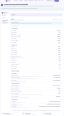
Look down the sections. If a section called Location (GPS) appears, the photo carries coordinates. If it does not appear at all, this photo has none — the section is only built when the file actually contains latitude and longitude, so its absence is a real answer, not a blank space.
When it does appear, you get:
- Latitude and Longitude in the degrees-minutes-seconds form that maps use, for example
19° 4′ 34.32″ N - a Coordinates row with the same thing as plain decimals, ready to paste anywhere
- Altitude in metres, when the phone recorded one
- a map link built from those coordinates, so you can see for yourself exactly what a stranger would see
Six decimal places of latitude is roughly a ten-centimetre resolution on paper. What you actually get in practice is a good deal looser than that — more on this below — but it is comfortably enough to identify a building.
Which photos carry it and which do not
There is no single rule, which is exactly why checking beats assuming. Some patterns hold up well though.
Usually carries GPS: photos taken with the phone's own camera app while location permission is granted, copied to a computer by cable, sent as an email attachment, or uploaded to a cloud drive and downloaded again. Nothing in that path removes anything.
Usually does not: screenshots, images downloaded from a website, and pictures that came to you through a chat app. Messaging platforms and social networks generally re-process what you send, and metadata does not survive that trip. This is why a photo forwarded twice on WhatsApp arrives clean while the original in your gallery is not.
The catch is the marketplace listing itself. When a portal takes your file and re-encodes it, you are fine. When it stores what you gave it and serves the same file back to buyers, you are not. You have no way of knowing which one you are dealing with. So handle it at your end.
What else is sitting in there
GPS gets the attention, but the report has more.
The Camera & Capture section reads out the make and model of the phone or camera, the lens, ISO, aperture as f/1.8, shutter speed written the way a photographer reads it (1/250 s rather than 0.004), focal length, flash, white balance, and the Software field — which frequently names the app that last edited the picture. There are also Artist and Copyright fields, which some cameras fill in with a name you typed into a settings menu years ago and forgot.
Below that sits a collapsed section holding every remaining EXIF, IPTC and XMP tag the file carries, up to a hundred and twenty of them. Open it once, on a photo of your own, just to see how much is actually there. Most people are surprised.
Removing it: the honest version
File Info reads. It does not edit, convert or write anything back — your file goes in, a report comes out, the file is unchanged. So this tool tells you whether there is a problem; it is not the thing that fixes it.
To get rid of embedded metadata you have to produce a genuinely new image rather than a copy of the old one. Re-encoding the picture is what does it: the pixels are decoded and written out fresh, and the metadata blocks attached to the original are not part of that output. Running the photo through Image Converter to save it as a new JPG, or through Image Compressor to bring it under a listing's size cap, both put the file through that kind of rebuild.
Then — and this is the part to actually do — run the new file back through File Info. If the Location (GPS) and Camera & Capture sections are gone, the data is gone. If they are still there, you know before the buyers do. Verifying takes fifteen seconds and it is the only step in this whole article that gives you certainty rather than a reasonable expectation.
The mistake that feels like a fix
Cropping.
If a photo shows your society name on a wall and you crop that corner out, the picture no longer shows your address. The coordinates are untouched, because coordinates are not pixels — they live in a separate block of the file that has nothing to do with what is in frame. Image Crop changes what the buyer can see; it does not change what the file knows. Same story for drawing a box over a number plate, and same story for rotating.
Check the file after cropping, not instead of.
Two limits worth keeping in mind
Coordinates are where the camera thought it was. Indoors, with a weak satellite fix, a phone falls back on nearby Wi-Fi and cell towers and can be off by fifty or a hundred metres. A location that lands on the shop across the road is not evidence of anything except an ordinary GPS error.
No GPS does not mean it was not taken there. Location may have been switched off, the app may never have had permission, or the metadata may have been stripped in transit. Absence tells you nothing about where a photo was taken. It only tells you that this particular file is not going to hand your address to a stranger.
A short habit for anyone who lists things online
Before a batch of photos goes up on any marketplace, run the first one through the checker. If it comes back clean, the rest from the same shoot almost certainly are too. If it comes back with a Location section, put all of them through a re-encode, spot-check one, and then upload.
Two minutes for a set of listings. Worth it for exactly one reason: your fridge photos should sell your fridge, not publish your flat. The rest of the picture-handling tools sit together under image tools if you need to resize or reshape them for the listing as well.
DocsSeva Team
Published on August 26, 2026 · Updated on October 2, 2026
Browse all tools
38 free document tools, no account required.
Browse all toolsMore on utilities

Finding a File's Real Last-Edited Date, Not Today's
Your laptop says the forwarded quotation was modified today. It wasn't. Here is where a file's real dates live, which formats keep them, and what they prove.
In-Depth How-to Guide
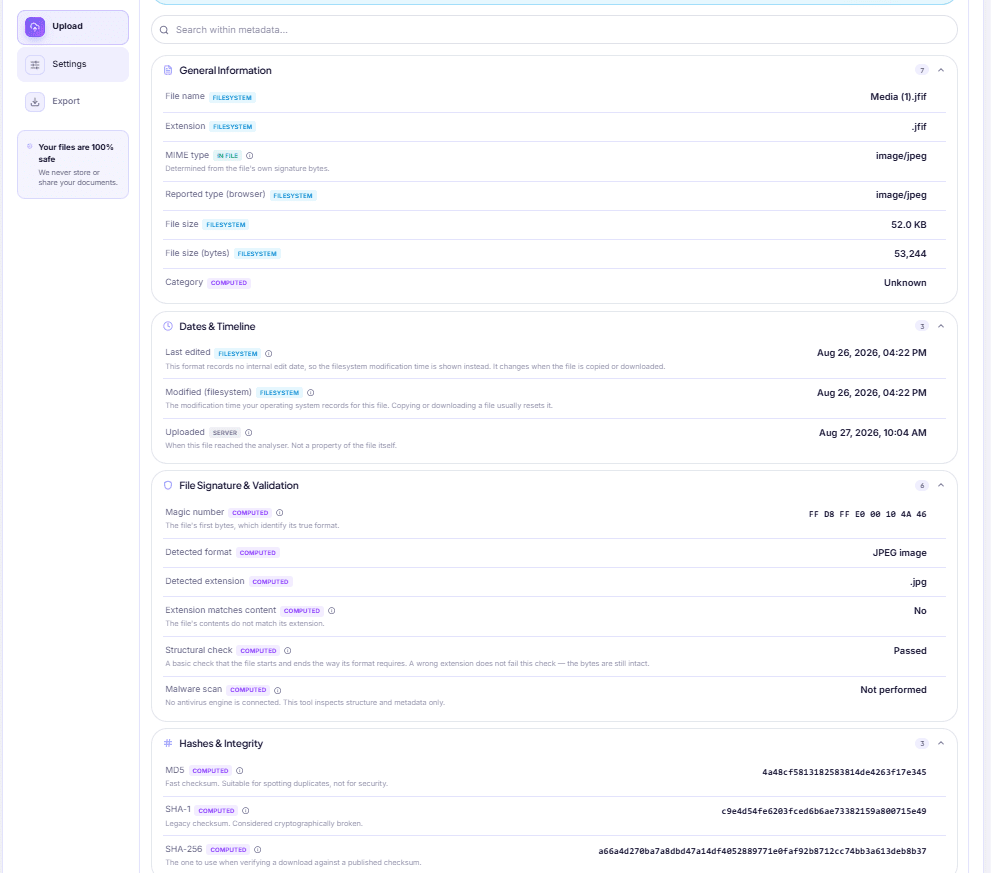
Portal Says Invalid File Type but Your JPG Looks Fine
A renamed PNG is still a PNG, and upload forms check the bytes. How to confirm what your file really is, which mismatches are harmless, and how to fix a real one.


In-Depth Comparison
Fast, Advanced or Compatibility: picking an OCR mode
What the three Advanced OCR recognition modes really change, why the Advanced option is sometimes greyed out, and how your device quietly sets the accuracy ceiling.