Finding a File's Real Last-Edited Date, Not Today's

Key takeaways
- Copying, downloading and chat forwards all reset the filesystem modification time.
- Uploads use multipart form data, which carries no timestamp, so server-side tools see the upload minute.
- PDF, Office and ODF files record their own created and last-saved dates that survive being moved.
- Every value is badged in file, filesystem, computed or server so you know what you are reading.
- Converting or merging produces a new file with new dates, so inspect originals before you convert.
A supplier forwards you a quotation PDF on WhatsApp and swears it was issued on 14 June. You save it, right-click, hit Properties, and Windows says the file was modified today at 4:42 pm — the exact minute you downloaded it. So either he backdated the quote, or the date you are looking at means nothing.
It means nothing. Almost.
The date your computer shows is the date the file arrived
A filesystem records a modification time for every file on your disk. It is genuinely useful for your own files. It is also rewritten by ordinary, innocent things: copying a file to a pen drive, downloading an attachment, receiving something on WhatsApp, restoring from a backup, syncing a folder. Each of those creates a new copy of the bytes on your machine, and that copy is new, so the clock says now.
The document inside has not changed. Its timestamp has.
Why most online metadata tools show today's date too
This part is a genuine quirk of how the web works, and it is worth understanding because it explains a lot of confusing readouts.
When a browser uploads a file, it packages it as multipart/form-data. That format carries the file's name, its bytes and a content type. It does not carry the modification time. The server on the other end sees a file object whose timestamp is the moment the request body was parsed — that is, now.
So a tool that reads the timestamp on the server end will report today's date for a photo from 2019, for a scanned certificate from 2011, for everything. Not because it is careless, but because that information never left your machine in the first place.
What File Info does differently
Two things, and both are visible in the readout.
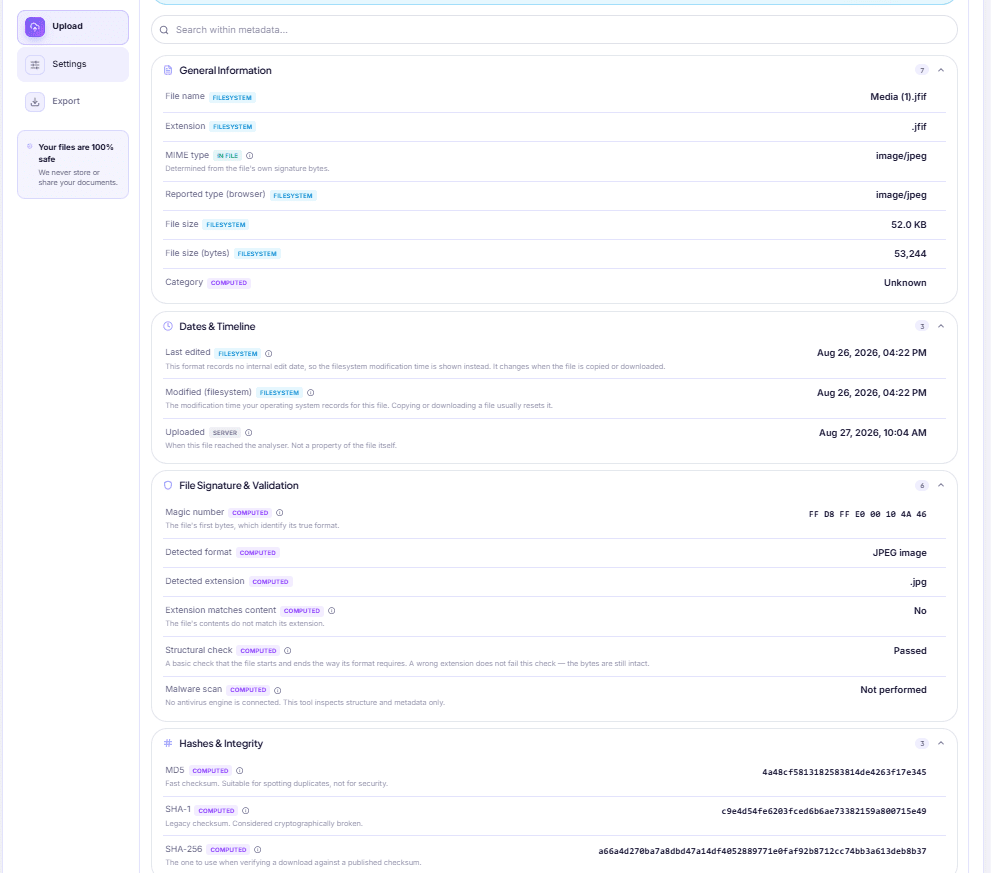
The File Info tool reads the real modification time in your browser, from the file object your operating system handed it, and sends that along as its own separate field. That is why the row labelled Modified (filesystem) shows the date your OS actually holds rather than the upload minute.
Second, and more useful: where the file records its own save date inside itself, that one wins. A row called Last edited sits at the top of the Dates & Timeline section, and it tells you which source it came from. An internal save date survives copying, emailing, WhatsApp and downloading, because it lives inside the document rather than around it.
Which formats keep their own dates, and which do not
| Format | What is stored inside | Shown as |
|---|---|---|
| Creation and modification entries written by the producing software | Created (document), Last modified (document) | |
| DOCX / XLSX / PPTX | Created and modified properties in the document's own properties file, plus who last saved it and when it was last printed | Created (document), Last saved (document), Last printed |
| ODT / ODS / ODP | The same idea, in OpenDocument's own properties | Created (document), Last saved (document) |
| JPG from a camera or phone | When the shutter fired, when it was written to a file, when an editor last touched it | Taken (original), Digitised, Last edited (EXIF) |
| TXT, CSV | Nothing at all | Filesystem time only |
That last row is the honest one. A plain text file is just characters; there is nowhere to put a date. For those, the filesystem time is the only answer there is, and the readout says so instead of pretending otherwise.
Read the badge, not just the number
Every value in the report carries a small label showing where it came from, and this is the part most people skim past.
- in file — stored inside the document itself. It travels with the file wherever it goes.
- filesystem — reported by your operating system. Changes when the file is copied or downloaded.
- computed — worked out from the bytes by the tool.
- server — observed when the file was received. The Uploaded row is this, and it is not a property of your file at all.
So when your supplier's quotation shows Created (document): 14 June, in file and Modified (filesystem): today, both are true and they are answering different questions. The first says when the PDF was generated. The second says when it landed on your laptop.
Creation date is often just missing — and that is the correct answer
Your operating system knows when a file was created on that disk. A browser cannot read it; no web API exposes it. And plenty of formats never write one internally either.
Rather than filling that gap with the closest available number, the report leaves it out and shows a short notice saying no creation date is recorded and that browsers cannot read one from disk. A blank is more useful than a plausible wrong answer, particularly when you are about to quote the date to someone.
The same discipline shows up elsewhere: a value the tool inferred rather than read is tagged approx, so you know not to lean on it.
What this proves, and what it does not
Be careful here, because it is easy to overstate.
An embedded date is written by whatever software produced the file. Software can be told the wrong time, run on a machine with a wrong clock, or be edited afterwards by someone who knows how. An internal creation date of 14 June is strong evidence that the PDF was generated on 14 June. It is not proof, and it will not settle a dispute on its own.
What it does very well is catch the ordinary confusion: a file that looks new because it was forwarded, a photo that looks like it was taken today because it came through a chat app, a scanned certificate whose real vintage you needed to check.
While you are in there, the Document Details section is worth a look too. Creator application tells you the program the document was authored in, and Producer tells you the library or driver that actually wrote the PDF. A "signed" letter produced by a phone screenshot app tends to announce itself.
One trap when you compare two versions of a document
Converting or rebuilding a file gives you a brand-new file, with brand-new dates.
Turn a Word file into a PDF with DOCX to PDF and the resulting PDF's creation date is the moment you converted, not when the letter was written. Combine three statements with PDF Merger and the merged output is a fresh document; the dates of the three originals do not survive into it. Neither tool is losing anything — a new file genuinely was created — but if the dates matter to you, inspect the originals before you convert, and keep them.
If you need to hold on to what you found, the report exports as JSON, CSV or TXT, saved as your file's name plus -metadata. That is far easier to attach to an email than a series of screenshots. Other small checks of this kind sit under utilities, and the full set is on the all tools page.
DocsSeva Team
Published on August 27, 2026 · Updated on October 13, 2026
Browse all tools
38 free document tools, no account required.
Browse all toolsMore on utilities

Check If Your Photos Are Carrying Your Home Location
Marketplace photos can carry the coordinates of the room they were taken in. How to check a photo in seconds, what else is stored, and how to actually remove it.
In-Depth How-to Guide
Portal Says Invalid File Type but Your JPG Looks Fine
A renamed PNG is still a PNG, and upload forms check the bytes. How to confirm what your file really is, which mismatches are harmless, and how to fix a real one.


In-Depth Comparison
Fast, Advanced or Compatibility: picking an OCR mode
What the three Advanced OCR recognition modes really change, why the Advanced option is sometimes greyed out, and how your device quietly sets the accuracy ceiling.