How to Compress PDFs for Online Exam Forms

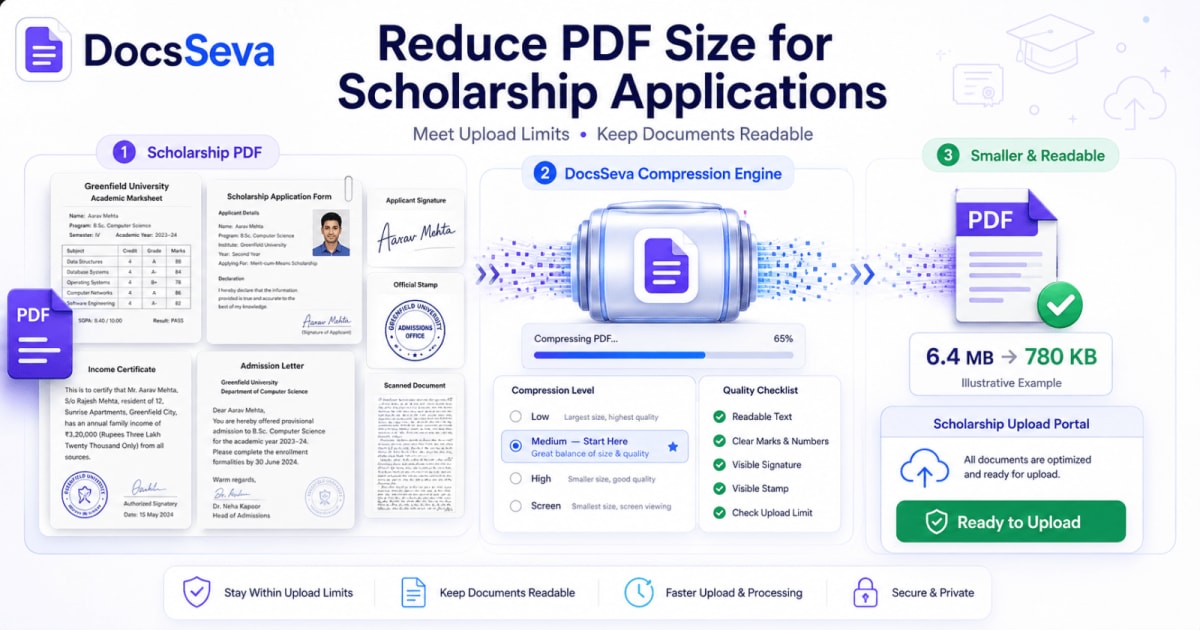
Steps
Check the exam portal requirements
Read the instructions beside the document upload field and confirm the accepted format, maximum size and document requirements.
Prepare the correct PDF
Open the original document and verify that required pages, names, marks, certificate numbers, signatures and stamps are present and readable.
Open DocsSeva PDF Compressor
Open the DocsSeva PDF Compressor and select the PDF required for the online examination application.
Compress with Medium first
Choose Medium as the first attempt to balance file-size reduction with document readability.
Try High if the PDF is still too large
If Medium does not meet the portal limit, process the original PDF again using High compression instead of repeatedly recompressing the previous output.
Verify and upload the final PDF
Open the downloaded file, check its size and inspect important text and document details before selecting it in the exam application form.
Key takeaways
- Check each exam portal upload field because file-size and format requirements can differ.
- Start with Medium compression instead of immediately choosing the strongest setting.
- Use High when the document still exceeds the required PDF upload limit.
- Verify marksheets, certificate numbers, signatures, seals and small text after compression.
- If the portal requests JPG or JPEG, do not upload a PDF simply because the document started as one.
Online examination forms often require applicants to upload supporting documents such as marksheets, certificates and qualification records. A common problem appears when the PDF is perfectly readable but larger than the upload limit accepted by the application portal.
The solution is not simply to apply the strongest possible compression.
A better approach is to check the portal requirement first, compress the original PDF using a balanced setting, inspect the output carefully and increase compression only when the document is still too large.
If you need to compress PDF for exam form uploads, the DocsSeva PDF Compressor provides Low, Medium, High and Screen compression options.
For most exam documents, start with Medium and verify the result before trying a stronger setting.
Check the Exam Portal Requirements Before Compressing
Do not assume that every online examination form has the same file-size requirement.
Even different document fields inside one application can have different rules.
Before modifying your document, check:
- Accepted file format
- Maximum file size
- Minimum file size, if specified
- Number of pages allowed
- Whether documents must be merged
- Whether individual documents must be uploaded separately
- File-naming requirements
- Whether password-protected PDFs are accepted
- Whether photographs and signatures require JPG or JPEG instead of PDF
The instructions shown beside the actual upload field should be treated as the primary requirement.
This is important because an applicant might correctly reduce a PDF to a very small size and still receive an error because the portal expected another format.
PDF Upload Fields and Image Upload Fields Are Different
Online exam applications commonly contain several types of upload fields.
One may request a certificate in PDF format while another may request a photograph or signature as JPG or JPEG.
These are not interchangeable.
If the portal asks for:
PDF → prepare and compress the PDF.
JPG/JPEG → prepare the image in the requested image format.
Do not convert every document into PDF just because PDF compression is available.
Similarly, do not convert an important multi-page certificate PDF into an image unless the portal specifically requires that format.
Following the required format is just as important as meeting the size limit.
Why Exam Document PDFs Become Too Large
Exam documents are often created from scans rather than directly generated digital files.
A scanned page may effectively be one large image.
Several high-resolution scans combined into a PDF can therefore create a surprisingly large file.
Common causes include:
- High-resolution scanner settings
- Smartphone photographs converted to PDF
- Full-colour scans
- Multiple certificates combined into one file
- Large candidate photographs inside documents
- High-resolution signatures and stamps
- Duplicate pages
- Blank scanned pages
- Unnecessarily large image dimensions
A four-page scanned PDF can sometimes be larger than a much longer document containing mainly digital text.
That is why page count alone does not tell you how compressible a PDF will be.
How to Compress PDF for Online Exam Forms
Step 1: Save the Original Document
Before processing the PDF, keep an untouched copy.
Do not overwrite your source file.
Open the original and verify:
- Candidate name
- Parent/guardian name if relevant
- Roll or registration numbers
- Qualification details
- Subject names
- Marks and grades
- Certificate numbers
- Dates
- Signatures
- Stamps
- Seals
- Page orientation
Also confirm that no required page is missing.
The original should remain your reference if you need to attempt a different compression setting later.
Step 2: Check the Current PDF Size
Compare the document's existing size with the limit displayed by the examination portal.
Suppose your document is several megabytes while the field allows a much smaller upload.
That tells you meaningful compression is required.
However, do not target a random number such as 1 MB or 500 KB unless that is what the actual application requires.
The correct target is the portal's current stated limit.
Step 3: Open DocsSeva PDF Compressor
Open the DocsSeva PDF Compressor.
Select the PDF you need to submit with the examination form.
DocsSeva provides four compression modes:
- Low
- Medium
- High
- Screen
Each setting involves a different balance between size reduction and document quality.
Which Compression Mode Is Best for Exam Forms?
Low
Use Low when document clarity is the highest priority and only a small reduction is needed.
This can be useful for documents containing:
- Fine print
- Detailed tables
- Light stamps
- Thin signatures
- Small certificate text
Medium
Medium should usually be your first attempt.
It aims to balance file-size reduction and readable output.
For exam-form documents, this is useful because the file often contains small academic details that should remain easy to inspect.
High
If Medium still produces a PDF above the portal limit, return to the original file and try High.
High provides stronger reduction but should be followed by another careful quality check.
Screen
Screen provides stronger screen-focused reduction and rasterizes the pages.
Because rasterization may affect searchable or selectable text, use Screen carefully when the document contains important digital text.
Use it mainly when stronger reduction is necessary and a rasterized viewing copy is acceptable for the application.
Why You Should Start From the Original Each Time
Suppose Medium is not small enough.
Do not automatically take the Medium output and compress it again using High.
Instead:
- Return to the original PDF.
- Select High.
- Create a fresh output.
- Compare it with the Medium result.
Repeatedly compressing an already compressed file can introduce unnecessary cumulative quality loss.
Working from the source gives each compression setting the cleanest starting point.
How to Protect Marks and Grades During Compression
Marksheets are among the most sensitive documents to compress because they often contain small text inside dense tables.
After downloading the output, zoom into:
- Subject names
- Marks obtained
- Maximum marks
- Grades
- Percentages
- Result status
- Roll number
- Registration number
- Examination session
- Fine-print notes
A marksheet that looks acceptable at full-page size may show blurry digits when zoomed.
Numbers deserve particular attention because even a small loss of clarity can make two digits difficult to distinguish.
If Medium satisfies the size limit, there is no benefit in moving to High simply to create an even smaller file.
Check Certificate Numbers and Dates
Qualification and eligibility certificates may contain small serial numbers, dates and reference codes.
These details may be important during document verification.
Inspect:
- Certificate number
- Issue date
- Validity date
- Registration number
- Institution information
- Category information where relevant
- Verification codes
- QR codes or barcodes
Strong compression can affect thin lines and small characters more noticeably than ordinary large text.
Always inspect the actual downloaded PDF rather than relying on a thumbnail preview.
Check Signatures, Stamps and Seals
Scanned certificates may contain faint signatures or stamps.
These elements can be more vulnerable than dark printed text.
After compression ask:
- Can the signature still be seen clearly?
- Are handwritten strokes intact?
- Is text inside the stamp readable?
- Is the seal still recognizable?
- Has a light-coloured mark become too faint?
- Is any QR code still visually intact?
If important information becomes difficult to read, return to the original and use a less aggressive setting.
Passing a file-size check is not useful if the document becomes difficult to verify.
Can You Compress an Exam PDF to Exactly 200 KB, 500 KB or 1 MB?
Sometimes you can get below a particular threshold, but there is no universal compression setting that guarantees an exact output size for every PDF.
The possible reduction depends on factors such as:
- Original file size
- Number of pages
- Image resolution
- Colour depth
- Existing compression
- Amount of digital text
- Amount of scanned content
- Photographs
- Graphics
Two PDFs that look similar can produce very different results.
Use a practical workflow:
- Check the required maximum.
- Start from the original PDF.
- Try Medium.
- Check the resulting size.
- If necessary, return to the original and use High.
- Inspect quality again.
- Continue only if the portal requirement is still not satisfied.
If your form has an especially strict limit, read How to Meet Strict PDF Upload Limits for Online Forms.
What If Several Certificates Must Be Uploaded as One PDF?
Some application forms request several supporting documents as a single PDF.
If that is explicitly required, you can use the DocsSeva PDF Merger before compression.
A sensible workflow is:
- Collect all required PDF documents.
- Confirm which pages are needed.
- Arrange them in the required sequence.
- Merge them.
- Open the merged PDF.
- Verify the page order.
- Compress the completed PDF.
- Inspect the final result.
- Upload it.
Compressing the final merged file helps you judge the size of the exact document that will be submitted.
Remove Only Genuinely Unnecessary Pages
Scanned files sometimes contain:
- Blank pages
- Duplicate pages
- Scanner test pages
- Unrelated pages
- Accidentally repeated certificates
If the application does not require these pages, removing them may reduce the file size before compression.
The DocsSeva PDF Splitter can help prepare only the required pages.
However, never remove a page merely to make the file smaller when that page is required by the exam instructions.
Content completeness is more important than shaving a few kilobytes from the PDF.
What If the PDF Is Still Too Large?
If High compression is still not enough, investigate the original document.
Look for Oversized Scans
A page scanned at unnecessarily high resolution can consume a large amount of space.
If you still have access to the original physical document and are permitted to rescan it, use a sensible document-scanning resolution rather than archival-level settings.
Check for Full-Colour Pages
A black-text certificate does not always require a huge full-colour scan.
However, colour should be preserved whenever it carries useful information, such as:
- Coloured seals
- Official markings
- Photographs
- Highlighted information
Check for Large Photographs
Some scanned documents contain high-resolution photographs that contribute disproportionately to file size.
Remove Genuine Duplicates
Duplicate scans create size without adding useful information.
Recheck the Actual Limit
Before sacrificing additional readability, confirm that you are looking at the correct limit for the specific upload field.
Different documents may have different restrictions.
Do Not Ignore PDF Password Protection
Some applicants scan or receive documents as password-protected PDFs.
An application portal may reject a protected file even when its size is acceptable.
Before uploading, check whether the portal permits protected PDFs.
If it does not, prepare an appropriate unlocked submission copy only when you are authorized to do so.
File size is only one part of upload compatibility.
Verify Searchable Text When Necessary
Some PDFs contain real digital text while scanned PDFs may contain only page images.
OCR-processed documents can also contain an invisible text layer behind the scan.
If your original document has searchable or selectable text and you want to preserve it, test the compressed result.
Try:
- Selecting a sentence.
- Searching for a visible word.
- Copying a short line.
- Comparing the behaviour with the original.
DocsSeva's standard compression modes should be preferred when maintaining selectable text is important.
Screen mode rasterizes pages and may remove that selectability.
Common Exam Form Upload Errors After Compression
A smaller file can still be rejected for reasons unrelated to compression.
Wrong File Format
The portal expects PDF but you selected JPG—or the reverse.
File Still Too Large
The output remains above the maximum size.
File Too Small
Some systems may specify a minimum size as well as a maximum.
Password-Protected PDF
The application system cannot open the uploaded file.
Corrupted PDF
The document does not open correctly after processing.
Incorrect Document
A candidate uploads a marksheet in a certificate field or selects an outdated version.
Wrong Number of Pages
The file contains missing or additional pages.
Bad File Name
Some portals restrict special characters or unusually long filenames.
Always read the field-specific instruction when an upload fails.
Final Exam Document Quality Checklist
Before uploading, inspect the final PDF from beginning to end.
Check:
- File size
- PDF format
- Correct document
- Candidate name
- Registration number
- Roll number
- Certificate number
- Marks and grades
- Dates
- Signatures
- Stamps and seals
- Photographs
- QR codes
- Page count
- Page order
- Orientation
- Readability at normal zoom
- Readability when enlarged
- Searchable/selectable text if required
- Password status
Only after these checks should the file be selected in the examination application form.
Keep a Local Copy of the Submitted File
Once you create a successful upload version, keep a copy with a clear filename.
For example:
exam-application-certificate-final.pdf
Avoid maintaining several confusing files named:
final.pdf
final2.pdf
latest.pdf
newfinal.pdf
A descriptive filename makes it easier to identify exactly which document was submitted if you later need to review your application.
Follow the portal's own naming restrictions where applicable.
Exam Forms, Scholarship Forms and Government Forms Have Similar PDF Problems
Many online application workflows share the same fundamental challenge:
The document has to fit the technical upload requirement without losing the information needed for verification.
If you are also preparing educational funding documents, read How to Reduce PDF Size for Scholarship Applications.
For broader public-service submission workflows, see How to Compress Documents for Government Portals.
These pages address different user intents while following the same central principle: reduce unnecessary file size without sacrificing document usability.
Best Workflow for Online Exam PDFs
Use this sequence:
Check requirements → Prepare original → Merge if required → Compress → Inspect → Confirm size → Upload
Do not start with maximum compression.
Do not assume a universal size limit.
Do not upload the file without opening the downloaded result.
Do not use PDF when the portal explicitly asks for an image format.
And do not delete the original document after creating a compressed version.
Final Recommendation
For most online exam document PDFs, start with Medium compression in DocsSeva.
If the file remains above the permitted limit, return to the original and try High.
Use Screen only when stronger reduction is required and the possible loss of searchable or selectable text is acceptable.
Most importantly, inspect the finished document.
A successful exam-form PDF must satisfy two requirements:
- The portal accepts the file.
- The document remains clear enough to verify.
When your document is ready, open the DocsSeva PDF Compressor, reduce the file size, verify the output and upload only the checked final version.
Frequently asked questions
How do I compress a PDF for an online exam form?
Check the exam portal's required PDF size first. Compress the original document using Medium, download the result and inspect its readability. If the PDF still exceeds the limit, try High compression from the original file and verify the output again before uploading.
Which compression level should I use for exam documents?
Medium is a practical starting point for most exam documents because it balances file-size reduction and readability. High is useful when a stricter upload limit must be met. Use Screen carefully because it rasterizes pages and may affect searchable or selectable text.
Can I compress a marksheet PDF without making the marks blurry?
Compression can affect image-based documents, so start with a moderate setting and inspect subject names, marks, grades, roll numbers and other small text after processing. Use stronger compression only when necessary.
Why is my exam document PDF still too large after compression?
The PDF may contain high-resolution scans, colour photographs, multiple scanned pages or other image-heavy content. Try stronger compression, remove genuinely unnecessary pages or recreate oversized scans at a more appropriate resolution if you have the original documents.
Can I upload a PDF if the exam portal asks for JPG or JPEG?
No. Use the format specifically requested by the portal. PDF compression helps only with upload fields that accept PDF documents. A photograph, signature or certificate field requesting JPG or JPEG should be prepared in that required image format.
Should I compress the same PDF multiple times?
It is better to return to the original PDF when trying a stronger compression mode. Recompressing an already compressed output can introduce additional quality loss without providing the best possible result.
DocsSeva Editorial Team
PDF & Document Tools Editorial Team
Published on August 20, 2026
The DocsSeva Editorial Team tests practical PDF and image workflows and publishes guides for preparing documents for online forms, file-size limits and everyday digital submissions.
“We tested an exam-application PDF containing a marksheet, certificate, scanned text, signature and stamp with multiple DocsSeva compression settings and manually checked file size and readability.”
Open the PDF Tools
Free, no sign-up, and your files are never stored.
Open the PDF ToolsMore on pdf-compression


In-Depth How-to Guide
How to Reduce PDF Size for Scholarship Applications
Learn how to reduce PDF size for scholarship applications while keeping marksheets, certificates, signatures, stamps and scanned text readable for online uploads.


In-Depth How-to Guide
PDF Upload Size Limit: How to Meet Strict Online Form Limits
Learn how to reduce PDF size for strict online-form limits while preserving readable text, clear signatures, official stamps and important document details.


In-Depth How-to Guide
How to Reduce PDF Size for College Admission Forms
Learn how to reduce PDF size for college admission forms while keeping marksheets, certificates, photographs, signatures and important text readable.