How to Reduce PDF Size for College Admission Forms


Steps
Check the admission portal requirements
Confirm the accepted file format, maximum file size, page requirements and individual document rules shown by the college application portal.
Prepare your admission documents
Collect the required marksheets, certificates and supporting documents and remove only genuinely unnecessary pages.
Open the DocsSeva PDF Compressor
Open the DocsSeva PDF Compressor and select the original PDF you need to upload with your college application.
Start with Medium compression
Use Medium compression first to reduce the file size while maintaining useful readability for academic documents.
Use High if the PDF is still too large
If the Medium result remains above the admission portal's limit, process the original PDF again with High compression.
Verify the final admission PDF
Open the downloaded PDF and check names, marks, certificate details, signatures, photographs and page order before uploading.
Key takeaways
- Check the college admission portal's maximum PDF size and accepted format before compressing.
- Start with Medium compression when the document contains important academic text and scanned certificates.
- Use stronger compression only when the resulting PDF still exceeds the admission portal's limit.
- Always inspect marks, names, certificate numbers, photographs and signatures after compression.
- Keep the original documents and create a separate upload-ready copy.
College admission applications often require students to upload marksheets, certificates, photographs, signatures and other supporting documents.
One of the most common problems is that the document is valid but exceeds the file-size limit shown by the college application portal.
When that happens, you need to reduce the PDF size without making important academic information difficult to read.
The safest approach is to check the admission requirements first, prepare the correct documents, compress the original PDF using a suitable setting and then inspect the final file before uploading it.
For a quick solution, use the DocsSeva PDF Compressor.
Check the College Admission Portal Before Compressing
Before changing your PDF, read the instructions beside the upload field.
College admission portals can specify different requirements for different documents.
Check:
- Accepted file format
- Maximum file size
- Maximum number of pages
- Whether multiple documents must be merged
- Whether separate documents are required
- Photograph requirements
- Signature requirements
- File naming rules
- Whether password-protected PDFs are accepted
For example, a college may request a marksheet as PDF while asking for a photograph as JPG.
In that situation, compressing the photograph as part of a PDF does not solve the actual upload requirement.
Always follow the instructions for the specific field.
Why College Admission PDFs Become So Large
Admission documents are often created from scanned pages.
A marksheet photographed with a smartphone or scanned at a high resolution can contain a large image even when the page itself contains mostly text.
A PDF containing several such pages can quickly become several megabytes.
Common causes include:
- High-resolution scans
- Smartphone photographs converted into PDF
- Full-colour scanned pages
- Large photographs
- Multiple certificates
- High-resolution signatures
- Duplicate pages
- Blank scanned pages
- Unnecessarily large images
- Several documents merged together
The number of pages is therefore not the only factor that determines PDF size.
A four-page image-heavy PDF can easily be larger than a much longer text-based PDF.
If you want to understand what actually makes PDFs large, read our guide on How Does PDF Compression Work?.
Keep the Original Admission Documents
Before compression, save an untouched copy of your original PDF.
Do not replace the source document with the compressed version.
The original is important because you may need to try a different compression setting later.
It also gives you something to compare against when checking quality.
A simple file structure could be:
college-admission-original.pdfcollege-admission-medium.pdfcollege-admission-final.pdf
Use the naming convention required by the admission portal if it has one.
How to Reduce PDF Size for College Admission Forms
Step 1: Check the Required File Size
First determine the maximum file size accepted by the admission portal.
If the portal allows a maximum of 1 MB and your document is 7 MB, you know that significant compression is required.
Do not automatically target 500 KB simply because it is smaller.
The goal is to meet the actual requirement while preserving useful document quality.
If your college portal has a strict limit such as 200 KB or 500 KB, you may also find these guides useful:
- How to Compress a PDF Below 200 KB Without Blurry Text
- How to Compress a PDF Below 500 KB for Online Uploads
- How to Reduce PDF Size Below 1 MB Without Losing Readability
Step 2: Verify the Admission Documents
Before compressing, open the PDF and check every page.
Look for:
- Student name
- Father's or mother's name where applicable
- Date of birth
- Roll number
- Registration number
- Subject names
- Marks
- Grades
- Percentage
- Certificate number
- Institution name
- Dates
- Photograph
- Signature
- Stamp or seal
If something is already missing or incorrect in the original, compression will not fix it.
Prepare the correct document first.
Step 3: Open the DocsSeva PDF Compressor
Open the DocsSeva PDF Compressor and select your original admission PDF.
The compressor provides different levels that can be used depending on how much reduction is required and how sensitive the document is to quality changes.
For academic documents, the objective should not simply be the smallest possible PDF.
The objective is:
Small enough for the portal + readable enough for verification.
Step 4: Start With Medium Compression
For most college admission documents, Medium is a sensible first attempt.
This is particularly useful when the PDF contains:
- Marksheets
- Certificates
- Small academic tables
- Signatures
- Stamps
- Scanned text
- Student photographs
After processing, download the output.
Then compare:
Original PDF
with
Compressed PDF
Do not rely only on the displayed file size.
Open the actual downloaded document.
Which PDF Compression Setting Should You Use?
Low Compression
Low is useful when your PDF is already close to the admission portal's limit.
It prioritizes document quality and makes a smaller reduction.
Use it when the original document is only slightly above the permitted size.
Medium Compression
Medium is the best starting point for many college admission documents.
It provides a useful balance between:
- File size
- Text readability
- Image quality
- Scanned document clarity
If the Medium result satisfies the portal's file-size requirement, there is usually no reason to compress it further.
For a deeper comparison of compression modes, see:
Low vs Medium vs High PDF Compression: Which Mode Should You Use?
High Compression
High can be useful when Medium still produces a file above the portal limit.
However, stronger compression should always be followed by a quality check.
Pay particular attention to small numbers and text.
For example:
78
must not become difficult to distinguish from:
73
Small academic details can be important during admission verification.
Screen Compression
Screen mode is designed for stronger screen-focused reduction.
It can rasterize document pages, which means searchable or selectable text may not behave the same way afterward.
Use it carefully when the application requires only a visual document and stronger size reduction is necessary.
For documents where preserving selectable text matters, test the output before submitting it.
Check Your Marksheet After Compression
A marksheet can contain a large amount of important information in a small area.
After compression, zoom into the document and check:
- Student name
- Roll number
- Registration number
- Subject names
- Marks
- Grades
- Total marks
- Percentage
- Result status
- Examination year
Do not judge quality only from the full-page view.
Zooming into the smallest text is a better test.
If numbers or letters become unclear, try a less aggressive compression setting.
Check Certificates Carefully
College applications can require documents such as:
- Transfer certificates
- Migration certificates
- Eligibility certificates
- Category certificates
- Income certificates
- Qualification certificates
- School leaving certificates
These documents may contain small serial numbers and dates.
Check:
- Certificate number
- Issue date
- Institution name
- Student name
- Registration details
- Validity information
- Signatures
- Official stamps
A file-size reduction is useful only if the document remains usable.
Check Photographs and Signatures
Some admission PDFs include a student's photograph and signature.
After compression, make sure:
- The photograph is still recognizable.
- The signature is visible.
- Important edges are not severely blurred.
- The photograph has not become heavily pixelated.
- The signature has not disappeared into the background.
If the admission portal asks for these as separate image files, follow the portal's image requirements instead of embedding them into a PDF.
Should You Merge Admission Documents?
That depends entirely on the admission portal.
Some applications provide separate upload fields for:
- Marksheet
- Certificate
- Photograph
- Signature
- Identity document
Others may ask for a single supporting-document PDF.
If the portal requires one PDF, you can first arrange the required documents and then merge them.
Use the DocsSeva PDF Merger when multiple admission documents need to be combined into one PDF.
A useful workflow is:
Prepare → Arrange → Merge → Compress → Verify → Upload
If separate uploads are required, keep the files separate.
Do not merge documents merely because it creates fewer files.
Remove Unnecessary Pages Carefully
A scanned admission document may accidentally contain:
- Blank pages
- Duplicate pages
- Scanner test pages
- Unrelated pages
- Repeated documents
If these pages are genuinely not required, removing them can reduce the final PDF size.
If you need to separate selected pages from a larger document, use the DocsSeva PDF Extractor.
You can also use the DocsSeva PDF Splitter when the admission documents need to be divided into separate PDF files.
However, do not remove a page just because it makes the PDF smaller.
Always compare the document against the college's admission instructions.
A missing required certificate is much more serious than an oversized file.
What If the PDF Is Still Too Large?
If Medium does not satisfy the file-size requirement, return to the original PDF.
Then try High compression.
Do not repeatedly compress:
Original → Medium → High → High again
Instead use:
Original → Medium
or
Original → High
This gives each compression attempt the best source file.
If the PDF is still too large, investigate the original document itself.
Look for:
- Oversized photographs
- Extremely high-resolution scans
- Duplicate pages
- Blank pages
- Unnecessary colour information
- Multiple copies of the same certificate
For situations where you need to reach a specific target such as 200 KB, 500 KB or 1 MB, see:
How to Compress a PDF to a Chosen File Size Without Losing Quality.
Why Scanned Documents Need More Attention
A digitally generated PDF may contain real text objects.
A scanned PDF may instead contain an image of the entire page.
This means the text, lines, signatures and tables are all part of the image.
Compression therefore has to reduce image data while trying to keep the page visually readable.
This is why two PDFs containing the same number of pages can have completely different sizes.
If your admission document is a scan and you need searchable text, see the DocsSeva PDF OCR guide.
How to Reduce a Large Admission PDF Without Making It Unreadable
Use this practical sequence:
- Keep the original.
- Check the portal's maximum size.
- Remove only genuinely unnecessary pages.
- Start with Medium compression.
- Download the result.
- Check every important page.
- If necessary, try High from the original.
- Check the new result.
- Confirm the final file size.
- Upload the verified version.
This approach avoids sacrificing quality unnecessarily.
Don't Compress Just Because You Can
If your admission portal accepts a 10 MB PDF and your document is already 2 MB, there may be no reason to aggressively compress it.
A smaller file is not automatically a better file.
For admission documents, readability is important.
Avoid excessive compression when:
- The file already meets the limit.
- The document contains tiny text.
- A certificate has a faint stamp.
- A signature is very light.
- A QR code needs to remain readable.
- The document contains detailed tables.
Use only as much compression as you need.
Check the Final PDF Before Uploading
Before selecting the document in the college application portal, perform one final check.
File
- Correct file format
- Correct file size
- Opens without errors
- Correct filename
Student information
- Name
- Date of birth
- Roll number
- Registration number
Academic information
- Subjects
- Marks
- Grades
- Percentage
- Result
Certificate information
- Certificate number
- Dates
- Institution
- Signatures
- Stamps
Visual information
- Photograph
- Signature
- Seal
- QR code where applicable
Structure
- Correct number of pages
- Correct page order
- Correct orientation
- No accidental blank pages
Only after these checks should you upload the file.
College Admission and Other Educational Applications
The same PDF-size problem can appear in several student workflows.
You may need to reduce PDFs for:
- College admission
- University applications
- Scholarship applications
- Entrance examinations
- Competitive examinations
- Hostel applications
- Internship applications
- Student verification
The exact requirements can differ, so always check the specific portal.
For strict upload limits, our guides on compressing PDFs below 500 KB, reducing PDFs below 1 MB, and compressing PDFs to a chosen file size cover additional approaches.
Related DocsSeva Guides
If you are preparing documents for online applications, these related DocsSeva guides can help:
PDF Compression
- How to Compress a PDF Online for Free
- How to Compress a PDF Below 200 KB Without Blurry Text
- How to Compress a PDF Below 500 KB for Online Uploads
- How to Reduce PDF Size Below 1 MB Without Losing Readability
- How to Compress a PDF to a Chosen File Size Without Losing Quality
- How Does PDF Compression Work?
Other Useful PDF Tools
Best Workflow for College Admission PDFs
The simplest workflow is:
Check Requirements → Prepare Documents → Compress → Verify → Upload
If multiple documents are required in one PDF:
Prepare → Arrange → Merge → Compress → Verify → Upload
The important part is the verification stage.
Never assume that a PDF is ready simply because its size is below the portal's limit.
Final Recommendation
For most college admission PDFs, start with Medium compression.
If the file remains above the portal's limit, return to the original and try High compression.
Use Screen only when stronger reduction is necessary and the resulting document's text behaviour is acceptable.
Most importantly, inspect the final PDF before uploading it.
A good college-admission PDF should satisfy both requirements:
Small enough for the admission portal.
Clear enough for document verification.
When you're ready, open the DocsSeva PDF Compressor, process the original admission document and verify the final PDF before submitting it.
Frequently asked questions
How can I reduce PDF size for a college admission form?
Check the college portal's maximum file size first, then compress the original PDF using Medium compression. Download the result, verify the important document details and use stronger compression only if the file is still above the required limit.
What is the best PDF compression setting for college admission documents?
Medium is a good starting point for most admission documents because it balances file-size reduction with readability. If the resulting PDF is still too large, try High compression from the original document.
Can I compress a marksheet PDF without losing important details?
Yes, but always inspect the compressed PDF afterward. Check marks, grades, roll numbers, registration numbers and small text before uploading the document.
Why is my college admission PDF so large?
Scanned marksheets, high-resolution photographs, colour certificates and multiple image-heavy pages can make an admission PDF large. Reducing unnecessary image data and applying suitable PDF compression can significantly reduce its size.
Can I merge all college admission documents into one PDF?
Only merge documents when the admission portal specifically asks for a single PDF. If separate uploads are required, keep each document separate and meet the size requirement for each individual file.
Should I compress the same PDF multiple times?
It is better to return to the original PDF when trying a stronger compression setting. Recompressing an already compressed file can cause additional quality loss.
DocsSeva Editorial Team
PDF & Document Tools Editorial Team
Published on August 21, 2026
The DocsSeva Editorial Team tests practical PDF and image workflows and publishes guides for preparing documents for online forms, file-size limits and everyday digital submissions.
“We tested a college-admission document PDF containing academic marksheets, certificates and scanned pages with multiple DocsSeva compression settings and checked both file size and document readability.”
Open the PDF Tools
Free, no sign-up, and your files are never stored.
Open the PDF ToolsMore on pdf-compression

In-Depth How-to Guide
How to Compress PDFs for Online Exam Forms
Learn how to compress PDF documents for online exam forms while keeping certificates, marksheets, signatures, stamps and important text readable.


In-Depth How-to Guide
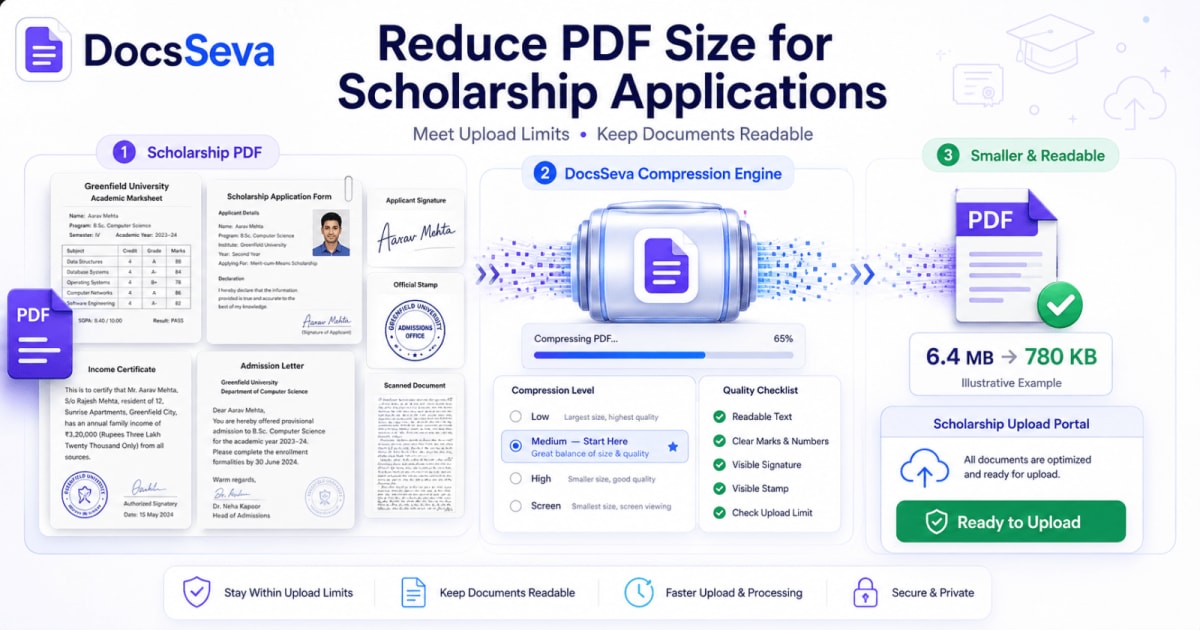
How to Reduce PDF Size for Scholarship Applications
Learn how to reduce PDF size for scholarship applications while keeping marksheets, certificates, signatures, stamps and scanned text readable for online uploads.


In-Depth How-to Guide
Reduce Resume PDF Below 1 MB Without Losing Quality
Learn how to reduce resume PDF below 1 MB while keeping text searchable, links working and formatting clear for job portal uploads.