How to Reduce PDF Size for Scholarship Applications


Steps
Check the scholarship upload requirements
Open the official scholarship application instructions and note the maximum PDF size, accepted format and any document-specific requirements before changing the file.
Prepare the original scholarship PDF
Open the PDF and confirm that all required pages, certificates, marksheets, signatures and stamps are present and readable. Keep an untouched backup.
Open DocsSeva PDF Compressor
Open the DocsSeva PDF Compressor and select the scholarship PDF you need to reduce.
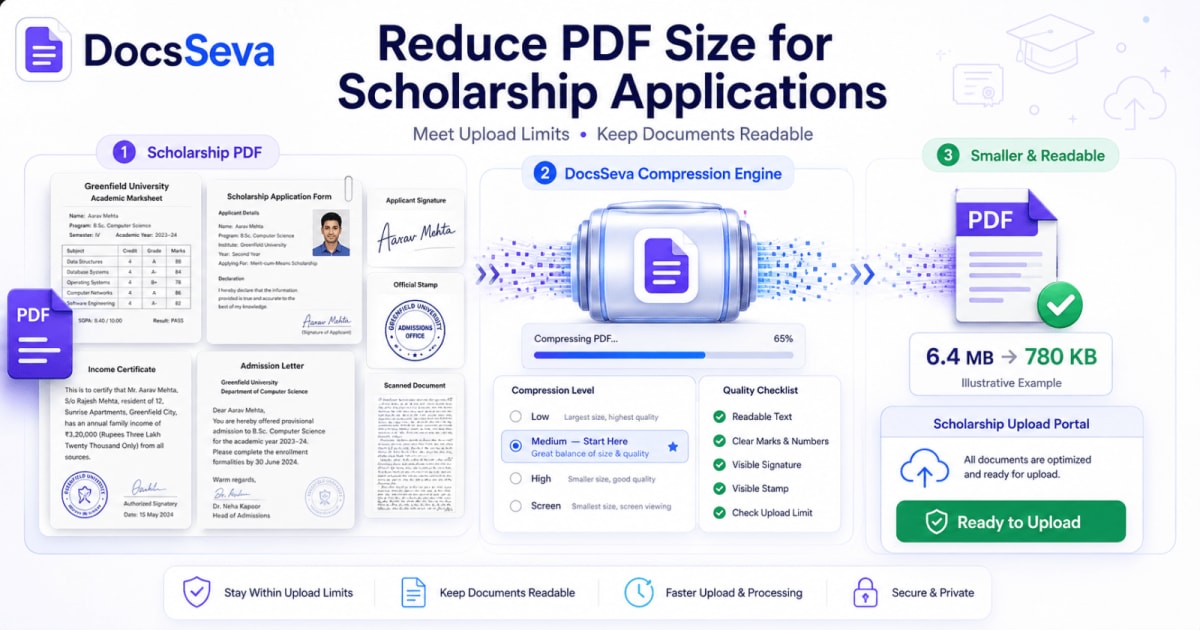
Start with Medium compression
Choose Medium first for a practical balance between file-size reduction and readability. Process the PDF and download the result.
Increase compression only if necessary
If the output remains above the scholarship portal's limit, try High. Use Screen only as a last resort when the smallest viewing copy is more important than searchable or selectable text.
Inspect the PDF before uploading
Verify the final file size and zoom into names, marks, dates, signatures, seals, stamps and other important details before submitting the document.
Key takeaways
- Check the scholarship portal's exact file-size and format requirements before compressing.
- Start with Medium compression to balance smaller file size and document readability.
- Use High only when the PDF still exceeds the portal's upload limit.
- Check marks, names, signatures, stamps, QR codes and small text after compression
- Keep the original PDF and upload only the verified compressed copy.
Scholarship applications often require you to upload marksheets, certificates, admission documents and other supporting records as PDF files. The problem begins when a perfectly readable document is larger than the upload limit accepted by the application portal.
The safest approach is not to use the strongest compression immediately. First check the portal's requirement, compress the PDF using a balanced setting, and then inspect every important detail before submitting it.
If you need to compress PDF for scholarship application uploads, you can use the DocsSeva PDF Compressor and start with Medium compression. Move to a stronger setting only when the resulting PDF remains above the required upload size.
The objective is simple: make the file small enough to upload without making the scholarship documents difficult to read or verify.
Check the Scholarship Portal's Upload Rules First
Before changing the PDF, open the official scholarship application instructions and check the requirements for the document you are about to upload.
Look for:
- Maximum allowed file size
- Accepted file format
- Whether multiple documents must be combined into one PDF
- Required page count
- File-naming rules
- Whether password-protected PDFs are accepted
- Whether photographs or signatures must be uploaded separately
- Any instructions concerning scans, resolution or document clarity
Different scholarship programs can have different requirements. A size that works on one portal may be rejected by another.
For example, applicants using India's National Scholarship Portal should follow the current instructions displayed by the official portal rather than relying on a file-size limit quoted in an old blog, video or social-media post.
Always treat the scholarship portal itself as the final source for its current submission requirements.
Why Scholarship PDFs Become Too Large
A scholarship document may contain only a few pages but still consume several megabytes.
This commonly happens because scanned PDFs are essentially collections of page images.
A six-page document scanned at a high resolution can therefore be much larger than a digitally generated six-page PDF containing mostly text.
File size can increase because of:
- High-resolution scans
- Full-colour pages
- Smartphone-camera photographs
- Multiple certificates
- Scanned signatures
- Stamps and seals
- Embedded photographs
- Unnecessarily high image resolution
- Duplicate or unnecessary pages
This is why scholarship PDFs should be compressed carefully rather than simply reduced as aggressively as possible.
The information visible on the page is usually more important than achieving the absolute smallest file.
How to Compress PDF for Scholarship Application Uploads
Step 1: Keep the Original PDF
Before compressing anything, save an untouched copy of the original document.
Open it and confirm that:
- Every required page is included
- Names are spelled correctly
- Registration or enrollment numbers are visible
- Marks and grades are readable
- Dates are clear
- Signatures are visible
- Stamps and seals can be identified
- No page is accidentally rotated or cropped
Never make the compressed version your only copy.
Step 2: Check the Current File Size
Compare the original PDF size with the scholarship portal's requirement.
For example, if your PDF is 4 MB and the portal requires a significantly smaller document, you know that meaningful compression will be required.
Do not assume that every scholarship portal requires 1 MB, 500 KB or any other universal limit.
The correct target is whatever limit the portal currently specifies for that particular upload field.
Step 3: Open DocsSeva PDF Compressor
Open the DocsSeva PDF Compressor.
Select the PDF containing your scholarship documents.
DocsSeva provides four compression modes:
- Low
- Medium
- High
- Screen
The appropriate option depends on how much reduction you need and how important document quality and searchable text are.
Which Compression Mode Should You Use?
| Mode | Reduction approach | Best suited for |
|---|---|---|
| Low | Lighter compression | Documents where visual detail is especially important |
| Medium | Balanced compression | Best starting point for most scholarship PDFs |
| High | Stronger reduction | Files that remain above a strict upload limit |
| Screen | Strongest screen-focused approach | Last-resort smaller viewing copies when searchable/selectable text is not essential |
Start With Medium
For most scholarship documents, Medium is the sensible first attempt.
It gives you a chance to reduce the file substantially without immediately applying the strongest processing.
After compression, download the PDF and inspect it.
If the resulting size satisfies the portal requirement and every important detail remains readable, there is usually no reason to compress it again.
Move to High When Necessary
If Medium still produces a file larger than the allowed size, return to the original PDF and try High compression.
Then inspect the new result again.
Pay particular attention to areas containing:
- Small marks or grades
- Registration numbers
- Certificate serial numbers
- Fine print
- Signatures
- Stamps
- Seals
- QR codes or barcodes
- Small photographs
Do not judge the document only from a thumbnail.
Open the actual PDF and zoom into critical details.
Use Screen Mode Carefully
Screen mode is intended for stronger size reduction and screen-focused viewing.
It rasterizes pages, which means searchable or selectable text may no longer remain available in the same way.
That can be an important trade-off for academic records and other text-heavy scholarship documents.
If searchable or selectable text matters, use the standard compression modes whenever possible and reserve Screen for situations where stronger reduction is necessary and a rasterized output is acceptable.
Can You Reduce a Scholarship PDF to Exactly 1 MB or 500 KB?
Sometimes—but compression should not be treated as an exact-size guarantee.
Two PDFs of the same number of pages can respond very differently to compression.
One may contain mostly digital text while another contains full-page colour scans. Their starting sizes and possible reductions can therefore be completely different.
If a portal has a strict limit, use this workflow:
- Check the required maximum size.
- Compress the original using Medium.
- Check the resulting file size.
- If it is still too large, try High from the original.
- Inspect document quality again.
- Use additional optimisation only when required.
Do not repeatedly compress an already compressed PDF when you still have the original available. Starting each attempt from the clean source helps avoid unnecessary cumulative quality loss.
For more detail about strict upload requirements, see How to Meet Strict PDF Upload Limits for Online Forms.
How to Keep Marksheets Readable
Marksheets deserve special attention because they often contain small text arranged in dense tables.
After compression, zoom into:
- Subject names
- Marks
- Grades
- Roll numbers
- Examination dates
- Total scores
- Result status
- Printed notes
Check both the centre and edges of the scanned page.
A document that appears readable when displayed as a full page may reveal blurred numbers when enlarged.
If Medium produces acceptable size and noticeably better clarity than High, use Medium whenever it satisfies the portal's limit.
Protect Signatures, Stamps and Seals
Scholarship supporting documents frequently contain handwritten signatures, institutional stamps or embossed-looking seals.
These details may contain thin strokes and fine edges that react differently to compression than ordinary printed text.
After processing, inspect them individually.
Ask:
- Is the signature still clearly visible?
- Can the text inside the stamp still be read?
- Are thin lines still present?
- Has a faint seal almost disappeared?
- Does the compressed photograph remain identifiable?
If an important element becomes unclear, return to the original and use a less aggressive compression setting.
A few additional kilobytes are preferable to submitting a document whose important details cannot be read.
Be Careful With Scanned Certificates
Scanned certificates are usually image-heavy and may account for most of the PDF's file size.
The temptation is to apply the maximum possible compression to them, but certificates may contain:
- Fine borders
- Small serial numbers
- Signatures
- Watermarks
- Seals
- QR codes
- Light-coloured backgrounds
- Small-print verification information
These details should survive the optimisation process.
If only one scanned page is causing most of the file size, it may also be worth checking how that page was originally scanned.
An unnecessarily high-resolution colour scan can be considerably larger than necessary for an online application.
What If Several Scholarship Documents Must Be One PDF?
Some application workflows require several supporting documents in a single PDF.
If your files are separate, you can combine them with the DocsSeva PDF Merger.
A practical sequence is:
- Confirm which documents are required.
- Arrange them in the correct order.
- Merge them into one PDF if the application requires a single file.
- Open the merged document and verify the page sequence.
- Compress the final combined PDF.
- Check the final size and readability.
Avoid including unnecessary pages simply because they were present in the original scans.
If a PDF contains pages that are not required for the application, use the DocsSeva PDF Splitter to prepare only the relevant document pages before creating the final submission file.
Do not remove pages that the scholarship instructions require.
What If the Scholarship PDF Is Still Too Large?
If the PDF remains above the allowed size even after stronger compression, first determine what is making the document large.
Remove Unnecessary Pages
A PDF may contain blank pages, duplicate scans or unrelated pages.
Remove only pages that are genuinely unnecessary.
Never remove supporting evidence required by the scholarship program.
Check Oversized Scans
High-resolution scans can make a document unnecessarily large.
If you still possess the physical document and are permitted to rescan it, create a new scan using a resolution appropriate for readable document submission rather than archival-quality reproduction.
Avoid Unnecessary Colour
A document containing black text on a white page may not always need a full-colour scan.
However, do not convert a document to grayscale when colour is necessary to interpret stamps, seals, photographs or other information.
Separate the Problem Page
If one page is disproportionately large, inspect it individually.
A large photograph or high-resolution certificate scan may account for most of the PDF.
Recheck the Portal Rules
Before sacrificing additional quality, make sure you interpreted the limit correctly.
The portal may apply different limits to different document fields.
Don't Confuse File Size With Page Count
A 20-page text PDF can sometimes be smaller than a three-page scanned PDF.
Page count alone therefore does not tell you whether a file is efficiently prepared.
The actual size depends on what each page contains.
Digital text is generally inexpensive to store compared with large scanned images.
This distinction is particularly important for scholarship applications because applicants often create PDFs by photographing or scanning physical certificates.
Keep Searchable Text When It Matters
A scanned PDF does not automatically contain searchable text.
Some scanned documents contain an OCR text layer while others consist entirely of images.
When the source PDF contains selectable text, DocsSeva's standard compression modes are preferable when maintaining that characteristic is important.
Screen mode rasterizes the pages and may remove selectability.
You can test your output easily:
- Open the compressed PDF.
- Try selecting a sentence with your mouse or touch interface.
- Search for a word that visibly appears on the page.
- Compare the result with the original.
If text search or selection is important for the submission, verify it before uploading.
Do Not Compress Until the Document Becomes Hard to Verify
A portal accepting the file does not automatically mean the document is good enough.
There are two separate requirements:
Technical acceptance: The PDF satisfies the portal's file-size and format restrictions.
Document usability: A reviewer can still read and verify the information.
You need both.
If the portal accepts a 400 KB file but the marksheet has become unreadable, the compression process has not produced a useful submission copy.
Final Quality Check Before Submission
Before uploading the compressed scholarship PDF, open the downloaded file and check:
- Final file size
- Correct number of pages
- Correct page order
- Student/applicant name
- Registration numbers
- Marks and grades
- Dates
- Certificate numbers
- Signatures
- Stamps and seals
- Photographs
- QR codes or barcodes
- Page orientation
- Searchable/selectable text when required
Also confirm that you are uploading the correct version rather than an earlier failed compression attempt.
Keep the original PDF until the scholarship application and document-verification process is complete.
Sensitive Scholarship Documents Need Extra Care
Scholarship applications can contain personal, academic and financial information.
Before processing sensitive files through any online service, review the service's current privacy information and decide whether its processing model is appropriate for the documents involved.
Do not rely on generic claims from an old article or screenshot when dealing with sensitive records.
You should also avoid:
- Uploading the wrong person's documents
- Leaving personal files on shared computers
- Sending scholarship PDFs to unofficial contacts
- Publishing application documents through public links
- Sharing passwords with untrusted services
Compression solves a file-size problem; it does not replace normal document-security precautions.
A Better Scholarship PDF Workflow
A reliable submission process is:
Prepare → Verify → Merge if required → Compress → Inspect → Check size → Upload
This sequence reduces the chance of discovering a missing page or unreadable certificate after submission.
If your scholarship portal behaves similarly to other government upload systems, you may also find How to Compress Documents for Government Portals useful.
For documents such as CVs submitted alongside applications, see How to Reduce Resume PDF Size Below 1 MB.
Final Recommendation
When reducing PDF size for a scholarship application, start with the least aggressive setting that satisfies the upload requirement.
For DocsSeva, Medium is the practical starting point for most documents. Move to High only when you need additional reduction, and treat Screen as a stronger final option when rasterized pages and possible loss of text selectability are acceptable.
Most importantly, inspect the finished PDF.
The goal is not merely to produce a small number next to the filename. The goal is to create a PDF that the scholarship portal accepts and that the person reviewing the application can still read confidently.
When your document is ready, open the DocsSeva PDF Compressor, compress the file, verify the result and then submit the checked copy to the scholarship portal.
Frequently asked questions
How do I compress a PDF for a scholarship application?
Check the scholarship portal's maximum upload size first. Then compress the PDF using a balanced setting such as Medium, download the result and verify that every important detail remains readable. Increase compression only if the output still exceeds the required limit.
What compression level should I use for scholarship documents?
Medium is the best starting point for most scholarship documents because it aims to balance file-size reduction and readability. High can be used when a stricter upload limit must be met. Screen should generally be reserved for cases where stronger reduction is necessary and searchable text is not essential.
Can I compress a scholarship PDF below 1 MB or 500 KB?
Possibly, but the final size depends on the original document, number of pages, scans, photographs and compression mode. No compression setting can guarantee every PDF will reach a particular size. Compress the document, check the output size and adjust the mode if necessary.
Will PDF compression make my marksheet or certificate blurry?
Strong compression can reduce the clarity of scanned pages and images. Start with a moderate setting and inspect small text, grades, registration numbers, signatures, seals and stamps at normal size and while zoomed in before submitting the file.
Should I use Screen compression for scholarship applications?
Use Screen only when stronger size reduction is required and the application does not depend on searchable or selectable text. Screen mode rasterizes pages and may remove text selectability, so Medium or High is usually preferable for documents containing important text.
What should I do if the scholarship portal still rejects my PDF?
Confirm the maximum file size, file format, page requirements and whether the portal accepts password-protected PDFs. If the PDF is still too large, try stronger compression, remove unnecessary pages or recreate oversized scanned pages at a more appropriate resolution.
Sources
- National Scholarship Portal — National Scholarship Portal
DocsSeva Editorial Team
PDF & Document Tools Editorial Team
Published on August 19, 2026
The DocsSeva Editorial Team tests document workflows and publishes practical guides for reducing file size, preserving readability and preparing PDFs and images for online submission.
“We tested a scholarship-document PDF containing scanned text, certificates, signatures and stamps with multiple DocsSeva compression settings and manually checked the resulting file size and readability.”
Open the PDF Tools
Free, no sign-up, and your files are never stored.
Open the PDF ToolsMore on pdf-compression


In-Depth How-to Guide
PDF Upload Size Limit: How to Meet Strict Online Form Limits
Learn how to reduce PDF size for strict online-form limits while preserving readable text, clear signatures, official stamps and important document details.


In-Depth How-to Guide
How to Reduce PDF Size for College Admission Forms
Learn how to reduce PDF size for college admission forms while keeping marksheets, certificates, photographs, signatures and important text readable.

In-Depth How-to Guide
How to Compress PDFs for Online Exam Forms
Learn how to compress PDF documents for online exam forms while keeping certificates, marksheets, signatures, stamps and important text readable.