Rotate Only the Sideways Pages of a Scanned PDF


Key takeaways
- Tilt your head to read the page: tilted right means 270 degrees, tilted left means 90 degrees.
- Specific mode accepts single pages and ranges like 3, 9-14, 22; spaces and order do not matter.
- An empty page box while Specific is selected rotates the whole document.
- Rotation is added to the angle a page already carries, so a scanner flag can push you to 180 degrees.
- Rotating does not change file size, so an upload limit still needs a compressor.
The scan came back as one 24-page PDF and most of it is perfectly fine. Pages 9 to 14 are lying on their side, because whoever loaded that stack into the feeder at the counter turned it the wrong way round. Rescanning means another trip, another forty rupees, and another twenty minutes behind someone printing e-Aadhaar.
Skip the trip. Six pages need a quarter turn. The other eighteen are already upright and nothing about them has to change.
First, write down which pages are actually wrong
Do this before you open any tool, because it takes thirty seconds and saves you from rotating the whole file by mistake.
Scroll through the PDF in whatever reader you have and note the page numbers as the reader counts them, not as they are printed on the paper. A bank statement bundle often starts with a covering page, so "Page 1 of 6" printed at the bottom of a statement might sit at position 3 in the file. The rotation tool counts positions, not printed numbers.
While you are scrolling, note the direction too. Sideways pages come in two flavours and they need opposite corrections.
Here is a rule that works every time. Tilt your head until you can read the page.
- Tilted your head to the right? The page needs 270° (Left).
- Tilted your head to the left? The page needs 90° (Right).
- Read it fine but everything is upside down? 180°.
You now have two facts: a list of page positions, and one angle. That is all the tool needs.
Rotate only those pages
Open the PDF Rotator and drag the file onto the canvas. The file is read by your own browser — nothing is sent anywhere, which matters when the document is a bank statement or a salary slip.
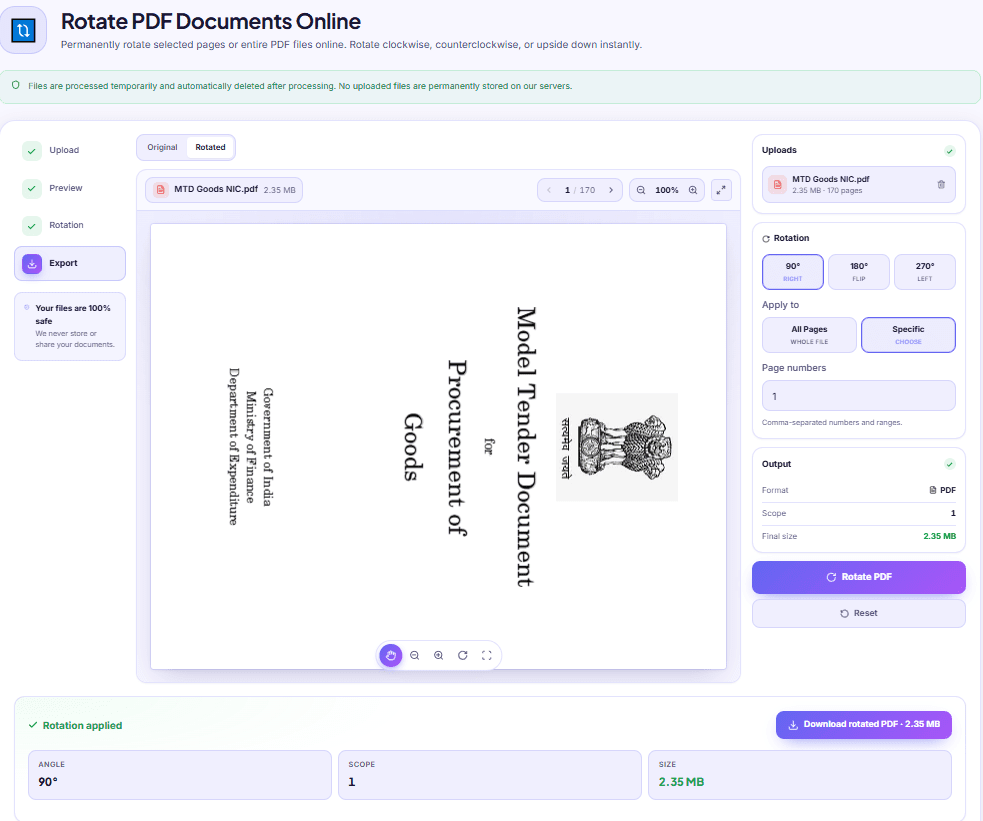
- Drop the PDF in. The Uploads card fills in the file name, the size, and the page count. Check that page count against what your reader showed you; if they disagree, you have opened two different files.
- Pick the angle: 90°, 180° or 270°. One angle applies to every page in the run, so if some pages lean left and others lean right, that is two separate runs.
- Under Apply to, switch from All Pages to Specific. A text box appears.
- Type your page numbers. For our example:
9-14. - Press Rotate PDF, then use the Original / Rotated toggle above the preview to check page 9 before you save anything.
- Download. The file comes out as
rotated_plus the original name, so you can tell the two apart in your Downloads folder.
What the page box actually accepts
| You type | What gets rotated |
|---|---|
9 | Page 9 only |
9, 11, 14 | Those three pages |
9-14 | Pages 9 to 14, both ends included |
3, 9-14, 22 | A mix of single pages and a range |
A few behaviours worth knowing, because they are the difference between one run and three:
- Spaces are ignored.
9,11,14and9, 11, 14do the same thing. - Order does not matter.
14, 9-11, 3is read correctly and applied in page order. - Repeats are counted once.
9, 9-11rotates 9, 10 and 11 a single quarter turn, not page 9 twice. - Numbers past the end of the document are quietly dropped. Type
31in a 24-page file and nothing happens to anything. - An empty box means every page. If you select Specific and then leave the field blank, a blank list is read as "all", and the whole document turns. This is the single most common way people end up with 24 sideways pages instead of six upright ones.
The gotcha nobody warns you about: rotation adds up
The tool does not set an absolute angle. It adds your angle to whatever the page is already carrying, and wraps around at 360.
Most of the time you never notice. But scanners frequently write their own rotation flag into a page, and page 9 may already be sitting at 90° in the file even though it looks like a plain sideways image to you. Add another 90° and you land at 180° — now the page is upside down instead of sideways, and it feels like the tool did the opposite of what you asked.
The fix is boring and reliable. If a page overshoots, apply another rotation to that page alone until it is upright. Two more presses of 90° on a page that went to 180° brings it back around. If you have lost track completely, throw away the output, go back to the untouched original, and start from one clean run.
Things that will interrupt you
The preview does not appear. Over roughly 50 MB the on-page viewer is skipped and you get a card saying the preview was skipped for speed. The rotation itself still runs on the full file — you just cannot eyeball it before downloading, so open the saved file afterwards to confirm.
The file will not open at all. A password-protected PDF has to be opened up first. Run it through PDF Unlock when you know the password and want a copy without it, then rotate the unlocked version.
The page is only slightly crooked. A phone photo of a document is often three or four degrees off true. This tool moves in fixed 90° steps and has no deskew, so a small tilt stays a small tilt. That one is honest bad news: you either rescan or live with it.
When the answer is not rotation at all
Sometimes the sideways pages are a symptom of a messier problem. If the scan actually contains two separate documents run through the feeder in one go, it is cleaner to split the PDF at the boundary, fix the half that needs turning, and then merge the two back together in the right order. You end up with the same file, but every step is small enough to check.
And if the six sideways pages are the only ones the office actually wants, do not rotate 24 pages at all. Pull out the range you need first, rotate that, and submit six pages instead of a 24-page bundle nobody will read.
One last practical note. Rotation does not change file size in any meaningful way — the page content is untouched and only an orientation value moves — so if the upload form was rejecting your file for being too big before, it will still reject it after. That is a separate job for the PDF Compressor. The rest of the page-level jobs, from splitting to reordering, sit together under PDF tools.
DocsSeva Team
Published on September 3, 2026
Browse all tools
38 free document tools, no account required.
Browse all toolsMore on pdf-pages

Why Your PDF Turns Sideways Again After You Rotate It
Rotate in Chrome and the file never changes. Here is what a PDF actually stores, why one press of 90 degrees sometimes lands upside down, and how to check.


In-Depth How-to Guide
Compress a 300 MB Scanned PDF Without Freezing the Tab
A 180-page, 312 MB scan crashes the tab and comes back as a ZIP. Why that happens, what each level does to your pages, and the cheaper step to take first.

Your Merged PDF Came Out in the Wrong Order? Fix It
Merged PDFs almost always come out jumbled for one reason: the queue order. Here is why filenames betray you and how to fix the sequence before you merge.