Your Merged PDF Came Out in the Wrong Order? Fix It

Key takeaways
- The numbered queue in the panel is exactly the output order
- Scan_10 sorts before Scan_2 because names compare as text, not numbers
- Rename with leading zeros: Scan_01, Scan_02
- Files added later always join the end of the queue
- Merging cannot reorder pages inside a single file
Eleven scanned pages went into the merger. You hit Merge, opened merged.pdf, and page 10 is sitting politely between page 1 and page 2. Page 11 is somewhere near the top. Nothing is missing, everything is in the wrong place, and the file you have to upload closes in an hour.
This is almost never the tool misbehaving. It is the queue.
The list in the panel is the output order. Full stop.
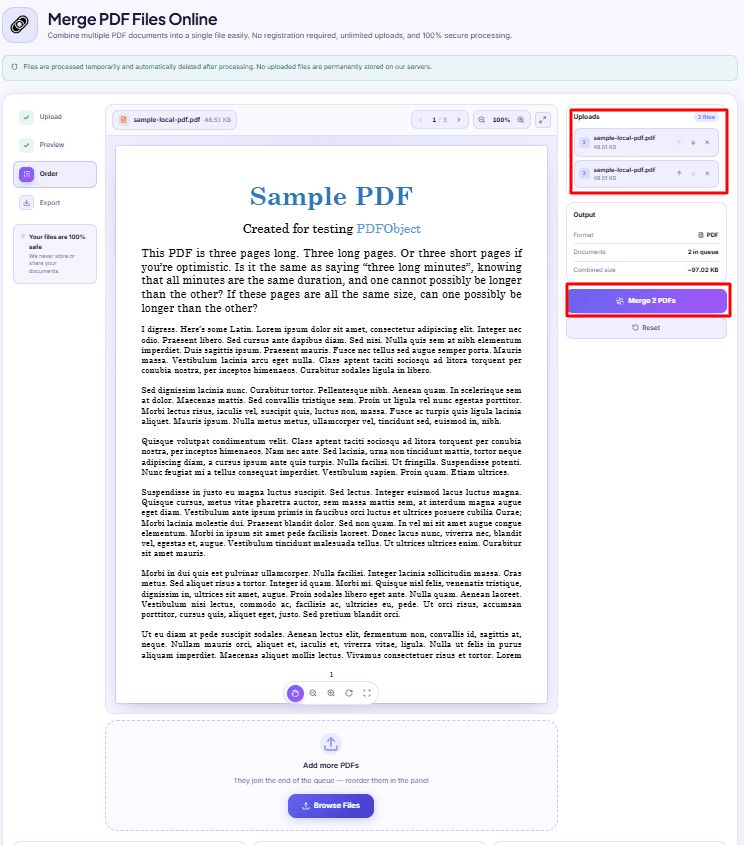
When you add files to the PDF Merger, each one gets a numbered badge in the Uploads card — 1, 2, 3, and so on down the list. Those numbers are not decoration. The merge walks that list from top to bottom, copies every page out of file 1, then every page out of file 2, and keeps going until the list is finished. Whatever sequence you see in the panel before you click is exactly what you get after.
So the real question is never "why did it merge wrong". It is "why did the files land in the queue in that sequence".
Why your filenames lied to you
Here is the usual culprit. Your scanner or your phone named the pages like this:
Scan_1.pdf
Scan_2.pdf
...
Scan_9.pdf
Scan_10.pdf
Scan_11.pdf
Looks fine in the folder. But a lot of file pickers order names as text, character by character, not as numbers. Compared as text, Scan_10 comes before Scan_2, because 1 sorts before 2 and the comparison stops right there. You end up selecting them in this order without realising:
1, 10, 11, 2, 3, 4, 5, 6, 7, 8, 9
Which is precisely the mess you are looking at. Two other versions of the same problem:
- You Ctrl-clicked them one at a time. Some browsers hand the files over in the order you clicked, not the order they appear on screen. If you clicked around, the queue is in click order.
- You added a second batch later. New files always join the end of the queue. The dropzone under the preview even says so — they go to the back of the line, not into the middle where you might expect.
The permanent fix for the filename problem takes ten seconds: rename with a leading zero before you add anything. Scan_01, Scan_02, … Scan_11. Now text order and number order agree, and they will agree for every batch you ever scan again.
Fixing the order without starting over
You do not need to remove everything and re-add it. Each row in the Uploads list has an up arrow and a down arrow. Click them to walk a file to where it belongs; the numbered badges renumber as you go. The up arrow is disabled on the first row and the down arrow on the last, which is your signal that the file is already at the end of its travel.
The X on each row drops that file out of the queue entirely. Only the files still showing in the list get merged — if you added the wrong version of a document, take it out rather than merging and re-doing.
If the queue is beyond saving, the Reset button clears everything and puts you back at an empty dropzone.
A practical order of operations:
- Add all the files first, in whatever order they arrive.
- Read the numbered list top to bottom and compare it against the sequence you actually want.
- Move the strays with the arrows.
- Only then click Merge.
Sorting a nine-file queue by arrows takes maybe twenty seconds. Re-merging because you skipped the check takes longer.
Check before you download, not after
Once the merge finishes, the canvas gets a two-button toggle above the preview: First document and Merged. It opens on Merged. Scroll through it there — that viewer is showing you the actual output file, not a guess — and the result card reports how many documents went in, the merged size, and the page count.
Thirty seconds of scrolling beats emailing the wrong assembly to an office that will not open a second attachment.
One thing the preview will not do is render very large source files. Past about 50 MB the canvas skips rasterising the source so the tab stays responsive. The merge itself is unaffected — it still runs, still produces the full document — you just do not get the picture. If your batch is that big, verify by opening the downloaded file in your normal PDF reader instead.
The problems that look like ordering problems but aren't
| What you see | What's actually wrong | What to do |
|---|---|---|
| Merge button won't click | Fewer than two files in the queue | Add a second PDF; the tool needs at least two |
| Pages are jumbled inside one of the source files | The source file itself is out of order | Merging cannot reorder pages within a file — see below |
| Every page is sideways | The scan came in rotated | Fix orientation with the PDF Rotator before merging |
| A blank sheet between every real page | Duplex scan, empty backs | Drop them with the Page Remover |
| One file refuses to load | It is password protected, or not really a PDF | Unlock it or re-export it, then add it again |
That second row deserves a proper answer, because it is the one that traps people. The merger works at the level of whole documents. It cannot pick up page 7 of a file and move it to the front. If the pages are scrambled inside one PDF, split that file into its parts first — the PDF Splitter will hand you one PDF per page — then add those single pages to the merger in the order you want and combine them. Tedious for a 40-page file, fine for the five pages of a scanned agreement that came off the feeder in the wrong sequence.
While you are there: size
Merging is addition. Ten files of 900 KB each become a document of roughly 9 MB, because every page is copied across intact — nothing is re-encoded and nothing is thrown away. The Output card shows you the combined size before you merge and the real merged size after.
If the portal you are uploading to caps attachments at 2 MB, that 9 MB file is your next problem, and it is a separate job from ordering. Run the finished document through the PDF Compressor after merging, not before — compressing eleven files individually and then joining them gives you more work and a worse result than joining first and compressing once.
One habit that prevents all of this
Before you click Merge, read the queue out loud. Aadhaar, PAN, mark sheet, passbook. Then click.
It sounds silly. It also catches the wrong-version file, the missing page, and the file that snuck to the bottom because you added it last — all in the four seconds before anything is committed. Everything the merger does happens inside your browser, so there is no upload to wait on and no penalty for being careful; you can rearrange, reset, and try again as often as you like without a single byte leaving your device.
The rest of the page-level tools live under PDF tools if you need to reshuffle, trim, or extract before the pieces go into the queue.
DocsSeva Team
Published on September 10, 2026
Browse all tools
38 free document tools, no account required.
Browse all toolsMore on pdf-pages


Combine Aadhaar, PAN and Mark Sheets Into One PDF
A step-by-step way to turn phone photos, downloaded PDFs and cyber-cafe scans into one document bundle that fits a portal's 2 MB upload limit.


Deleted the Wrong Page? PDF Numbering Is the Reason
Page tools count physical position from the first sheet, not the number printed at the bottom. How the two drift apart, and how to get the right number every time.


PDF Page Ranges Explained: 1-5, 8, 11-13 and "all"
What the page number box actually accepts: why commas make separate files, why 10-3 returns nothing, and the clamping trick that means "to the end of the document".