Why Your PDF Turns Sideways Again After You Rotate It

Key takeaways
- Chrome, Edge and most phone readers rotate the view only; nothing is written to the file.
- Rotation is a per-page number, so turning a PDF is lossless and takes a second even on big scans.
- The tool adds your angle to the page's existing value, which is why 90 sometimes gives you 180.
- Always verify by opening the downloaded file, not the tab you were working in.
- Phone photos hide their orientation in an EXIF tag, so rotate the pixels before building a PDF.
You opened the PDF in Chrome, clicked the rotate button in the corner, and the pages straightened up. You pressed Ctrl+P. The printout came out sideways. You reopened the file the next morning and it was sideways again there too, exactly as it had been.
Nothing went wrong with your file. The button you pressed was never going to change it.
A PDF page does not store a rotated picture
It stores a number.
Inside the file, every page object can carry a rotation value: 0, 90, 180 or 270. The actual content — text positions, image placement, everything — is drawn against the page's own coordinate system and never moves. That rotation value is an instruction to the reader: turn this page by so many degrees before you show it to a human.
Two useful consequences follow from that.
Rotation is lossless. Nothing is re-encoded, no image is resampled, no text is redrawn. A 40 MB scan comes out at essentially 40 MB with the same sharpness. That is why the PDF Rotator finishes a hundred-page file in a second or two while a compressor on the same file takes a minute.
And rotation is only real if that number gets written back into the file and saved. Which is precisely what most viewer buttons do not do.
Three different things people call "the page is sideways"
They look identical on screen and they behave completely differently.
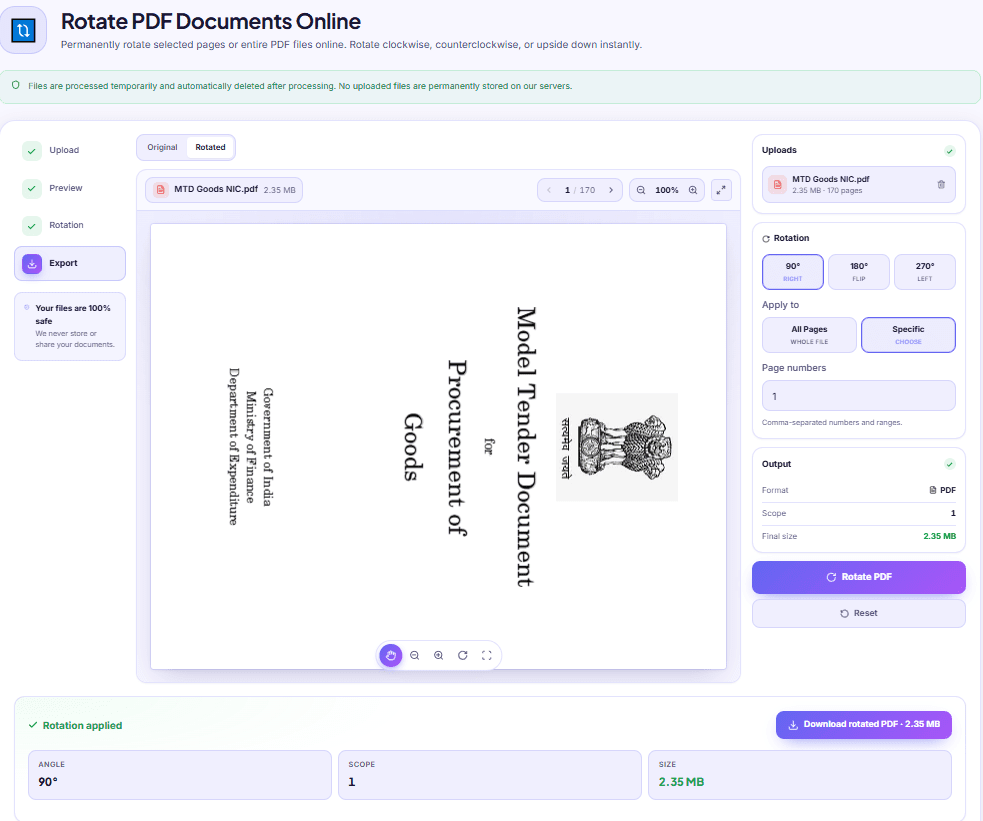
1. The page carries a rotation value. A scanner wrote 90 into the page because the sheet went through the feeder the wrong way, or someone rotated and saved it earlier. This is the honest case, and it is the one that a rotate-and-save tool fixes permanently.
2. Your viewer is rotating the view, not the file. Chrome's PDF viewer, Edge, and nearly every phone reader treat rotation as a temporary display setting. Close the tab and it resets. Send the file to a colleague and they see the original orientation. Print it and the driver may or may not honour your temporary view — this is where the sideways printout comes from.
3. The content itself was drawn sideways on an upright page. The scanner produced a normal portrait page and then placed a landscape image on it, turned. The page's rotation value is 0. Everything about the file says portrait; only your eyes say otherwise.
The third case is worth being able to spot, because it explains why some files behave strangely. Drop the PDF into File Info and look at the Document Details section: it reports Page size in points, inches and millimetres, plus an Orientation row worked out from those dimensions. If that row says Portrait while the page clearly reads as landscape on your screen, you are in case three. Rotating it still fixes how it looks — you are just turning an upright page onto its side so the sideways content lands the right way up.
Why the same 90° press sometimes lands you upside down
Here is the behaviour that makes people think the tool is broken.
Rotation in the tool is additive. Your chosen angle is added to whatever the page is already carrying, and the result wraps around at 360. Press 90° on a page that already sits at 0 and you get 90. Press 90° on a page the scanner already flagged as 90, and you get 180 — upside down.
So a page that looked merely sideways can end up inverted after one press, and the natural reaction is to assume you picked the wrong direction. You did not. You added to an existing value you could not see.
There is nothing to configure here; just recognise the pattern. If a page overshoots, apply another rotation to that page until it is upright, or discard the output and start again from the untouched original with a different angle. Two people rotating the same file in turn will hit this constantly, which is a good argument for one person doing the whole job in one pass.
The file is right but the print is still wrong
Two habits fix almost every case of this.
Save first, then verify in a fresh window. Download the rotated file, close the browser tab you were working in, and open the downloaded file from your Downloads folder. If it opens upright there, the orientation is genuinely written into the file and everyone who receives it will see it that way.
Then check your print dialog before you blame the document. "Fit to page", "Auto-rotate and centre", and the paper-size setting will all happily turn a page to make it fit the sheet. A landscape page on A4 portrait paper gets rotated by the driver, not by the PDF.
Photos that flip when you turn them into a PDF
This one has a different cause entirely and catches people preparing documents from phone photos.
A phone camera very often stores the picture with its pixels unrotated and records an EXIF Orientation tag alongside them — a note saying "rotated 90° clockwise" or "mirrored vertically". Gallery apps honour that tag, so the photo looks correct on your phone. Some conversion pipelines honour it and some ignore it. When one ignores it, your upright photo lands in the PDF on its side, and you have no idea why because it looked fine two minutes ago.
You can confirm this before it bites you. Run the JPG through File Info and look for the EXIF orientation row under Camera & Capture. If it says anything other than "Normal (0°)", you are relying on the next piece of software to read that tag correctly.
The reliable fix is to stop relying on it. Turn the actual pixels with Image Rotate — rotate right, rotate left, 180°, or a horizontal or vertical flip — and save the corrected image. Now the picture is upright with no tag to interpret. Then build your document with Images to PDF and every page lands the way you saw it.
A short checklist when a rotation refuses to stick
- Did you rotate in a viewer, or in a tool that saves a new file? Only the second one changes anything.
- Did you open the downloaded file to check, or the tab you were already in?
- Is the page overshooting because the file already carried a rotation value?
- Is the print driver rotating to fit the paper?
- Is it a phone photo whose orientation lives in an EXIF tag rather than in its pixels?
Work down that list and the answer is nearly always in the first three. The rest of the page-level fixes — reordering, splitting, removing the blank sheets your scanner threw in — live together under PDF tools.
DocsSeva Team
Published on August 28, 2026 · Updated on October 13, 2026
Browse all tools
38 free document tools, no account required.
Browse all toolsMore on pdf-pages


Rotate Only the Sideways Pages of a Scanned PDF
Six pages of a 24-page scan came out sideways and the rest are fine. Here is how to turn only those pages, what the page-number box accepts, and the traps.

Finding a File's Real Last-Edited Date, Not Today's
Your laptop says the forwarded quotation was modified today. It wasn't. Here is where a file's real dates live, which formats keep them, and what they prove.

Your Merged PDF Came Out in the Wrong Order? Fix It
Merged PDFs almost always come out jumbled for one reason: the queue order. Here is why filenames betray you and how to fix the sequence before you merge.