Deleted the Wrong Page? PDF Numbering Is the Reason


Key takeaways
- Numbers mean physical position, not the printed page label
- A cover, a blank and two contents pages shift everything by four
- The tool refuses to remove every page; one must remain
- Your original file is never modified, so a mistake means a retry
- To keep a few pages, extract them rather than listing dozens of deletions
You typed 3. You clicked Remove pages. The page that disappeared was the one with "1" printed at the bottom of it.
Nothing went wrong. The tool did exactly what you asked. You and it were counting from different places.
The rule, in one line
The number you type is a page's physical position in the file, counting from the very first page, starting at 1. Whatever is printed on the page is ignored completely.
That is it. The whole confusion comes from the fact that documents are full of pages that occupy a position without carrying the matching number.
Everything that shifts the count
Look at what usually sits in front of the page marked "1":
- A cover page or title page
- A blank second side, if the cover was printed duplex
- A table of contents, often numbered i, ii, iii
- A "This page intentionally left blank" sheet, which is somehow always a real page
- A fax header sheet, on anything that came through an office
- A scanned front page someone added later
A report with a cover, a blank, and two roman-numeral contents pages puts the page marked "1" at physical position 5. If you wanted to delete the page printed "3", you type 7.
Bank and utility statements have their own version. The first physical page is frequently a summary or a marketing insert, so the transaction page labelled "Page 1 of 6" sits at position 2, and every number you take from the printed footer is off by one all the way down.
Scanned bundles are worse, because there is no printed numbering at all and the pages come from several original documents. There, position is the only number that exists.
How to get the right number, reliably
Open the file in the Page Remover and let the canvas render it. Two things on screen are doing work for you:
Next to the filename in the Uploads card you get the size and the page count — "24 pages". That is the true physical count of the file, and it is your ceiling.
Under the input box the note reads back the same thing: this document has 24 pages, at least one must remain.
Now scroll the preview from the top and count. Not from the contents page, not from where the real content starts — from the first thing you see. The page you land on is the number you type.
For anything longer than about thirty pages, do it the boring way: scroll to the page you want, note the position, then scroll to the top and count down to confirm. Two passes on a document you are about to permanently alter is not paranoia.
A worked example
A 24-page tender you were sent. You want the two marketing pages and the blank at the back gone.
| Physical position | What is on it | Printed number |
|---|---|---|
| 1 | Cover | none |
| 2 | Blank | none |
| 3 | Contents | i |
| 4 | Company profile | ii |
| 5 | First real page | 1 |
| ... | ... | ... |
| 22 | Last content page | 18 |
| 23 | Marketing page | none |
| 24 | Blank | none |
To drop the profile page, the marketing page and the trailing blank, you type 4, 23, 24 — even though the profile page is printed "ii" and the other two carry no number at all.
Everything you list is pooled into one delete set. The commas here do not create separate files the way they do in the splitter; you get back one document with the remaining pages in their original order.
The safety rails, and what they don't cover
The tool will not let you remove every page. Ask for all of them and you get an error saying at least one page must remain, which is a deliberate guard against the empty-file mistake.
There is no undo inside the tool. Once you download the result, that is the file you have.
But — and this is the part that turns a disaster into an annoyance — your original file is never modified. The remover builds a new document from the pages you kept and leaves the source completely alone. It is still on your disk, all 24 pages of it. If you deleted the wrong one, close the result, load the original again, and type better numbers.
So the actual rule is: never delete the original until you have opened the result and confirmed it.
Confirm before you download, not after
After the removal runs, the canvas grows a two-button toggle with the counts baked into the labels — Original · 24 pages and Result · 21 pages. It opens on the result.
The result card next to it repeats the arithmetic: original 24 pages, remaining 21 pages, and the final size. Read those three numbers. If you meant to remove three pages and it says 19 remaining, you typed a range where you meant a list, and you have caught it before anything left the browser.
Then flip through the result preview. Fifteen seconds. It is the same document you are about to send someone.
When counting is the wrong approach entirely
If you want to keep four pages out of ninety, do not try to list eighty-six deletions. Turn the problem around: pull out the four pages you want instead. The Page Extractor takes the pages to keep and builds a new PDF from them, which is one short line of numbers rather than a paragraph of them.
The same inversion helps when the pages you want are one continuous block. 12-40 in the extractor beats 1-11, 41-90 in the remover, and there is a lot less to get wrong.
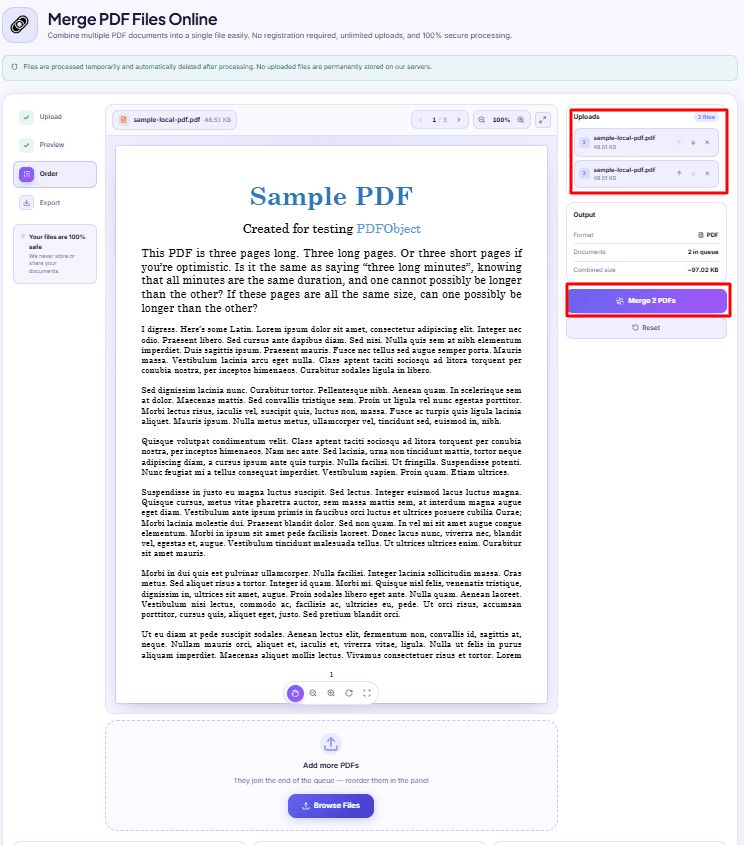
And if what you actually want is a different order rather than fewer pages, neither tool will do it. Page numbers are always sorted ascending before anything is copied, in the remover and in the PDF Splitter alike. Reordering means splitting the document into pieces and rebuilding it in the PDF Merger, where the sequence of the numbered queue is the sequence of the finished file.
The two-minute habit
Before you type anything: scroll from page one and write the positions on paper.
After it runs: read the original and remaining counts, flip through the result, then download.
Between those two steps everything happens inside your browser — the file is never uploaded, so there is no cost to redoing it as many times as you need. The only irreversible act in this whole process is deleting your original, and that is entirely under your control.
More tools for slicing and rebuilding documents are grouped under PDF tools.
DocsSeva Team
Published on September 1, 2026
Browse all tools
38 free document tools, no account required.
Browse all toolsMore on pdf-pages


PDF Page Ranges Explained: 1-5, 8, 11-13 and "all"
What the page number box actually accepts: why commas make separate files, why 10-3 returns nothing, and the clamping trick that means "to the end of the document".


Duplex Scan Left Blank Pages in Your PDF? Delete Them
A two-sided scan of single-sided paper doubles your page count with near-blank backs. How to remove them safely, and when to rotate them instead.

Your Merged PDF Came Out in the Wrong Order? Fix It
Merged PDFs almost always come out jumbled for one reason: the queue order. Here is why filenames betray you and how to fix the sequence before you merge.