PDF Page Ranges Explained: 1-5, 8, 11-13 and "all"


Key takeaways
- Each comma-separated segment becomes its own output PDF
- Ranges include both ends and clamp to the real page count
- 35-9999 is the shortcut for going to the end of the document
- 10-3 produces nothing; write ranges forwards
- Page numbers are always sorted ascending, so you cannot reorder
You wanted pages 10 down to 3, so you typed 10-3. The tool said no valid page ranges found. You tried 45 on a 40-page file and got the same nothing. Then you typed 1-5, 8, 11-13 expecting one PDF and three files landed in your Downloads folder.
None of that is random. The little box that asks for page numbers follows about six rules, and once you know them you can express almost anything you want in one line.
The two characters that do all the work
A hyphen makes a range. 11-13 means pages 11, 12 and 13. Both ends are included — 11-13 is three pages, not two.
A comma separates segments. And in the PDF Splitter and the Page Extractor, each comma-separated segment becomes its own output file. That is the part people trip over. 1-5, 8, 11-13 is not one instruction; it is three:
| Segment | Pages it means | File you get |
|---|---|---|
1-5 | 1, 2, 3, 4, 5 | one PDF, 5 pages |
8 | 8 | one PDF, 1 page |
11-13 | 11, 12, 13 | one PDF, 3 pages |
Three commas' worth of segments, three PDFs, each downloaded on its own. The panel tells you before you commit — under the input it says something like "3 ranges detected → 3 separate PDFs". Read that line. It is the cheapest error check on the page.
If you wanted all nine of those pages in a single document, you cannot get there with commas in the splitter. Extract each segment, then join the results in the merger.
Spaces do not matter. 1-5,8,11-13 and 1-5, 8, 11-13 are read identically.
Ranges get clamped, which is genuinely useful
Ask for 35-999 in a 40-page document and you do not get an error. The end of the range is quietly pulled back to the last real page, so you get pages 35 to 40.
This is the trick worth remembering: a big second number means "to the end". You do not have to open the file, count to the last page, and type the exact number. 35-9999 works on a 40-page file and on a 400-page one. When you are pulling the appendix off the back of a report and cannot be bothered to check where it stops, that is the shortest way to say it.
The same clamping applies at the start. 0-5 behaves as 1-5, because there is no page zero.
Backwards ranges give you nothing
10-3 does not mean "pages 10 down to 3". It means "start at 10, count up to 3", and since 10 is already past 3, the count produces no pages at all. The segment is dropped. If it was your only segment, you get the error about no valid pages found.
Write it forwards: 3-10.
Which leads to the rule that surprises people most.
You cannot reorder pages with the page box
Type 9, 2, 5 and you will not get a document reading page 9, then 2, then 5. Inside the splitter and the page remover, page numbers are collected, duplicates dropped, and the list sorted ascending before anything is copied. The output comes out 2, 5, 9. Always ascending, no exceptions.
Typing the same page twice does nothing either. 4, 4, 7 is treated as 4, 7.
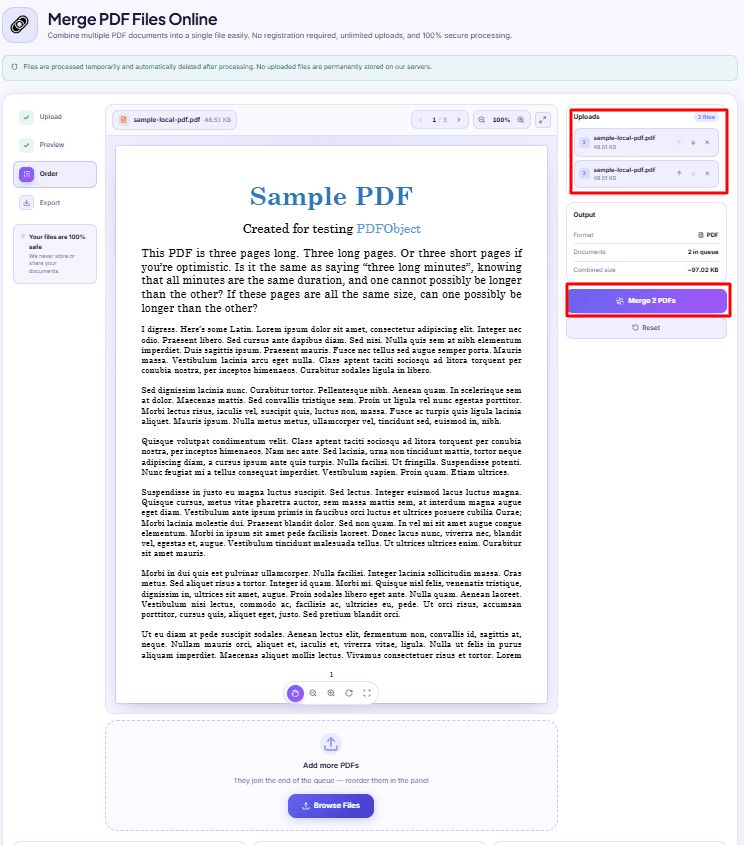
Reordering is a different job, done a different way: extract the pieces separately, then arrange them in the queue of the PDF Merger, where the order of the list is the order of the output.
Out-of-range numbers vanish silently
Ask for page 45 in a 40-page file and that number is simply ignored. No warning, no red text on that segment. If everything you typed was out of range, you get the "no valid pages" error; if only part of it was, you get a file that is quietly smaller than you expected.
So 38-44 on a 40-page document produces a three-page PDF — 38, 39, 40 — and looks like it worked, because as far as the tool is concerned, it did.
This is why the page count shown next to your filename in the Uploads card is worth a glance before you type anything. It tells you the ceiling.
The word "all", and where it does and doesn't work
The splitter and the Page Remover both understand the literal word all as "every page in the document". So does the PDF Rotator, which has an Apply to switch set to All Pages or Specific, and only shows the number box once you pick Specific.
Two warnings.
In the page remover, all means remove everything — and the tool refuses, because at least one page must remain. You will get an error rather than an empty file. That is a guard, not a bug.
And the Page Extractor does not recognise the word. It expects numbers. If you want everything out of a file there, type 1-9999 instead of all.
How the four tools differ on the same syntax
| Tool | Box is required? | Empty box means | Each comma segment |
|---|---|---|---|
| PDF Splitter (Range mode) | No | Whole file as one PDF | A separate output PDF |
| PDF Splitter (All Pages mode) | Box is hidden | Every page as its own PDF | — |
| Page Extractor | Yes — button stays disabled | n/a | A separate output PDF |
| Page Remover | Yes | n/a | All numbers pooled into one delete list |
That last row matters. In the page remover, commas do not create files — everything you list is pooled into a single set of pages to delete, and what remains becomes one document. 2, 4, 7-10 removes seven pages and gives you one PDF back.
The number that isn't the number
One last thing, and it causes more wrong deletions than every syntax rule above put together. These boxes count physical position in the file, starting at 1 with the very first page — cover sheets, blank scans, roman-numeraled front matter and all. The number printed at the bottom of the page is irrelevant.
If a report has a cover and two roman-numeral pages before the page marked "1", then the page marked "1" is physical page 4. Type 4.
Scroll the preview and count from the top before you type. It takes fifteen seconds and it is the difference between deleting an annexure and deleting a signature page. The rest of the page-level tools are collected under PDF tools if you need to check a page count first.
DocsSeva Team
Published on September 8, 2026
Browse all tools
38 free document tools, no account required.
Browse all toolsMore on pdf-pages


Split PDF Downloaded Only One File? Here Is Why
You asked for three PDFs and got one. It is almost always the browser blocking automatic downloads, plus two settings on the tool that produce the same symptom.


Deleted the Wrong Page? PDF Numbering Is the Reason
Page tools count physical position from the first sheet, not the number printed at the bottom. How the two drift apart, and how to get the right number every time.

Your Merged PDF Came Out in the Wrong Order? Fix It
Merged PDFs almost always come out jumbled for one reason: the queue order. Here is why filenames betray you and how to fix the sequence before you merge.