Combine Aadhaar, PAN and Mark Sheets Into One PDF


Key takeaways
- Images must become PDFs before they can enter the merge queue
- Group Aadhaar front and back into one two-page PDF
- Extract only the statement page the form asked for
- Merge first, compress once at the end
- Rename the file before uploading; underscores are safe everywhere
The form says: Upload supporting documents as a single PDF, maximum 2 MB.
What you actually have is Aadhaar front and back as two WhatsApp JPGs, a photo of your PAN card taken at an angle on the dining table, the 12th mark sheet downloaded as a two-page PDF from the board's site, and a passbook first page the cyber cafe scanned for you last month. Four different formats, five files, and one upload box.
Here is the order of operations that works, and the two places people lose an hour.
First, write down the order the form asked for
Portals almost always list the documents in a specific sequence — identity proof, then address proof, then academic records, then bank details. Whoever verifies your application reads them in that order. Match it. If the sequence is not stated anywhere, use the order the checklist appears in on the form itself.
Write the list on paper. Four items, thirty seconds. You are going to need it twice.
Step 1: turn every image into a PDF
The merger joins PDFs to PDFs. A JPG cannot enter the queue, so the phone photos have to be converted first, and the Images to PDF tool does exactly that — you add the images, put them in order, and get a single PDF back.
Two decisions matter here more than they look:
Group the images the way they belong together. Aadhaar front and back should become one two-page PDF, not two separate one-page files. It keeps the queue shorter and it keeps the pair from being separated by accident.
Straighten and crop before converting, not after. A PAN card photographed at an angle, with your tablecloth around the edges, stays exactly that once it is inside a PDF. Crop it to the card and fix the tilt while it is still an image — that is what Image Crop is for. Verification officers reject documents they cannot read, and a card floating in a picture of a table reads badly.
If a photo came out sideways because the phone was held in landscape, fix the orientation at the image stage too. Fighting a rotated page later, after it is buried inside a merged PDF, is more work than it should be.
Step 2: pull out only the pages you are supposed to send
This is the step that gets skipped, and it is the one that costs people.
A bank statement PDF from net banking is often 14 pages of transactions when the form asked only for the page showing your name, account number and IFSC. A mark sheet download sometimes carries a covering page you do not need. Sending the extra pages is not just untidy — you are handing over six months of spending history to a scholarship clerk who asked for one page.
Pull the single page you need with the Page Extractor: type the page number, extract, and keep the small file it gives you. Then add that to the merge instead of the original.
Worth being blunt about one thing: extracting a page does not hide anything printed on that page. If the account number is on the page and you did not want it visible, extraction will not solve it. That is a different problem with a different answer.
Step 3: merge in the order from your paper list
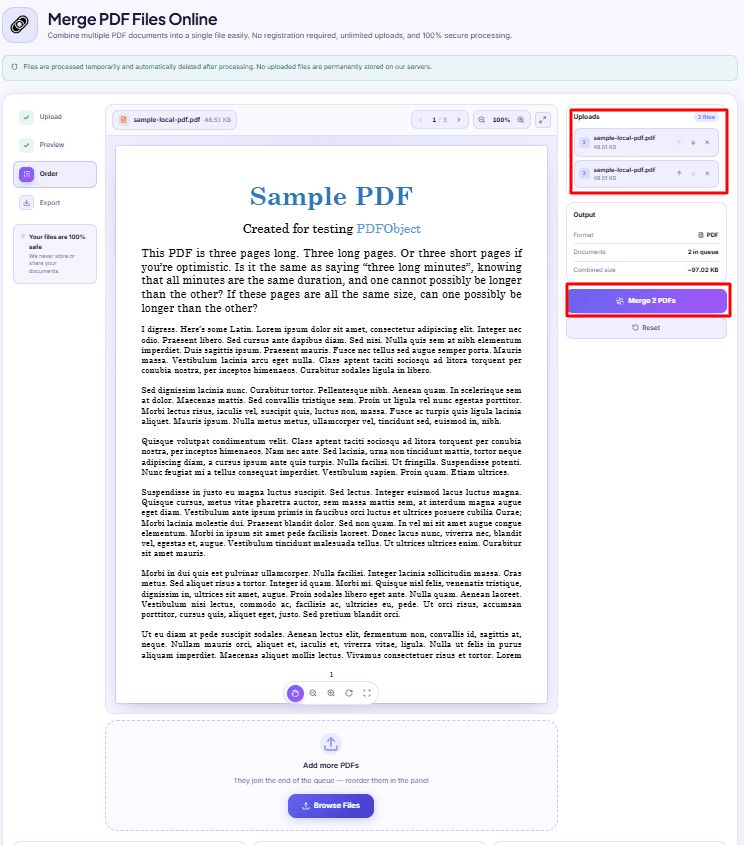
Now open the PDF Merger and add all your PDFs. They stack into a numbered queue in the panel, and that queue is the output order — file 1's pages first, then file 2's, all the way down.
Check the numbers against the list you wrote. If something is out of place, the up and down arrows on each row walk it into position. Files you add later always join the bottom of the queue, so add everything first and sort afterwards rather than trying to insert as you go.
A typical set ends up looking like this:
| # | Document | Pages | Came from |
|---|---|---|---|
| 1 | Aadhaar front + back | 2 | Two JPGs, converted together |
| 2 | PAN card | 1 | Cropped photo, converted |
| 3 | Class 12 mark sheet | 2 | Downloaded PDF, used as is |
| 4 | Passbook first page | 1 | Scan, one page extracted |
Six pages, one file. Click Merge, and the preview switches to show the combined document with its page count so you can scroll through and confirm nothing landed upside down or in the wrong slot.
The whole merge runs inside your browser. Your Aadhaar image and your bank page are not uploaded anywhere to be joined — which is the right property for this particular pile of documents.
Step 4: now deal with the 2 MB
Merging adds. Six pages copied from four sources produce a file roughly the size of those four sources put together, because nothing is re-encoded along the way. Phone photos of documents are frequently 3-4 MB each, so a six-page merged set landing at 9 MB is completely normal and completely useless to a form with a 2 MB cap.
The Output card in the merger shows you the merged size the moment it finishes. If it is over the limit, run the single merged file through the PDF Compressor. Compress once, at the end — not each piece before merging. Compressing four files separately and then joining them gives you a slightly worse-looking document and an unpredictable final size, because you never see the total until it is too late to adjust.
Naming it so a human can file it
merged.pdf in a folder of forty applications helps nobody, least of all the person processing yours. Rename the download to something that identifies you and the purpose before you upload:
RaviKumar_ScholarshipDocs_2026.pdf
Some portals also reject filenames with spaces, brackets or #. Underscores are safe everywhere.
The five-minute check before you press Upload
Open the finished PDF in a normal reader — not the preview, the actual downloaded file — and go through it once:
- Page count matches what you intended, no blanks, no duplicates
- Every page is the right way up and readable at 100% zoom
- Nothing is in there that the form did not ask for
- The order matches the checklist
- The size is under the stated limit
Then upload it, and keep the merged file. Half of these portals ask for the same bundle again at the next stage, and having it assembled already turns a forty-minute evening into a two-minute one.
If a document needs trimming, splitting, or reordering before it joins the queue, the rest of the toolkit is on the all tools page — most of these jobs are two clicks once you know which tool does which part.
DocsSeva Team
Published on September 9, 2026
Browse all tools
38 free document tools, no account required.
Browse all toolsMore on pdf-pages

Your Merged PDF Came Out in the Wrong Order? Fix It
Merged PDFs almost always come out jumbled for one reason: the queue order. Here is why filenames betray you and how to fix the sequence before you merge.


Send One Page of a 90-Page PDF, Not the Whole File
How to pull a single signature or statement page out of a long PDF so it stays searchable and small, and the one thing extraction will not do for you.


PDF Page Ranges Explained: 1-5, 8, 11-13 and "all"
What the page number box actually accepts: why commas make separate files, why 10-3 returns nothing, and the clamping trick that means "to the end of the document".