Split PDF Downloaded Only One File? Here Is Why


Key takeaways
- Each range is a separate automatic download the browser may block
- Allow automatic downloads in Site settings, then split again
- An empty range box returns the whole file as split_yourfile.pdf
- A leftover range spec still applies after switching to All Pages
- On iPhone the files land in Files, On My iPhone, Downloads
The panel said "Split into 3 PDFs". The result card said three PDFs split and downloaded. You open your Downloads folder and there is exactly one file in it: pages_1-4_agreement.pdf.
The other two were not lost, and the split did not fail halfway. Your browser stopped them.
Why the second and third file never arrived
The PDF Splitter does not hand you a ZIP. Each comma-separated segment you type becomes its own PDF, and each one is saved to your device as a separate download the moment it is ready. Type 1-4, 5-9, 10-14 and the tool performs three saves in a row, about a third of a second apart.
Chrome, Edge and Brave treat that pattern as suspicious. A site that fires one download after a click is normal. A site that fires several without another click looks like the thing that used to dump toolbars onto people's machines, so the browser allows the first and blocks the rest until you say otherwise.
You usually get a small icon in the address bar when it happens — a blocked-download indicator on the right side of the URL. It is easy to miss entirely, and nothing on the page changes, because the page genuinely does not know. The tool asked the browser to save three files; from its side, three saves were requested and the job is complete. That is why the result card cheerfully reports three.
Turning it back on
Chrome, Edge, Brave (desktop)
- Click the blocked-download icon in the address bar right after the split. Choose to allow.
- If the icon has already disappeared, click the padlock or the tune icon to the left of the address, open Site settings, find Automatic downloads, and set it to Allow.
- Run the split again. All the files come through this time.
Firefox usually asks per file instead of silently blocking, so you may just have a stack of unanswered prompts behind the window.
Safari on Mac asks once whether the site may download files. Say yes and the rest follow.
Android Chrome behaves like desktop Chrome; the allow prompt appears as a bar at the bottom.
iPhone Safari asks for download permission once, then puts everything into Files → On My iPhone → Downloads. It is not in Photos, and it is not in a folder named after the site. People often conclude the files are missing when they are sitting in Downloads under names they were not expecting.
Before you blame the browser, look at the names
The output filenames are built from the segment you typed plus the original filename, so a split of agreement.pdf produces:
pages_1-4_agreement.pdf
pages_5-9_agreement.pdf
pages_10-14_agreement.pdf
In All Pages mode the names are simpler — page_1.pdf, page_2.pdf, and so on — and those will scatter in a busy Downloads folder, because they do not carry the original filename at all. Sort the folder by date modified rather than by name and they group together immediately.
If you split the same file twice, the second run does not overwrite the first. You get pages_1-4_agreement (1).pdf and friends, which is its own small source of confusion when you open the wrong one an hour later.
The one that isn't a browser problem at all
Two behaviours look like blocked downloads but are not.
You left the range box empty in Range mode. An empty box does not mean "every page separately". It means "no segments to cut", so you get the whole document back as a single file named split_yourfile.pdf. One file, all pages, exactly as designed. If you wanted every page individually, that is the All Pages switch.
You typed a range, then switched to All Pages. The number box disappears when you switch modes, but what you typed is still remembered, and it still governs which pages get pulled. Type 1-3, switch to All Pages, and you get three files — pages 1, 2 and 3 as separate PDFs — not one file per page in the whole document. It looks exactly like a batch that got cut short.
The fix is to switch back to Range, clear the box, then choose All Pages. Or hit Reset and start clean, which is faster.
Symptom table
| What happened | Most likely cause | Fix |
|---|---|---|
| Exactly one file, several expected | Browser blocked automatic downloads | Allow automatic downloads for the site, split again |
| One file containing every page | Range mode with an empty box | Use All Pages, or type real segments |
| Fewer files than the document has pages | A leftover range spec from before the mode switch | Reset, then choose All Pages |
| Files exist but you cannot find them | Names differ from the source file | Sort Downloads by date, not name |
| Nothing at all, an error instead | Every number you typed was outside the page count | Check the page count next to the filename in the panel |
When to stop splitting and do something else
All Pages mode on a 96-page scan means 96 separate saves. Even with permission granted, that is a slow, noisy minute and a Downloads folder you will regret. Ask whether you actually need every page as its own file. Usually you need three or four sections, which is three or four comma segments and three or four files.
If you only want one continuous chunk out of a long document and you do not care about the rest, the Page Extractor is the more comfortable route for a single range — it hands you one file with a proper download button rather than saving automatically, so there is nothing for the browser to block.
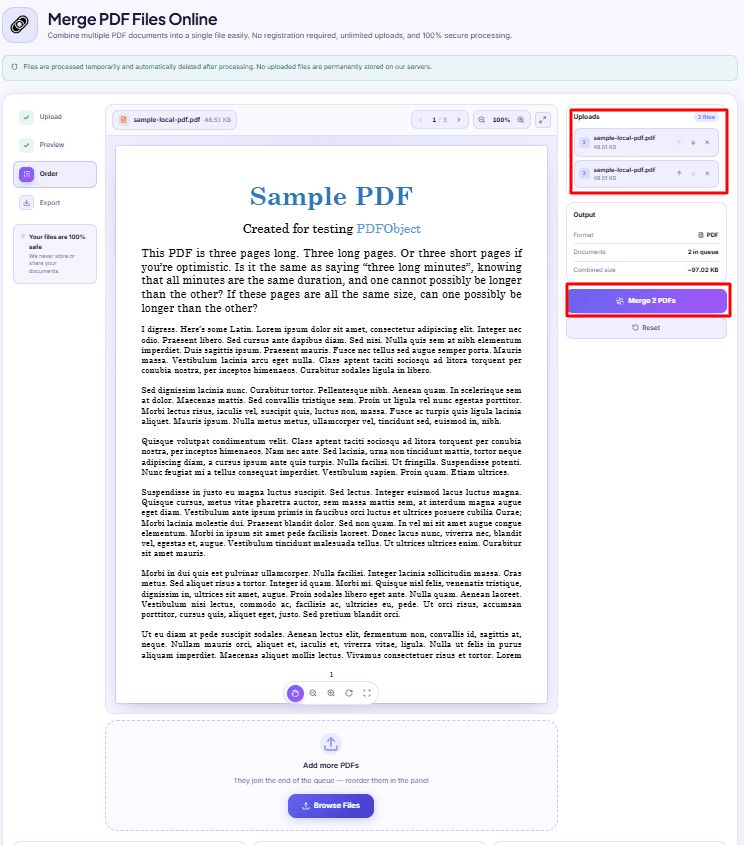
And if you split something apart and then realise you wanted the pieces rejoined in a different order, that is the PDF Merger's job: the queue order in its panel becomes the page order in the output.
A note on very large files
Splitting happens in your browser, on your own machine. Nothing is uploaded, which is why a confidential agreement is safe to run through it — but it also means a 300 MB scan is being held in your device's memory while it works. Close the other heavy tabs first, and expect a pause before the progress bar starts moving.
Past 50 MB the preview on the canvas is skipped deliberately so the tab stays responsive. You will see a "Preview skipped for speed" panel instead of the pages. The splitting itself is unchanged; you simply cannot flip through the document on screen, so check the page count another way — the File Info tool reports a PDF's page count and page size without rendering a single page.
Everything else in the page-handling set is listed on the all tools page.
DocsSeva Team
Published on September 7, 2026
Browse all tools
38 free document tools, no account required.
Browse all toolsMore on pdf-pages


PDF Page Ranges Explained: 1-5, 8, 11-13 and "all"
What the page number box actually accepts: why commas make separate files, why 10-3 returns nothing, and the clamping trick that means "to the end of the document".


High-Intent Comparison
PDF Splitter vs Page Extractor: Which One Do You Need?
Two tools that take the same page numbers and produce similar files. The real difference is where the work happens, the size ceiling, and whether you see the result first.

Your Merged PDF Came Out in the Wrong Order? Fix It
Merged PDFs almost always come out jumbled for one reason: the queue order. Here is why filenames betray you and how to fix the sequence before you merge.