PDF Splitter vs Page Extractor: Which One Do You Need?


Key takeaways
- Splitter works in your browser; the extractor uploads to the server
- 500 MB limit on the splitter, 100 MB on the extractor
- Only the splitter has an All Pages mode
- Only the extractor shows an Original / Extracted preview toggle
- Neither can reorder pages; that needs the merger
Two tools, one page apart, and from the outside they look like the same thing wearing different hats. Both take a PDF. Both take 1-5, 10, 15-20 in a box. Both hand you smaller PDFs.
They are not the same, and the difference that actually matters is not on the surface. One does the work on your own machine. The other sends your file to a server and gets the result back.
Where the work happens
The PDF Splitter loads a PDF library into your browser tab and cuts the file there. The document never leaves your device. That is why it shows a live progress bar reading "Extracting page 7 of 24" — it is narrating work happening a few centimetres from your fingers.
The Page Extractor posts your file to DocsSeva's server, which builds the new PDFs and returns them in the response. That is a genuine upload, and it is worth knowing before you feed it a salary slip or a signed agreement.
If the document is something you would not email to a stranger, that single fact settles the choice. Use the splitter.
The rest of the differences, plainly
| PDF Splitter | Page Extractor | |
|---|---|---|
| Processing | In your browser | On the server |
| Size limit on the file you add | 500 MB | 100 MB |
| Page numbers required? | No | Yes — the button stays greyed out until you type something |
| "Every page as its own PDF" mode | Yes, the All Pages switch | No |
The word all in the box | Understood | Not understood — type 1-9999 |
| One range typed | Saves automatically | Gives you a proper Download button |
| Several ranges typed | Each saves automatically | Each saves automatically |
| Before/after preview toggle | No | Yes — Original / Extracted |
| Output names | pages_1-5_yourfile.pdf | extracted_pages_yourfile.pdf |
A few of those rows deserve a sentence.
The 100 MB cap is real. Add a bigger file to the extractor and the dropzone refuses it by name, telling you it exceeds the limit. The splitter accepts up to 500 MB, and since it is not uploading anything, a big file costs you memory and patience rather than bandwidth.
The download button is a genuinely nicer experience. When you type one range into the extractor, the result comes back as a single file with a button that names the size — "Download extracted PDF · 412 KB". Nothing saves until you click. The splitter, by contrast, saves everything the moment it finishes, which most browsers are happy about for one file and suspicious about for three.
Only the extractor lets you see what you made before you keep it. After extraction, the canvas grows an Original / Extracted toggle. Flip to Extracted and you are looking at the actual output document. On a contract where you meant page 47 and might have typed 46, that is the check that saves you.
What they share
Both count physical pages from 1, including cover sheets and blank scans, regardless of what is printed on the page.
Both treat a comma as "start a new output file". 1-5, 10 produces two PDFs in either tool, never one PDF containing six pages.
Both copy pages rather than re-rendering them, so text stays selectable and a scan stays exactly as sharp as it was.
Both leave your original file untouched. Whatever you do, the file on your disk is the same file afterwards, so a mistake costs you a retry and nothing else.
And neither will open a password-protected PDF properly. Clear the password with the PDF Unlock tool first, save the open copy, then bring that to whichever tool you picked.
So which one
Use the Splitter when:
- the document is confidential — statements, agreements, medical reports, anything with an account number on it
- the file is bigger than 100 MB
- you want every page as its own file (the extractor simply cannot do this)
- you are on a slow or metered connection and would rather not push 60 MB up a link
- you want the whole document back as one file with a fresh name, which is what an empty range box gives you
Use the Extractor when:
- you want one section out of a long document and you want to look at it before saving
- your device is old or short on memory and a large PDF makes the tab crawl — the server does the heavy part
- you would rather click a download button than have files appear on their own
- the file is ordinary — a public form, a manual, a brochure — and privacy is not the deciding factor
For most everyday jobs on a modern laptop or phone, the splitter is the better default, purely because the file stays with you and the size ceiling is five times higher. The extractor earns its place when you want the before-and-after view, or when the machine you are working on cannot comfortably hold the document in a browser tab.
The thing neither of them does
Reordering.
Type 9, 2, 5 into either box and you will not get a document that reads 9, 2, 5. The splitter sorts your page numbers ascending before it copies anything. The extractor keeps your segments as separate files rather than assembling them into one. There is no arrangement of commas and hyphens that produces a reordered document.
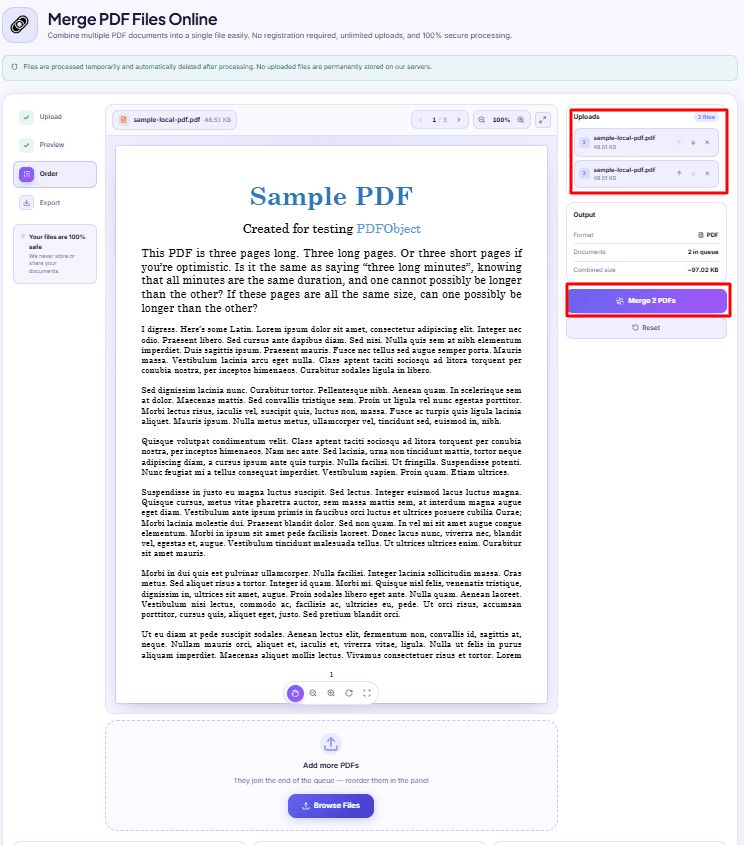
That job belongs to the PDF Merger, and the route is: pull out the pieces you want with either tool, then add them to the merger and use the up and down arrows to set the sequence. The order of the numbered queue is the order of the finished file. It is two steps instead of one, and it is the only way to get there.
A quick worked example
A 210-page tender document. You need the eligibility criteria (pages 12-18) and the price bid format (pages 190-194), and you have to email both to a colleague this evening.
The efficient version: open the splitter, type 12-18, 190-194, and let it save two files. Rename them so your colleague knows what they are. Done in under a minute, and the tender never left your laptop.
The version where you want to eyeball it first: open the extractor, type 12-18, look at the Extracted preview to confirm the criteria table is complete and not cut off at a page break, download. Then repeat for 190-194. Slower, but you know exactly what you sent.
Both are correct. Pick based on whether the risk you are managing is time or accuracy — and on whether the document is one you are comfortable uploading. The rest of the page-level toolkit sits under PDF tools if you need to trim, merge or renumber before any of this.
DocsSeva Team
Published on September 4, 2026
More PDF Tools guides
Compare the approaches before you pick one.
More PDF Tools guidesMore on pdf-pages


Split PDF Downloaded Only One File? Here Is Why
You asked for three PDFs and got one. It is almost always the browser blocking automatic downloads, plus two settings on the tool that produce the same symptom.


Send One Page of a 90-Page PDF, Not the Whole File
How to pull a single signature or statement page out of a long PDF so it stays searchable and small, and the one thing extraction will not do for you.

Your Merged PDF Came Out in the Wrong Order? Fix It
Merged PDFs almost always come out jumbled for one reason: the queue order. Here is why filenames betray you and how to fix the sequence before you merge.