Why Is My PDF File So Large? 10 Common Reasons and Fixes

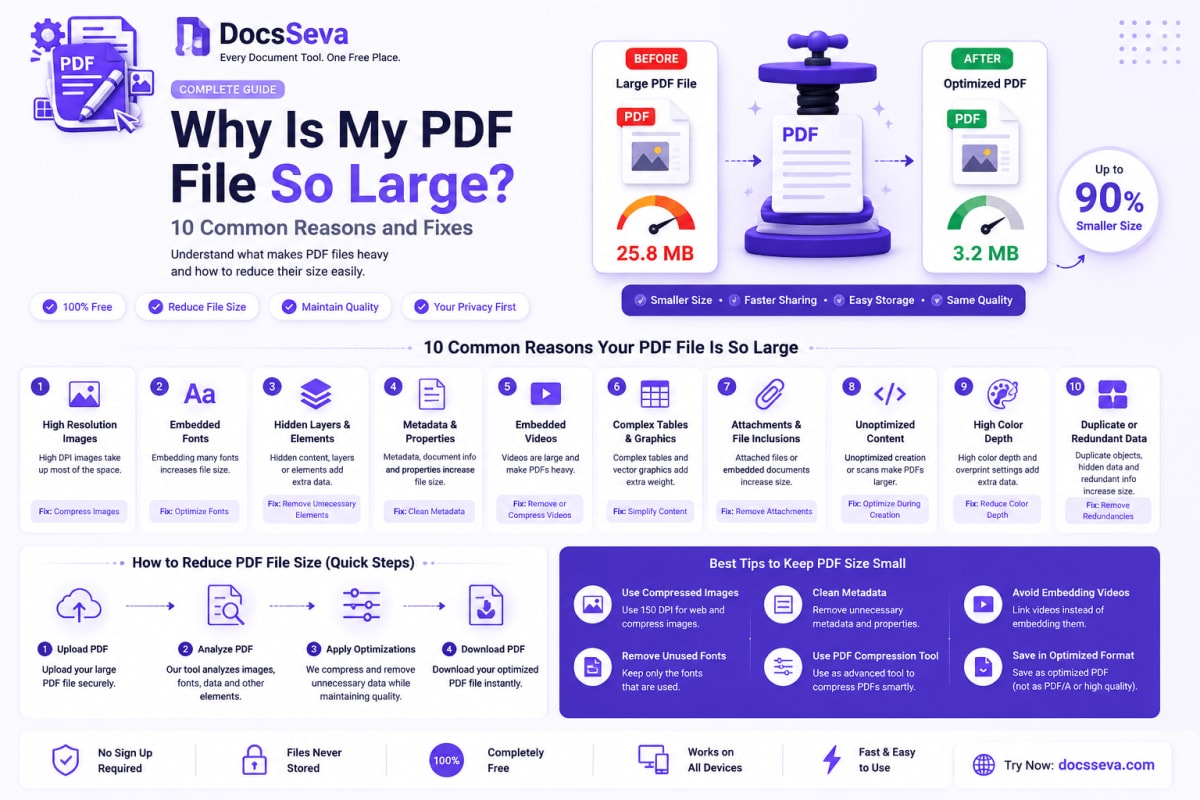
A PDF can become surprisingly large even when it contains only a few pages.
You may have a five-page document that uses 40 MB of storage, while another PDF containing fifty pages is smaller than 2 MB. The reason is that PDF size depends on much more than the number of pages.
A PDF may contain:
- High-resolution photographs
- Full-page scanned images
- Embedded fonts
- Complex vector graphics
- Transparent objects
- Hidden layers
- Attachments
- Page thumbnails
- Form fields
- Comments and annotations
- Duplicate objects
- Previous editing data
- Print-production information
Any of these elements can increase the final file size.
A large PDF may be difficult to:
- Send by email
- Upload to a job portal
- Submit through a government website
- Share through messaging applications
- Store on a mobile device
- Upload to cloud storage
- Open on an older computer
- Download using a slow connection
This guide explains the ten most common reasons a PDF becomes large and provides practical ways to reduce its size without making important text unreadable.
To reduce your file immediately, open the free DocsSeva PDF Compressor.
Quick Answer: Why Is My PDF File So Large?
Your PDF is probably large because it contains one or more of the following:
- High-resolution images
- Full-page scanned documents
- High scan DPI or unnecessary colour
- Complete embedded font files
- Complex graphics, transparency or layers
- Duplicate images and document objects
- Blank, duplicate or unnecessary pages
- Embedded attachments, thumbnails or media
- Previous editing and incremental-save data
- Print-quality or inefficient export settings
Images and scanned pages are usually the largest contributors.
A digitally created text document may remain small because text requires relatively little storage. A scanned version of the same document may be much larger because every page is stored as an image containing millions of pixels.
Does the Number of Pages Determine PDF Size?
Page count affects file size, but it is not the only factor.
Consider these examples:
100-page text-only PDF: 3 MB
10-page photography portfolio: 45 MB
5-page colour scan: 28 MB
50-page black-and-white scan: 8 MB
The shorter PDFs can be larger because their pages contain more image data.
PDF size depends on:
- Content type
- Image resolution
- Number of photographs
- Scan settings
- Colour depth
- Embedded fonts
- Graphics
- Forms and annotations
- Attachments
- Export settings
- Existing compression
A PDF page containing only digital text may require very little storage. A single full-page photograph can require more storage than dozens of text pages.
How Can You Check Why a PDF Is Large?
Before applying maximum compression, try to identify the main cause.
Ask these questions:
- Was the PDF created from scanned pages?
- Does it contain photographs?
- Was it exported for professional printing?
- Does it use several custom fonts?
- Does it include attachments?
- Were multiple PDFs merged together?
- Does it contain blank or repeated pages?
- Was it edited and saved many times?
- Does it include forms, comments or layers?
- Is the document already compressed?
You can also inspect the pages visually.
A PDF is likely image-heavy when:
- Text cannot be selected
- Every page looks like a photograph
- Zooming reveals pixel-based text
- The document was created with a scanner application
- Pages contain large background images
- Photographs occupy most of the page
Understanding the cause helps you choose a better solution.
1. High-Resolution Images
High-resolution images are one of the most common reasons a PDF becomes large.
Photographs captured by modern cameras and phones may contain millions of pixels.
For example:
Image dimensions: 6000 × 4000 pixels
Total pixels: 24 million
This may be useful for large-format printing, but it is excessive for a document that will only be viewed on a phone or laptop.
When several original photographs are inserted into a PDF, the file can quickly grow to tens or hundreds of megabytes.
Why High-Resolution Images Increase PDF Size
Each pixel contains colour and brightness information.
The more pixels an image contains, the more information the PDF may need to store.
Image size is influenced by:
- Pixel dimensions
- Resolution
- Colour depth
- Compression format
- Quality setting
- Transparency
- Number of images
A document containing ten large photographs can be much larger than a document containing hundreds of pages of text.
How to Fix High-Resolution Images
Use Balanced PDF Compression
Start with Medium compression in the DocsSeva PDF Compressor.
Medium compression can reduce oversized image data while maintaining acceptable screen quality.
Resize Images Before Creating the PDF
When you still have the source images, reduce their dimensions before inserting them.
Use the DocsSeva Image Resizer to reduce unnecessary width and height.
Compress Source Images
Use the DocsSeva Image Compressor before creating the PDF.
Rebuild the Document
When the existing PDF has been created from extremely large photographs, recreate it using optimised images.
Use DocsSeva Images to PDF to generate a new document.
When Should You Preserve High Resolution?
Use lighter compression when the PDF is intended for:
- Professional printing
- Photography portfolios
- Product catalogues
- Medical images
- Technical diagrams
- Architectural drawings
- Detailed maps
- Graphic-design presentations
For ordinary email and online submissions, full camera resolution is rarely necessary.
2. Full-Page Scanned Images
A scanned PDF often stores every page as a full-page image.
Even if the document contains only black text on white paper, the scanner may record millions of pixels across the complete page.
A scanned page may include:
- Text
- White background
- Paper texture
- Shadows
- Dust
- Creases
- Scanner noise
- Borders
- Stamps
- Signatures
All of this becomes image data.
Digital PDF vs Scanned PDF
A digital PDF stores text as characters and positioning instructions.
A scanned PDF stores the visual appearance of the page as pixels.
For example:
Digital text page:
Letters + font references + positioning data

Scanned page:
Millions of individual pixel values
This is why scanned documents are frequently much larger.
How to Tell Whether a PDF Is Scanned
Try selecting a word.
If text cannot be selected, the page may be an image.
Other signs include:
- Text becomes pixelated when zoomed
- Search does not find visible words
- Every page has a similar image texture
- The PDF was created using a mobile scanner
- Pages have shadows or curved edges
How to Fix a Large Scanned PDF
Use Medium Compression First
Medium compression is usually a good starting point because it reduces image data without immediately applying the strongest setting.
Move to High When Required
Use High compression when the output remains above the required upload limit.
Apply OCR When Searchability Matters
Use the DocsSeva PDF OCR tool when scanned text must become searchable.
Remove Blank Scanned Pages
Use the DocsSeva PDF Page Remover to delete blank or unwanted pages.
Check Fine Details
After compression, inspect:
- Registration numbers
- Signatures
- Stamps
- QR codes
- Barcodes
- Small text
- Dates
- Serial numbers
A smaller document is not useful when its important information becomes unreadable.
3. High Scan DPI or Unnecessary Colour
Scanner resolution is commonly measured in DPI, or dots per inch.
A higher DPI setting captures more detail but also creates more image data.
A document scanned at 600 DPI can be substantially larger than the same document scanned at 200 or 300 DPI.
How DPI Affects PDF Size
Higher DPI means more pixels are recorded across every inch of the page.
For example:
A4 page at 150 DPI: relatively small
A4 page at 300 DPI: significantly more image data
A4 page at 600 DPI: very large image data
Doubling the DPI increases both the horizontal and vertical pixel counts.
This can create far more than twice the total number of pixels.
When High DPI Is Useful
Higher resolution may be required for:
- Fine technical drawings
- Small printed text
- Archival documents
- Detailed photographs
- Medical imagery
- Professional printing
- Maps
- Documents containing tiny symbols
When High DPI Is Unnecessary
Very high DPI may be unnecessary for:
- Email attachments
- Job applications
- Government forms
- Ordinary office records
- Screen viewing
- Simple text documents
- Mobile sharing
How Colour Increases PDF Size
Colour images store more information than grayscale or black-and-white images.
A full-colour scan may record separate colour values for every pixel.
This can make it much larger than a grayscale version.
Should You Convert a Scan to Grayscale?
Grayscale may be appropriate for text-focused documents that do not contain meaningful colour.
Do not remove colour when the document contains:
- Coloured stamps
- Official seals
- Photographs
- Highlighted text
- Coloured signatures
- Charts
- Important visual coding
Always preserve information required for the document’s purpose.
How to Fix High-DPI Scans
- Return to the original paper document when possible.
- Scan ordinary text at an appropriate resolution.
- Avoid unnecessary full-colour scanning.
- Crop empty margins.
- Remove blank pages.
- Apply balanced PDF compression.
- Inspect small text after processing.
4. Complete Embedded Font Files
Fonts allow a PDF to maintain the same appearance on different devices.
A PDF may embed fonts so that:
- Text looks consistent
- Symbols display correctly
- Non-English scripts remain available
- Line breaks do not change
- Brand typography is preserved
However, complete font files can increase PDF size.
How Fonts Increase PDF Size
A document may embed:
- Regular font
- Bold font
- Italic font
- Bold italic font
- Several font families
- Symbol fonts
- Large Unicode character sets
A complete font can contain hundreds or thousands of characters, even when the PDF uses only a small number of them.
What Is Font Subsetting?
Font subsetting stores only the characters used in the document.
For example, if a PDF uses only:
A, B, C, 1, 2 and 3
it may not need to embed every character supported by the font.
Subsetting can reduce file size while preserving the document’s appearance.
Why Should Fonts Not Be Removed Carelessly?
Removing required fonts can cause:
- Missing characters
- Replacement fonts
- Changed line breaks
- Different spacing
- Altered page layout
- Incorrect symbols
- Problems with non-English text
Font optimisation should preserve the characters and layout required by the document.
How to Reduce Font-Related PDF Size
- Use fewer font families
- Avoid unnecessary font styles
- Export with font subsetting enabled
- Use standard fonts when appropriate
- Remove unused text elements
- Recreate the PDF using efficient export settings
PDF compression may reduce some structural and font-related overhead, but source-document optimisation often produces the most controlled result.
5. Complex Graphics, Transparency and Layers
PDFs created from design applications can contain complex visual information.
Examples include:
- Vector illustrations
- Thousands of paths
- Gradients
- Shadows
- Transparent objects
- Clipping masks
- Blend modes
- Background textures
- Hidden layers
- Alternative versions of artwork
These elements may increase file size even when the PDF contains no large photographs.
Why Vector Content Can Become Large
Simple vector objects can be compact.
However, an illustration containing thousands of points and paths may require a large amount of structural data.
Complexity can increase further when the document uses:
- Multiple transparency effects
- Repeated clipping masks
- Detailed patterns
- Large numbers of small shapes
- Layered page backgrounds
How to Fix Complex Graphics
Remove Unnecessary Layers
Delete hidden artwork, editing guides and unused alternative designs before exporting.
Simplify Vector Artwork
Reduce unnecessary anchor points and repeated objects in the source document.
Flatten Carefully
Flattening transparency can simplify some content, but it may affect editability and visual output.
Use the Correct Export Preset
Choose a digital or web-focused PDF preset when professional print data is unnecessary.
Apply PDF Compression
A balanced compression mode may reduce associated images and document streams.
Should Complex Graphics Be Rasterised?
Rasterisation may reduce a very complex page by converting it into an image.
However, it can also:
- Reduce zoom sharpness
- Remove selectable text
- Remove interactive links
- Affect accessibility
- Lower print quality
Use rasterisation only when a final screen-viewing copy is acceptable.
6. Duplicate Images and Document Objects
A PDF may contain the same content several times.
Examples include:
- Company logo on every page
- Repeated background images
- The same font embedded multiple times
- Duplicate photographs
- Repeated icons
- Copied page templates
- Multiple versions of identical objects
Efficient PDF creation can reuse one object across several pages.
Inefficient export or merging workflows may store separate copies.
Why Merged PDFs Can Become Large
When several PDFs are combined, each source file may contain its own:
- Font copies
- Metadata
- Thumbnails
- Logos
- Colour profiles
- Document structures
The merged output may retain much of this duplicated information.
Use the DocsSeva PDF Merger to combine only the documents you actually need, then compress the final output.
How to Fix Duplicate Content
- Remove duplicate pages
- Merge only required documents
- Use one common source template
- Recreate the PDF from optimised source files
- Apply object optimisation
- Compress the final merged PDF
- Avoid repeatedly merging already duplicated documents
7. Blank, Duplicate or Unnecessary Pages
Every page adds some information to the PDF.
A document may contain:
- Blank scanner pages
- Duplicate certificates
- Outdated forms
- Repeated cover pages
- Unnecessary instructions
- Empty separators
- Pages outside the required range
- Unused appendices
Even blank scanned pages may contain image data because scanners capture paper texture and background noise.
How to Find Unnecessary Pages
Review the PDF page by page.
Check for:
- Completely blank pages
- Nearly blank scans
- Repeated page numbers
- Duplicate images
- Outdated versions
- Pages not required by the recipient
- Extra terms and conditions
- Unneeded attachments displayed as pages
How to Remove Unnecessary Pages
Use the DocsSeva PDF Page Remover.
Removing a page reduces file size without lowering the quality of the pages you keep.
Extract Only the Pages You Need
When an application requires only selected pages, use the DocsSeva PDF Page Extractor.
For example, instead of uploading an entire 80-page report, you may need only pages 4–7.
Split a Large Document
Use the DocsSeva PDF Splitter when the recipient accepts multiple smaller files.
This can be more effective than applying extreme compression to one large PDF.
8. Embedded Attachments, Thumbnails and Media
A PDF can contain more than visible page content.
It may include:
- Attached spreadsheets
- Images
- Supporting PDFs
- Source files
- Audio
- Video
- Embedded documents
- Page thumbnails
- Search indexes
These elements can make the PDF larger even when the pages appear simple.
Embedded Attachments
An attached file becomes part of the PDF package.
A 2 MB PDF containing a 20 MB spreadsheet attachment may have a total size above 22 MB.
The attachment may not be visible until the user opens the PDF attachment panel.
Embedded Thumbnails
Some PDFs store preview images for each page.
These thumbnails can improve navigation in certain viewers but also add data.
Embedded Media
Interactive presentations may contain:
- Audio
- Video
- Animations
- Rich-media elements
These can dramatically increase file size.
How to Fix Attachments and Media
- Remove attachments that are not required
- Share large source files separately
- Remove embedded media from an upload copy
- Remove unnecessary page thumbnails
- Create a simplified final PDF
- Keep an original interactive version separately
Be careful not to remove supporting files that the recipient actually needs.
9. Previous Editing and Incremental-Save Data
Some PDF applications save changes incrementally.
Instead of rewriting the complete document, the application may append new changes to the end of the file.
This can help preserve editing history and improve saving speed, but repeated edits may increase file size.
What Can Incremental Saving Preserve?
A repeatedly edited PDF may contain:
- Earlier object versions
- Updated form data
- Previous annotations
- Revised metadata
- Replaced images
- Changed page instructions
- Signature information
- Editing history
The visible document may look simple while the internal file contains several generations of changes.
How to Fix Repeated Editing Data
- Save a clean copy
- Export the document again
- Print to a new PDF only when document features are not required
- Flatten unnecessary comments or annotations
- Remove outdated form data
- Recreate the PDF from the final source document
- Apply PDF optimisation
Be careful when flattening or recreating a PDF because it can affect:
- Searchable text
- Links
- Forms
- Accessibility
- Digital signatures
- Bookmarks
Digital Signatures and File Size
Digital signatures can add verification data to a PDF.
Editing or compressing the document after signing may invalidate the signature.
Where possible:
- Finalise the document.
- Remove unnecessary content.
- Compress the PDF.
- Review the result.
- Apply the digital signature last.
10. Print-Quality or Inefficient Export Settings
A PDF created for professional printing may contain much more information than a PDF created for online viewing.
Print-focused export settings may preserve:
- High-resolution images
- Complete font files
- Colour profiles
- Bleed
- Crop marks
- Transparency information
- Editing data
- Print-production metadata
- Alternative image versions
These features can be necessary for a printing company but unnecessary for an email attachment or online form.
Common Export Mistakes
Using Print Quality for Every PDF
A digital report does not always require professional-print resolution.
Inserting Original Camera Images
A document may include full-resolution images even when displayed at a small size.
Embedding Complete Fonts
The export may include entire font libraries.
Preserving Editing Information
Some applications include data that allows the document to be reopened and edited.
Exporting Unused Layers
Hidden elements may remain inside the PDF.
Using an Inefficient PDF Version
Older compatibility settings may prevent the use of newer compression methods.
How to Fix Export Settings
When you have the source document:
- Choose an online or digital PDF export preset.
- Downsample oversized images.
- Enable font subsetting.
- Remove unused layers.
- Exclude unnecessary editing information.
- Remove print marks when not needed.
- Use appropriate colour settings.
- Export only required pages.
- Review the output.
- Apply additional PDF compression when necessary.
Other Reasons a PDF May Be Large
The ten causes above are the most common, but other elements can also contribute.
Forms and Annotations
A PDF may contain:
- Text fields
- Dropdowns
- Buttons
- Checkboxes
- Comments
- Highlights
- Drawing annotations
- Digital-signature fields
Large numbers of annotations or form objects can increase file size.
Accessibility Information
Accessible PDFs may include:
- Tags
- Reading order
- Alternative text
- Language data
- Structural information
This information has value and should not be removed only to achieve a small reduction.
Bookmarks and Links
Bookmarks and hyperlinks usually do not create enormous files, but complex navigation structures add some data.
Colour Profiles
Print-focused PDFs may embed colour profiles to maintain consistent colour reproduction.
These can add storage but may be important for professional printing.
Search Indexes
Large documents may include embedded indexes to improve search speed.
Removing them can reduce size but may affect search performance.
How to Reduce a Large PDF with DocsSeva
Follow this workflow.
Step 1: Keep the Original File
Save an unchanged copy.
Do not overwrite the only version of an important document.
Step 2: Remove Unnecessary Pages
Use the DocsSeva PDF Page Remover.
Removing pages can reduce size without degrading the pages you keep.
Step 3: Extract Only Required Content
Use the DocsSeva PDF Page Extractor when only specific pages are needed.
Step 4: Open the PDF Compressor
Visit:
Step 5: Start With Medium Compression
Medium is a practical first choice for most documents.
It balances:
- File-size reduction
- Text readability
- Image clarity
- Searchable content
- Screen quality
Step 6: Download and Check the Result
Review:
- Page count
- Text clarity
- Image detail
- Signatures
- Stamps
- QR codes
- Barcodes
- Hyperlinks
- Form fields
- Searchable text
- Final file size
Step 7: Use High Compression When Necessary
Return to the original PDF and use High compression when Medium remains above the required limit.
Do not repeatedly compress the previous output.
Step 8: Use Screen Mode Carefully
Screen mode may create a smaller final viewing copy by converting pages into images.
Use it only when you do not require:
- Searchable text
- Selectable text
- Accessibility
- Active links
- Forms
- High-quality printing
Which Compression Mode Should You Use?
| Requirement | Recommended mode |
|---|---|
| Maximum visual quality | Low |
| General email and sharing | Medium |
| Strict portal limit | High |
| Small final viewing copy | Screen |
| Resume or searchable document | Medium |
| Print-ready portfolio | Low |
| Large scanned document | Medium, then High |
| Government form | Medium or High |
| Photography PDF | Low |
| Mobile viewing | High or Screen |
Read the complete comparison:
Low vs Medium vs High PDF Compression
Why Is My PDF Still Large After Compression?
A PDF may remain large for several reasons.
It Is Already Optimised
The original application may already have compressed its images and internal data.
It Contains Many Required Images
A photography portfolio may remain large because image data cannot be reduced further without visible quality loss.
It Contains Attachments
Embedded files may remain unchanged by ordinary page compression.
It Contains Complex Vector Content
Image compression may have little effect on vector-heavy technical drawings.
It Uses a Quality-Focused Mode
Low compression intentionally preserves more information.
It Has Too Many Pages
Removing or extracting pages may be more effective than applying stronger compression.
The Target Is Unrealistic
A 100-page colour scan may not reach 100 KB while remaining readable.
Why Did My PDF Become Larger After Compression?
Although unusual, this can happen when:
- Already efficient images are re-encoded
- Monochrome pages are converted inefficiently
- New metadata is added
- The document structure is rebuilt
- Pages are rasterised at a high resolution
- Additional fonts are embedded
- The original PDF was already highly optimised
When the output becomes larger:
- Keep the original.
- Try a different mode.
- Remove unnecessary content.
- Recreate the PDF from its source when possible.
- Compare quality as well as size.
How to Reduce PDF Size for Common Uses
Email Attachments
Start with Medium compression.
Move to High when the file remains above the attachment limit.
Job Applications
A resume should remain:
- Readable
- Searchable
- Selectable
- Compatible with recruitment systems
Use Medium first.
Government Portals
Confirm the exact upload limit.
Remove unnecessary pages and use High when required.
Check:
- Identification numbers
- Signatures
- Stamps
- Registration details
- Photographs
University Submissions
Use Medium for assignments and research documents.
Preserve searchable text and citations.
Scanned Certificates
Start with Medium.
Use High only when necessary and inspect small text carefully.
Business Reports
Preserve charts, tables, photographs and branding.
Medium is appropriate for most screen-sharing requirements.
Portfolios
Use Low to preserve image detail.
Create a separate Medium-compressed version for email.
Bank Statements
Use Medium and check:
- Transaction values
- Dates
- Account details
- Fine print
Follow applicable privacy requirements.
How to Prevent Large PDFs in the Future
Reducing size during document creation is better than fixing an unnecessarily large PDF later.
Resize Images Before Inserting Them
Do not insert a 6000-pixel photograph when it will appear only 800 pixels wide.
Compress Images Before Export
Use the DocsSeva Image Compressor.
Scan at an Appropriate Resolution
Avoid 600 DPI when an ordinary text document does not require it.
Use Grayscale When Appropriate
Do not use full colour for text-only documents unless colour contains important information.
Remove Unnecessary Pages
Export only the pages required by the recipient.
Use Fewer Fonts
Limit unnecessary font families and styles.
Choose a Digital Export Preset
Use a screen or online PDF setting for documents that will not be professionally printed.
Remove Hidden Layers
Clean the source document before export.
Avoid Repeated PDF Editing
Make major changes in the source document and export a clean final copy.
Compress Before Signing
Optimise the PDF before applying a digital signature.
Common Mistakes When Reducing a Large PDF
Applying Maximum Compression Immediately
Start with Medium and increase strength only when necessary.
Compressing the Output Repeatedly
Start each attempt from the original file.
Deleting the Original
Keep an unchanged copy until the output has been approved.
Checking Only File Size
A smaller file is not successful when its content becomes unreadable.
Ignoring Searchable Text
Avoid Screen mode when text selection and search matter.
Forgetting Attachments
Page compression may not reduce embedded files.
Ignoring Blank Scans
A blank scanned page can still contain significant image data.
Using Print Settings for Online Documents
Choose settings appropriate for the final use.
Ignoring QR Codes and Barcodes
Strong compression can soften the edges required for reliable scanning.
Compressing a Digitally Signed PDF
Modifying the PDF may invalidate the signature.
Recommended Large-PDF Reduction Workflow
Use this sequence:
- Keep the original PDF.
- Identify whether it is scanned or digital.
- Review all pages.
- Remove blank and duplicate pages.
- Extract only required content.
- Remove unnecessary attachments.
- Optimise source images where possible.
- Start with Medium compression.
- Download and review the result.
- Move to High only when necessary.
- Use Screen only for a final viewing copy.
- Test text, images, links and forms.
- Confirm the final file size.
- Upload or share the approved result.
Related DocsSeva Guides
Continue with these PDF compression guides:
- How to Compress a PDF Online for Free
- Complete Guide to PDF Compression
- How Does PDF Compression Work?
- Low vs Medium vs High PDF Compression
- How to Reduce PDF Size Without Losing Quality
Update these links if your published articles use different slugs.
Related DocsSeva Tools
Use these free tools to reduce and organise large PDFs:
- PDF Compressor — reduce PDF file size
- PDF Page Remover — delete unnecessary pages
- PDF Page Extractor — extract selected pages
- PDF Splitter — divide a large PDF
- PDF Merger — combine only required PDFs
- PDF OCR — make scanned text searchable
- PDF to Images — convert pages into images
- Images to PDF — create a PDF from optimised images
- Image Compressor — reduce source-image size
- Image Resizer — resize oversized images
- PDF Password — protect a final PDF
- PDF Unlock — remove an authorised restriction
Frequently Asked Questions
1. Why is my PDF so large even though it has only a few pages?
The pages may contain high-resolution images, full-page scans, embedded fonts, attachments or complex graphics.
2. Do images make PDFs larger?
Yes. High-resolution photographs and scanned pages are among the most common causes of large PDF files.
3. Why is a scanned PDF larger than a digital PDF?
A scanned PDF stores each page as an image containing millions of pixels. A digital PDF can store text using compact character instructions.
4. Does scan DPI affect PDF size?
Yes. Higher DPI creates more pixels and therefore more image data.
5. Is 600 DPI too high for an ordinary PDF?
It may be unnecessary for normal text documents intended only for online viewing or form submission.
6. Does colour make a scanned PDF larger?
Yes. Full-colour scans generally require more storage than grayscale or black-and-white scans.
7. Can embedded fonts make a PDF large?
Yes. Several complete font files can add significant data.
8. What is font subsetting?
Font subsetting stores only the font characters actually used in the document.
9. Can vector graphics make a PDF large?
Yes. Complex illustrations containing many paths, gradients and transparency effects can increase file size.
10. Can hidden layers increase PDF size?
Yes. Hidden or unused artwork may remain stored inside the PDF.
11. Do blank pages increase PDF size?
Yes. A blank scanned page may still contain a full-page image with background noise.
12. Can duplicate pages make a PDF large?
Yes. Duplicate pages add unnecessary text, image and object data.
13. Do PDF attachments affect file size?
Yes. Attached spreadsheets, images or other PDFs become part of the total file.
14. Can page thumbnails increase PDF size?
Yes. Embedded preview images add some data, especially in long documents.
15. Does editing a PDF repeatedly increase its size?
It can. Some software appends new changes instead of completely rebuilding the PDF.
16. Why is a print-ready PDF so large?
Print PDFs may contain high-resolution images, colour profiles, complete fonts, bleed and production information.
17. How do I reduce the size of a print PDF for email?
Create a separate screen-focused copy using appropriate export settings or balanced compression.
18. What is the best compression mode for a large PDF?
Medium is the best starting point for most documents. Use High when a stricter reduction is required.
19. Does High compression make a PDF blurry?
It can make scanned pages and photographs softer because it applies stronger image optimisation.
20. What is Screen compression?
Screen mode prioritises a small digital-viewing copy and may convert complete pages into images.
21. Does Screen mode remove searchable text?
It may. Rasterised pages normally no longer contain separately selectable digital text.
22. Can OCR reduce PDF size?
OCR primarily adds searchable text. It does not automatically make scanned page images smaller.
23. Can compression preserve OCR text?
Standard compression may preserve an existing OCR layer. Rasterisation can remove it.
24. Can I reduce PDF size by removing pages?
Yes. Removing unnecessary pages reduces size without lowering the quality of the pages you keep.
25. Should I split a large PDF?
Splitting can help when the recipient accepts multiple files or only one section is required.
26. Can resizing images before creating a PDF help?
Yes. Optimising source images gives you greater control over the final size and quality.
27. Why did my PDF barely get smaller?
It may already be optimised, contain mostly digital text or use images that are already compressed.
28. Why did the compressed PDF become larger?
Re-encoding efficient data, adding metadata or rebuilding the document can occasionally create a larger output.
29. Can every PDF be compressed below 1 MB?
No. The achievable result depends on page count, image content, scan resolution and required readability.
30. Can a large scanned PDF be reduced below 100 KB?
A multi-page scan may not reach 100 KB without becoming unreadable.
31. Should I compress the same PDF multiple times?
No. Repeated compression may reduce quality while providing little additional saving.
32. Should I start from the original every time?
Yes. Create every new compression attempt from the unchanged original.
33. Does PDF compression change page dimensions?
Compression normally reduces stored data rather than changing visible page dimensions.
34. Can compression affect links?
Standard compression may preserve links, but all important links should be tested.
35. Can compression affect forms?
Rasterisation or aggressive rebuilding may flatten or remove form fields.
36. Can compression affect bookmarks?
It can, depending on the method. Check bookmarks in the output.
37. Can compression affect accessibility?
Yes. Removing tags or rasterising text may affect screen-reader access.
38. Can compression invalidate digital signatures?
Yes. Changing a signed PDF can invalidate its signature.
39. Should I compress before digitally signing?
Yes. Finalise and compress the document before signing whenever possible.
40. Can QR codes be damaged by PDF compression?
Strong compression can soften QR-code edges. Test every important code.
41. Can barcodes become unreadable?
Yes. Strong image compression may reduce the contrast or sharpness needed for scanning.
42. How can I check what is making my PDF large?
Determine whether the document contains scans, photographs, attachments, many fonts, complex graphics or unnecessary pages.
43. Is the smallest PDF always the best result?
No. The best result is the smallest file that remains readable and functional.
44. How should I check the compressed PDF?
Review every page at normal size and 100% zoom, test text search, links, forms, signatures and important graphics.
45. What should I do when the PDF is still too large?
Remove unnecessary pages, extract required content, optimise source images, remove attachments or use stronger compression when appropriate.
Find the Cause Before Applying Strong Compression
A PDF is rarely large without a reason.
The most common causes are:
- Oversized images
- Scanned pages
- High DPI
- Full-colour scans
- Embedded fonts
- Complex graphics
- Duplicate objects
- Extra pages
- Attachments
- Repeated editing
- Print-focused export settings
Identifying the cause helps you reduce file size more effectively.
The best result should:
- Meet the required upload limit
- Keep important text readable
- Preserve sufficient image clarity
- Retain searchable content when needed
- Keep links and forms functional
- Open correctly on the recipient’s device
- Remain suitable for its intended purpose
Start by removing unnecessary content. Then apply Medium compression and compare the output with the original. Move to High only when the document remains too large.
DocsSeva Editorial Team
Published on July 28, 2026
Browse all tools
38 free document tools, no account required.
Browse all toolsRelated articles


In-Depth How-to Guide
Compress a 300 MB Scanned PDF Without Freezing the Tab
A 180-page, 312 MB scan crashes the tab and comes back as a ZIP. Why that happens, what each level does to your pages, and the cheaper step to take first.


How to Compress a PDF to a Chosen File Size Without Losing Quality
Learn how to compress a PDF to a chosen file size such as 100 KB, 200 KB, 500 KB, 1 MB or 2 MB while preserving readable text, clear images and essential document details.


How to Reduce PDF Size Below 1 MB Without Losing Readability
Learn how to reduce PDF size below 1 MB for email, government portals, job applications and online forms while keeping text, images and signatures readable.