Is It Safe to Compress a PDF Online? Complete Privacy Checklist

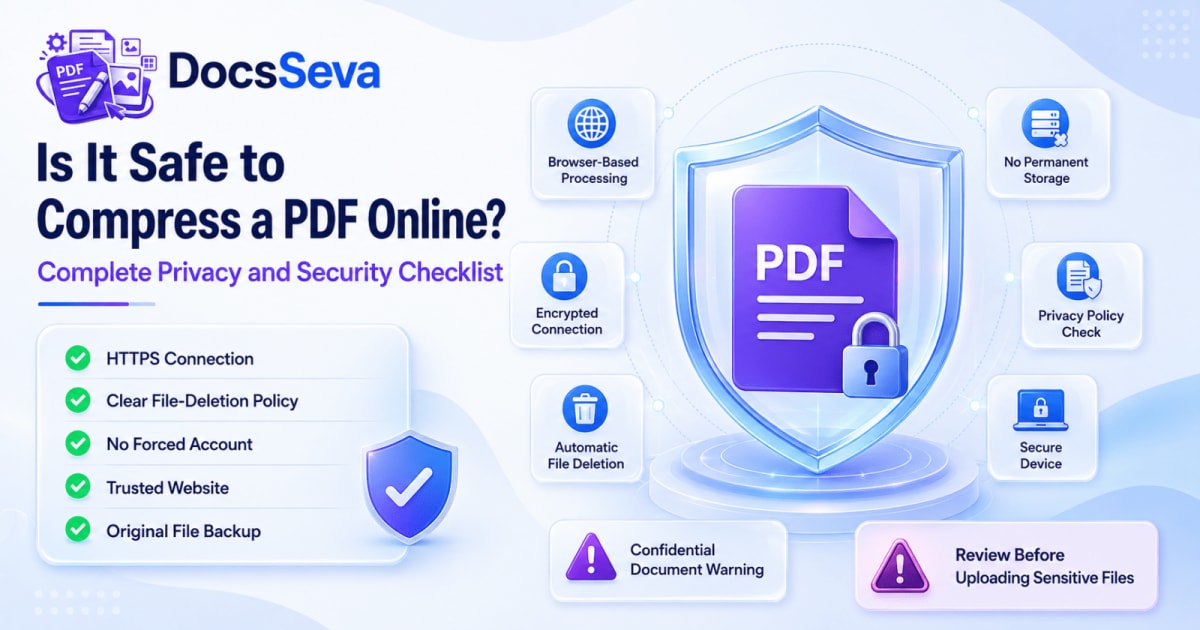
Online PDF compressors are convenient when a document is too large for email, a government portal, a job application or a cloud upload.
However, PDF files can contain highly personal information.
A PDF may include:
- Your full name
- Home address
- Phone number
- Email address
- Signature
- Passport details
- Identification numbers
- Financial information
- Medical records
- Legal agreements
- Employment information
- Academic records
- Confidential business data
Before uploading any document to an online tool, it is reasonable to ask:
Is it safe to compress this PDF online?
The answer depends on the document, the tool’s processing method, its privacy policy, your device and your organisation’s security requirements.
A trustworthy tool should clearly explain:
- Whether the file leaves your device
- Whether processing happens in the browser or on a server
- Whether the file is stored
- How long temporary files remain available
- Whether uploaded content is analysed
- Whether an account is required
- Whether third parties can access the file
- Whether the connection is encrypted
- How technical logs and cookies are handled
This guide provides a complete privacy and security checklist for compressing PDF files online.
To review DocsSeva’s current document-handling information, visit the DocsSeva Privacy Policy before processing sensitive files.
You can access the compression tool here:
Quick Answer: Is It Safe to Compress a PDF Online?
An online PDF compressor may be suitable for ordinary documents when:
- The website uses a secure HTTPS connection
- The processing method is explained clearly
- Uploaded files are not permanently stored
- Temporary files are deleted automatically
- The service does not claim ownership of your documents
- No unnecessary account is required
- The privacy policy is easy to find
- The tool comes from a website you trust
- You retain a backup of the original PDF
- The document is not restricted by law, contract or company policy
Extra caution is required when the PDF contains:
- Passport or identity information
- Banking details
- Medical information
- Legal evidence
- Tax records
- Private customer information
- Confidential contracts
- Trade secrets
- Passwords
- Authentication codes
- Unpublished business information
For highly sensitive or regulated documents, use an approved offline application or organisation-authorised system when required.
No online tool should automatically be considered appropriate for every confidential file.
What Happens When You Compress a PDF Online?
An online compressor generally uses one of two processing models:
- Browser-based processing
- Server-based processing
Some platforms use a combination of both models depending on the selected tool.
Understanding the difference is one of the most important parts of evaluating privacy.
Browser-Based PDF Compression
Browser-based processing means the compression work happens on your device through the web browser.
The PDF is handled using browser technologies such as JavaScript, WebAssembly or locally loaded processing libraries.
In a fully browser-based workflow:
- The PDF remains on your device
- The page processes the document locally
- The result is generated inside the browser
- No file upload is required for processing
- The output is downloaded from local browser memory
This model can provide strong privacy benefits because the document does not need to be transferred to a processing server.
Benefits of Browser-Based Processing
The file can remain on your device
The PDF does not need to travel across the internet for processing.
Reduced exposure during transfer
When there is no file upload, the document is not sent to an external processing server.
Useful for private documents
Local processing may be preferable when a document contains personal information.
Faster for some files
Small and medium documents may be processed without waiting for an upload and download cycle.
No server file retention
A genuinely local tool does not need to store the PDF on a remote processing system.
Limitations of Browser-Based Processing
Browser processing is not automatically risk-free.
The tool page still loads code from a website. You therefore need to trust:
- The website owner
- The JavaScript delivered to your browser
- Third-party scripts loaded on the page
- Browser extensions installed on your device
- The security of your computer or phone
A malicious or compromised website could theoretically send local data elsewhere.
Browser-based processing is a positive privacy feature, but it should be combined with a trustworthy website and transparent policy.
Device Performance Limitations
Large PDFs may require significant memory.
Browser-based processing can be affected by:
- Available RAM
- Processor speed
- Browser limitations
- Number of open tabs
- Mobile-device performance
- PDF page count
- Image resolution
- File complexity
A very large PDF may slow down or cause a browser tab to stop responding.
Close unnecessary tabs before processing a large file.
Server-Based PDF Compression
Server-based processing means the PDF is uploaded from your device to a remote server.
The server compresses the document and returns the result.
The usual workflow is:
- You select the PDF.
- The browser uploads it to the service.
- The server processes the file.
- The compressed result is generated.
- You download the result.
- The service deletes the temporary data according to its policy.
Server processing can support large files and advanced conversion systems, but it requires the document to leave your device.
Questions to Ask About Server Processing
Before uploading a sensitive document, check:
- Is the upload encrypted?
- Is the file saved to disk?
- Is it processed only in memory?
- How long is it retained?
- Is it automatically deleted?
- Are backup copies created?
- Can employees access uploaded documents?
- Is the content used for training or analysis?
- Are third-party processors involved?
- Where are the servers located?
- Can you request deletion?
- Are technical logs linked to the file?
A clear privacy policy should answer these questions in understandable language.
Temporary Processing vs Permanent Storage
Temporary processing means a file is retained only long enough to complete the requested task.
Permanent storage means the service keeps the document after processing.
These are very different practices.
A privacy-focused server tool should explain:
- Whether the file is written to disk
- Whether it remains only in memory
- When deletion happens
- Whether backups are created
- Whether download links expire
- Whether staff can retrieve the file
Do not assume that “not publicly visible” means “not stored.”
Read the actual privacy policy.
Browser-Based vs Server-Based Compression
| Privacy factor | Browser-based processing | Server-based processing |
|---|---|---|
| File leaves the device | Normally no | Yes |
| Upload required | Normally no | Yes |
| Remote temporary storage | Not required | May be required |
| Device memory usage | Higher | Usually lower |
| Large-file support | Depends on device | Often stronger |
| Website code must be trusted | Yes | Yes |
| Server operator must be trusted | Less relevant for file content | Yes |
| Network transfer exposure | Reduced | Present but should be encrypted |
| Automatic deletion policy | Not required for local file | Essential |
| Suitable for confidential files | Potentially, after verification | Depends on policy and requirements |
Neither model should be trusted blindly.
The correct choice depends on:
- File sensitivity
- Tool transparency
- Website reputation
- Device security
- Organisation policy
- Legal requirements
What Does HTTPS Protect?
HTTPS encrypts data travelling between your browser and the website.
When a server-based tool uses HTTPS, it helps protect the file while it is being uploaded and downloaded.
HTTPS can reduce the risk of someone intercepting the document during transit.
However, HTTPS does not tell you:
- Whether the service stores the file
- Whether employees can access it
- Whether the document is backed up
- Whether the data is analysed
- How long the file is retained
- Whether third parties receive it
- Whether the website itself is trustworthy
A secure connection is necessary for uploads, but it is not a complete privacy guarantee.
How to Check for HTTPS
Look at the browser address bar.
The website address should begin with:
https://
Modern browsers may also display a connection or security icon.
Do not upload personal or confidential PDFs through an unencrypted http:// page.
Complete Online PDF Privacy Checklist
Use the following checklist before compressing any personal or confidential document.
1. Confirm the Website Address
Check the domain carefully.
Fraudulent websites may imitate trusted tools using:
- Misspelled domain names
- Extra characters
- Unusual subdomains
- Misleading advertisements
- Fake download buttons
Make sure you are using the intended website.
For DocsSeva, the official domain is:
docsseva.com
2. Check for HTTPS
Confirm that the page uses a secure encrypted connection.
Do not upload a document when the browser displays a certificate or connection warning.
3. Read the Privacy Policy
A trustworthy service should provide an accessible privacy policy.
Look for information about:
- File uploads
- Processing method
- File storage
- Automatic deletion
- Technical logs
- Analytics
- Cookies
- Advertising
- Third-party services
- User rights
- Contact details
Read the DocsSeva Privacy Policy before processing sensitive documents.
4. Identify the Processing Method
Determine whether the selected tool uses:
- Local browser processing
- Temporary server processing
- A mixed processing model
Do not assume every tool on the same website works in the same way.
Image conversion, OCR, AI processing and document compression may use different technical pipelines.
5. Check the File-Deletion Policy
For server-processed documents, find out:
- When deletion occurs
- Whether files are deleted automatically
- Whether temporary download links expire
- Whether files are stored in backups
- Whether users can request deletion
Avoid services that do not explain their retention period.
6. Check Whether Files Are Used for Training
Some online platforms use uploaded material to improve products or train automated systems.
For sensitive documents, look for a clear statement about whether file content is:
- Analysed
- Retained
- Used for model training
- Shared with partners
- Used for advertising
- Used for profiling
Do not rely only on a marketing phrase such as “secure.”
Read the actual policy.
7. Check Whether an Account Is Required
An account can connect uploaded files to:
- Your name
- Email address
- Billing details
- Activity history
- Saved documents
- Usage profile
A no-account tool may collect less identity-linked information, although it can still collect technical logs.
Account-free processing is useful, but it does not replace the need for a clear privacy policy.
8. Review Third-Party Services
A tool page may load services for:
- Advertising
- Analytics
- Error reporting
- Content delivery
- Customer support
- Payment processing
- AI processing
Check whether these services can access uploaded files or only receive ordinary page-usage information.
A third-party advertisement should never require access to the document being processed.
9. Check Technical Logs and Cookies
Websites commonly collect technical information such as:
- IP address
- Browser type
- Device type
- Accessed pages
- Error information
- Approximate location
- Session data
Technical logs are different from document storage.
A privacy policy should explain what is logged and how long it is retained.
10. Evaluate the Document’s Sensitivity
Not all PDFs require the same security level.
A public brochure has different privacy requirements from a medical report or passport scan.
Classify the document before uploading it.
11. Check Your Organisation’s Policy
Your employer, university, law firm, hospital or government department may prohibit uploading documents to public online tools.
Even when a website appears secure, you may still be required to use:
- Approved company software
- An internal document portal
- A managed cloud platform
- An offline application
- A specific vendor
- An encrypted corporate device
Follow your organisation’s rules.
12. Keep the Original File
Always keep a backup before compression.
Compression may:
- Reduce image detail
- Affect links
- Affect form fields
- Change searchable text
- Invalidate a digital signature
- Produce a corrupted output in rare cases
Do not overwrite the only copy of an important PDF.
13. Use a Secure Device
Do not process confidential documents on:
- A public computer
- A shared office kiosk
- An unknown borrowed device
- An infected computer
- A device with suspicious extensions
- An unsupported browser
Use a trusted, updated personal or managed device.
14. Avoid Public Downloads Folders
On a shared device, downloaded files may remain visible to other users.
After processing:
- Move the result to a secure location
- Delete temporary copies
- Empty the recycle bin when appropriate
- Clear the browser download history
- Sign out of shared systems
- Close the browser session
15. Inspect the Downloaded PDF
After compression, verify:
- All pages are present
- Text remains readable
- Images remain clear
- Searchable text is preserved
- Links still work
- Forms remain usable
- Metadata is appropriate
- The file is not corrupted
Privacy and document quality should both be checked.
Which Documents Require Extra Caution?
The following documents often contain sensitive information.
Identity Documents
Examples include:
- Passport scans
- National identity cards
- Driving licences
- Voter identification
- Tax identification documents
- Birth certificates
These files may contain information useful for identity fraud.
Use an approved system whenever required.
Financial Documents
Examples include:
- Bank statements
- Tax returns
- Salary slips
- Loan applications
- Credit reports
- Payment records
- Investment statements
Financial PDFs can reveal account details, income and transaction history.
Medical Documents
Examples include:
- Medical reports
- Prescriptions
- Diagnostic results
- Insurance claims
- Patient records
- Hospital discharge documents
Medical information may be protected by privacy and regulatory requirements.
Legal Documents
Examples include:
- Contracts
- Court documents
- Affidavits
- Property records
- Settlement agreements
- Evidence
- Confidential legal advice
Legal documents may be protected by confidentiality obligations or legal privilege.
Employment Documents
Examples include:
- Employment contracts
- Background checks
- Performance reviews
- Salary records
- Internal reports
- Employee identification
Follow the employer’s data-handling policy.
Customer and Business Data
Examples include:
- Customer lists
- Invoices
- Internal financial reports
- Product roadmaps
- Trade secrets
- Unreleased proposals
- Supplier contracts
- Security documentation
A free public tool may not be authorised for confidential corporate data.
Which PDFs Are Generally Lower Risk?
Lower-risk examples can include:
- Public brochures
- Marketing material
- Publicly available reports
- Blank forms
- Published research papers
- Public notices
- Personal documents with sensitive information removed
- Non-confidential assignments
- Public product catalogues
Even lower-risk documents should be processed only through a legitimate website.
When Should You Use an Offline PDF Compressor?
An offline tool may be preferable when:
- The PDF is highly confidential
- Your organisation prohibits public uploads
- The document contains regulated personal data
- Internet access is unreliable
- You need a fully isolated workflow
- The file is extremely large
- You require detailed professional controls
- You need to verify every processing component
Offline processing keeps the workflow on your device, although the application itself must still be trustworthy.
How to Compress a PDF Safely with DocsSeva
Use this workflow for ordinary documents.
Step 1: Classify the Document
Determine whether the PDF is:
- Public
- Personal
- Confidential
- Regulated
- Restricted by company policy
Do not continue when your organisation prohibits use of an online tool.
Step 2: Review Current Privacy Information
Read:
Confirm that the current processing description meets your requirements.
Step 3: Keep a Backup
Save an unchanged copy of the original document.
Step 4: Remove Unnecessary Sensitive Pages
When only part of the PDF is required, remove unrelated pages before compression.
Use the DocsSeva PDF Page Remover.
Step 5: Extract Only the Required Pages
Use the DocsSeva PDF Page Extractor when a recipient needs only a specific page range.
Sharing fewer pages reduces unnecessary disclosure.
Step 6: Open the PDF Compressor
Visit:
Confirm the domain before selecting the file.
Step 7: Choose a Compression Level
Use:
- Low for quality-focused documents
- Medium for everyday sharing
- High for strict upload limits
- Screen only when searchable text and interactivity are unnecessary
Read the comparison guide:
Low vs Medium vs High PDF Compression
Step 8: Process the Document
Keep the browser open until compression is complete.
Avoid switching to unknown websites or clicking misleading advertisements during processing.
Step 9: Download and Inspect the Result
Check:
- Page count
- Readability
- Images
- Signatures
- Searchability
- Links
- Forms
- File size
Step 10: Store the Result Securely
Save the compressed PDF in an appropriate location.
For sensitive files, consider:
- An encrypted drive
- A protected company folder
- A secure document-management system
- Password-protected storage
- Approved cloud storage
Should You Password-Protect a PDF After Compression?
Password protection can restrict access to the final document.
Use the DocsSeva PDF Password tool when the recipient needs a password-protected PDF.
A strong password should:
- Be unique
- Be difficult to guess
- Contain sufficient length
- Avoid names and common words
- Not be reused from another account
Share the password through a different communication channel from the PDF.
For example:
- Send the PDF through email
- Share the password through a phone call or secure message
Do not place the password in the same unprotected email as the file when stronger confidentiality is required.
Compression Before or After Password Protection?
The recommended order is generally:
- Finalise the document.
- Remove unnecessary pages.
- Compress the PDF.
- Inspect the result.
- Apply password protection.
- Share the protected file.
- Send the password separately.
Compression may not work correctly on an encrypted PDF.
Protect the final approved version.
PDF Metadata and Privacy
A PDF may contain metadata such as:
- Author name
- Company name
- Document title
- Creation date
- Editing application
- Keywords
- Modification date
- Embedded file information
Metadata is not always removed by compression.
A smaller PDF may still contain personal or organisational information.
Use the DocsSeva File Info tool to inspect available file information where appropriate.
Do not assume that compression is the same as metadata removal.
Hidden Information Inside PDFs
A PDF may contain content that is not immediately visible, including:
- Comments
- Annotations
- Hidden layers
- Attachments
- Form values
- Previous revisions
- Redacted-looking text that was only covered visually
- Embedded thumbnails
- Author details
Before sharing a confidential PDF, inspect the document carefully.
Never use a simple black rectangle as a substitute for proper redaction when sensitive text must be permanently removed.
Is Public Wi-Fi Safe for PDF Compression?
Public Wi-Fi can expose users to additional risks, especially when the network is untrusted.
HTTPS protects data in transit, but you should still avoid processing highly sensitive files through:
- Open airport Wi-Fi
- Public café networks
- Unknown hotspots
- Networks with certificate warnings
- Shared hotel computers
Use a trusted private connection or approved secure network when processing personal documents.
Are Browser Extensions a Privacy Risk?
Browser extensions can sometimes access:
- Open web pages
- Download activity
- Clipboard data
- Page content
- Form information
A poorly designed or malicious extension may create privacy risks even when the PDF tool itself is legitimate.
For sensitive work:
- Use a trusted browser profile
- Remove unnecessary extensions
- Review extension permissions
- Keep the browser updated
- Avoid unknown PDF or download extensions
Can Antivirus Software Access the PDF?
Security software may scan files for malware.
This is usually intended to protect your device, but enterprise security tools may also log file activity according to organisational policy.
Use a device that complies with your organisation’s security requirements.
Common Warning Signs of an Unsafe PDF Tool
Avoid a website when you notice several of these warning signs.
No Privacy Policy
A document-processing service should explain how files are handled.
No HTTPS
Do not upload personal files through an unencrypted connection.
Unclear File Retention
Be cautious when the website does not explain deletion.
Forced Software Download
A simple online compressor should not require an unrelated executable program.
Excessive Pop-Ups
Aggressive pop-ups and misleading buttons can indicate a low-quality or unsafe website.
Fake Download Buttons
Confirm that you are downloading the compressed PDF rather than an advertisement or application.
Unnecessary Personal Information
A basic PDF compressor should not require unrelated information such as:
- Government ID
- Full address
- Card details
- Social-media login
Unrealistic Security Claims
Claims such as “100% impossible to hack” should not be trusted.
No online system can honestly guarantee absolute security.
No Contact Details
A legitimate service should provide a way to ask privacy or support questions.
Unknown Browser Permissions
A PDF compressor should not normally require access to:
- Camera
- Microphone
- Location
- Contacts
unless those permissions are directly required by a clearly explained feature.
Online PDF Safety Myths
Myth 1: HTTPS Means the File Is Never Stored
HTTPS protects the transfer. It does not explain server retention.
Myth 2: No Account Means No Data Is Collected
A website may still collect technical logs, cookies or analytics data.
Myth 3: Compression Removes All Metadata
Compression and metadata removal are separate processes.
Myth 4: Browser Processing Requires No Trust
You still need to trust the website code delivered to your browser.
Myth 5: Deleting the Download Deletes the Original Upload
For server-based tools, deletion depends on the service’s retention policy.
Myth 6: Every PDF Is Safe to Upload
Some documents are restricted by law, contract or company policy.
Myth 7: Password Protection Makes Every Workflow Safe
A password protects the final PDF. It does not protect an unencrypted upload performed before password protection.
Safe PDF Compression for Common Documents
Resume or CV
A resume contains personal contact and employment information.
Use a trusted tool and avoid including unnecessary sensitive data.
Medium compression is usually suitable.
Read:
How to Reduce PDF Size Without Losing Quality
Government Application
Government documents may contain identification numbers, photographs and signatures.
Check the official portal’s requirements and use an approved process where specified.
Bank Statement
Bank statements contain financial and transactional information.
Use an organisation-approved or offline tool when required.
Remove pages that the recipient does not need.
Medical Report
Medical information can be highly sensitive and regulated.
Follow the healthcare provider’s privacy and security requirements.
Legal Contract
Contracts may contain confidential terms and personal signatures.
Confirm that your lawyer, employer or organisation permits the processing method.
Academic Assignment
An ordinary assignment may be lower risk, but unpublished research or student records require additional care.
Business Report
Do not upload confidential company information to a public tool unless authorised by company policy.
What Should You Do After Compression?
After downloading the output:
- Open the document.
- Check every page.
- Verify text readability.
- Confirm searchability.
- Test links and forms.
- Compare it with the original.
- Store it securely.
- Delete unnecessary temporary copies.
- Clear files from shared devices.
- Protect the final PDF when required.
Keep the original until the compressed file has been approved and delivered successfully.
Related DocsSeva Privacy and Compression Guides
Continue with these guides:
- How to Compress a PDF Online for Free
- Complete Guide to PDF Compression
- How Does PDF Compression Work?
- Low vs Medium vs High PDF Compression
- How to Reduce PDF Size Without Losing Quality
- Why Is My PDF File So Large?
Update these links if your published articles use different slugs.
Related DocsSeva Tools
Use these tools to prepare and protect your PDF:
- PDF Compressor — reduce PDF file size
- PDF Page Remover — remove unnecessary pages
- PDF Page Extractor — share only selected pages
- PDF Splitter — divide a large document
- PDF Password — protect a PDF with a password
- PDF Unlock — remove an authorised restriction
- PDF OCR — make scanned text searchable
- File Info — inspect file properties and metadata
- PDF Merger — combine approved documents
- PDF to Images — convert PDF pages into images
- Images to PDF — create a PDF from images
Legal and privacy information:
Frequently Asked Questions
1. Is it safe to compress a PDF online?
It can be appropriate for ordinary documents when the service uses a secure connection, clearly explains its processing method and does not retain files unnecessarily. Sensitive documents require additional review.
2. Can an online PDF compressor read my file?
A server-based service technically receives the file for processing. Whether staff or systems can access it depends on the service’s architecture and policy. Browser-based tools may process the file locally.
3. What is browser-based PDF compression?
Browser-based compression processes the document on your device using code running in the web browser.
4. What is server-based PDF compression?
Server-based compression uploads the document to a remote server, processes it and returns the output.
5. Is browser-based processing safer?
It can reduce file-transfer and server-storage exposure because the document may remain on your device. You still need to trust the website code and your browser environment.
6. Does HTTPS make PDF compression safe?
HTTPS protects data while it travels between your browser and the website. It does not explain how the service stores or uses the file after upload.
7. How can I check whether a website uses HTTPS?
Check whether the address begins with https:// and make sure the browser shows no certificate warning.
8. Should I read the privacy policy?
Yes. The privacy policy should explain processing, storage, deletion, logs, cookies and third-party services.
9. What should a file-deletion policy explain?
It should explain when temporary files are deleted, whether backups exist and how long download links remain available.
10. Can a website keep my compressed PDF?
It depends on the service. Review its retention policy instead of assuming automatic deletion.
11. Can uploaded PDFs be used for AI training?
Some services may reserve rights to analyse uploaded content. Review the policy for explicit information about training and analysis.
12. Does a no-account tool collect no data?
Not necessarily. It may still collect IP addresses, browser information, cookies or aggregated analytics.
13. Is it safe to compress a passport scan online?
A passport contains highly sensitive identity information. Use an approved offline or organisation-authorised system when possible.
14. Is it safe to compress a bank statement online?
Bank statements contain financial details. Confirm the tool’s processing method and follow the recipient’s or organisation’s security requirements.
15. Can I compress medical documents online?
Medical information may be regulated. Use only a workflow approved for that data.
16. Can I compress confidential contracts online?
Only when you are authorised and the processing method meets your organisation’s confidentiality requirements.
17. Is it safe to compress a resume?
A resume is generally less sensitive than a passport or bank statement, but it still contains personal information. Use a trusted service and remove unnecessary data.
18. Should I remove unnecessary pages first?
Yes. Sharing only required pages reduces both file size and unnecessary disclosure.
19. Can I extract selected pages before compression?
Yes. Use the PDF Page Extractor when only part of the document is required.
20. Does PDF compression remove metadata?
Not necessarily. Compression and metadata removal are different processes.
21. Can a PDF contain hidden information?
Yes. PDFs can contain metadata, attachments, comments, hidden layers, form values and previous editing information.
22. Can black rectangles securely redact a PDF?
Not always. Covering text visually may leave the underlying text available. Use a proper redaction workflow when information must be permanently removed.
23. Should I password-protect the PDF?
Password protection can help restrict access to the final document when the recipient supports encrypted PDFs.
24. Should I compress before adding a password?
Yes. Finalise and compress the document before applying password protection.
25. Should the password be sent with the PDF?
For stronger security, share the password through a separate communication channel.
26. Is public Wi-Fi safe for document compression?
Avoid processing highly sensitive documents on unknown or open networks. Use a trusted private connection.
27. Can browser extensions access my document?
Extensions with broad permissions may access page or download activity. Use a trusted browser profile for sensitive work.
28. Is a public computer safe for PDF compression?
Avoid public or shared computers for confidential documents because files and browser history may remain available to others.
29. What should I do after using a shared computer?
Delete temporary files, clear download history, sign out, close the browser and empty deleted-file storage where appropriate.
30. Can antivirus software scan my PDF?
Security software may scan files to detect malware. Enterprise products may handle data according to organisational policies.
31. What are warning signs of an unsafe PDF tool?
Warning signs include no HTTPS, no privacy policy, unclear retention, fake download buttons, excessive pop-ups and requests for unnecessary personal information.
32. Is a free PDF compressor less secure than a paid tool?
Price alone does not determine security. Review architecture, privacy policy, retention and reputation.
33. Can advertisements access my uploaded PDF?
Advertisements should not require access to document contents. Review the website’s policy and third-party services.
34. Does DocsSeva require an account for PDF compression?
The DocsSeva PDF Compressor is presented as an account-free tool. Review the current tool page for updated requirements.
35. Where can I read DocsSeva’s privacy information?
Visit the DocsSeva Privacy Policy.
36. Can compression invalidate a digital signature?
Yes. Modifying a signed PDF can invalidate its signature. Compress the document before signing whenever possible.
37. Can compression affect links and forms?
It can, especially when pages are rasterised. Test the downloaded document.
38. Can Screen mode remove searchable text?
Yes. Screen-focused rasterisation may convert pages into images and remove selectable text.
39. Which compression mode is best for privacy?
Processing architecture matters more than the compression level. Low, Medium and High describe output optimisation rather than privacy.
40. Should I keep the original PDF?
Yes. Keep the unchanged original until the compressed version has been reviewed and delivered.
41. Can I delete the original after compression?
Delete it only when you no longer need it and your retention requirements permit deletion.
42. Is the smallest file always the safest?
No. File size and privacy are separate issues. A tiny PDF can still contain sensitive information.
43. Can I compress multiple confidential PDFs together?
Batch processing increases the amount of information handled at one time. Confirm that the tool and your organisation permit it.
44. When should I use an offline PDF compressor?
Use an offline or approved internal tool when the document is highly confidential, regulated or restricted by policy.
45. What is the safest PDF-compression workflow?
Classify the document, review the tool’s policy, remove unnecessary pages, keep a backup, process it on a trusted device and inspect and securely store the result.
Protect Privacy Before Reducing File Size
Online PDF compression can be convenient, but privacy should be considered before selecting a file.
A safe workflow includes:
- Confirming the correct website
- Checking HTTPS
- Reading the privacy policy
- Understanding the processing method
- Reviewing automatic-deletion information
- Evaluating document sensitivity
- Following organisation policies
- Using a trusted device
- Removing unnecessary pages
- Keeping the original PDF
- Inspecting the output
- Protecting the final document where required
The most important rule is simple:
Do not upload a document when you are not authorised to process it or when the tool does not meet the required privacy standard.
For ordinary documents, review the current DocsSeva processing information and use the appropriate compression mode.
DocsSeva Editorial Team
Published on July 29, 2026
Browse all tools
38 free document tools, no account required.
Browse all toolsRelated articles


In-Depth How-to Guide
Compress a 300 MB Scanned PDF Without Freezing the Tab
A 180-page, 312 MB scan crashes the tab and comes back as a ZIP. Why that happens, what each level does to your pages, and the cheaper step to take first.


How to Compress a PDF to a Chosen File Size Without Losing Quality
Learn how to compress a PDF to a chosen file size such as 100 KB, 200 KB, 500 KB, 1 MB or 2 MB while preserving readable text, clear images and essential document details.


How to Reduce PDF Size Below 1 MB Without Losing Readability
Learn how to reduce PDF size below 1 MB for email, government portals, job applications and online forms while keeping text, images and signatures readable.