Browser-Based vs Server-Based PDF Compression: Which Is Better?

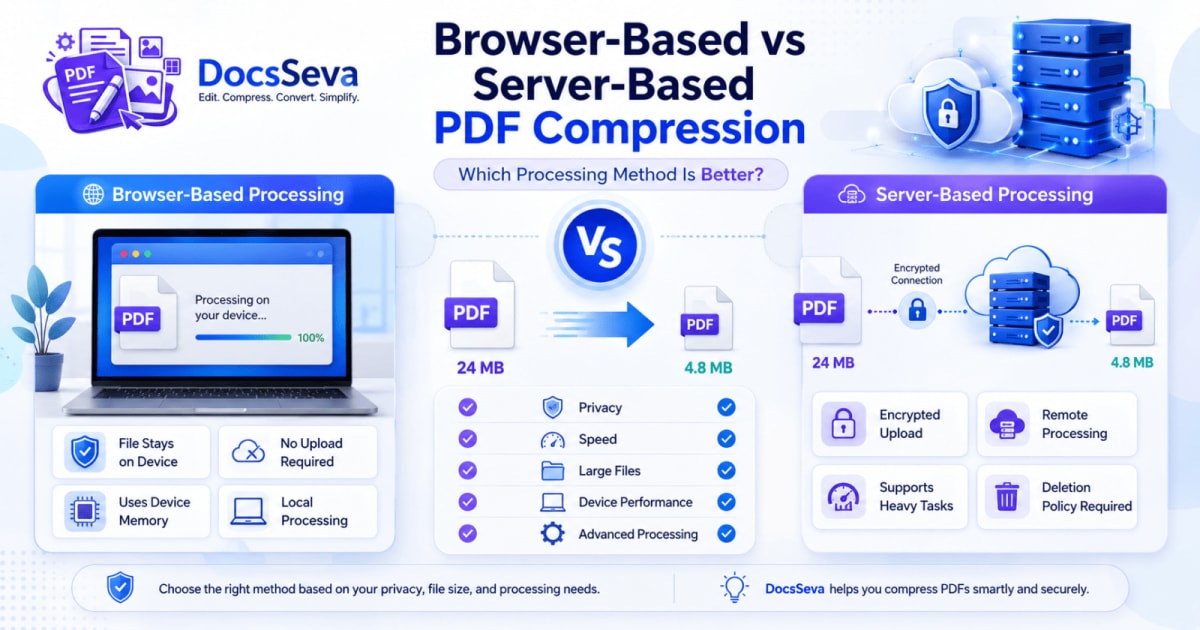
When you compress a PDF online, the document must be processed somewhere.
In some tools, the work happens directly inside your web browser. In others, the PDF is uploaded to a remote server, compressed there and returned to your device.
These two approaches are known as:
- Browser-based PDF compression
- Server-based PDF compression
Both methods can reduce PDF file size, but they differ in important ways.
The processing method can affect:
- Whether the PDF leaves your device
- How much device memory is required
- Whether an internet upload is necessary
- Maximum supported file size
- Processing speed
- Privacy
- Security
- Advanced feature support
- Mobile-device performance
- Temporary file retention
- Batch-processing capability
- Reliability with complex documents
Browser-based compression can offer a privacy advantage because the file may remain on your device.
Server-based compression can provide more processing power and may handle difficult or resource-intensive documents more reliably.
Neither approach is automatically best for every file.
This guide explains how browser-based and server-based PDF compression work, their advantages and limitations, and how to choose the correct method for your document.
To reduce PDF size using DocsSeva, open the DocsSeva PDF Compressor.
Quick Answer: Browser-Based vs Server-Based PDF Compression
Browser-based PDF compression processes the document locally using your browser and device resources.
Server-based PDF compression uploads the document to a remote system, processes it there and sends the result back.
Use this comparison as a starting point:
| Requirement | Browser-based compression | Server-based compression |
|---|---|---|
| Keep the PDF on your device | Usually better | File must normally be uploaded |
| Avoid upload time | Better | Upload required |
| Process very large or complex files | Depends on device | Often better |
| Use on a low-memory phone | May struggle | Often better |
| Reduce server-side file exposure | Better | Depends on security and retention |
| Use advanced processing engines | More limited | Often better |
| Work with unstable internet | Better after the page loads | Upload may fail |
| Process files consistently across devices | Device-dependent | More consistent |
| Avoid temporary remote storage | Better | Requires a clear deletion policy |
| Use powerful OCR or AI features | May be limited | Often better |
For ordinary PDF compression, browser-based processing can provide a useful combination of convenience and privacy.
For advanced OCR, artificial intelligence, complex document conversion or extremely large files, server processing may provide greater capability.
What Does “Browser-Based PDF Compression” Mean?
Browser-based PDF compression means that the processing happens locally inside the web browser.
The website loads the required program code into your browser. When you select a PDF, the browser reads and processes the file using the resources of your computer, tablet or phone.
A genuinely local workflow can operate like this:
- You open the compressor page.
- The website loads its PDF-processing code.
- You select a PDF from your device.
- The browser reads the document locally.
- Images and PDF objects are optimised.
- A compressed PDF is generated in browser memory.
- The output is downloaded directly to your device.
- The local processing memory is released when the task or browser session ends.
The file does not need to be uploaded to a remote processing server.
Technologies Used for Browser Processing
Browser-based tools may use technologies such as:
- JavaScript
- WebAssembly
- Browser file APIs
- Canvas
- Web Workers
- PDF-processing libraries
- Local memory buffers
- Indexed browser storage where required
- Client-side encryption libraries
The exact technology depends on the tool.
WebAssembly can allow compiled processing code to run inside a browser with better performance than ordinary JavaScript for some tasks.
Web Workers can move expensive processing away from the main interface so that the page remains more responsive.
What Does “The File Stays on Your Device” Mean?
When processing is genuinely local, the document is read from your device and handled in browser memory.
The PDF is not intentionally sent to a remote file-processing API.
The file can still be selected through an upload-style button, but that button does not necessarily mean the file is being transmitted.
Web interfaces commonly use file-input controls to give the browser permission to read a local file.
The important question is not whether the page says “upload.”
The important question is:
Does the processing code transmit the document to a remote server?
A transparent tool should explain this clearly.
How Browser-Based PDF Compression Works
A local PDF compressor can perform several operations.
Step 1: Reading the PDF
The browser reads the selected PDF into temporary memory.
The tool may inspect:
- Page count
- File size
- PDF version
- Embedded images
- Fonts
- Metadata
- Page dimensions
- Existing compression
- Password restrictions
- Internal PDF objects
Step 2: Analysing Document Content
The tool determines which elements can be reduced.
It may identify:
- Oversized photographs
- Scanned page images
- Duplicate objects
- Uncompressed content streams
- Embedded fonts
- Page thumbnails
- Complex graphics
- Metadata
- Already compressed images
Step 3: Applying Compression
Depending on the selected mode, the browser may:
- Downsample images
- Re-encode photographs
- Compress internal streams
- Optimise object storage
- Subset fonts
- Remove unnecessary data
- Rasterise pages
- Rebuild the PDF structure
Step 4: Generating the Output
The browser creates a new PDF in temporary memory.
The original file on your device remains unchanged.
Step 5: Downloading the Result
The browser creates a temporary local download.
The compressed file is then saved to your selected downloads folder.
Step 6: Releasing Temporary Memory
When processing ends or the tab closes, browser memory used by the document is normally released.
The exact behaviour depends on the implementation and browser.
Advantages of Browser-Based PDF Compression
1. The File May Never Leave Your Device
This is the main privacy benefit.
When no remote processing request is made, the PDF does not need to be transferred to an external server.
This can reduce exposure associated with:
- Uploading
- Remote storage
- Server backups
- Server-side access
- Expiring download links
- File-retention policies
Browser-based processing can therefore be attractive for personal documents.
However, you must still trust the website code loaded into your browser.
2. No File Upload Time
A server-based tool must usually upload the complete PDF before processing can begin.
A local tool can start after the browser reads the selected file.
This can be useful for:
- Large PDFs
- Slow internet connections
- Limited upload speeds
- Mobile data connections
- Unstable networks
The tool page and processing libraries must still load initially.
3. No Server Download Queue
The compressed PDF can be generated locally instead of waiting for a remote processing queue.
This may produce a faster experience for ordinary documents.
4. Reduced Server Storage Requirements
A local tool does not need to store uploaded documents on a server.
This can simplify file-retention and deletion concerns.
5. Potential Offline Use
Some browser-based tools may continue working after their page and required code have loaded.
Whether this works depends on the application.
A tool may require internet access for:
- Initial page loading
- Downloading program libraries
- Advertisements
- Analytics
- Authentication
- Feature configuration
- Updates
Do not assume that every browser-based tool works fully offline.
6. No Remote Processing Account Required
Local processing can work without connecting files to an account.
This reduces the possibility of documents being linked to:
- An email address
- A user profile
- Processing history
- Cloud storage
- Saved projects
An account-free service may still collect ordinary technical information such as page requests or browser type.
7. Suitable for Repeated Small Tasks
Browser processing can work well for:
- Compressing a resume
- Reducing an assignment
- Shrinking invoices
- Optimising a report
- Compressing scanned certificates
- Processing several ordinary PDFs
The experience depends on the device’s memory and processor.
Limitations of Browser-Based PDF Compression
Browser processing has privacy benefits, but it also has limitations.
1. It Uses Your Device’s Memory
The browser must load the PDF and processing data into local memory.
A large PDF may require much more memory than its visible file size.
For example, compressed page images must sometimes be decoded into much larger uncompressed pixel buffers before they can be optimised.
This may cause:
- Slow processing
- High memory usage
- Browser freezing
- Tab crashes
- Device overheating
- Increased battery usage
- Failed processing
2. Performance Depends on Your Device
A modern desktop computer may process the same PDF much faster than an older phone.
Performance can vary according to:
- Processor speed
- Available RAM
- Browser
- Operating system
- Number of open tabs
- Background applications
- Battery-saving mode
- File complexity
- Image resolution
This means browser-based processing may not produce a consistent speed across all devices.
3. Mobile Browsers Have Stricter Limits
Phones and tablets usually have less available memory than desktop computers.
Mobile operating systems may close browser tabs that use too many resources.
Large scanned PDFs can be particularly demanding because every page may contain a high-resolution image.
4. Advanced Features May Be Difficult
Some operations require large processing libraries, machine-learning models or specialised system tools.
These may include:
- Advanced OCR
- Complex layout reconstruction
- AI document understanding
- High-quality PDF-to-Word conversion
- Font matching
- Table recognition
- Large-scale batch processing
- Professional prepress optimisation
- Damaged-PDF recovery
Some of these tasks can run in a browser, but downloading and executing the required models may be slow or impractical.
5. Browser Compatibility Can Vary
A tool may behave differently across:
- Chrome
- Firefox
- Edge
- Safari
- Mobile browsers
- Older browser versions
- Privacy-focused browsers
Modern browser standards reduce these differences, but they do not eliminate them.
6. The Website Code Must Still Be Trusted
A common misunderstanding is that browser processing requires no trust.
Even when the file remains local, the website sends program code to the browser.
That code receives permission to read the selected document.
A malicious or compromised script could attempt to transmit the file elsewhere.
Browser-based processing reduces server exposure only when the delivered code genuinely keeps processing local.
7. Third-Party Scripts Still Matter
A tool page may include scripts for:
- Advertising
- Analytics
- Error reporting
- Customer support
- Content delivery
- Performance monitoring
These scripts should not receive document contents.
A privacy-focused design should isolate document processing from unrelated third-party scripts.
What Does “Server-Based PDF Compression” Mean?
Server-based PDF compression means that the document is sent to a remote processing system.
A typical workflow is:
- You select a PDF.
- The browser uploads the PDF through an internet connection.
- A server receives the document.
- The server processes the file.
- A compressed output is created.
- The browser downloads the result.
- The service removes the uploaded and generated files according to its retention policy.
The server may process the document:
- In memory
- In temporary local storage
- In cloud-object storage
- Inside an isolated container
- Through a third-party API
- Through a queue of processing workers
A trustworthy service should explain its method accurately.
How Server-Based PDF Compression Works
Step 1: File Upload
The PDF is transmitted from the user’s browser to the processing service.
A secure service should use HTTPS encryption during transit.
Step 2: Validation
The server may check:
- File type
- File size
- PDF structure
- Password protection
- Malware indicators
- Page count
- Processing eligibility
Step 3: Temporary Processing
The PDF may be placed:
- In server memory
- In an isolated temporary folder
- In encrypted temporary storage
- In a processing queue
The storage method should match the service’s published privacy policy.
Step 4: Compression
The server may use:
- Native PDF engines
- Image-processing libraries
- Font tools
- OCR engines
- Document-conversion software
- Machine-learning models
- Hardware acceleration
- Multi-core processing
Step 5: Output Generation
The server creates the compressed PDF.
It may generate:
- A direct response
- A temporary download link
- A session-based file
- A password-protected result
- A batch ZIP archive
Step 6: Download
The output is sent to the browser through an encrypted connection.
Step 7: Deletion
The service should delete:
- Original uploads
- Generated outputs
- Temporary intermediate files
- Processing caches
- Expired download links
The deletion timing and backup handling should be explained in the privacy policy.
Advantages of Server-Based PDF Compression
1. More Processing Power
A server may offer:
- Faster processors
- More memory
- Multiple CPU cores
- Graphics-processing hardware
- Dedicated document-processing libraries
- Parallel workers
This can make server processing more suitable for difficult documents.
2. Better Support for Large Files
A remote server may handle files that exceed the practical memory limit of a phone or low-powered laptop.
However, the user must still upload the complete file.
Large uploads can fail on a slow or unstable network.
3. More Consistent Performance
The same server infrastructure processes files regardless of whether the user has a powerful desktop or an inexpensive phone.
The upload speed may vary, but the compression engine remains consistent.
4. Advanced Processing Capabilities
Server-side systems can use tools that may be difficult to run in a browser.
Examples include:
- Advanced OCR
- AI layout detection
- Language models
- Native PDF repair libraries
- Complex font processing
- Table extraction
- Document classification
- Professional colour conversion
- Multi-stage compression pipelines
5. Easier Central Updates
A server-processing engine can be updated centrally.
Every user receives the latest processing logic without downloading a large new browser bundle.
6. Better Control Over Batch Jobs
A server can:
- Queue files
- Process several files in parallel
- Retry failed jobs
- Monitor memory
- Generate batch ZIP files
- Allocate resources dynamically
7. Lower Device Workload
The user’s device mainly handles:
- Uploading
- Progress display
- Downloading
The server performs the expensive processing.
This can reduce local battery and memory usage.
Limitations of Server-Based PDF Compression
1. The File Leaves Your Device
The PDF must normally be transmitted to the service.
This introduces additional privacy considerations.
Users should understand:
- Who operates the server
- Where processing occurs
- Whether files are stored
- How deletion works
- Whether backups exist
- Whether third parties are involved
2. Upload and Download Time
A 500 MB PDF may take a long time to upload over a slow connection.
The total completion time includes:
- Upload time
- Queue time
- Processing time
- Download time
A fast server cannot eliminate a slow user upload.
3. Internet Connection Is Required
If the connection drops, the upload or download may fail.
Large documents are more vulnerable to interruptions.
4. File Retention Must Be Explained
A server-based service must clearly describe:
- Temporary storage
- Retention time
- Deletion
- Backups
- Download-link expiry
- Access controls
- Third-party processing
Vague terms such as “safe” or “secure” are not enough.
5. Server Availability Affects the Tool
The tool may become unavailable because of:
- Maintenance
- High traffic
- Queue overload
- Cloud outages
- API failures
- Processing limits
- Regional connectivity problems
6. Possible Usage Limits
Server processing costs money.
A service may apply:
- File-size limits
- Daily limits
- Page limits
- Queue limits
- Paid plans
- Watermarks
- Account requirements
- Processing credits
These limits depend on the provider.
7. Jurisdiction and Data Location
Files may be processed in another country or legal jurisdiction.
This can matter for:
- Healthcare documents
- Legal records
- Government files
- Customer information
- Financial documents
- Company-confidential material
Users should follow applicable policies and legal requirements.
Browser-Based vs Server-Based PDF Compression Comparison
| Feature | Browser-based | Server-based |
|---|---|---|
| Processing location | User’s device | Remote server |
| File upload | Usually unnecessary | Usually required |
| File leaves device | Normally no | Yes |
| Device memory usage | Higher | Lower |
| Server memory usage | None for file processing | Required |
| Internet dependency | Mainly page loading | Required for upload and download |
| Large-file ability | Depends on device | Often stronger |
| Mobile performance | Can be limited | Often more consistent |
| Privacy exposure | Reduced remote exposure | Depends on policy and architecture |
| Upload time | Avoided | Required |
| Advanced engines | More limited | Easier to support |
| OCR and AI | Possible but demanding | Usually more practical |
| Batch processing | Device-dependent | Easier to scale |
| Offline potential | Possible in some tools | No |
| File-retention policy | Less relevant to file content | Essential |
| Server outage risk | Lower after app loads | Higher |
| Device overheating | Possible | Less likely |
| Processing consistency | Varies by device | More consistent |
| Central upgrades | Browser code update required | Immediate on server |
| Suitable for confidential files | Potentially, after verification | Depends on approved policy |
What Is Hybrid PDF Processing?
Some platforms use both browser and server processing.
This is called a hybrid model.
For example:
- Basic compression may run locally.
- OCR may use a server.
- Small files may stay in the browser.
- Large files may be uploaded.
- Preview generation may happen locally.
- AI analysis may happen remotely.
- Password protection may run locally.
- PDF-to-Word conversion may use a server.
A hybrid architecture can provide both privacy and advanced functionality.
However, the user must be told when a file changes from local to remote processing.
Why Tool-Specific Privacy Information Matters
A website may contain many document tools.
It is possible for each tool to use a different processing method.
For example:
| Tool | Possible processing model |
|---|---|
| PDF merger | Browser-based |
| PDF splitter | Browser-based |
| Image crop | Browser-based |
| PDF compressor | Browser-based or server-based |
| PDF OCR | Server-based or hybrid |
| Background remover | Server-based or hybrid |
| PDF to Word | Server-based or hybrid |
| File information | Browser-based |
This is only an architectural example.
Users should read the actual processing notice shown on the selected tool page.
A site-wide statement such as “all files stay on your device” should not be used when some tools upload files.
Similarly, a statement such as “all files are uploaded” should not be used when some tools are fully local.
Is Browser-Based Compression More Private?
Browser-based compression can offer stronger file privacy when:
- The file is genuinely processed locally
- No file upload request occurs
- Third-party scripts cannot access document data
- The website code is trustworthy
- The device is secure
- The browser is updated
- Extensions are controlled
The main privacy benefit is reduced remote exposure.
The file does not need to be:
- Uploaded
- Stored remotely
- Included in server backups
- Exposed through a download link
- Deleted by a remote retention process
However, browser-based does not mean risk-free.
Browser-Based Privacy Risks
Potential risks include:
- Malicious website code
- Compromised dependencies
- Unsafe browser extensions
- Malware on the device
- Shared-device downloads
- Unprotected local storage
- Accidental browser caching
- Third-party page scripts
- Outdated browsers
Local processing shifts more responsibility to the user’s device.
Is Server-Based Compression Secure?
Server-based compression can be designed securely.
A responsible service may use:
- HTTPS encryption
- Temporary processing
- Isolated containers
- Restricted access
- Automatic deletion
- Short-lived download links
- Encrypted storage
- Security logging
- Malware scanning
- Regular updates
However, users must rely on the service’s published practices and technical controls.
A server service should not be considered secure only because it displays a padlock icon.
HTTPS protects transit. It does not explain retention, internal access or data usage.
Does Processing Location Affect PDF Quality?
Browser-based and server-based compressors can both produce high-quality results.
Processing location alone does not determine output quality.
Quality depends on:
- Compression algorithm
- Image downsampling settings
- Image re-encoding quality
- Font handling
- PDF rebuilding method
- Rasterisation resolution
- Colour conversion
- Original document quality
- Selected compression level
A well-designed browser compressor can produce better results than a poorly designed server compressor.
A powerful server tool can also use advanced optimisation methods that may be difficult to run locally.
Compare the output rather than assuming one model always produces better quality.
Does Processing Location Affect Searchable Text?
Searchable text depends on the compression method, not simply whether processing is local or remote.
Text may remain searchable when the compressor:
- Preserves digital text objects
- Keeps font information
- Retains character mapping
- Preserves OCR layers
- Avoids full-page rasterisation
Text may stop being searchable when the compressor:
- Converts pages into images
- Removes OCR layers
- Flattens text
- Damages font encoding
- Rebuilds the page incorrectly
Both browser-based and server-based tools can preserve or remove searchable text.
Does Processing Location Affect File Size?
The possible reduction depends more on the algorithm than the processing location.
A server may have enough resources to apply several optimisation stages.
A browser may perform a simpler but efficient process.
The result depends on:
- Original file content
- Compression strength
- Image quality settings
- Scan resolution
- Page count
- Existing optimisation
- Fonts
- Attachments
- Complex graphics
No processing model can guarantee the same percentage reduction for every PDF.
Which Method Is Faster?
The answer depends on the file and device.
Browser-Based Speed
Total time may include:
- Reading the local file
- Decoding images
- Compressing content
- Building the output
There is normally no file-upload delay.
Browser processing can be fast when:
- The PDF is small or medium-sized
- The device has sufficient memory
- The processor is modern
- Few other applications are running
Server-Based Speed
Total time may include:
- Upload
- Queue
- Processing
- Download
Server processing can be faster when:
- The user has a fast connection
- The server has powerful hardware
- The PDF is computationally complex
- The user’s device is slow
- The server supports parallel processing
Example Comparison
Imagine a 200 MB scanned PDF.
Browser-based workflow
Local file reading: 3 seconds
Processing: 80 seconds
Output generation: 12 seconds
Total: 95 seconds
Server-based workflow
Upload: 120 seconds
Queue: 10 seconds
Processing: 25 seconds
Download: 20 seconds
Total: 175 seconds
On a fast network, the server workflow might be faster.
On a slow upload connection, local processing might be faster despite using a less powerful device.
These numbers are only illustrative. Real performance varies.
Which Method Is Better for Large PDFs?
It depends on the device and internet connection.
Browser-based compression may be suitable when:
- The desktop has enough memory
- Upload speed is slow
- The file must remain local
- The tool supports large documents
- The browser can process the document reliably
Server-based compression may be suitable when:
- The device has limited memory
- The file is extremely complex
- A fast connection is available
- The service supports resumable uploads
- The server offers specialised processing
Very large PDFs can fail in either workflow.
A browser can run out of memory, while a server upload can time out.
Which Method Is Better on Mobile?
Server processing can reduce the workload on a phone.
However, it requires:
- Upload data
- A stable connection
- Download data
- Trust in the remote service
Browser processing avoids sending the file but may use:
- Significant memory
- Processor power
- Battery
- Temporary storage
For small PDFs, local mobile processing may work well.
For large scanned documents, a desktop device or approved server tool may be more reliable.
Which Method Is Better for Confidential Documents?
Confidentiality depends on more than the processing label.
For a browser-based tool, check:
- Is the processing genuinely local?
- Does the page transmit the file?
- Are third-party scripts isolated?
- Is the website trustworthy?
- Is the device secure?
- Are browser extensions controlled?
For a server-based tool, check:
- Is HTTPS used?
- Is processing temporary?
- Are files written to disk?
- When are files deleted?
- Are backups created?
- Can employees access files?
- Are third-party processors involved?
- Where are the servers located?
- Is the service approved by your organisation?
For regulated or highly confidential documents, follow the applicable legal and organisational rules.
How Can You Identify a Browser-Based PDF Compressor?
Look for a clear statement such as:
- “Processing happens locally in your browser.”
- “Your PDF never leaves your device.”
- “No server upload is made.”
- “Client-side processing.”
- “Local file processing.”
However, a written claim should be accurate and verifiable.
Check Upload Behaviour
A technical user can inspect the browser’s developer tools and network panel to see whether the file is transmitted.
This method requires technical knowledge and may not reveal every form of data transfer.
Ordinary users should not be expected to perform this analysis.
The website should provide a clear processing notice.
Test After Disconnecting
Some browser-based tools may continue processing after the page and libraries are fully loaded and the internet connection is disabled.
This is not a universal test because:
- Some local tools still require online configuration
- Some features load libraries only when used
- Some browsers block operations when offline
- Some tools use a hybrid architecture
How Can You Identify a Server-Based PDF Compressor?
Common signs include:
- Visible upload progress
- A message saying “uploading”
- A processing queue
- A temporary download link
- A stated deletion period
- A server-location disclosure
- An upload-speed dependency
- Processing that continues after closing the local file selector
- An account containing previous outputs
These signs are not absolute.
A browser tool may also display progress while reading the local file.
The service should explain its architecture directly.
Privacy Statements Online PDF Tools Should Avoid
“Your Files Are 100% Safe”
No service can guarantee absolute security.
A better statement explains the actual safeguards.
“Nothing Is Stored” Without Explaining Processing
Users need to know whether the file:
- Remains local
- Is held in server memory
- Is stored temporarily
- Is placed in cloud storage
- Appears in backups
“Processed in Your Browser” When a File Is Uploaded
This statement should only be used when the document-processing work genuinely happens locally.
“Automatically Deleted” Without a Time
A server-based tool should explain when deletion occurs.
“Secure” Without Supporting Details
Useful details include:
- HTTPS
- Local processing
- In-memory processing
- Automatic deletion
- No backups
- Access restrictions
- Retention period
How DocsSeva Should Explain Different Processing Models
When different tools use different methods, each tool page should include a clear notice.
For a local tool:
This tool processes your file locally in your browser. The file is not
uploaded to DocsSeva’s servers.
For a temporary server tool:
This tool uploads your file over an encrypted connection for temporary
processing. The file is deleted automatically after processing and is not
permanently stored.
For a hybrid tool:
Basic processing happens locally. When you enable the advanced feature, the
file is uploaded temporarily for server processing. You will be informed
before the upload begins.
The Privacy Policy should explain that processing varies by tool and direct users to the notice on each tool page.
Browser-Based Compression for Common Documents
Resume or CV
Browser-based compression can be suitable because:
- The file may remain local
- No upload time is required
- Resumes are usually small
- Searchable text can be preserved by standard compression
Use Medium compression for a practical balance.
Government Application
A local compressor may reduce remote exposure.
However, inspect:
- Registration numbers
- Signatures
- Stamps
- Photographs
- Small text
Confirm that the final file meets the portal’s size requirement.
Bank Statement
A bank statement contains sensitive financial information.
Local processing may be preferable, but you must still use:
- A trusted website
- A secure device
- An updated browser
- A private download location
Follow any banking or organisational requirements.
Medical Report
Medical documents may be subject to strict privacy rules.
Use only an approved processing workflow.
The fact that a tool runs in a browser does not automatically make it compliant with every regulation.
Legal Contract
Local compression can reduce remote file handling.
However, contracts may contain:
- Digital signatures
- Interactive fields
- Annotations
- Confidential clauses
Compression may invalidate a digital signature or alter interactive elements.
Photography Portfolio
A browser compressor can process a portfolio locally, but high-resolution images may require considerable memory.
Use Low compression to preserve image quality.
Scanned Document
Scanned PDFs contain large page images.
Local processing may require substantial RAM.
Close unnecessary browser tabs and inspect the result carefully.
Server-Based Compression for Common Documents
Large Document Archive
A server may be better equipped to process:
- Hundreds of pages
- High-resolution scans
- Large batches
- Complex PDF structures
Check the retention and deletion policy first.
OCR Document
Advanced OCR often uses:
- Language models
- Recognition engines
- Layout-analysis systems
- Large processing libraries
Server processing may provide better capability, especially for complex scans.
PDF-to-Word Conversion
Rebuilding an editable Word document may require:
- Text extraction
- Font analysis
- Layout reconstruction
- Table detection
- OCR
- Image positioning
Server processing can provide more powerful conversion tools.
Background Removal and AI Features
Machine-learning features may require models that are too large or resource-intensive for many devices.
A server or hybrid approach may provide a better experience.
Does Browser Processing Mean the Tool Works Offline?
Not always.
A browser-based tool may need internet access to load:
- The webpage
- JavaScript
- WebAssembly modules
- Fonts
- Worker files
- Configuration
- Advertisements
- Analytics
After everything is loaded, some tools can continue processing locally.
An installable Progressive Web App may support a more complete offline workflow when its required assets are cached.
The website should not promise offline support unless it has been tested.
Does Server Processing Mean the File Is Permanently Stored?
No.
A server can process a PDF temporarily without permanent storage.
Possible approaches include:
- Processing in RAM
- Using a temporary isolated directory
- Deleting the file immediately
- Using short-lived encrypted storage
- Expiring the output link automatically
However, users should not assume temporary deletion.
The service should state its actual retention process.
Does Browser-Based Processing Use Cloud Storage?
Not necessarily.
Local browser processing can read the file directly from:
- Local device storage
- A removable drive
- A folder synchronised by another application
- A file selected from a cloud-storage application
The browser tool itself may still process the selected file locally.
The source location of the file and the processing location are separate issues.
Can Browser-Based Compression Leak a Filename?
A website may receive ordinary page requests even when the file content remains local.
Depending on the implementation, technical information could include:
- Tool used
- Browser type
- Device type
- Page visit
- Error report
The filename and file content should not be transmitted unless required and disclosed.
A privacy-focused tool should avoid placing sensitive filenames in analytics or URLs.
Can Server-Based Compression Read the PDF?
The server must technically process the document to compress it.
Whether a human can access it depends on:
- Access controls
- Storage method
- Logging
- Employee permissions
- Operational procedures
- Third-party services
A privacy policy should avoid impossible claims.
For example, a server process must access document data computationally even when no employee reads it.
A clearer statement is:
Files are processed automatically and are not reviewed by staff.
Security Checklist for Browser-Based Compression
Before processing a sensitive PDF locally, check:
- The website uses HTTPS
- The domain is correct
- The tool clearly states local processing
- The browser is updated
- The device is trusted
- Unnecessary extensions are disabled
- The file is not opened on a public computer
- Downloads are stored securely
- The original file is backed up
- The output is reviewed
Security Checklist for Server-Based Compression
Before uploading a sensitive PDF, check:
- The website uses HTTPS
- The privacy policy explains file processing
- Temporary storage is described
- Automatic deletion is explained
- The retention period is clear
- Third-party processing is disclosed
- The document is authorised for upload
- The service is approved by your organisation
- The original is backed up
- The output is inspected and stored securely
How to Compress a PDF with DocsSeva
Step 1: Open the Compressor
Visit:
Step 2: Keep the Original PDF
Save an unchanged backup before processing.
Step 3: Select Your PDF
Choose the document from your device or drag it into the file-selection area.
Before continuing, confirm that:
- The PDF opens correctly
- All required pages are present
- You are authorised to process it
- It is not corrupted
- You have the password if it is protected
Step 4: Choose a Compression Mode
Use:
- Low for quality-focused documents
- Medium for everyday compression
- High for strict upload limits
- Screen for maximum screen-focused reduction
Read the detailed comparison:
Low vs Medium vs High PDF Compression
Step 5: Start Compression
Keep the browser page open while the PDF is being processed.
For large documents:
- Close unnecessary tabs
- Close memory-intensive applications
- Connect the device to power
- Avoid switching browser profiles
- Wait for processing to finish
Step 6: Download and Inspect the Result
Check:
- Page count
- Text clarity
- Image quality
- Searchable text
- Signatures
- Stamps
- QR codes
- Hyperlinks
- Forms
- Final file size
What to Do When Browser Compression Fails
Close Other Browser Tabs
This frees additional device memory.
Restart the Browser
Long browser sessions can consume substantial memory.
Use a Desktop Device
A desktop or laptop may have more resources than a phone.
Remove Unnecessary Pages
Use the DocsSeva PDF Page Remover.
Extract Only Required Pages
Use the DocsSeva PDF Page Extractor.
Split the PDF
Use the DocsSeva PDF Splitter to create smaller sections.
Optimise Source Images
Use the DocsSeva Image Compressor before creating a new PDF.
Try a Different Browser
A current version of another modern browser may handle memory differently.
What to Do When Server Compression Fails
Check the Internet Connection
An interrupted upload can cause processing to fail.
Confirm the File-Size Limit
The service may reject files above its supported limit.
Remove Password Protection
A protected PDF may need to be unlocked using the authorised password.
Use the DocsSeva PDF Unlock tool only when you have permission.
Split the Document
Smaller parts may upload more reliably.
Retry Later
The server may be experiencing a temporary queue or outage.
Avoid Repeated Uploads of Confidential Files
Do not repeatedly upload sensitive documents to unknown services.
Common Myths About Browser and Server Processing
Myth 1: Browser-Based Always Means Safe
Local processing reduces server exposure, but the website code and device must still be trusted.
Myth 2: Server-Based Always Means Unsafe
A properly designed server can process files securely and delete them immediately.
Myth 3: HTTPS Means the File Is Not Stored
HTTPS protects the transfer. It does not explain storage or retention.
Myth 4: Browser-Based Tools Never Use the Internet
They may require internet access to load the application and its libraries.
Myth 5: Server Processing Is Always Faster
Upload and download time can make a server workflow slower.
Myth 6: Browser Processing Cannot Handle Large Files
A powerful device may process large PDFs, but practical limits depend on memory and implementation.
Myth 7: Server Processing Always Produces Better Quality
Output quality depends on the compression algorithm and settings.
Myth 8: Local Processing Means No Data Is Collected
The website may still collect ordinary page-usage or technical information, although document content can remain local.
Myth 9: No Account Means No Privacy Risk
Account-free processing reduces identity linking but does not replace security controls.
Myth 10: Every Tool on One Website Uses the Same Method
Different tools can use browser, server or hybrid processing.
Which Processing Method Should You Choose?
Choose browser-based compression when:
- You want the PDF to remain on your device
- The file contains personal information
- The PDF is small or medium-sized
- Your device has enough memory
- Upload speed is slow
- Standard compression is sufficient
- You want an account-free workflow
Choose server-based compression when:
- The PDF is extremely complex
- The device has limited memory
- Advanced OCR is required
- AI processing is required
- Large-scale batch processing is needed
- The service meets your privacy requirements
- Your organisation has approved the provider
Choose a hybrid tool when:
- Basic tasks should stay local
- Advanced features require remote processing
- The tool clearly informs you before uploading
- You can decide whether to enable the server feature
Recommended Decision Workflow
Follow this sequence:
- Classify the document as public, personal, confidential or regulated.
- Determine whether the tool processes locally or remotely.
- Read the privacy notice for the specific tool.
- Check your device’s available memory.
- Check the PDF’s file size and complexity.
- Decide whether advanced processing is required.
- Keep an unchanged original.
- Remove unnecessary pages.
- Use the lightest effective compression level.
- Inspect the downloaded result.
- Store or share it securely.
- Delete unnecessary temporary copies.
Related DocsSeva Compression Guides
Continue reading the PDF compression series:
- How to Compress a PDF Online for Free
- Complete Guide to PDF Compression
- How Does PDF Compression Work?
- Low vs Medium vs High PDF Compression
- How to Reduce PDF Size Without Losing Quality
- Why Is My PDF File So Large?
- Is It Safe to Compress a PDF Online?
Update these URLs when any published article uses a different slug.
Related DocsSeva Tools
Use these tools to prepare and optimise documents:
- PDF Compressor — reduce PDF file size
- PDF Page Remover — delete unnecessary pages
- PDF Page Extractor — extract selected pages
- PDF Splitter — divide large documents
- PDF Merger — combine required PDFs
- PDF OCR — make scanned text searchable
- PDF to Images — convert PDF pages into images
- Images to PDF — create a PDF from images
- Image Compressor — reduce source image size
- PDF Password — protect a final PDF
- PDF Unlock — remove an authorised restriction
- File Info — inspect file information
Privacy and legal pages:
Frequently Asked Questions
1. What is browser-based PDF compression?
Browser-based PDF compression processes the PDF locally using the browser and the resources of the user’s device.
2. What is server-based PDF compression?
Server-based compression uploads the PDF to a remote system, processes it and returns the compressed result.
3. Does a browser-based PDF compressor upload my file?
A genuinely browser-based compressor does not need to upload the document for processing. Check the specific tool’s processing notice.
4. Is browser-based compression safer?
It can reduce remote file exposure because the PDF may remain on your device. The website code and local device must still be trusted.
5. Is server-based compression unsafe?
Not automatically. A server can use encryption, isolated processing and automatic deletion. Its practices should be explained clearly.
6. Which method provides better privacy?
Local processing generally reduces server-related exposure. Actual privacy also depends on website code, device security and third-party scripts.
7. Which method is faster?
Browser processing avoids file-upload time. Server processing may use more powerful hardware. The faster option depends on file size, device and connection speed.
8. Which method is better for large PDFs?
Server processing may handle complex files more consistently, while browser processing may be faster when upload speed is limited and the device has sufficient memory.
9. Which method is better for mobile devices?
Server processing can reduce mobile-device workload. Browser processing avoids uploads but may use significant memory and battery.
10. Does browser processing work offline?
Some tools may continue after their code has loaded, but browser-based does not automatically mean full offline support.
11. Does server compression permanently store files?
Not necessarily. A server may process files temporarily, but the deletion and retention policy must explain what happens.
12. Does HTTPS mean my PDF is never stored?
No. HTTPS protects the file during transfer. It does not describe storage or deletion.
13. Can a browser-based tool access my PDF?
The browser code receives access to the file you select. A trustworthy implementation keeps that processing local.
14. Can a server read my PDF?
The server’s processing software must access the document data computationally. Whether employees can view it depends on access controls and policy.
15. Does processing location affect PDF quality?
Not directly. Quality depends on the compression algorithm, settings and original file.
16. Does browser compression preserve searchable text?
It can, provided the compression method preserves digital text and does not rasterise the complete page.
17. Can server compression remove searchable text?
It can if the selected method rasterises pages or removes the text layer.
18. What is client-side PDF processing?
Client-side processing is another name for work performed on the user’s device rather than a remote server.
19. What is a hybrid PDF compressor?
A hybrid compressor uses local processing for some tasks and server processing for others.
20. Why would a tool use a hybrid model?
It can keep simple tasks local while using server resources for OCR, AI or complex conversions.
21. Should a tool warn users before server upload?
Yes. Users should be informed clearly when a locally selected document will be transmitted.
22. Does selecting a file mean it is uploaded?
Not always. A browser can read a locally selected file without sending it to a server.
23. How can I check whether a file is uploaded?
Read the tool’s processing notice. Technical users may also inspect network activity, but the website should explain the method directly.
24. Why does browser processing use so much memory?
The tool may need to decode compressed images and store several temporary copies while rebuilding the PDF.
25. Can browser processing crash?
Yes. A large or complex document may exceed the browser or device’s practical memory limit.
26. Can server processing fail?
Yes. Upload interruptions, file limits, queues, outages or corrupted PDFs can cause failures.
27. Which method is better for scanned PDFs?
Browser compression may work for ordinary scans. Very large scans may be easier to process using a capable approved server.
28. Which method is better for OCR?
Advanced server OCR is often more practical because recognition models and layout engines can require substantial resources.
29. Which method is better for a resume?
Browser-based compression can be suitable because resumes are usually small and contain personal information. Preserve searchable text.
30. Which method is better for bank statements?
Local processing may reduce remote exposure, but users must still follow applicable privacy and organisational requirements.
31. Which method is better for medical documents?
Use only a workflow approved for the applicable medical-data requirements. The processing label alone does not establish compliance.
32. Can browser extensions access my selected PDF?
Extensions with broad browser permissions can create risks. Use a trusted browser profile for sensitive documents.
33. Do advertisements receive my PDF?
They should not. A privacy-focused implementation should keep document data isolated from advertising scripts.
34. Can browser processing collect analytics?
A website can collect ordinary page analytics even when file contents remain local.
35. Does no account mean no data is collected?
No. Technical logs or analytics may still be collected, although the file may not be linked to a user account.
36. What should a server deletion policy include?
It should explain temporary storage, retention time, backups, generated outputs and download-link expiry.
37. Is in-memory server processing the same as browser processing?
No. In-memory server processing still sends the document to a remote server. It simply avoids permanent disk storage during processing.
38. What is temporary server storage?
It means the file is kept only for the period required to complete processing and is then deleted according to the service’s policy.
39. Can a browser compressor handle batch files?
Yes, but the maximum practical batch size depends on the implementation and available device resources.
40. Can a server compressor handle batch files?
Yes. Servers can queue and process multiple documents, subject to service limits.
41. Which method uses more internet data?
Server processing normally uses more data because the original PDF must be uploaded and the output downloaded.
42. Which method uses more battery?
Browser processing can use more local CPU and battery. Server processing uses network transfer but less local computation.
43. Does browser processing protect against malware?
No. Users should still avoid unknown files and keep their browser and security software updated.
44. Is the smallest compressed PDF always the best result?
No. The output must remain readable, searchable and suitable for its intended purpose.
45. Which processing method should DocsSeva users choose?
Users should choose according to the specific tool’s published processing method, document sensitivity, device capability and feature requirements.
Choose the Processing Method That Matches Your Document
Browser-based and server-based PDF compression both have valid uses.
Browser-based processing is often suitable when:
- Privacy is important
- The document can be processed locally
- The device has sufficient memory
- Upload speed is limited
- Standard compression is required
Server-based processing is often suitable when:
- The document is extremely complex
- The device has limited resources
- Advanced OCR or artificial intelligence is required
- Large batch jobs must be processed
- The provider’s privacy policy meets the required standard
A hybrid workflow can combine the two approaches, but the tool should always inform users before a file is transmitted.
The best approach is not determined only by speed or convenience.
It should also consider:
- File sensitivity
- Device capability
- Internet connection
- Processing complexity
- Privacy policy
- Retention
- Searchable text
- Output quality
- Legal and organisational requirements
Always keep the original PDF and inspect the result after compression.
DocsSeva Editorial Team
Published on July 30, 2026
Browse all tools
38 free document tools, no account required.
Browse all toolsRelated articles


In-Depth How-to Guide
Compress a 300 MB Scanned PDF Without Freezing the Tab
A 180-page, 312 MB scan crashes the tab and comes back as a ZIP. Why that happens, what each level does to your pages, and the cheaper step to take first.


How to Compress a PDF to a Chosen File Size Without Losing Quality
Learn how to compress a PDF to a chosen file size such as 100 KB, 200 KB, 500 KB, 1 MB or 2 MB while preserving readable text, clear images and essential document details.


How to Reduce PDF Size Below 1 MB Without Losing Readability
Learn how to reduce PDF size below 1 MB for email, government portals, job applications and online forms while keeping text, images and signatures readable.