Compress PDF for WhatsApp Without Losing Readability

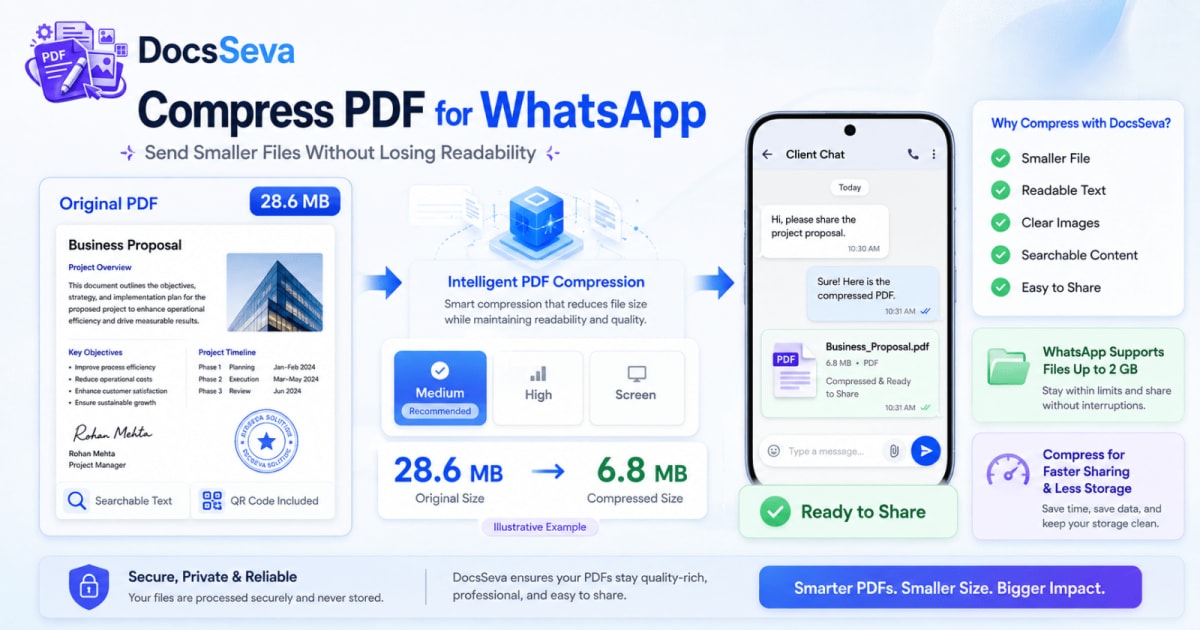
Steps
Check the PDF size
Check the current PDF size and decide whether compression is actually necessary. WhatsApp supports large file sharing, but a smaller PDF can still upload and download faster.
Keep the original PDF
Save an unchanged copy before applying compression. Start each new compression attempt from the original rather than repeatedly compressing a previous result.
Remove unnecessary pages
Delete blank, duplicated, outdated or unrelated pages that the recipient does not need.
Extract or split required content
If only selected pages are required, extract those pages or split unrelated sections into separate PDFs.
Open DocsSeva PDF Compressor
Open the DocsSeva PDF Compressor and select the original PDF that you want to send through WhatsApp.
Start with Medium compression
Use Medium mode first to balance file-size reduction, searchable text, image clarity and readability.
Use High when necessary
If Medium does not make the PDF small enough for comfortable sharing, return to the original and create a new result using High compression.
Use Screen mode carefully
Use Screen mode only when stronger reduction is required and searchable text, hyperlinks, forms and accessibility are not important.
Inspect the result
Review every page, small text, signatures, stamps, photographs, QR codes, barcodes, searchable text and page order.
Send the PDF as a document
Open the required WhatsApp conversation, choose the document or file attachment option, select the reviewed compressed PDF and confirm the correct file before sending.
Key takeaways
- To compress PDF for WhatsApp, keep the original file, remove unnecessary pages and start with Medium compression. If the PDF is still larger than you want, return to the original and try High mode. Review small text, signatures, stamps and images before sending. WhatsApp supports sharing files up to 2 GB, so prioritise readability instead of applying excessive compression only to make the file extremely small.
- WhatsApp supports large files up to 2 GB, so most PDFs should be compressed for speed, storage and convenience rather than simply to meet a very small platform limit.
- Remove, extract or split unnecessary pages before reducing the visual quality of the pages the recipient actually needs.
- For scanned certificates, forms and documents, always inspect small text, signatures, stamps, QR codes and other verification details before sending.
When you need to compress PDF for WhatsApp, the goal should not be to make the document as tiny as possible.
The better goal is to create a PDF that is:
- Fast to send
- Fast to download
- Easy to forward
- Reasonable for mobile storage
- Readable on a small screen
- Searchable when required
- Clear enough for important documents
- Complete and correctly ordered
WhatsApp supports very large file sharing, so most ordinary PDFs do not need extreme compression simply to fit the platform.
Compression is still useful when you are sending:
- Scanned certificates
- Large reports
- Resumes
- Portfolios
- Bank statements
- Government documents
- University notes
- Assignments
- Contracts
- Invoices
- Application forms
- Image-heavy PDFs
A 40 MB document may technically be sendable, but reducing it to a clear 5–10 MB version can make uploading, downloading, forwarding and storing it far more convenient.
The important part is preserving readability.
Start with the DocsSeva PDF Compressor and use the lightest compression mode that gives you a practical result.
How to Compress PDF for WhatsApp Without Losing Readability
Use a simple quality-first workflow.
Keep the original PDF.
Remove pages the recipient does not need.
Try Medium compression first.
If the result is still unnecessarily large, return to the original and try High.
Then inspect every important page before sending it.
Use Screen mode only when you genuinely need stronger reduction and do not need searchable text, links, forms or maximum text sharpness.
The best WhatsApp-ready PDF is not the smallest possible PDF.
It is the smallest useful version that remains clear and complete.
Does WhatsApp Have a PDF File Size Limit?
WhatsApp supports large file sharing, including documents up to 2 GB according to Meta's current product information.
This means an ordinary:
2 MB PDF
or:
20 MB PDF
does not normally need compression merely because it is a PDF being sent through WhatsApp.
However, the maximum supported size is not the only practical consideration.
A large document can still:
- Take longer to upload
- Consume more mobile data
- Take longer for the recipient to download
- Occupy more device storage
- Occupy more chat storage
- Be slower to forward
- Perform poorly on slower networks
- Be inconvenient on older devices
Compression therefore remains useful even when the file is below WhatsApp's platform maximum.
For current WhatsApp file-sharing information, see:
Meta: WhatsApp File Sharing Updates
Why Compress a PDF for WhatsApp If Large Files Are Supported?
Consider a 75 MB scanned report.
The file may be accepted by WhatsApp, but both the sender and recipient still need to transfer all 75 MB.
On a fast Wi-Fi connection, that may be manageable.
On mobile data or a slow connection, it can be inconvenient.
Now imagine a properly compressed version:
Original: 75 MB
Compressed: 11 MB
The smaller version can:
- Upload faster
- Download faster
- Use less mobile data
- Occupy less storage
- Be forwarded more easily
These numbers are only illustrative.
Do not present example results as a DocsSeva benchmark until you have performed the real test.
Avoid Extreme Compression When It Is Not Necessary
Because WhatsApp supports large files, there is little benefit in taking a clear:
8 MB PDF
and destroying its quality merely to make it:
300 KB
unless another system or recipient specifically requires that size.
Excessive compression can cause:
- Blurry scanned text
- Pixelated photographs
- Soft signatures
- Unreadable official stamps
- Broken QR codes
- Poor diagrams
- Reduced print quality
- Loss of searchable text in rasterised output
Use only as much compression as necessary.
Keep the Original PDF
Before making any changes, keep an unchanged source file.
Use clear names such as:
degree-certificate-original.pdf
degree-certificate-whatsapp-copy.pdf
Keeping the original allows you to compare:
- File size
- Text quality
- Image quality
- Searchability
- Signature clarity
- Page completeness
Do not overwrite the original until the recipient has confirmed that the final document is usable.
Remove Unnecessary Pages First
One of the safest ways to reduce file size is to remove content that the recipient does not need.
Look for:
- Blank scanner pages
- Duplicate pages
- Repeated certificates
- Old versions
- Empty pages
- Unnecessary appendices
- Separator pages
- Instructions that do not need to be shared
Use the DocsSeva PDF Page Remover.
Removing an unnecessary page:
- Reduces file size
- Does not blur retained pages
- Does not lower retained image resolution
- Does not affect the retained text quality
This is usually preferable to extreme compression.
Extract Only the Pages You Need to Share
You may have a 60-page document when the recipient needs only three pages.
For example:
Complete statement: 60 pages
Required section: Pages 14–18
Instead of sending the complete statement, use the DocsSeva PDF Page Extractor.
This creates a separate PDF containing only the required pages.
Benefits include:
- Smaller file
- Faster sharing
- Easier review
- Less unnecessary disclosure
- Better privacy
- Less recipient confusion
Only share information the recipient actually needs.
Split Large Documents When Appropriate
A combined PDF may contain:
Pages 1–2: Resume
Pages 3–4: Degree certificate
Pages 5–8: Experience letter
Pages 9–22: Portfolio
If the recipient does not require one combined file, separate them with the DocsSeva PDF Splitter.
Splitting can make individual files easier to:
- Identify
- Download
- Forward
- Review
- Organise
Do not split a file when the recipient explicitly asks for one complete document.
Understand DocsSeva Compression Modes
The DocsSeva PDF Compressor provides several levels.
Choosing the correct one is more important than choosing the strongest one.
Low Compression
Low prioritises visual quality.
Use it when:
- The PDF needs only a small reduction
- Photographs are important
- The document may be printed
- Technical diagrams must remain sharp
- Fine signature details matter
- The file is already reasonably small
Low may provide less reduction, but it preserves more visual information.
Medium Compression
Medium is the recommended starting option for most WhatsApp documents.
Use it for:
- Resumes
- Reports
- Certificates
- Bank statements
- Assignments
- Contracts
- Invoices
- Application documents
- General PDF sharing
Medium aims to balance:
- File size
- Searchable text
- Image clarity
- Readability
- General screen quality
For most users, this should be the first mode tested.
High Compression
Use High when Medium leaves the PDF larger than you want.
High is useful for:
- Large scanned PDFs
- Image-heavy reports
- Mobile scanner output
- PDFs containing many photographs
- Large application documents
After using High, inspect:
- Small text
- Photographs
- Signatures
- Official stamps
- QR codes
- Barcodes
- Fine diagrams
A successful size reduction is not useful when verification details become unreadable.
Screen Mode
Screen mode provides stronger reduction by rasterising pages.
Use it only when:
- The smallest practical viewing copy is required
- Standard compression does not reduce enough
- Searchable text is unnecessary
- Selectable text is unnecessary
- Forms are unnecessary
- Hyperlinks are unnecessary
- Accessibility is unnecessary
- High-quality printing is unnecessary
Screen mode should generally be a final option.
Never Recompress the Previous Result Repeatedly
Avoid:
Original
→ Medium
→ Compress Medium output using High
→ Compress High output using Screen
Repeated lossy compression can progressively damage:
- Scanned letters
- Photographs
- Stamp borders
- Signature strokes
- Thin lines
- QR codes
- Colour gradients
Use this workflow:
Original → Medium attempt

Original → High attempt

Original → Screen attempt
Every attempt should begin from the unchanged source.
Add a Real DocsSeva Screenshot Here
Insert an actual tool screenshot:

Start with Medium mode and compare quality before moving to High compression.
The screenshot should ideally display:
- Original PDF
- Original size
- Low / Medium / High / Screen controls
- Selected compression mode
- Compression progress
- Final file size
- Download button
An original product screenshot gives the article stronger practical value.
Digital PDF vs Scanned PDF
The type of PDF makes a major difference.
Digital PDF
A digital PDF usually stores:
- Real text characters
- Fonts
- Vector objects
- Images
- Links
- Document structure
You can generally:
- Search words
- Select text
- Copy paragraphs
- Zoom without text becoming pixelated
Digital text often requires relatively little storage.
Images may be the biggest source of file size.
Scanned PDF
A scanned PDF may store each page as a large image.
Even a page containing only black printed text can contain millions of pixels.
When aggressive compression reduces those pixels, the letters themselves become softer.
This is why scanned PDFs require more careful checking.
How to Identify a Scanned PDF
Open the PDF and try selecting one sentence.
If you can select individual letters or words, the document probably contains real text or an OCR layer.
If you cannot select anything, the page may be a scan.
Other signs include:
- Visible paper texture
- Scanner shadows
- Curved page edges
- Pixelated text at high zoom
- Search not finding visible words
- Camera perspective
Use DocsSeva PDF OCR when scanned pages also need searchable text.
How to Compress a Scanned PDF for WhatsApp
Scanned PDFs are one of the most common reasons for unnecessarily large mobile documents.
Use this workflow:
- Keep the original.
- Remove blank scans.
- Remove duplicate scans.
- Crop unnecessary borders where possible.
- Extract only relevant pages.
- Use Medium first.
- Move to High when required.
- Inspect small text.
- Test signatures and stamps.
- Send only after confirming readability.
Do not automatically use Screen mode.
A scanned PDF is already image-heavy, so aggressive rasterisation can make small letters even harder to read.
How to Compress a Resume for WhatsApp
A resume should remain:
- Searchable
- Selectable
- Readable
- Professionally formatted
- Easy to download
- Easy to forward
Use Medium first.
Avoid Screen mode whenever possible.
Check:
- Candidate name
- Phone number
- Email address
- Skills
- Employment dates
- Education
- Portfolio links
- LinkedIn link
- Page breaks
Use a professional filename:
arjun-kumar-react-developer-resume.pdf
instead of:
finalnewresume222.pdf
A clean filename also helps the recipient identify the document later.
How to Compress Certificates for WhatsApp
Certificates frequently contain details that cannot be sacrificed.
Check:
- Candidate name
- Certificate number
- Date
- Signature
- Official seal
- Stamp
- QR code
- Verification details
Use Medium first.
Move to High only when the original is unnecessarily large.
Before sending:
- Open the final PDF.
- Zoom to 100%.
- Read the certificate number.
- Inspect the signature.
- Check the stamp.
- Scan the QR code.
- Confirm the page is complete.
A smaller but unreadable certificate is not a useful result.
How to Compress Bank Statements
Bank statements may contain many pages of very small text.
Before sharing:
- Confirm which statement period is needed
- Remove unrelated pages
- Avoid sharing unnecessary financial information
- Follow appropriate privacy practices
Use Medium for digitally generated statements.
Check:
- Account details
- Transaction dates
- Amounts
- Balances
- Bank stamp
- Verification information
- Footer text
Avoid aggressive rasterisation when financial values must remain precise.
How to Compress an Assignment
Assignments may contain:
- Digital text
- Screenshots
- Charts
- Tables
- Diagrams
- Photographs
- References
Medium is usually appropriate.
Check:
- Text readability
- Page numbers
- Diagram labels
- Tables
- Citation numbers
- Screenshots
- References
If a professor or class group may print the file later, avoid unnecessary Screen-mode compression.
How to Compress a Portfolio for WhatsApp
Portfolios can be difficult because visual quality matters.
A portfolio may contain:
- Project screenshots
- Photographs
- UI mockups
- Illustrations
- Branding
- Large background images
Use Low when maximum visual quality matters.
Use Medium when the file is too large for comfortable mobile sharing.
If it remains very large:
- Remove duplicate projects
- Resize oversized screenshots
- Create a shorter sharing version
- Share a portfolio website
- Send a cloud-storage link for the high-resolution edition
Do not damage the portfolio just to save a few additional megabytes.
Should You Convert the PDF to Images Before WhatsApp?
Usually, no.
Keeping the file as a PDF provides several advantages:
- Correct page order
- One downloadable document
- Searchable text
- Selectable text
- Easier printing
- Professional presentation
- Better support for multi-page content
Converting every page into JPG or PNG can:
- Remove searchable text
- Create dozens of separate files
- Make page order harder to follow
- Increase confusion
- Cause additional media compression
Convert to images only when image output is specifically required.
Use DocsSeva PDF to Images when that is the intended workflow.
Should You Send the PDF as a Document?
For document sharing, use WhatsApp's file/document attachment workflow rather than converting important PDF pages into screenshots.
This keeps the original document format.
It is especially useful for:
- Resumes
- Certificates
- Contracts
- Statements
- Assignments
- Reports
- Forms
Before sending, confirm that the filename shown in WhatsApp matches the file you intended to share.
Check the Final PDF at 100% Zoom
Do not judge the result only from a small mobile preview.
Open it properly and check:
Fine text
Inspect:
- Serial numbers
- Dates
- Registration numbers
- Footer text
- Terms
- Identification information
Signatures
Look for:
- Fine pen strokes
- Initials
- Signature edges
Stamps
Check:
- Border
- Text
- Date
- Registration number
- Seal detail
Images
Check:
- Faces
- Charts
- Product photos
- Screenshots
- Diagrams
Machine-readable codes
Test:
- QR codes
- Barcodes
Check Searchable Text
When the PDF must remain searchable:
- Open the compressed file.
- Search for a visible word.
- Select one sentence.
- Copy it.
- Paste it into a text field.
If the text cannot be selected after using Screen mode, return to the original and use Low, Medium or High.
DocsSeva's standard Low, Medium and High modes retain selectable/searchable text, whereas Screen mode rasterises pages.
What to Do When the PDF Is Still Too Large
If Medium does not give enough reduction:
Try High
Return to the original file.
Remove unnecessary pages
Use the PDF Page Remover.
Extract only necessary pages
Use the PDF Page Extractor.
Split the document
Use the PDF Splitter.
Compress source images
Use the DocsSeva Image Compressor.
Resize oversized images
Use the DocsSeva Image Resizer.
Rebuild an image-based PDF
Optimise the source images and then use DocsSeva Images to PDF.
Question whether further compression is necessary
Remember that WhatsApp supports large document sharing.
Do not destroy quality merely to achieve an arbitrary tiny file size.
Read:
PDF Still Too Large After Compression? Try These Fixes
What to Do When Text Becomes Blurry
Return to the original.
Then:
- Use Medium instead of High
- Use High instead of Screen
- Remove pages rather than reducing resolution
- Replace poor scans
- Crop unnecessary borders
- Rebuild from clearer source images
- Accept a slightly larger document when WhatsApp supports it
Read:
How to Reduce PDF Size Without Losing Quality
What to Do When WhatsApp Sending Is Slow
A large file may take longer because of:
- Slow mobile data
- Weak Wi-Fi
- Network congestion
- Device memory pressure
- Large file size
- Background applications
- Low storage space
Try:
- Use a stable connection.
- Compress unnecessarily large PDFs.
- Close memory-heavy apps.
- Make sure the device has free storage.
- Retry when the network is stable.
- Send a cloud-storage link when appropriate.
Compression helps, but it cannot fix a poor network connection.
What to Do When the Recipient Cannot Open the PDF
Check:
- Whether the complete file was sent
- Whether the PDF opens on your device
- Whether the file is corrupted
- Whether it is password-protected
- Whether the recipient has a suitable PDF viewer
- Whether the filename and extension are correct
Before resending:
- Open the exact compressed file.
- Review every page.
- Confirm it is a valid PDF.
- Rename it clearly.
- Send a fresh copy.
Should You Password-Protect a PDF Before WhatsApp?
Some PDFs contain sensitive information.
Examples include:
- Financial documents
- Private contracts
- Identity records
- Business agreements
- Personal documents
When password protection is appropriate, use this order:
Finalise PDF
↓
Remove unnecessary pages
↓
Compress
↓
Review
↓
Password protect
↓
Send
Use the DocsSeva PDF Password tool.
When practical, communicate the password through a separate channel.
WhatsApp Storage Also Matters
Large files accumulate over time.
A conversation containing repeated:
- PDFs
- Photographs
- Videos
- Scans
- Documents
can consume substantial device storage.
Meta introduced additional WhatsApp storage-management improvements in 2026 that make it easier to find and delete large files from individual chats.
This is another reason to avoid sending a 100 MB file when a clear 10 MB version would serve the same purpose.
Common Mistakes to Avoid
Using the slug as the focus keyword
Your SEO field should contain:
compress pdf for whatsapp
not:
compress-pdf-for-whatsapp
The second format belongs only in the URL.
Compressing an already acceptable PDF excessively
WhatsApp supports large documents. Preserve quality.
Choosing Screen mode immediately
Use Medium first.
Recompressing the previous result
Always start from the original.
Ignoring small scanned text
Check it at 100% zoom.
Sending screenshots instead of the PDF
Keep important documents in PDF format when appropriate.
Ignoring QR codes
Test verification codes after compression.
Ignoring page count
Confirm every required page is present.
Sharing unnecessary information
Extract only the pages the recipient needs.
Deleting the original
Keep it until the recipient confirms successful receipt.
Final WhatsApp PDF Checklist
Before sending, confirm:
File
- Correct PDF selected
- File size is reasonable
- Filename is clear
- No unnecessary pages remain
- Page order is correct
Quality
- Text is readable
- Images are clear enough
- Signatures remain visible
- Official stamps remain readable
- QR codes work
- Barcodes work
Functionality
- Searchable text works when needed
- Text remains selectable
- Hyperlinks work where required
- Form fields remain functional where required
Sharing
- Correct WhatsApp conversation selected
- Correct file attached
- File transfer completed
- Recipient can open the PDF
- Original is safely stored
Related DocsSeva Guides
Continue reading:
- How to Compress a PDF Online for Free
- Complete Guide to PDF Compression
- Low vs Medium vs High PDF Compression
- How to Reduce PDF Size Without Losing Quality
- Why Is My PDF File So Large?
- How to Reduce PDF Size Below 1 MB
- How to Compress a PDF to a Chosen File Size
- PDF Still Too Large After Compression?
- Compress PDF for Gmail
- Compress PDF for Outlook
Update a URL if its actual published slug differs.
Related DocsSeva Tools
- PDF Compressor — reduce large PDFs
- PDF Page Remover — remove unnecessary pages
- PDF Page Extractor — keep selected pages
- PDF Splitter — divide large documents
- PDF Merger — combine required PDFs
- PDF OCR — make scanned text searchable
- Image Compressor — optimise source images
- Image Resizer — reduce excessive dimensions
- Images to PDF — rebuild an image-based PDF
- PDF Password — protect the approved document
Sources and Further Reading
- Meta: WhatsApp File Sharing and Communities
- Meta: WhatsApp 2026 Feature Roundup
- DocsSeva PDF Compressor
Share a Smaller PDF Without Sacrificing Readability
To compress PDF for WhatsApp successfully, start with the original file and use Medium compression before moving to stronger settings.
Remove unnecessary pages first.
Use High only when meaningful additional reduction is needed.
Use Screen mode only when searchable text and document interactivity are unnecessary.
Because WhatsApp supports large file sharing, there is usually no reason to destroy the readability of a clear document simply to make it extremely small.
The best WhatsApp-ready PDF is the version that:
- Sends comfortably
- Downloads quickly
- Uses reasonable storage
- Keeps important information readable
- Preserves required document functionality
Frequently asked questions
What is the maximum file size you can send on WhatsApp?
Meta currently says WhatsApp supports sharing large files up to 2 GB. Feature availability and behaviour can vary by app version and device, so keep WhatsApp updated when sending very large files.
How can I compress PDF for WhatsApp without making text blurry?
Start with Medium compression and check the output. Use High only when additional reduction is necessary, and avoid Screen mode when searchable text or maximum text clarity matters.
Do I need to compress every PDF before sending it on WhatsApp?
No. Small digital PDFs may already be suitable. Compression is most useful for large scanned documents, image-heavy PDFs or files that take too long to upload, download or forward.
Which compression mode is best for WhatsApp?
Medium is the recommended first choice for most PDFs. High is useful for large scanned or image-heavy documents. Use Screen only when stronger reduction matters more than searchable text or interactive features.
Why is my scanned PDF so large on WhatsApp?
A scanned PDF may store each complete page as a high-resolution image. Several colour scans can therefore contain much more data than a digitally generated text document.
Will WhatsApp make my PDF text blurry?
A PDF shared as a document is different from sending a photograph. The quality of the PDF you prepare is therefore important. If your compressed source is already blurry, the recipient will receive that reduced-quality document.
Should I convert my PDF pages to images before sending them?
Usually no. Keeping the file as a PDF helps preserve page order, searchable text and document structure. Convert pages to images only when the recipient specifically needs image files.
Can removing pages make the WhatsApp PDF smaller?
Yes. Removing blank, duplicate or unnecessary pages reduces file size without lowering the visual quality of the pages you retain.
Should I split a large PDF for WhatsApp?
Split the document when the recipient needs only selected sections or when separate files are easier to review. Do not split it if one complete PDF is specifically required.
Should I compress an already compressed PDF again?
Avoid repeatedly compressing the same output. Start each stronger attempt from the original PDF to reduce cumulative image-quality loss.
Can PDF compression remove searchable text?
Low, Medium and High DocsSeva modes retain selectable and searchable text. Screen mode rasterises pages and can remove normal text selection and searchability.
Can compression damage signatures or official stamps?
Strong image compression can soften signature strokes, seal borders and small stamp text. Check these details at 100% zoom before sending an official document.
Can compression affect QR codes and barcodes?
Yes. Heavy image compression can soften the edges required for reliable scanning. Test important QR codes and barcodes before sending the document.
Why does my PDF take a long time to send even though WhatsApp supports large files?
Upload time also depends on file size, internet speed, mobile data, device performance and network stability. A smaller PDF can still provide a faster sharing experience.
Is the smallest possible PDF always best for WhatsApp?
No. The best result is a reasonably small PDF that remains complete, readable and suitable for the recipient. Avoid unnecessary quality loss when WhatsApp already supports a much larger file.
Sources
- WhatsApp Group and File Sharing Improvements — Meta
- DocsSeva PDF Compressor — DocsSeva
- DocsSeva PDF Page Remover — DocsSeva
- DocsSeva PDF Splitter — DocsSeva
- WhatsApp Group Chats Feature Roundup 2026 — Meta
DocsSeva Editorial Team
Document Workflow and PDF Tools Editorial Team
Published on August 10, 2026
The DocsSeva Editorial Team publishes practical guides about PDF compression, document conversion and online file preparation. Its content helps students, professionals, job seekers and everyday users solve document-size, mobile-sharing and file-upload problems.
“We tested three sample PDFs—a digital report, a scanned certificate and an image-heavy document. We compared Medium and High compression, checked each file at 100% zoom and sent the approved results through a WhatsApp test conversation to confirm readability and file handling.”
Human-written with AI assistance.
Open the PDF Tools
Free, no sign-up, and your files are never stored.
Open the PDF ToolsMore on pdf-compression


In-Depth How-to Guide
Compress PDF for Outlook Email Without Losing Quality
Learn how to compress PDF for Outlook email, reduce large attachments and preserve readable text, clear images, signatures, links and professional document quality.

In-Depth How-to Guide
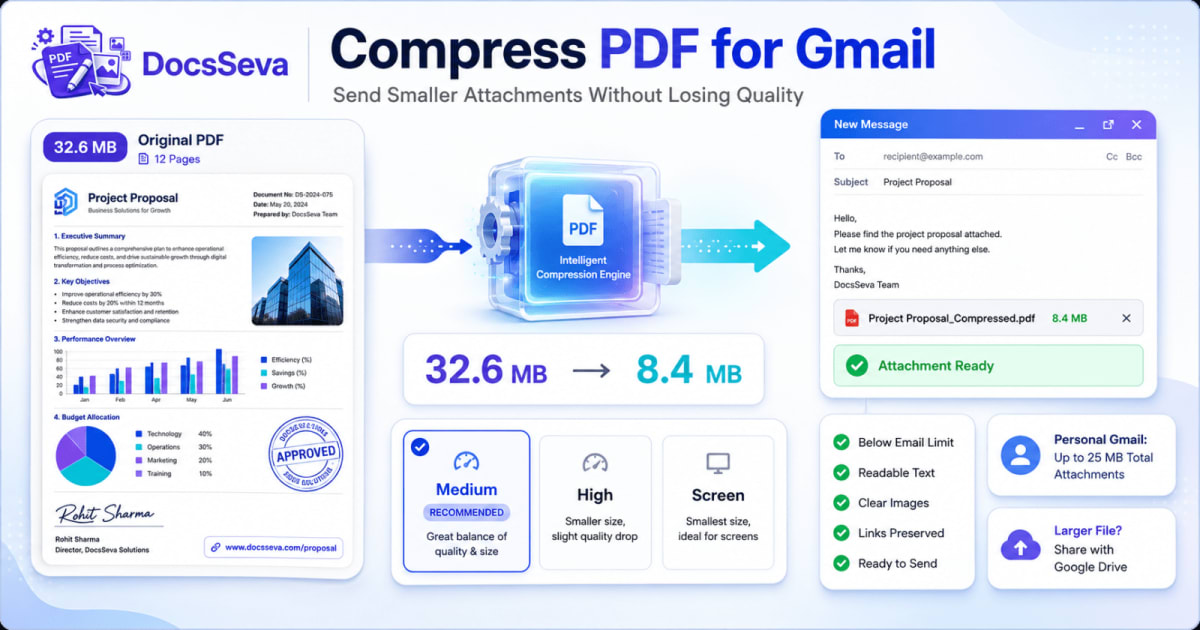
Compress PDF for Gmail Attachments Without Losing Quality
Learn how to compress PDF for Gmail attachments, stay below email size limits and preserve readable text, clear images, signatures, links and document quality.


In-Depth How-to Guide
PDF Still Too Large After Compression? 12 Fixes That Work
Is your PDF still too large after compression? Learn why some files barely shrink and follow 12 practical fixes for scans, images, pages, fonts and strict upload limits.