Reduce PDF Size for Google Drive Without Losing Quality

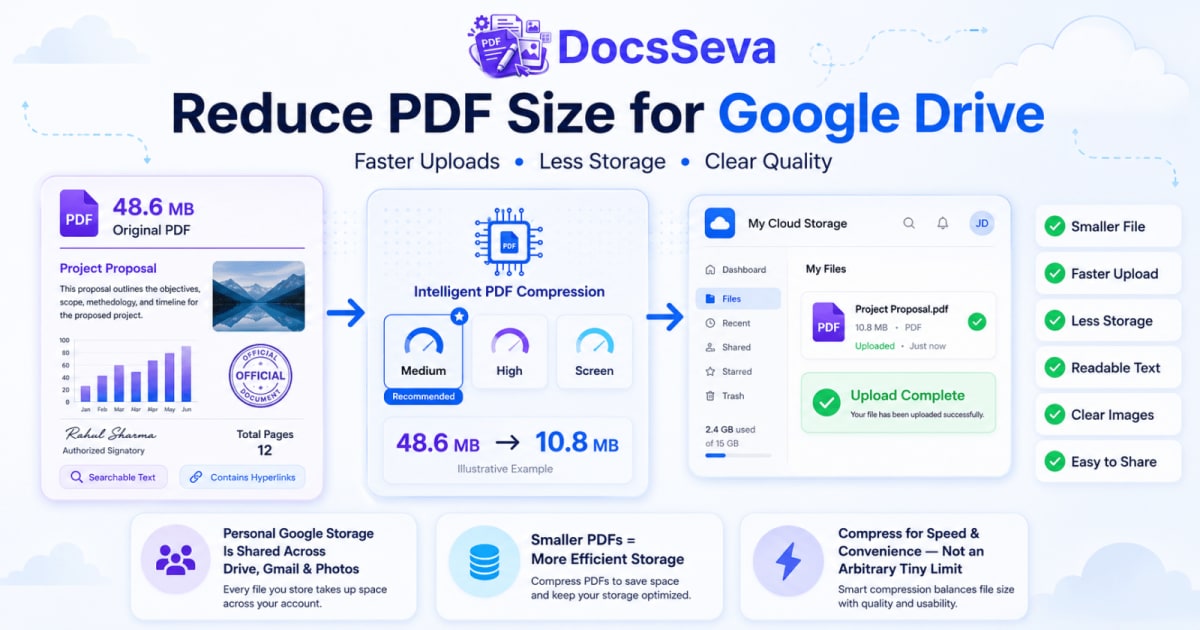
Steps
Check the current PDF size
Check the PDF size and your available Google Drive storage before compressing. A small PDF may not need any optimisation.
Keep the original PDF
Save an unchanged copy before applying compression. Use the original for every new compression attempt rather than repeatedly compressing a previous output.
Remove unnecessary pages
Delete blank, duplicated, outdated or unrelated pages that do not need to be stored or shared.
Extract or split required content
If only part of the PDF needs to be uploaded, extract those pages or split unrelated sections into separate files.
Open DocsSeva PDF Compressor
Open the DocsSeva PDF Compressor and select the original PDF that you want to prepare for Google Drive.
Start with Medium compression
Choose Medium mode first to balance file-size reduction, image clarity and searchable text.
Try High when necessary
If the Medium result remains unnecessarily large, return to the original PDF and create a new High-compression result.
Use Screen mode only when appropriate
Use Screen mode only when stronger reduction is necessary and searchable text, active links, forms and accessibility are not required.
Inspect the result
Review every page, small text, signatures, official stamps, images, QR codes, searchable text, hyperlinks and page order.
Upload the reviewed PDF to Google Drive
Open Google Drive, choose New and File upload, select the reviewed compressed PDF, wait for the upload to complete and confirm that the correct file appears in Drive.
Key takeaways
- Google Drive accepts very large files, so PDF compression is usually about saving storage, improving upload speed and making sharing more convenient rather than meeting a tiny PDF limit.
- Personal Google Account storage is shared across Google Drive, Gmail and Google Photos, so reducing unnecessarily large PDFs can help conserve available storage.
- Start with Medium compression and move to High only when additional size reduction is genuinely useful.
- Remove, extract or split unnecessary pages before reducing the quality of text, images, signatures or verification details.
When you need to reduce PDF size for Google Drive, the goal is not to make every document as tiny as possible.
Google Drive can handle very large files, so an ordinary PDF usually does not need extreme compression simply to be accepted.
The practical reasons to reduce PDF size are different:
- Faster uploads
- Faster downloads
- Lower cloud-storage usage
- Easier sharing
- Faster syncing
- Less mobile-data usage
- More convenient collaboration
- Easier long-term document storage
A properly compressed PDF should still preserve:
- Readable text
- Searchable content
- Clear photographs
- Signatures
- Official stamps
- QR codes
- Correct page order
- Hyperlinks
- Form fields when required
The best Google Drive-ready PDF is therefore not automatically the smallest file.
It is a reasonably sized version that retains everything the reader needs.
Start with the DocsSeva PDF Compressor and use the lightest compression mode that gives you a useful reduction.
How to Reduce PDF Size for Google Drive
Use this practical workflow:
- Check the current PDF size.
- Check whether compression is actually necessary.
- Keep an unchanged copy of the original.
- Remove unnecessary pages.
- Extract only the pages you need.
- Split unrelated sections when useful.
- Start with Medium compression.
- Inspect the result.
- Return to the original and try High if necessary.
- Use Screen mode only when its trade-offs are acceptable.
- Upload the reviewed PDF to Google Drive.
- Confirm that the final file opens correctly.
Do not repeatedly compress an already compressed result.
Every stronger attempt should begin with the original PDF.
Does Google Drive Have a Small PDF Upload Limit?
No ordinary small PDF limit applies simply because the file is a PDF.
Google Drive supports very large files.
Google's current documentation states that files outside Google Docs, Sheets and Slides formats can be stored at sizes up to 5 TB, subject to available account storage and other applicable limits.
A typical PDF is nowhere near this maximum.
Therefore, a:
10 MB PDF
does not need to become:
500 KB
just to be uploaded to Google Drive.
Compression should instead solve a practical problem such as:
- Limited storage
- Slow uploading
- Slow downloading
- Repeated syncing
- Mobile-data usage
- Difficult sharing
- Large scanned archives
For current file-size information, see:
Google Drive: Files You Can Store
How Much Storage Does Google Drive Provide?
For a personal Google Account, Google currently provides up to 15 GB of storage.
That storage is shared across services including:
- Google Drive
- Gmail
- Google Photos
This means large PDFs can contribute to the same overall storage pool used by your email and photos.
For example:
200 scanned PDFs × 30 MB each = approximately 6 GB
If similar documents can be reduced to:
8 MB each
the same collection would require roughly:
1.6 GB
This example is illustrative.
Actual compression results depend on the PDF contents.
For current account-storage information, see:
Google: How Your Google Storage Works
Why Reduce PDF Size Before Uploading to Google Drive?
Faster uploads
A smaller file contains less data to transfer.
On the same internet connection, reducing a:
80 MB PDF
to:
15 MB
can significantly reduce the amount of data that must be uploaded.
Exact upload time depends on:
- Network speed
- Wi-Fi quality
- Mobile-data speed
- Device performance
- Browser performance
- Current network traffic
Compression does not make the internet connection faster, but it reduces the quantity of data that needs to travel.
Less cloud-storage usage
Large PDFs accumulate over time.
This is particularly relevant for:
- Scanned invoices
- Receipts
- Study materials
- Contracts
- Reports
- Bank statements
- Certificates
- Business records
- Archived forms
- Research documents
Reducing oversized documents can help preserve available Google storage.
Faster downloads for collaborators
Uploading is only half of the workflow.
Everyone who downloads the file must also transfer its data.
A smaller PDF can be easier for:
- Clients
- Team members
- Students
- Teachers
- Recruiters
- Customers
- Remote employees
especially when they use mobile networks or slow connections.
Easier syncing
Users who sync Google Drive files across multiple devices may benefit from smaller documents.
A large collection of oversized PDFs can require more bandwidth and local disk space.
Easier mobile access
A 150 MB scanned manual may technically fit in Drive, but repeatedly opening or downloading it on a phone may be inconvenient.
A clear compressed copy can provide a better practical experience.
Check Whether the PDF Actually Needs Compression
Before changing the file, ask:
Is it already reasonably small?
For example:
18-page text report
File size: 1.4 MB
That may already be efficient.
There may be no useful reason to compress it further.
Is it unusually large?
Example:
8-page scanned document
File size: 72 MB
This is a better candidate for optimisation.
Is storage a real concern?
If you have plenty of available storage and upload the document only once, maximum compression may be unnecessary.
Will several people download it?
A smaller sharing copy may be worthwhile.
Does the document contain important visual detail?
If yes, preserve quality.
Keep the Original PDF
Always keep an unchanged source copy.
Use filenames such as:
annual-report-original.pdf
annual-report-google-drive-copy.pdf
Keeping the source gives you a reference when comparing:
- Text quality
- Image quality
- Searchability
- File size
- Page count
- Forms
- Links
- Signatures
Do not delete the original until you are satisfied with the compressed version.
Remove Unnecessary Pages Before Compressing
Page removal can reduce size without reducing the visual quality of the pages you keep.
Look for:
- Blank pages
- Duplicate pages
- Scanner separator sheets
- Outdated copies
- Repeated cover pages
- Empty pages
- Unnecessary appendices
- Accidental scans
Use the DocsSeva PDF Page Remover.
This is often better than applying stronger compression to every page.
Extract Only the Pages You Need to Store or Share
Imagine a:
180-page report
when collaborators only require:
Pages 8–24
Instead of uploading the complete document, create a separate PDF using the DocsSeva PDF Page Extractor.
This can reduce:
- File size
- Download time
- Storage use
- Recipient confusion
- Unnecessary disclosure
DocsSeva's extractor copies selected pages into a new document rather than forcing the entire original PDF into the sharing workflow.
Split Large PDFs When Appropriate
A large PDF may contain several different document types.
Example:
Pages 1–10: Monthly report
Pages 11–30: Supporting invoices
Pages 31–60: Technical appendix
Pages 61–90: Raw data
Different teams may require different sections.
Use the DocsSeva PDF Splitter when individual sections are easier to manage.
Splitting can improve:
- File organisation
- Selective sharing
- Download convenience
- Access management
- Review speed
Keep one combined PDF when the complete document must remain together.
Choose the Correct DocsSeva Compression Mode
DocsSeva provides Low, Medium, High and Screen compression options.
Choosing the right level is more important than choosing the strongest level.
Low Compression
Use Low when:
- The PDF is only slightly larger than necessary
- Detailed images are important
- The document may be printed
- Fine diagrams need maximum clarity
- Signature detail matters
- High visual quality has priority
Low provides lighter reduction.
Medium Compression
Medium is the recommended starting point for most Google Drive documents.
Use it for:
- Reports
- Resumes
- Certificates
- Statements
- Contracts
- Assignments
- Invoices
- General business PDFs
- Ordinary scans
Medium aims to balance:
- Smaller size
- Readable images
- Searchable text
- Good screen quality
- General document usability
Start here unless you already know that stronger reduction is necessary.
High Compression
Use High when Medium does not produce enough reduction.
It can be useful for:
- Large scanned documents
- Image-heavy PDFs
- Mobile scanner output
- Large reports
- Photography-heavy documents
- Archived paperwork
After High compression, check:
- Fine text
- Photographs
- Signatures
- Stamps
- QR codes
- Barcodes
- Charts
- Diagrams
A smaller file is not useful when important information becomes unclear.
Screen Mode
Screen mode is designed for stronger reduction.
It rasterizes complete pages.
Use it only when:
- Standard compression is insufficient
- The PDF is mainly a viewing copy
- Searchable text is unnecessary
- Selectable text is unnecessary
- Active hyperlinks are unnecessary
- Fillable forms are unnecessary
- Accessibility is unnecessary
- High-quality printing is unnecessary
Use Screen as a final option rather than the default.
Do Not Recompress the Previous Output
Avoid:
Original
→ Medium
→ High using Medium output
→ Screen using High output
Instead use:
Original → Medium attempt

Original → High attempt

Original → Screen attempt
Each attempt should begin from the original PDF.
Repeated lossy compression can progressively reduce:
- Image detail
- Scan clarity
- Signature quality
- QR-code sharpness
- Thin line visibility
- Colour quality
Add a Real DocsSeva Screenshot Here
Insert an actual DocsSeva screenshot:

Start with Medium mode and compare the resulting size and readability before trying High.
The screenshot should ideally show:
- Original filename
- Original size
- Low / Medium / High / Screen
- Selected mode
- Compression state
- Final size
- Download button
Do not use only the cover image.
Digital PDF vs Scanned PDF
PDF type strongly affects file size.
Digital PDF
A digital PDF may contain:
- Actual text
- Fonts
- Vector graphics
- Images
- Hyperlinks
- Forms
- Bookmarks
Digital text itself usually requires relatively little storage.
You can generally:
- Search text
- Select words
- Copy paragraphs
- Zoom without text becoming pixelated
Images are often the largest component.
Scanned PDF
A scanned PDF may store each page as a large image.
Even when the page contains only black text, the full sheet may contain millions of pixels.
This can make a short scanned document much larger than a long digital report.
For example:
60-page digital report: 3 MB

10-page colour scan: 45 MB
These are illustrative examples.
How to Identify a Scanned PDF
Open the PDF.
Try selecting a word.
Text can be selected
The document probably contains digital text or OCR text.
Text cannot be selected
The page may be a scan.
Other signs include:
- Paper texture
- Scanner shadows
- Curved page edges
- Pixelated letters when zoomed
- Search not finding visible words
Use the DocsSeva PDF OCR tool when the scan needs searchable text.
How to Reduce a Scanned PDF for Google Drive
Use this workflow:
- Keep the original scan.
- Remove blank pages.
- Delete duplicate scans.
- Crop unnecessary backgrounds when possible.
- Extract only relevant pages.
- Start with Medium compression.
- Try High when additional reduction is worthwhile.
- Check fine text.
- Check signatures.
- Check official stamps.
- Test QR codes.
- Upload only after confirming readability.
Avoid forcing a clear scanned document into an unnecessarily tiny size.
How to Reduce a Resume Before Google Drive Upload
A resume should remain:
- Searchable
- Selectable
- Readable
- Professionally formatted
- Easy to download
- Compatible with recruitment workflows
Use Medium first.
Avoid Screen mode whenever possible.
Check:
- Candidate name
- Phone number
- Employment history
- Dates
- Skills
- Education
- Portfolio links
Use a professional filename such as:
arjun-kumar-frontend-developer-resume.pdf
How to Reduce Business Reports
Business reports may contain:
- Charts
- Tables
- Photographs
- Screenshots
- Financial data
- Appendices
- Branding
First remove unnecessary appendices.
Then try Medium compression.
Check:
- Table values
- Chart labels
- Financial figures
- Page numbers
- Footnotes
- Images
- Hyperlinks
For heavily visual reports, Low may be preferable.
How to Reduce Certificates
Certificates can contain:
- Candidate names
- Serial numbers
- Signatures
- Official seals
- Stamps
- QR codes
- Decorative borders
Start with Medium.
Move to High only when required.
Before uploading:
- Zoom to 100%.
- Check the certificate number.
- Check the candidate name.
- Inspect the signature.
- Inspect the seal.
- Test the QR code.
A smaller but unverifiable certificate is not a successful result.
How to Reduce Large PDF Archives
Businesses and individuals may use Google Drive to keep hundreds or thousands of PDFs.
For example:
Invoices
Receipts
Statements
Contracts
Reports
Certificates
Forms
Small improvements can become significant at scale.
Imagine:
1,000 PDFs × 12 MB = approximately 12 GB
versus:
1,000 PDFs × 4 MB = approximately 4 GB
That is an illustrative difference of approximately:
8 GB
Do not assume every PDF can achieve the same reduction.
Compression depends on the contents of each document.
Batch Compression Can Help With Large Collections
DocsSeva currently supports batch compression of multiple PDFs.
This can be useful when preparing:
- Invoice archives
- Receipt folders
- Monthly statements
- Research papers
- Scanned forms
- Business records
Do not automatically apply the same mode to every document without reviewing representative results.
A photograph-heavy PDF and a text invoice may require different settings.
Google Drive Upload Workflow
After reviewing the compressed PDF:
- Open Google Drive.
- Select New.
- Choose File upload.
- Select the compressed PDF.
- Wait for the upload to complete.
- Confirm the filename.
- Open the uploaded file.
- Review the Drive preview.
- Confirm the correct version was uploaded.
- Share it only with the intended people.
Google's official instructions also support dragging files directly into Drive folders.
Check the Google Drive Preview
After uploading, open the file in Drive.
Check:
- Page count
- Page orientation
- Text readability
- Image clarity
- First and last page
- Important diagrams
- Overall document appearance
Google notes that Drive preview is a scaled-down version of the complete file.
If something looks slightly different in preview, download or open the complete document using an appropriate viewer before assuming the PDF itself was damaged.
Google Drive Storage vs Computer Storage
Cloud storage and local disk space are separate.
A PDF can occupy:
- Google cloud storage
- Local computer storage
- Drive for desktop cache or synced storage
Deleting or changing one copy does not always immediately change every other storage measurement.
Google provides separate storage-management information for Drive and Drive for desktop.
What to Do When Google Storage Is Almost Full
Compression is only one option.
You can also:
- Delete duplicate documents
- Empty Trash when appropriate
- Remove outdated files
- Delete unnecessary backups
- Archive files offline
- Review large files
- Upgrade storage when needed
Do not compress important files repeatedly just to avoid managing obviously unnecessary content.
What to Do When a PDF Is Still Too Large
If Medium compression does not reduce enough:
Return to the original
Do not reuse the Medium output.
Try High
Inspect quality carefully.
Remove unnecessary pages
Use the PDF Page Remover.
Extract required pages
Use the PDF Page Extractor.
Split the document
Use the PDF Splitter.
Compress source images
Use the DocsSeva Image Compressor.
Rebuild image-based PDFs
Optimise source images and create a new document with DocsSeva Images to PDF.
Read:
PDF Still Too Large After Compression? Try These Fixes
What to Do When the PDF Becomes Blurry
Return to the original.
Then:
- Use Medium instead of High
- Use High instead of Screen
- Remove unnecessary pages
- Replace poor scans
- Rebuild the document from clearer sources
- Accept a slightly larger file
Google Drive can store very large files, so there is usually no reason to destroy readability merely to save a few additional megabytes.
Read:
How to Reduce PDF Size Without Losing Quality
What to Do When Google Drive Upload Is Slow
Slow uploads can be caused by:
- Large file size
- Slow internet
- Weak Wi-Fi
- Mobile-data limitations
- Network congestion
- Browser issues
- Device performance
- Multiple simultaneous uploads
Try:
- Compress an unnecessarily large PDF.
- Use a stable connection.
- Avoid multiple heavy uploads at once.
- Close unnecessary browser tabs.
- Restart a failed upload.
- Verify that the source PDF is not corrupted.
A smaller file can reduce the amount of data that must be uploaded, but compression cannot solve every network problem.
What to Do When the Uploaded PDF Will Not Open
Check whether:
- The original opens correctly
- The compressed copy opens locally
- The upload finished completely
- The file extension is
.pdf - The PDF is corrupted
- Password protection affects viewing
- The browser preview is temporarily failing
Before uploading again:
- Open the exact local compressed file.
- Check every page.
- Rename it clearly.
- Upload a fresh copy.
- Test the uploaded file.
Should You Password-Protect a PDF Before Drive Upload?
Some documents contain sensitive data.
Examples include:
- Financial information
- Contracts
- Identity documents
- Private records
- Confidential reports
When password protection is appropriate, use this workflow:
Finalise document
↓
Remove unnecessary pages
↓
Compress
↓
Review
↓
Password protect
↓
Upload
Use the DocsSeva PDF Password tool after you approve the compressed output.
Remember that Drive sharing permissions and PDF passwords solve different problems.
Google Drive Sharing Permissions Still Matter
Compressing a PDF does not control who can access it.
After uploading, configure the Drive sharing settings appropriate to your situation.
Think carefully before allowing broad link access for:
- Contracts
- Personal records
- Financial documents
- Identity files
- Business information
Use the access level appropriate for the intended recipient.
Common Mistakes to Avoid
Using the slug as your focus keyword
Use:
reduce pdf size for google drive
not:
reduce-pdf-size-for-google-drive
The second version belongs only in the URL.
Assuming Google Drive has a tiny PDF limit
It does not.
Compressing every PDF aggressively
Small digital PDFs may already be efficient.
Starting with Screen mode
Start with Medium.
Recompressing previous results
Begin each attempt from the original.
Ignoring storage usage
A large archive of PDFs can consume significant cloud space.
Ignoring searchable text
Avoid Screen mode when searchability matters.
Ignoring important signatures and stamps
Check verification details before uploading.
Uploading the wrong copy
Use clear filenames.
Deleting the original too quickly
Keep the source until the compressed copy is approved.
Final Google Drive PDF Checklist
Before uploading, verify:
File
- Correct PDF selected
- Size is reasonable
- Filename is clear
- Page count is correct
- Page order is correct
- Unnecessary pages are removed
Quality
- Text remains readable
- Images remain clear enough
- Signatures remain visible
- Stamps remain readable
- QR codes work
- Barcodes work
Functionality
- Searchable text works where required
- Text remains selectable
- Hyperlinks work
- Forms remain functional where required
Google Drive
- Correct Google account
- Correct folder
- Upload completed
- File opens after upload
- Sharing permissions are correct
- Intended collaborators have access
Backup
- Original PDF remains safely stored
- Compressed copy has a different filename
- Important source documents are preserved
Related DocsSeva Guides
Continue reading:
- How to Compress a PDF Online for Free
- Complete Guide to PDF Compression
- Low vs Medium vs High PDF Compression
- How to Reduce PDF Size Without Losing Quality
- Why Is My PDF File So Large?
- How to Reduce PDF Size Below 1 MB
- How to Compress a PDF to a Chosen File Size
- PDF Still Too Large After Compression?
- Compress PDF for Gmail
- Compress PDF for Outlook
- Compress PDF for WhatsApp
- Compress PDF for Telegram
Update any URL if the actual published slug differs.
Related DocsSeva Tools
- PDF Compressor — reduce unnecessarily large PDFs
- PDF Page Remover — delete unnecessary pages
- PDF Page Extractor — keep selected pages
- PDF Splitter — divide large documents
- PDF Merger — combine required PDFs
- PDF OCR — make scans searchable
- Image Compressor — optimise source images
- Image Resizer — reduce oversized source images
- Images to PDF — rebuild an image-based PDF
- PDF Password — protect the final document
Sources and Further Reading
- Google: How Your Google Storage Works
- Google: Files You Can Store in Google Drive
- Google: Upload Files and Folders to Drive
- Google Workspace: Storage and Upload Limits
- DocsSeva PDF Compressor
Store and Share Smaller PDFs Without Sacrificing Quality
To reduce PDF size for Google Drive, start by deciding whether the document actually needs compression.
If the file is unnecessarily large:
- Keep the original
- Remove unwanted pages
- Extract only required content
- Start with Medium compression
- Try High only when useful
- Inspect the complete result
- Upload the reviewed copy
Google Drive can handle very large files, so there is usually no reason to destroy document quality just to create an extremely small PDF.
The best Drive-ready document is one that:
- Uploads efficiently
- Uses reasonable storage
- Downloads conveniently
- Remains readable
- Preserves required functionality
- Is easy for collaborators to use
Frequently asked questions
Do I need to reduce PDF size before uploading to Google Drive?
Not always. Google Drive accepts very large files. Compression is most useful when a PDF is unnecessarily large, consumes significant cloud storage, uploads slowly or is inconvenient for collaborators to download and sync.
How can I reduce PDF size for Google Drive without losing quality?
Start with Medium compression, inspect the output and move to High only when additional reduction is useful. Avoid Screen mode when searchable text or maximum clarity is important.
How much free storage does a personal Google Account include?
Google currently provides personal Google Accounts with up to 15 GB of storage shared across Google Drive, Gmail and Google Photos.
What is the maximum file size Google Drive can store?
Google currently lists a maximum of up to 5 TB for files that do not use Google Docs, Sheets or Slides formats, subject to available account storage and applicable upload limits.
Does compressing a PDF save Google Drive storage?
Yes. A smaller PDF consumes fewer storage bytes than a larger version, which can be useful when your Google storage is limited or shared with other Google services.
Which DocsSeva compression mode is best for Google Drive?
Medium is the recommended starting point for most PDFs. High is useful for larger scanned and image-heavy files. Screen mode should be reserved for situations where stronger reduction matters more than searchable text or interactivity.
Will PDF compression make Google Drive upload faster?
A smaller file generally requires less data to upload, so it can be faster on the same connection. Actual upload time still depends on network speed, device performance and Google Drive conditions.
Why is my scanned PDF so large?
A scanned PDF may store every page as a high-resolution image. Several colour scans can therefore require much more storage than a digitally generated text PDF.
Can I remove pages before uploading the PDF?
Yes. Removing blank, duplicate or irrelevant pages reduces storage without lowering the quality of the pages you keep.
Should I split a very large PDF before uploading it to Google Drive?
Split the PDF when collaborators need different sections separately or when smaller files are easier to download and manage. Keep one complete PDF when the document must remain together.
Should I compress an already compressed PDF again?
Avoid repeatedly compressing the same output. Start each stronger attempt from the original PDF so that quality loss does not accumulate.
Can PDF compression remove searchable text?
DocsSeva's Low, Medium and High modes keep text selectable and searchable. Screen mode rasterizes pages and removes normal text selection.
Can compression affect signatures, stamps or QR codes?
Strong image compression can soften small verification details. Inspect signatures, stamp text, QR codes and barcodes before uploading an official document.
Can Google Drive preview PDF files?
Google Drive supports PDF files among the formats it can preview, although Google notes that its preview can be a scaled-down representation of the complete file.
Is the smallest possible PDF best for Google Drive?
No. The best result is a reasonably sized PDF that preserves the text, images and functionality users need. Avoid sacrificing quality merely to save a small amount of storage.
Sources
- How Your Google Storage Works — Google Drive Help
- Files You Can Store in Google Drive — Google Drive Help
- Upload Files and Folders to Google Drive — Google Drive Help
- Storage and Upload Limits for Google Workspace — Google Workspace Admin Help
- DocsSeva PDF Compressor — DocsSeva
DocsSeva Editorial Team
Document Workflow and PDF Tools Editorial Team
Published on August 11, 2026
The DocsSeva Editorial Team publishes practical guides about PDF compression, document conversion and online file preparation. Its content helps students, professionals, job seekers and everyday users solve document-size, cloud-storage and file-sharing problems.
“We tested three sample PDFs—a digital report, a scanned certificate and an image-heavy document. We compared Medium and High compression, reviewed each output at 100% zoom and uploaded the approved files to a Google Drive test folder to compare file size and upload behavior.”
Human-written with AI assistance.
Open the PDF Tools
Free, no sign-up, and your files are never stored.
Open the PDF ToolsMore on pdf-compression

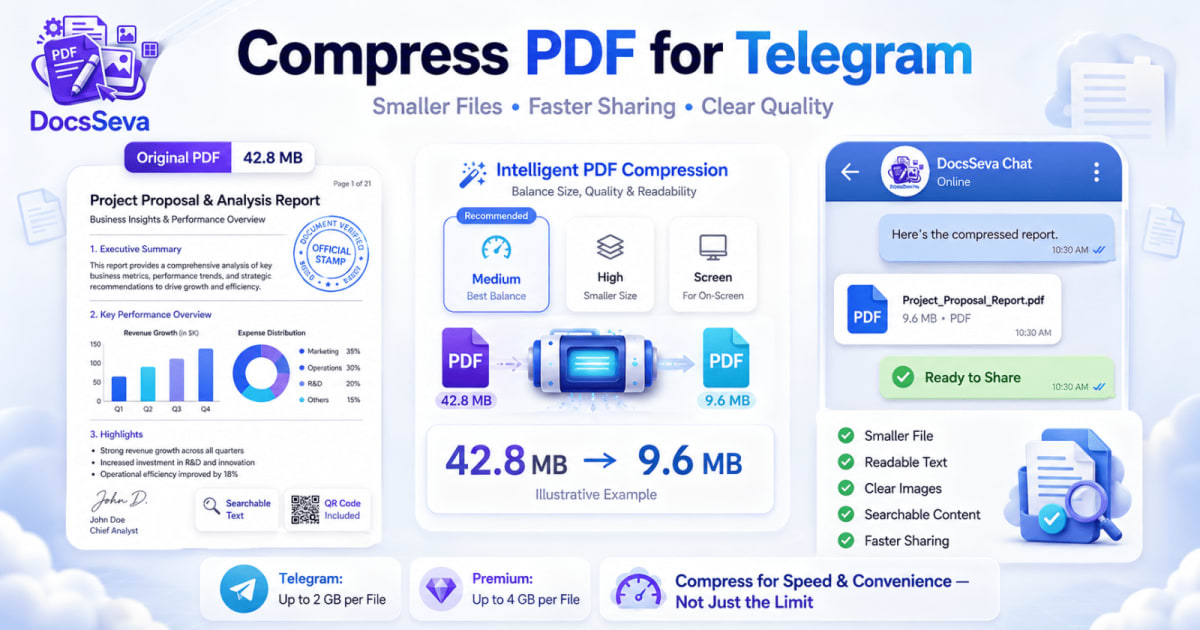
In-Depth How-to Guide
Compress PDF for Telegram Sharing Without Losing Quality
Learn how to compress PDF for Telegram sharing while keeping text, images, signatures and important details readable. Reduce large scans and documents for faster sharing and easier downloads.

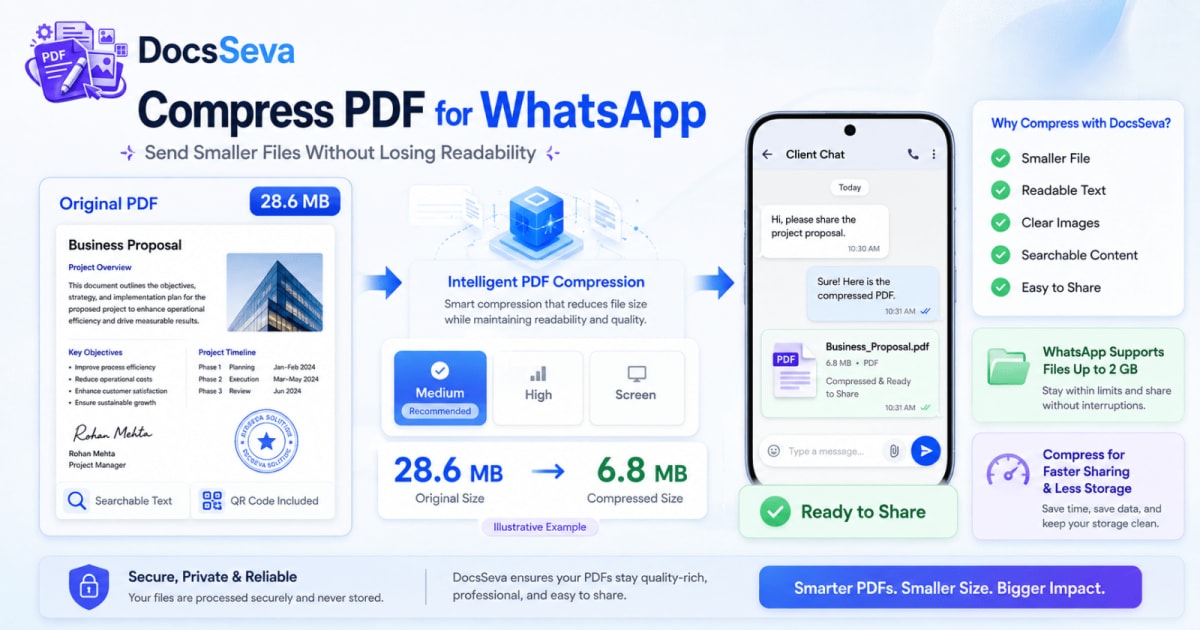
In-Depth How-to Guide
Compress PDF for WhatsApp Without Losing Readability
Compress PDF for WhatsApp Without Losing Readability


In-Depth How-to Guide
Compress PDF for Outlook Email Without Losing Quality
Learn how to compress PDF for Outlook email, reduce large attachments and preserve readable text, clear images, signatures, links and professional document quality.