Send Large PDF by Email Without Upload Errors


Steps
Check the attachment limit
Check the attachment limit for your email account and, when possible, consider whether the recipient's mail system may have a smaller receiving limit.
Calculate the total attachment size
Include the PDF plus photographs, spreadsheets and every other attachment in the message. A PDF may fit individually while the complete email exceeds the limit.
Keep the original PDF
Save an unchanged copy before compression. Start every new compression attempt from the original instead of repeatedly compressing an already compressed result.
Remove unnecessary pages
Delete blank, duplicated, outdated or unrelated pages that the recipient does not need.
Extract or split required content
If the recipient needs only selected pages, extract them into a smaller PDF or split unrelated document sections into separate files.
Open DocsSeva PDF Compressor
Open the DocsSeva PDF Compressor and select the original PDF that is too large to attach.
Start with Medium compression
Choose Medium mode first to balance file-size reduction, image clarity and searchable text.
Try High when necessary
If Medium remains above the practical attachment target, return to the original and create another result using High compression.
Inspect the output
Check every page, small text, signatures, stamps, QR codes, barcodes, images, searchable text, hyperlinks and final file size.
Attach or share the final PDF
Attach the reviewed PDF when it fits comfortably within the applicable email limit. If it remains too large, use the email provider's supported cloud-link workflow instead.
Key takeaways
- To send large PDF by email without upload errors, first check your email provider's attachment limit and the total size of every attached file. Keep the original PDF, remove unnecessary pages and start with Medium compression. If the file remains too large, return to the original and try High mode. When further compression would hurt readability, use a supported cloud-storage link instead of forcing the PDF into a tiny attachment.
- Personal Gmail currently allows up to 25 MB in total attachments, while Outlook.com currently lists a 25 MB file-attachment limit.
- Start with Medium compression and move to High only when additional reduction is actually required.
- When further compression makes the document blurry or damages important details, use an appropriate cloud link instead of sacrificing document quality.
When you need to send large PDF by email, an attachment error can stop an otherwise simple message from being sent.
You may see a warning such as:
Attachment too large.
Or the PDF may appear to upload for several minutes before the email client reports an error.
This commonly happens when sending:
- Resumes
- Portfolios
- Scanned certificates
- Business reports
- Contracts
- Bank statements
- Invoices
- University documents
- Application forms
- Research papers
- Government documents
- Image-heavy brochures
The correct solution is not automatically to select the strongest possible compression.
A good email-ready PDF should remain:
- Small enough for the applicable attachment limit
- Readable
- Searchable when required
- Complete
- Correctly ordered
- Clear enough for the recipient's purpose
- Functional when it contains links or forms
When further compression would damage the document, using an appropriate cloud-storage link may be better than forcing the PDF into an unnecessarily small attachment.
Start with the DocsSeva PDF Compressor and use the lightest compression mode that solves the actual attachment problem.
How to Send Large PDF by Email Without Upload Errors
Use this practical workflow:
- Check your email provider's attachment limit.
- Consider whether the recipient may use a smaller receiving limit.
- Calculate the total size of every attachment.
- Keep an unchanged copy of the original PDF.
- Remove unnecessary pages.
- Extract only the pages the recipient needs.
- Start with Medium compression.
- Return to the original and try High when necessary.
- Inspect the final document.
- Attach it again.
- Use a supported cloud link when the PDF still cannot be attached without unacceptable quality loss.
The most important rule is simple:
Do not repeatedly recompress the previous result.
Every stronger attempt should begin with the original PDF.
Why Large PDF Attachments Fail
Email systems apply limits to the amount of data they will send or receive.
Those limits are not universal.
They can vary according to:
- Email provider
- Account type
- Workplace or school policy
- Mail-server configuration
- Recipient mail system
- Security settings
- Number of attachments
- Overall message size
This is why one PDF may send successfully from one account but fail from another.
Gmail Attachment Limits
Google currently states that personal Gmail accounts can send up to:
25 MB in total attachments
The important word is total.
If you attach:
PDF: 18 MB
Images: 5 MB
Spreadsheet: 4 MB
the combined attachments are:
27 MB
even though the PDF itself is below 25 MB.
Google says that when files exceed Gmail's applicable attachment limit, Gmail can use Google Drive instead of including the file as an ordinary attachment.
Work and school Gmail accounts may have administrator-defined limits.
Official reference:
Outlook Attachment Limits
Microsoft currently lists a:
25 MB
file-attachment limit for Outlook.com.
However, not every Outlook configuration is Outlook.com.
Microsoft 365, Exchange, workplace accounts and other mail setups can use different limits or policies.
Microsoft also supports OneDrive file sharing when a traditional attachment is too large.
Official reference:
Microsoft Outlook.com Sending Limits
The safest approach is therefore not to assume that every email account accepts exactly the same attachment size.
The Recipient's Limit Matters Too
Your account may allow the PDF, but the recipient's server can still reject it.
For example:
Your sending system accepts: 25 MB
Recipient system accepts: 15 MB
Your attachment: 22 MB
The PDF may upload successfully on your side but still fail during delivery.
For important applications, client emails or business submissions, leaving a reasonable size margin is safer than sending an attachment extremely close to the maximum.
Check the Total Attachment Size
Do not look only at the PDF.
Imagine this email:
| Attachment | Size |
|---|---|
| Project report | 16 MB |
| Contract | 3 MB |
| Certificate | 4 MB |
| Photographs | 5 MB |
Combined size:
28 MB
Even though no single file is enormous, the complete message may exceed the allowed attachment total.
Possible solutions include:
- Compressing the project report
- Compressing source photographs
- Removing unnecessary attachments
- Splitting the message
- Sending only required documents
- Sharing larger files through cloud storage
Keep the Original PDF Before Compression
Always preserve an unchanged source file.
Use clear filenames such as:
annual-report-original.pdf
annual-report-email-copy.pdf
The original gives you a reference when checking:
- Text quality
- Image quality
- Page count
- Searchability
- Signatures
- Stamps
- Links
- Forms
Do not overwrite your only good copy.
Remove Unnecessary Pages First
Removing content can reduce size without lowering the quality of retained pages.
Look for:
- Blank scanner pages
- Duplicate pages
- Repeated cover pages
- Outdated copies
- Empty separator pages
- Unneeded appendices
- Old forms
- Accidental scans
Use the DocsSeva PDF Page Remover.
This can be better than applying extreme image compression.
When one unnecessary scanned page is removed, its data disappears completely rather than being preserved at lower quality.
Extract Only the Pages the Recipient Needs
Suppose your PDF contains:
Complete document: 80 pages
Recipient requires: Pages 6–12
There is little value in compressing all 80 pages when only seven are required.
Use the DocsSeva PDF Page Extractor.
Benefits include:
- Smaller attachment
- Faster upload
- Faster download
- Easier review
- Less unnecessary disclosure
- Less recipient confusion
Split the PDF When Separate Files Make Sense
A large document can contain unrelated sections.
Example:
Pages 1–2: Resume
Pages 3–4: Degree certificate
Pages 5–9: Experience letters
Pages 10–22: Portfolio
If the recipient accepts separate files, use the DocsSeva PDF Splitter.
Splitting may make each document:
- Smaller
- Easier to identify
- Easier to forward
- Easier to download
- Easier to organise
Do not split the PDF when one combined file is specifically required.
Choose the Right Compression Mode
The DocsSeva PDF Compressor currently provides:
- Low
- Medium
- High
- Screen
The strongest option is not automatically the best one.
Low Compression
Use Low when:
- The PDF is only slightly too large
- Image quality matters
- The document may be printed
- Fine graphics need maximum clarity
- Signature detail is important
Low prioritizes quality over maximum size reduction.
Medium Compression
Medium is the recommended starting point for most email attachments.
Use it for:
- Resumes
- Reports
- Invoices
- Certificates
- Contracts
- Assignments
- Statements
- Application documents
Medium balances:
- File size
- Readable images
- Searchable text
- General screen quality
Start with Medium before using stronger settings.
High Compression
Use High when Medium leaves the PDF above your target.
High can be useful for:
- Large scanned PDFs
- Image-heavy reports
- Mobile scanner output
- Large portfolios
- PDFs with high-resolution photographs
After High compression, inspect:
- Fine text
- Signatures
- Stamps
- Charts
- Photographs
- QR codes
- Barcodes
A smaller document is not useful if the recipient cannot read it.
Screen Mode
Screen mode provides stronger reduction by rasterizing complete pages.
Use it only when:
- Standard modes do not reduce enough
- The PDF is primarily a viewing copy
- Searchable text is unnecessary
- Selectable text is unnecessary
- Hyperlinks are unnecessary
- Forms are unnecessary
- Accessibility is unnecessary
- High-quality printing is unnecessary
Screen mode should usually be the final option.
Do Not Recompress the Previous Output
Avoid:
Original
→ Medium
→ Compress Medium result with High
→ Compress High result with Screen
Instead use:
Original → Medium attempt

Original → High attempt

Original → Screen attempt
Repeated lossy compression can progressively damage:
- Scanned letters
- Photographs
- Signature strokes
- Stamp text
- Fine lines
- QR codes
- Colour gradients
Keep the source untouched.
Start with Medium compression and compare the result before moving to High.
The screenshot should ideally show:
- Selected PDF
- Original file size
- Medium / High / Screen
- Selected mode
- Processing status
- Final file size
- Download option
A genuine product screenshot gives readers practical evidence of the workflow.
Digital PDFs and Scanned PDFs Behave Differently
A digitally generated PDF may contain:
- Real text
- Fonts
- Vector objects
- Images
- Hyperlinks
- Forms
- Bookmarks
Digital text normally requires relatively little storage.
A scanned PDF may store every page as a large image.
That means a:
10-page scanned document
can sometimes be much larger than a:
50-page digital report
depending on image resolution and content.
How to Identify a Scanned PDF
Open the document and try selecting one word.
Text can be selected
The PDF likely contains real text or an OCR layer.
Nothing can be selected
The page may be stored as an image.
Other signs include:
- Paper texture
- Scanner shadows
- Curved page edges
- Pixelated letters at high zoom
- Search not finding visible words
Use DocsSeva PDF OCR when scanned pages also need searchable text.
How to Compress a Scanned PDF for Email
Scanned PDFs are common causes of large email attachments.
Use this workflow:
- Keep the original.
- Remove blank scans.
- Delete duplicate pages.
- Extract only required pages.
- Start with Medium.
- Move to High when necessary.
- Inspect small text.
- Check signatures.
- Check official seals.
- Test QR codes and barcodes.
- Attach only after confirming readability.
Do not automatically use Screen mode just because the document is scanned.
How to Email a Large Resume PDF
A resume should remain:
- Searchable
- Selectable
- Readable
- Professionally formatted
- Compatible with recruitment systems
Use Medium first.
Avoid Screen mode whenever possible.
Check:
- Name
- Phone number
- Email address
- Employment history
- Dates
- Skills
- Education
- Portfolio links
- LinkedIn link
Use a professional filename:
arjun-kumar-frontend-developer-resume.pdf
rather than:
new-final-resume-22.pdf
How to Email a Large Portfolio
Portfolios frequently contain high-resolution images.
Use Low when:
- Visual quality is critical
- The portfolio may be printed
- Fine design details matter
Use Medium when:
- It is mainly viewed digitally
- The source is unnecessarily large
- Faster email delivery is useful
If it remains too large:
- Remove duplicate projects
- Resize oversized screenshots
- Create a shorter email version
- Share the full-resolution edition through cloud storage
- Include a portfolio website link
Do not destroy a visual portfolio merely to force it into one email attachment.
How to Email Certificates and Official Documents
Official documents may contain:
- Candidate name
- Serial number
- Signature
- Seal
- Stamp
- QR code
- Barcode
- Verification text
Start with Medium.
Use High only when necessary.
Before sending:
- Zoom to 100%.
- Read the document number.
- Check the person's name.
- Inspect signatures.
- Inspect seals.
- Test QR codes.
- Confirm page count.
A smaller but unverifiable certificate is not a successful result.
How to Email a Large Bank Statement
Bank statements may contain many pages of fine text.
Before sending:
- Confirm the required period
- Extract only relevant pages
- Remove blank pages
- Avoid sharing unrelated financial information
- Follow appropriate privacy requirements
Use Medium for digitally generated statements.
Check:
- Account information
- Dates
- Transaction values
- Balances
- Footer text
- Verification information
Do not make financial figures unclear merely to create a tiny attachment.
What If the PDF Is Still Too Large?
If Medium compression does not reduce enough:
Return to the original
Do not use the Medium result as the next input.
Try High
Inspect the result carefully.
Remove unnecessary pages
Use the PDF Page Remover.
Extract the required section
Use the PDF Page Extractor.
Split the PDF
Use the PDF Splitter.
Compress source images
Use the DocsSeva Image Compressor.
Resize oversized source images
Use the DocsSeva Image Resizer.
Rebuild image-based documents
Optimise source images and use DocsSeva Images to PDF.
Use a cloud link
When further compression would make the document difficult to read, switch to an appropriate file-sharing link.
Read:
PDF Still Too Large After Compression?
When Should You Use a Cloud Link Instead?
Cloud sharing is useful when:
- The PDF remains above the attachment limit
- Image quality is important
- Several large files must be shared
- Collaboration is required
- The recipient accepts links
- Permission control is useful
For example:
- Gmail can use Google Drive for oversized attachments.
- Outlook can share files through OneDrive.
Always check sharing permissions before sending confidential documents.
The recipient must actually be able to open the link.
What If the PDF Becomes Blurry?
Return to the original.
Then:
- Use Medium instead of High
- Use High instead of Screen
- Remove unnecessary pages
- Extract the required section
- Replace poor scans
- Optimise source images
- Use a cloud link instead of extreme compression
Read:
How to Reduce PDF Size Without Losing Quality
Why Can an Attachment Fail Even When It Looks Small Enough?
File size is not the only possible reason for an upload or delivery failure.
Other causes can include:
- Recipient server restrictions
- Organisation security rules
- Multiple attachments
- Slow internet
- Interrupted upload
- Corrupted files
- Mailbox restrictions
- Provider outages
- Unsupported attachment types
Before compressing again, read the exact error message.
If it mentions network failure rather than attachment size, stronger PDF compression may not solve the problem.
What to Do When Attachment Upload Is Stuck
Try:
- Confirm your internet connection.
- Wait for previous attachments to finish.
- Remove and reattach the PDF.
- Try a current supported browser.
- Close unnecessary tabs or applications.
- Verify that the PDF opens locally.
- Try the compressed copy.
- Use a cloud link when appropriate.
A smaller PDF can reduce upload time, but compression cannot fix every network or service problem.
Should You Password-Protect the PDF?
Sensitive PDFs may include:
- Contracts
- Financial information
- Identity documents
- Private reports
- Personal records
When protection is appropriate, use this order:
Finalise
↓
Remove unnecessary pages
↓
Compress
↓
Review
↓
Password protect
↓
Send
Use the DocsSeva PDF Password tool.
When possible, communicate the password through a separate secure channel.
Common Mistakes to Avoid
Using the slug as the focus keyword
Use:
send large pdf by email
not:
send-large-pdf-by-email
The second format belongs only in the URL.
Assuming every email provider has the same limit
Limits vary.
Looking only at one PDF
All attachments can contribute to the complete message size.
Using maximum compression immediately
Start with Medium.
Recompressing previous outputs
Begin each attempt from the original.
Ignoring the recipient's limit
Their mail system can be stricter than yours.
Checking only file size
Check readability and functionality too.
Destroying quality to avoid cloud sharing
Use a properly permissioned cloud link when that is the better solution.
Ignoring QR codes and signatures
Test important verification details.
Deleting the original
Keep it until delivery is confirmed.
Final Email Attachment Checklist
Before sending, verify:
- Correct PDF selected
- Attachment size is reasonable
- Page count is correct
- Page order is correct
- Text is readable
- Images are sufficiently clear
- Signatures remain visible
- Stamps remain readable
- QR codes work
- Searchable text works where required
- Hyperlinks work
- Correct recipient
- Clear subject
- All attachment sizes considered
- Attachment upload completed
- Correct file attached
- Cloud-link permissions checked where applicable
- Important deadline or requested action is stated
Backup
- Original PDF is safely stored
- Compressed copy uses a different filename
- Required passwords are available
Related DocsSeva Guides
Continue reading:
- How to Compress a PDF Online for Free
- Complete Guide to PDF Compression
- Low vs Medium vs High PDF Compression
- How to Reduce PDF Size Without Losing Quality
- Why Is My PDF File So Large?
- How to Compress a PDF to a Chosen File Size
- PDF Still Too Large After Compression?
- Compress PDF for Gmail
- Compress PDF for Outlook
- Compress PDF for WhatsApp
- Compress PDF for Telegram
- Reduce PDF Size for Google Drive
Update any URL if its actual published slug differs.
Related DocsSeva Tools
- PDF Compressor — reduce oversized email attachments
- PDF Page Remover — remove unnecessary pages
- PDF Page Extractor — keep only required pages
- PDF Splitter — divide large documents
- PDF Merger — combine only required PDFs
- PDF OCR — make scans searchable
- Image Compressor — optimise source images
- Image Resizer — reduce oversized image dimensions
- Images to PDF — rebuild image-based PDFs
- PDF Password — protect the approved final PDF
Sources and Further Reading
- Google: Send Attachments with Your Gmail Message
- Microsoft: Sending Limits in Outlook.com
- Microsoft: Reduce Attachment Size to Send Large Files with Outlook
- DocsSeva PDF Compressor
Send Large PDFs Without Sacrificing Important Details
To send large PDF by email successfully, first understand the applicable attachment limit and calculate the size of the complete message.
Then:
- Keep the original
- Remove unnecessary pages
- Extract only required content
- Start with Medium compression
- Use High only when necessary
- Inspect every important detail
- Use a cloud link when further compression would hurt quality
If you regularly send large PDF by email, this quality-first workflow can reduce upload errors without turning readable documents into blurry attachments.
The best email-ready PDF is not automatically the smallest possible file.
It is the smallest version that remains complete, readable, functional and convenient for the recipient.
Frequently asked questions
Why is my PDF too large to send by email?
The PDF may contain high-resolution scans, photographs, duplicate pages, embedded files or other data that makes the attachment larger than the email provider or recipient allows.
How can I send large PDF by email without losing quality?
Remove unnecessary content first, then use Medium compression. Move to High only when additional reduction is required, and use a cloud link when further compression would make important text or images unclear.
What is Gmail's attachment size limit?
For personal Gmail accounts, Google currently allows up to 25 MB in total attachments. Work and school account limits can be configured by the Google Workspace administrator.
What happens if a Gmail attachment is larger than 25 MB?
Google says Gmail can replace the oversized attachment with a Google Drive link instead of sending it as a normal direct attachment.
What is the Outlook.com attachment size limit?
Microsoft currently lists a 25 MB file-attachment limit for Outlook.com. Other Outlook, Microsoft 365 and Exchange configurations can use different limits.
Can Outlook send a large PDF using OneDrive?
Yes. Microsoft supports sharing files from OneDrive when a traditional email attachment is too large or when cloud collaboration is more appropriate.
Which compression mode should I use for email?
Medium is the recommended first choice for most reports, resumes, invoices and certificates. Use High when a larger scanned or image-heavy PDF still needs more reduction.
Should I use Screen mode for an email PDF?
Use Screen mode only when stronger reduction matters more than searchable text, links, forms, accessibility or high-quality printing.
Can removing pages reduce an email attachment size?
Yes. Removing blank, duplicated or unnecessary pages reduces file size without lowering the quality of the pages you keep.
Should I split a large PDF before emailing it?
Split the document when the recipient needs only selected sections or accepts several attachments. Keep the complete PDF when one combined document is required.
Should I compress the already compressed PDF again?
Avoid repeatedly compressing the previous result. Start each stronger attempt from the original PDF to reduce cumulative image-quality loss.
Can PDF compression remove searchable text?
DocsSeva's Low, Medium and High modes preserve selectable and searchable text. Screen mode rasterizes pages and therefore removes normal text selection.
Can compression damage signatures, stamps or QR codes?
Strong image compression can soften fine details. Inspect signatures, official seals, small numbers, QR codes and barcodes before sending an important document.
Why does my attachment still fail even when it looks below the limit?
The mail account, organisation or recipient server may use a different limit or policy. Other attachments also count, and network or security problems can cause attachment failures unrelated to PDF size.
Is a cloud link better than extreme PDF compression?
When stronger compression would make the document unreadable or remove important functionality, a properly permissioned cloud link is usually a better sharing method.
Sources
- Send Attachments with Your Gmail Message — Google
- Sending Limits in Outlook.com — Microsoft
- Reduce Attachment Size to Send Large Files with Outlook — Microsoft
- DocsSeva PDF Compressor — DocsSeva
DocsSeva Editorial Team
Document Workflow and PDF Tools Editorial Team
Published on August 12, 2026
The DocsSeva Editorial Team publishes practical guides about PDF compression, document conversion and online file preparation. Its content helps students, professionals, job seekers and everyday users solve attachment-size, file-sharing and document-upload problems.
“We tested three sample PDFs—a digital report, a scanned certificate and an image-heavy document. We compared Medium and High compression, reviewed the outputs at 100% zoom and tested the approved files as email attachments.”
Human-written with AI assistance.
Open the PDF Tools
Free, no sign-up, and your files are never stored.
Open the PDF ToolsMore on pdf-compression

In-Depth How-to Guide
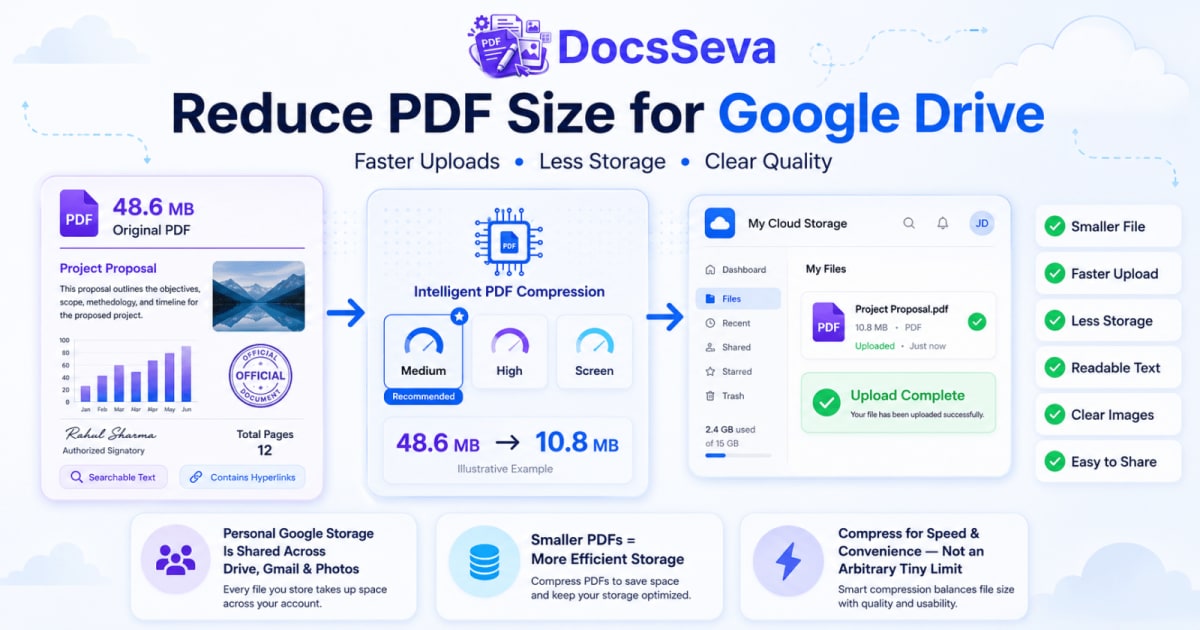
Reduce PDF Size for Google Drive Without Losing Quality
Learn how to reduce PDF size for Google Drive while preserving readable text, clear images, signatures and document quality. Upload, sync, store and share smaller PDFs more efficiently.

In-Depth How-to Guide
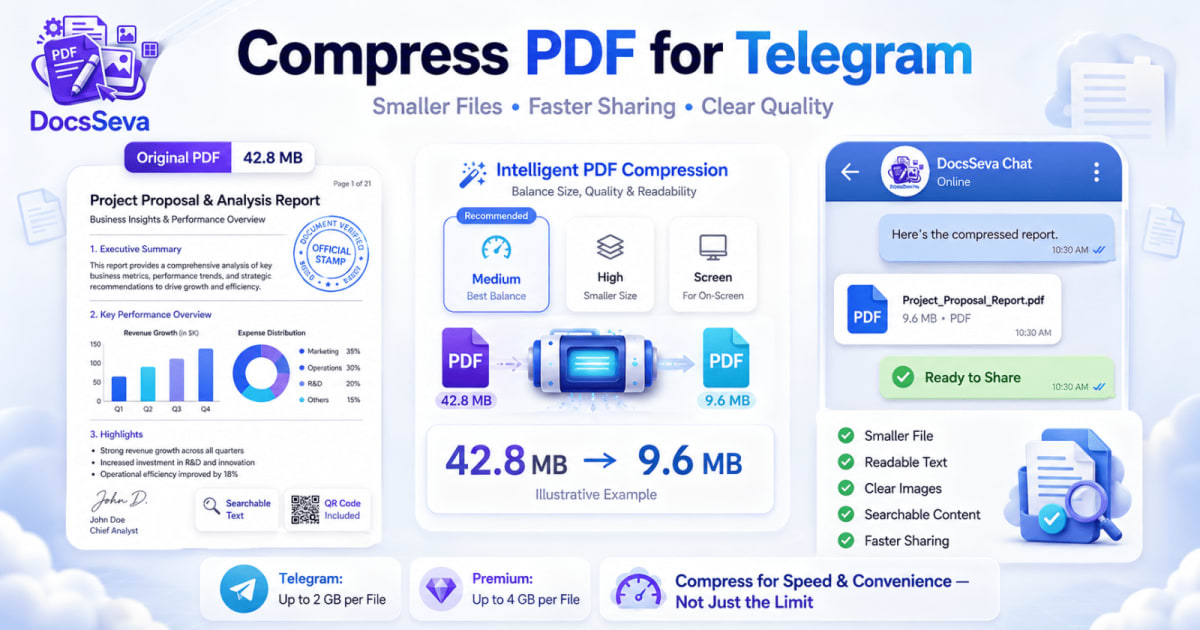
Compress PDF for Telegram Sharing Without Losing Quality
Learn how to compress PDF for Telegram sharing while keeping text, images, signatures and important details readable. Reduce large scans and documents for faster sharing and easier downloads.

In-Depth How-to Guide
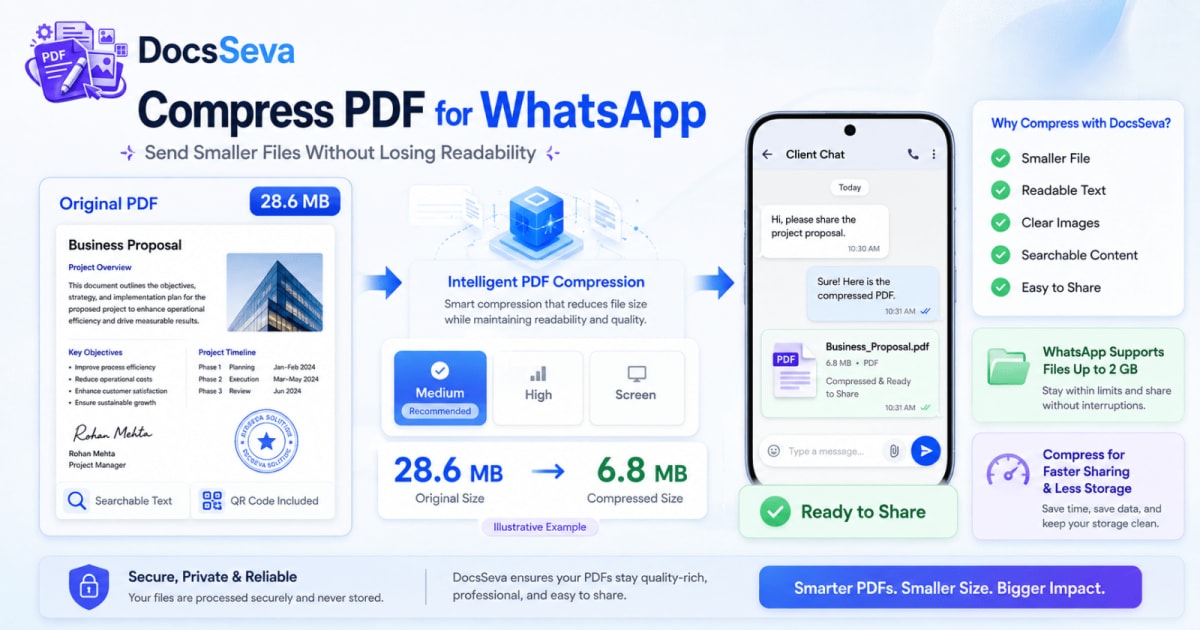
Compress PDF for WhatsApp Without Losing Readability
Compress PDF for WhatsApp Without Losing Readability